CSS text-box-trim: Remove the Extra Space Above and Below Text
CSS text-box-trim removes the invisible space above the first line and below the last line of a block of text, so the box hugs the letters instead of the font’s line box. That is the fix for the oldest annoyance in UI typography: a button label that looks a hair too low, a heading that never lines up with the top of the image beside it, a badge whose text floats off-centre no matter how carefully you set the padding. You set text-box: trim-both cap alphabetic on the element, and padding, margins and gaps now measure from the glyph edges you can see.
This guide explains where the hidden space comes from, what each text-box-trim and text-box-edge value does, and how to build the cases you will actually ship: optically centred buttons and badges, headings flush with an image, icons that sit on the middle of a label, and an even vertical rhythm. It ends with browser support described by Baseline status, a safe fallback, and the gotchas that cost time. Every sample was run in a real browser before it went in. If you want the finished component, the Bootstrap 5 buttons and badges with text-box-trim snippet is in the library.
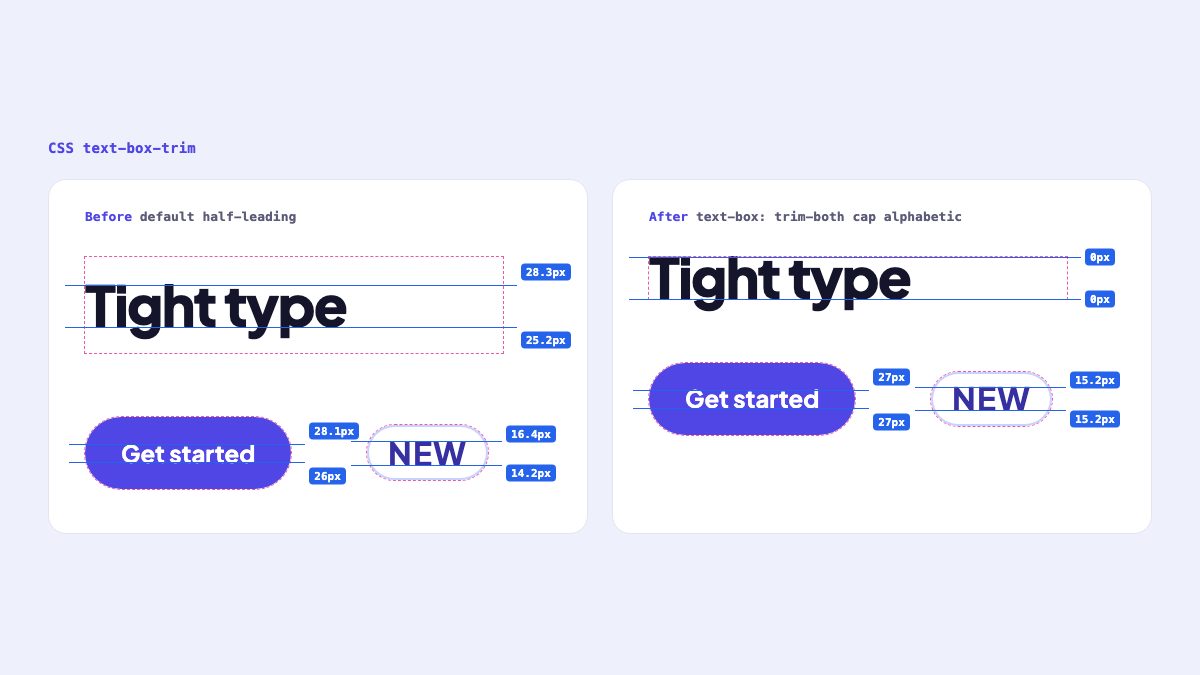
Why text has invisible space above and below
A line of text is not as tall as its letters. Every font stores an ascent (how far its tallest glyphs may rise above the baseline) and a descent (how far they may drop below it). Those two numbers define the font’s content area, and they are chosen to fit accents, descenders and odd glyphs, not to fit the capital letters in your heading. Capitals are much shorter, so there is empty room above them even before you add any leading.
line-height then adds more. The browser takes the difference between the line-height and the content area and splits it in half, putting one half above and one below. That is half-leading. A 60px heading with line-height: 1.8 is a 108px tall line, and the capital letters occupy well under half of it.
You never see this space until you try to align something to the text. Then it shows up as a gap you cannot name. Padding on a button is not really padding around the label, it is padding around the line box. Two fonts with the same size and the same padding produce different-looking buttons, because their ascent and descent differ. A heading at the top of a card is never quite level with the photo, because the line box starts above the letters.
Before this property, the standard workaround was negative margins computed from font metrics, often through a generator such as Capsize. It worked, but it hard-coded numbers for one font at one line-height and broke when either changed. text-box-trim asks the browser to do the same job using the real metrics of the real font.
The properties in one table
Three properties are involved. text-box-trim decides which ends are trimmed. text-box-edge decides where the new edge sits. text-box is the shorthand for both.
.heading {
  text-box: trim-both cap alphabetic;
}
The same thing written out in longhand:
.heading {
  text-box-trim: trim-both;      /* none | trim-start | trim-end | trim-both */
  text-box-edge: cap alphabetic; /* where the box now begins and ends */
}| Value | Property | What it does |
|---|---|---|
none |
text-box-trim |
No trimming. The default. |
trim-start |
text-box-trim |
Trims above the first line only. |
trim-end |
text-box-trim |
Trims below the last line only. |
trim-both |
text-box-trim |
Trims both ends. |
text |
text-box-edge |
The font’s ascent and descent. Removes the half-leading and nothing else. |
cap |
text-box-edge (top) |
The top of capital letters. |
ex |
text-box-edge (top) |
The top of a lowercase x. |
alphabetic |
text-box-edge (bottom) |
The baseline. Descenders hang below the box. |
normal |
text-box |
Resets both: none and auto. |
The edge takes two keywords, the top edge first and the bottom edge second, so cap alphabetic means “from the cap line to the baseline”. The one exception is text, which is valid alone and means text text. Write both keywords for cap and ex: Chromium rejects a lone cap or ex, while WebKit accepts it, and a rejected declaration silently does nothing. If you give text-box a trim value and no edge, the edge is auto. If you give it an edge and no trim, you get trim-both, so text-box: cap alphabetic is a valid shorthand for the common case.
One inheritance detail matters: text-box-edge inherits but text-box-trim does not, so you opt in element by element, while the edge you choose cascades to descendants.
Choose the edge: text, cap, ex or alphabetic
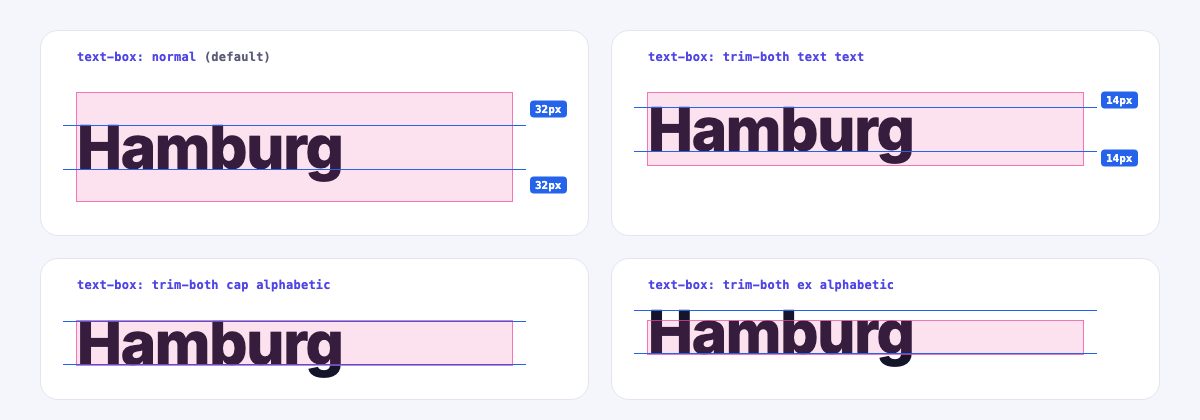
cap alphabetic is the right default for headings, buttons, labels and anything set mostly in capitals or mixed case. The box runs from the top of the capital letters to the baseline, which is what the eye reads as the text’s edges. Descenders (g, p, y) and tall ascenders (b, d, l in many fonts) overshoot the box slightly, which looks natural.
ex alphabetic trims to the x-height. Use it for lowercase-only text such as tags or breadcrumbs, where centring on the x-height looks right. It is a poor choice for anything with capitals: as the bottom-right panel shows, they stick out above the box.
text text removes only the half-leading. It is the “reset my line-height” value: the box becomes exactly as tall as the font’s ascent plus descent. It is the safest edge when text must never be clipped, and it works with any case, but it will not give you optical alignment because the ascent still includes unused room above capitals.
You can mix the two halves. cap text aligns the top to the capitals but keeps room below for descenders. That combination is the clipping fix covered later.
Trim the start, the end, or both
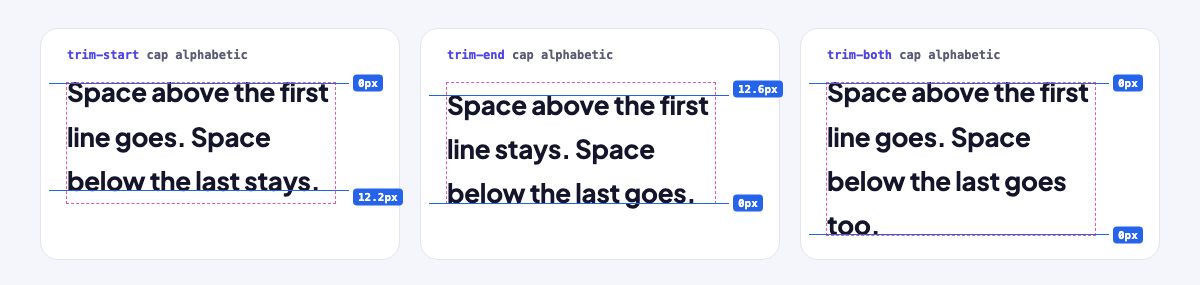
The trim applies to the first and last formatted line of the block, not to every line. A paragraph keeps the leading between its lines and loses only the outer space. That is why trimming is safe for body copy and not just for single-line labels.
trim-startis for text that must line up with something above it, such as the top of an image, or that follows a heading with its own bottom margin.trim-endis for text that must line up with something below it, or with the bottom edge of a card.trim-bothdoes both and is what you want in buttons, badges, chips and any element with padding on both sides.
The property also works on a wrapper. Put it on a block that contains several child blocks and it trims the first line of the first child and the last line of the last child, which is how the card example below aligns a whole text column with one declaration.
Optically centred buttons and badges
Buttons are the case that sells the property. The usual approach is symmetrical padding around a label, and the result is only as centred as the font’s metrics allow. Trimming makes the label’s visible height the content height, so equal padding gives equal visible space.
There is one catch: trimming removes space, so a button shrinks unless you give the padding back. With cap and baseline edges, the space removed is the line-height minus the cap height, which is why the padding grows by half of that on each side. At line-height: 1.5 and a cap height of about 0.75em, that is roughly 0.375em, so a 0.75em padding becomes about 1.125em. Here is the full component. The @supports block holds both the trim and the compensating padding, so a browser without support keeps the original, already-working button.
<a class="button" href="/signup">Start free trial</a>.button {
display: inline-block;
padding: 0.75em 1.5em;
line-height: 1.5;
font-weight: 700;
text-decoration: none;
border-radius: 999px;
background: #4f46e5;
color: #fff;
}
@supports (text-box: trim-both cap alphabetic) {
.button {
text-box: trim-both cap alphabetic;
padding-block: 1.125em; /* 0.75em + (1.5 - cap height) / 2, rounded */
}
}Because the padding is in em, the same rule scales with the font size. Small, medium and large buttons only change font-size. The badge uses the same idea with line-height: 1, where the compensation is smaller:
.badge {
  display: inline-block;
  padding: 0.35em 0.65em;
  font-size: 0.75em;
  line-height: 1;
  font-weight: 700;
  letter-spacing: 0.04em;
  text-transform: uppercase;
  border-radius: 999px;
  background: #eef0ff;
  color: #3730a3;
}

@supports (text-box: trim-both cap alphabetic) {
  .badge {
    text-box: trim-both cap alphabetic;
    padding-block: 0.475em;
  }
}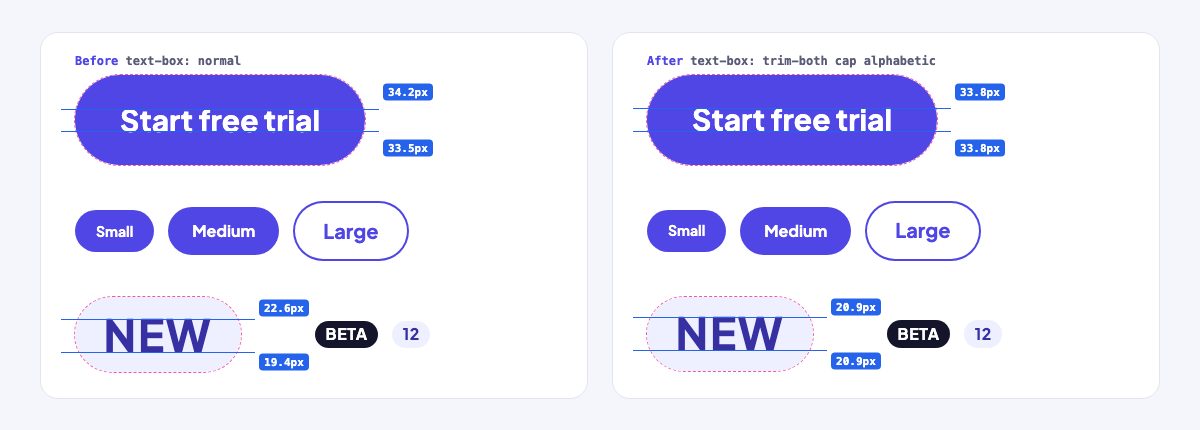
Be realistic about the size of the effect. At 16px in a font whose metrics are already well balanced, the default is off by about a pixel, and the trimmed version is barely distinguishable. The gain grows with font size, with all-capitals text, and with fonts whose ascent and descent are unbalanced. In my test the 40px uppercase badge was 2 to 2.5px off-centre by default and within half a pixel after trimming, in both Chromium and WebKit. The other gain is predictability: swap the font and the label stays centred without touching the padding.
You can see a full set of sizes, pills and an alert in the matching Bootstrap 5 buttons and badges snippet, which uses exactly this pattern on top of Bootstrap’s own classes. For more button treatments to combine with it, see Bootstrap 5 Button Groups and Toolbars and Buttons with Icon Labels.
Icons beside text
Icon buttons expose the flex-container gotcha, and the fix is worth knowing. A button made with display: inline-flex is a flex container, not a block container, and text-box-trim only works on block containers. Setting it on the button does nothing. Put the label in a span: flex items are blockified, so the span is a block container and can be trimmed.
<button class="button button--icon" type="button">
  <svg aria-hidden="true" width="20" height="20" viewBox="0 0 20 20">
    <path d="M10 3v10m0 0-4-4m4 4 4-4M4 17h12" fill="none" stroke="currentColor" stroke-width="2" stroke-linecap="round" stroke-linejoin="round"/>
  </svg>
  <span>Download</span>
</button>
.button--icon {
display: inline-flex; /* a flex container is not a block container */
align-items: center;
gap: 0.5em;
border: 0;
font: inherit;
}
@supports (text-box: trim-both cap alphabetic) {
.button--icon {
padding-block: 0.875em; /* the 20px icon now sets the height: 14px + 20px + 14px */
}
.button--icon > span {
text-box: trim-both cap alphabetic;
}
}Now the label’s box is exactly cap height and align-items: center centres the icon on the middle of the capitals, not on the middle of the line box. In my test the label box and the icon shared a centre to within half a pixel. Because the label is short, the icon sets the button height, which is why the padding is recalculated: 14px, 20px and 14px come to the same 48px as the plain button.
Headings flush with an image
The second classic use is the media object: an image beside a text column, where you want the heading to start exactly at the top of the picture and the last line to finish at its bottom. Without trimming, the text sits inside its line boxes and never meets the edges. Apply the trim to the text column once and everything inside lines up.
<article class="media">
  <div class="media__img"><img src="photo.jpg" alt=""></div>
  <div class="media__body">
    <p class="eyebrow">Tutorial</p>
    <h3>Align text to the edge of an image</h3>
    <p>The heading and the last line share the image's edges.</p>
  </div>
</article>
.media {
display: flex;
gap: 1.5rem;
align-items: stretch;
}
.media__img {
position: relative;
flex: none;
width: 170px;
}
.media__img img {
position: absolute;
inset: 0;
width: 100%;
height: 100%;
object-fit: cover;
}
.media__body {
line-height: 1.7;
}
@supports (text-box: trim-both cap alphabetic) {
.media__body {
text-box: trim-both cap alphabetic;
}
}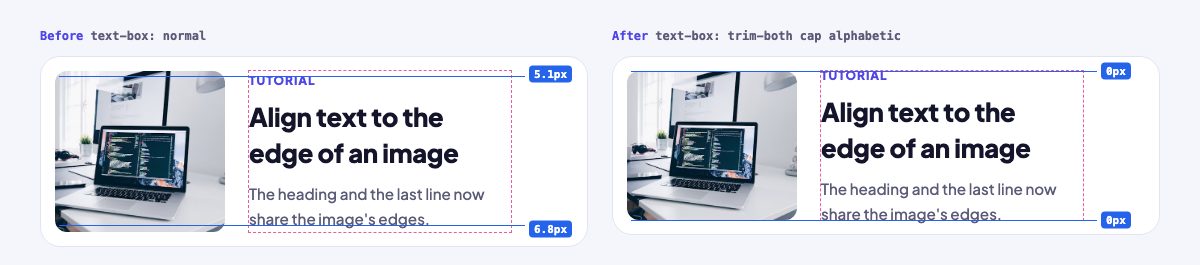
Two details make this work. The wrapper, .media__body, is an ordinary block, so it can be trimmed even though its parent is a flex container. And the image is stretched to the column’s height rather than the other way round, so the text decides how tall the row is. The same pattern fits team cards, news cards such as this profile news card, testimonial blocks and any list item with a thumbnail.
Tight vertical rhythm without margin hacks
A stack of heading, intro and body copy usually needs per-element margins tuned by eye, because each element carries its own invisible space. Trim every text block in the stack and spacing becomes a single number: the gap between the baseline of one block and the cap line of the next is exactly the gap you set.
.stack {
  display: grid;
  gap: 1.25rem;
}

@supports (text-box: trim-both cap alphabetic) {
  .stack > :is(h1, h2, h3, p) {
    margin: 0;
    text-box: trim-both cap alphabetic;
  }
}
In my test, a stack whose children carried margins of 30px between them gave 20px gaps once the trim was active and the margins were reset. Keep the margin: 0 inside the @supports block. In a browser without support the old margins remain, which keeps the fallback spacing the page was designed with, at the cost of the grid gap adding to them.
Pair this with a deliberate type scale and contrast between levels, and the page reads as designed rather than assembled. Typographic Contrast and Flow covers how size, weight and spacing build hierarchy, and trimming is how you make the spacing between the levels exact.
How it interacts with line-height and padding
Three rules cover nearly every surprise.
- Line-height still matters between lines. Trimming never changes the leading inside a paragraph, only the space before the first line and after the last. Set the line-height for readability, then trim for alignment.
- Padding and margins are measured from the trimmed edge. After trimming,
padding: 0means the box edge is the cap line. Anything that used the old half-leading as free padding, such as a button, needs it replaced explicitly, as the compensation above shows. - Total removed space is predictable. For
cap alphabeticit is the line-height minus the cap height, whatever the font’s ascent and descent are. A 40px label atline-height: 2is 80px tall untrimmed and about 30px trimmed, which is the cap height plus nothing. Fortext text, it is only the half-leading.
Remember that the numbers come from the font actually in use. If a web font loads late and the fallback has different metrics, the trimmed height changes with it: in my test a 40px bold label trimmed to 29.8px in Plus Jakarta Sans and to 27.7px in Georgia. Use a font strategy that avoids a visible swap, and the @font-face design guide and @font-face solutions and suggestions explain loading and fallback in detail.
Browser support and Baseline status
The data below comes from the MDN browser-compat data for text-box, text-box-trim and text-box-edge, checked at the time of writing, and from the web-features Baseline dataset. Mobile browsers follow their desktop engines.
| Feature | Chrome / Edge | Firefox | Safari |
|---|---|---|---|
text-box, text-box-trim (none, trim-start, trim-end, trim-both), text-box-edge (text, cap, ex, alphabetic, auto) |
133 | 154 | 18.2 |
Edge keywords ideographic and ideographic-ink |
No | 154 | No |
| Trimming inline boxes | No | 154 | 26.5 (partial: fails in vertical writing modes) |
In Baseline terms, the three properties and their common values are Newly available: they work in the latest version of all three engines but not in the older versions people still run, and they have not reached Widely available. Two caveats on that label. The web-features entry for text-box still shows the umbrella feature as not Baseline, because the shared <text-edge> type record lists Firefox as parsing only, which contradicts the per-property data above. The conservative reading is that the patterns in this article are Newly available, while ideographic edges and trimming of inline boxes are not. In my own tests, Chromium and WebKit both rendered every sample as trimmed, and a Firefox build older than 154 ignored the properties and rendered the default layout, which is the fallback working as designed.
Progressive enhancement
The rule is simple: the design must be correct without the property, and trimming only refines it. That is why every sample here puts both the trim and the padding compensation inside @supports (text-box: trim-both cap alphabetic). A browser that fails the test never applies half of the change. I ran every sample twice, once normally and once with the @supports condition replaced by an impossible one, and the unsupported path kept the original dimensions: the button stayed 48px tall, the icon button 48px, and the media card kept its normal text gap.
If you need to branch in script, for example to adjust a canvas-drawn label or a component library, test the same declaration:
if (CSS.supports('text-box', 'trim-both cap alphabetic')) {
  document.documentElement.classList.add('has-text-box-trim');
}
Do not use user-agent sniffing, and do not polyfill: there is no reliable polyfill for font-metric trimming, and the fallback is acceptable by design.
Gotchas
It does not apply to inline boxes in Chromium
A span with default display: inline is not trimmed in Chromium, because only block containers (and inline-blocks) are. Use display: block or inline-block. In my test, a plain inline span kept its full 21px height, while the same span as inline-block trimmed.
Flex and grid containers are skipped
Trimming a display: flex or display: grid container does nothing, because the container is not a block container. Trim the children instead, which are blockified and do work, as in the icon button and the stack.
overflow: hidden clips descenders
Trimming moves the box edge, and overflow clips at the box edge. A single-line ellipsis title that uses cap alphabetic will cut the bottom off g, p and y. Switch the bottom edge to text, which keeps room for descenders.
.title {
  overflow: hidden;
  white-space: nowrap;
  text-overflow: ellipsis;
  text-box: trim-both cap alphabetic; /* clips the descender of g, p, y */
}

.title--safe {
  text-box: trim-both cap text;       /* top at cap height, bottom at the font's descent */
}
In my test the alphabetic version clipped the descenders at 29.8px, and the cap text version kept the full glyphs inside a 38.8px box.
Backgrounds follow the trimmed box
A highlight or pill background painted on the text element itself now hugs the capitals, so add padding or use the pattern above, with the background on the outer element and the label inside. Descenders may poke out of a tight highlight.
Single-keyword edges are not portable
Write cap alphabetic and ex alphabetic in full. Chromium rejects cap or ex alone, and a rejected declaration looks like a non-working feature.
Resetting
text-box: normal clears both the trim and the edge, handy when a component overrides a global rule.
.reset-me {
  text-box: normal; /* same as text-box-trim: none; text-box-edge: auto */
}
Test with real content
Always check the longest and shortest labels and the font you actually use. Safari’s inline-box trimming fails in vertical writing modes, so test any vertical text on its own before relying on it.
A short checklist
- Wrap the trim and compensating padding in
@supports (text-box: trim-both cap alphabetic). - Use
cap alphabeticfor UI text,cap textwhere overflow can clip, andtext textfor a simple half-leading reset. - Put the trim on a block container: inline-block, block or a wrapper, never a flex or grid container itself.
- Express compensating padding in
emso it scales with font size. - Check the result in Chromium, Safari and Firefox, and with the font fallback visible.
For ready-made buttons and badges that already use this pattern, grab the text-box-trim buttons and badges snippet, and for the typographic principles behind aligning text precisely, read Typographic Contrast and Flow.


