Customizable Select: Style the Native Select Element with CSS
The customizable select lets you style the native <select> element: the button, the arrow, the popup list and every option, including options that contain icons, avatars and descriptions. You opt in with one declaration, appearance: base-select, applied to both the select and its ::picker(select) popup. The element stays a real select, with the same keyboard behaviour, form value, validation and accessibility semantics, and a browser that does not support the feature simply shows an ordinary select.
This guide builds the whole thing in practical order: the opt-in, styling the parts, rich options with <selectedcontent>, animating the picker, forms and accessibility, and a progressive-enhancement plan. Support is the part you must plan around, so it comes early. Every sample below was run in a real browser, and the unsupported path was checked in Firefox. If you want the finished component rather than the walkthrough, grab the Bootstrap 5 customizable select with icons and avatars snippet from the library.
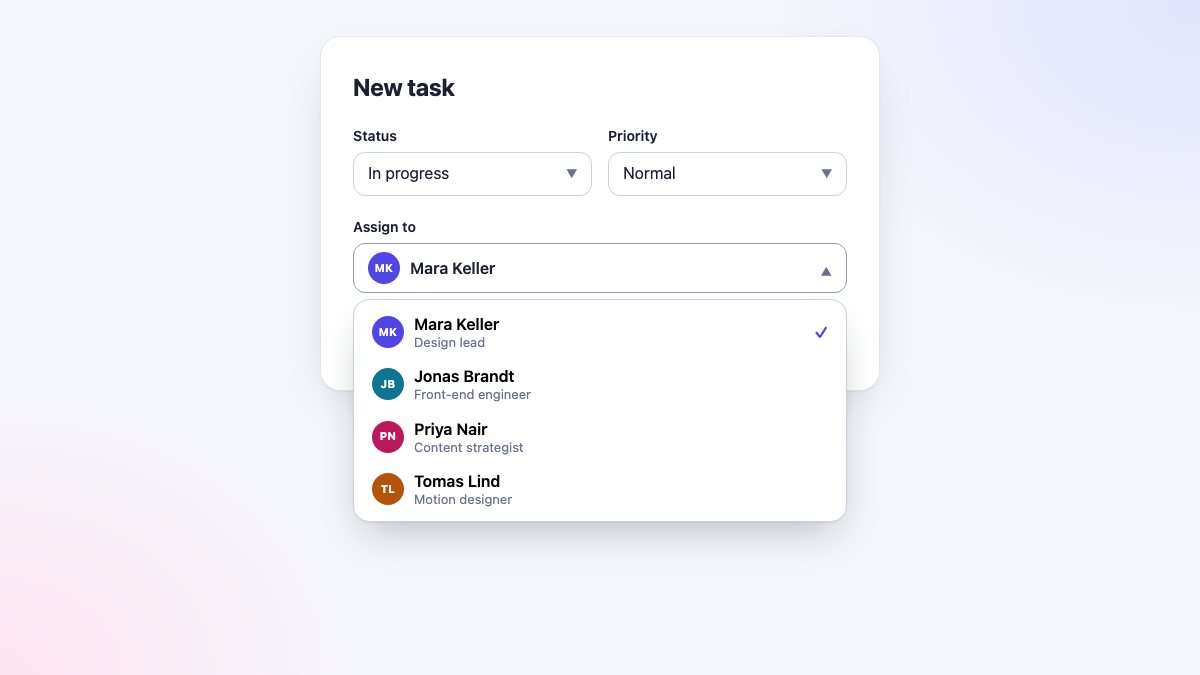
<select> element underneath.What the customizable select is, and what it is not
For decades the select was the one form control you could barely touch. You could style the closed box, and the open list belonged to the operating system. That is why so many sites replaced it with a pile of divs, a listbox role and a few hundred lines of JavaScript, and why so many of those replacements broke keyboard navigation, screen readers or mobile pickers.
The customizable select changes the contract. When you opt in, the browser renders the select with a neutral built-in look (a button and a popup) and hands you the parts as styleable pieces. Three things are worth holding on to.
- It is the same element.
select.value,changeevents,FormData,required,disabled, labels and type-ahead all work as before. - The popup is a popover. It lives in the top layer, so no ancestor’s
overfloworz-indexcan clip it, and the browser positions it with CSS anchor positioning, including flipping it upward near the bottom of the window. - Options can hold content. An option may contain markup such as images and spans, not only text, and the closed button can mirror whichever option is chosen.
It only applies to the drop-down form of the select. A select multiple or a select with size above 1 is a listbox, and it keeps its normal appearance whatever you declare. I confirmed that in a test page: both stayed as inline lists.
Browser support and Baseline status
As a whole, the customizable select is not Baseline yet (web-features lists it as limited availability). The reason is one engine. Chrome and Edge ship it, Safari ships it in version 27, and Firefox has it behind two preferences but has not turned it on. The figures below come from MDN’s browser-compat data and the web-features Baseline dataset.
| Feature | Chrome / Edge | Firefox | Safari |
|---|---|---|---|
appearance: base-select |
135 | Flag only (from 149) | 27 |
::picker(select) |
135 | No | 27 |
<selectedcontent> |
135 | No | 27 |
::picker-icon, ::checkmark |
133 | No | 27 |
:open |
133 | 136 | 26.5 |
@starting-style, transition-behavior |
117 | 129 | 17.5 / 17.4 |
overlay (for transitions) |
117 | No | No |
Read the table by sub-feature, because the pieces landed at different times. :open and @starting-style are Baseline Newly available, so using them is safe on their own. The select-specific parts are the limited ones. Check the customizable-select entry in web-features before you ship, and watch the Firefox column: the day it flips, the whole feature becomes Newly available.
The good news is that none of this should stop you. The design of the feature is that unsupported browsers keep the native select, so you are enhancing, not gambling. The progressive-enhancement section below shows how to keep that promise.
Step 1: opt in with one rule
Start with ordinary markup. This is a normal labelled select, with no extra elements:
<label for="role">Your role</label>
<select id="role" name="role">
  <option value="designer">Designer</option>
  <option value="developer">Developer</option>
  <option value="writer">Writer</option>
  <option value="manager">Product manager</option>
</select>
Now opt in. The declaration goes on the select and on its popup. Wrapping it in @supports means browsers that do not know the value never see the rule at all:
@supports (appearance: base-select) {
  select,
  ::picker(select) {
    appearance: base-select;
  }
}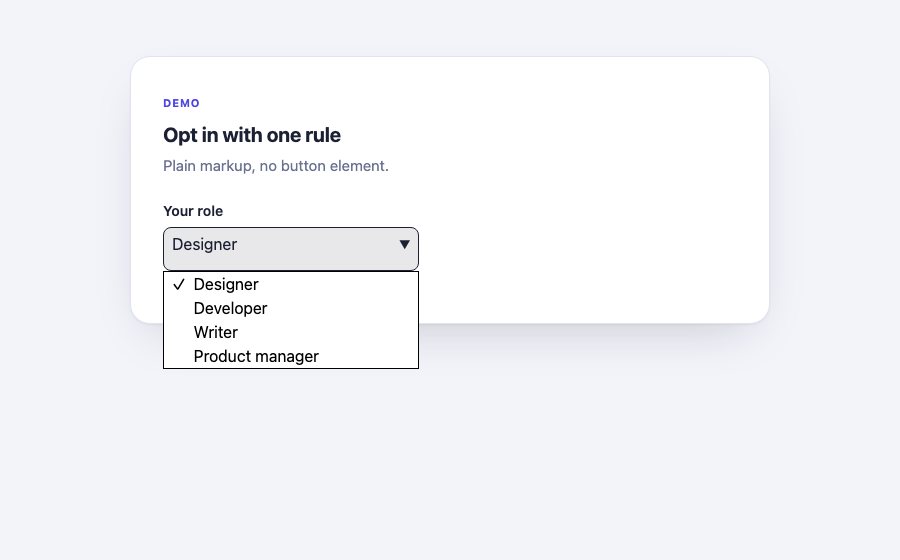
The result is deliberately plain. It is a clean baseline that looks reasonable on its own and is easy to restyle, because the browser removed its native chrome and exposes the parts.
Set appearance: base-select on both. If you apply it only to the select, the closed control changes but the list renders with no visible options. In my test the options measured zero height. Two selectors in one rule, as above, is the habit to build.
Step 2: style the button, the arrow, the picker and the options
Once you opt in, each part has its own handle.
| Part | How you target it |
|---|---|
| The closed control | The select itself: padding, border, background, font, :hover, :focus-visible |
| The arrow | select::picker-icon, which you can rotate, recolour or replace with content |
| The popup list | select::picker(select): border, radius, padding, shadow, size |
| Each option | option, with :hover, :checked, :disabled and :focus-visible |
| The tick | option::checkmark, a pseudo-element inside the option that you can reorder or hide |
| Separators | hr between options |
| Open state | select:open on the select, :popover-open on the picker |
This markup adds the optional <button> child. It is not required for styling, but it is what lets you control what the closed control contains. The first child of the select must be the button, and it holds <selectedcontent>, the element that mirrors the chosen option. The empty-value option and the hr make a common placeholder pattern:
<label for="category">Category</label>
<select id="category" name="category" class="select">
  <button type="button">
    <selectedcontent></selectedcontent>
  </button>
  <option value="">Choose a category</option>
  <hr>
  <option value="ui">UI design</option>
  <option value="ux">UX research</option>
  <option value="motion">Motion</option>
  <option value="brand" selected>Branding</option>
  <option value="type" disabled>Typography (coming soon)</option>
</select>
The stylesheet below is the full control. I keep colours in custom properties on the select. This matters because the popup inherits from its select, so a token defined on .select is available inside ::picker(select) and inside every option without repeating yourself.
.select {
  --sel-ink: #1b2033;
  --sel-bg: #fff;
  --sel-line: #cbd2e3;
  --sel-hover: #eef0fc;
  --sel-accent: #4f46e5;
}

@supports (appearance: base-select) {
  .select,
  .select::picker(select) {
    appearance: base-select;
  }

  /* The closed control */
  .select {
    min-width: 16rem;
    min-height: 2.75rem;
    padding: 0.5rem 0.875rem;
    border: 1px solid var(--sel-line);
    border-radius: 0.75rem;
    background: var(--sel-bg);
    color: var(--sel-ink);
    font: inherit;
    transition: border-color 0.15s, box-shadow 0.15s;
  }
  .select:hover { border-color: #8f99b8; }
  .select:focus-visible {
    outline: 3px solid color-mix(in oklab, var(--sel-accent) 45%, transparent);
    outline-offset: 2px;
    border-color: var(--sel-accent);
  }

  /* The arrow rotates while the picker is open */
  .select::picker-icon {
    color: #68718f;
    transition: rotate 0.2s;
  }
  .select:open::picker-icon { rotate: 180deg; }

  /* The popup */
  .select::picker(select) {
    margin-block: 0.375rem;
    padding: 0.375rem;
    border: 1px solid var(--sel-line);
    border-radius: 1rem;
    background: var(--sel-bg);
    box-shadow: 0 1px 2px rgb(16 24 40 / 0.06), 0 18px 40px -12px rgb(16 24 40 / 0.28);
  }

  /* Options and their states */
  .select option {
    display: flex;
    align-items: center;
    gap: 0.625rem;
    padding: 0.5rem 0.75rem;
    border-radius: 0.5rem;
    cursor: pointer;
  }
  .select option:hover,
  .select option:focus-visible {
    background: var(--sel-hover);
    outline: none;
  }
  .select option:checked { font-weight: 600; }
  .select option:disabled { color: #8f99b8; cursor: not-allowed; }
  .select option[value=""] { color: #68718f; }

  /* The tick moves to the end of the row */
  .select option::checkmark {
    order: 1;
    margin-inline-start: auto;
    color: var(--sel-accent);
  }

  .select hr {
    margin: 0.25rem 0.5rem;
    border: 0;
    border-block-start: 1px solid var(--sel-line);
  }
}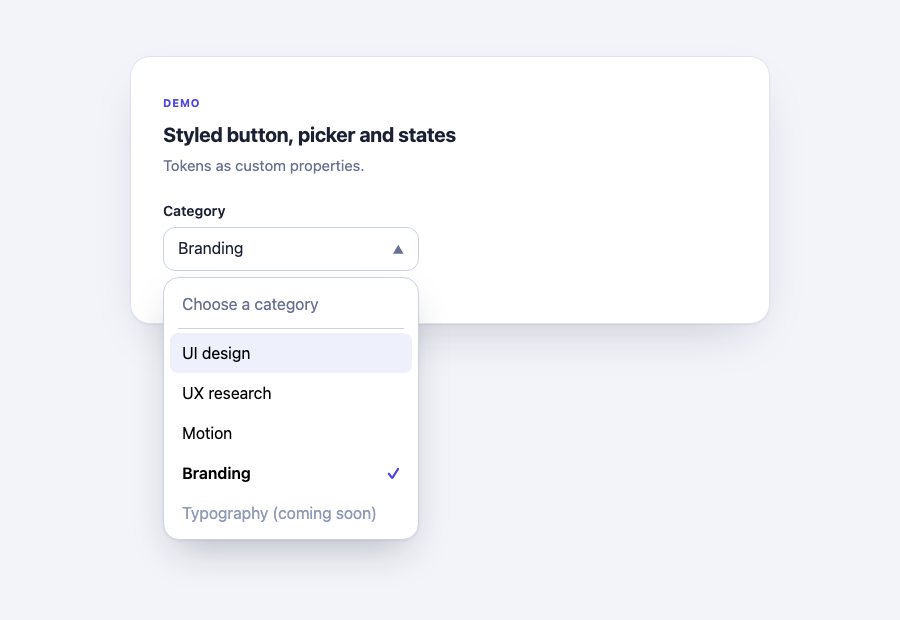
Some details in that stylesheet are deliberate.
- The arrow rotates with
:open.select:open::picker-iconis the simplest way to show state, and the transition onrotatemakes it feel responsive. - Keyboard focus matches hover. When you move through the open list with the arrow keys, the highlighted option reports
:focus-visible(I checked: it matched, and the tint applied). Styling both together keeps keyboard and mouse users on equal footing. - The tick is yours.
order: 1withmargin-inline-start: autopushes it to the end of the row. Usedisplay: noneonoption::checkmarkif you mark the current value another way. - Size comes from the select. The popup is at least as wide as the closed control. You can make it wider with
min-widthon::picker(select); in my test a26remminimum produced a 416px list under a 320px select.
Step 3: rich options and selectedcontent
This is the feature people actually want: avatars, icons, two lines of text. Options can contain elements, and <selectedcontent> clones the chosen option’s content into the button every time the value changes. You write the content once and it appears in the list and in the closed control.
<label for="assignee">Assign to</label>
<select id="assignee" name="assignee" class="select select-rich">
  <button type="button">
    <selectedcontent></selectedcontent>
  </button>
  <option value="mara" selected>
    <span class="avatar" data-tone="1" data-initials="MK" aria-hidden="true"></span>
    <span class="who">
      <span class="name">Mara Keller</span>
      <span class="role">Design lead</span>
    </span>
  </option>
  <option value="jonas">
    <span class="avatar" data-tone="2" data-initials="JB" aria-hidden="true"></span>
    <span class="who">
      <span class="name">Jonas Brandt</span>
      <span class="role">Front-end engineer</span>
    </span>
  </option>
  <option value="priya">
    <span class="avatar" data-tone="3" data-initials="PN" aria-hidden="true"></span>
    <span class="who">
      <span class="name">Priya Nair</span>
      <span class="role">Content strategist</span>
    </span>
  </option>
  <option value="tomas">
    <span class="avatar" data-tone="4" data-initials="TL" aria-hidden="true"></span>
    <span class="who">
      <span class="name">Tomas Lind</span>
      <span class="role">Motion designer</span>
    </span>
  </option>
</select>
Because the button receives a copy of the entire option, it would show the role line too. Hide what the closed control does not need with a normal selector on the clone:
@supports (appearance: base-select) {
  .select-rich { min-width: 20rem; }

  .avatar {
    display: grid;
    place-items: center;
    flex: none;
    width: 2rem;
    aspect-ratio: 1;
    border-radius: 50%;
    background: var(--tone, #4f46e5);
    color: #fff;
    font-size: 0.6875rem;
    font-weight: 700;
    letter-spacing: 0.02em;
  }
  .avatar::before { content: attr(data-initials); }
  .avatar[data-tone="1"] { --tone: #4f46e5; }
  .avatar[data-tone="2"] { --tone: #0e7490; }
  .avatar[data-tone="3"] { --tone: #be185d; }
  .avatar[data-tone="4"] { --tone: #b45309; }

  .who { display: grid; line-height: 1.25; }
  .name { font-weight: 600; }
  .role { font-size: 0.8125rem; font-weight: 400; color: #68718f; }

  /* Taller rows in the list, compact content in the button */
  .select-rich option { padding-block: 0.5rem; }
  .select-rich button { gap: 0.625rem; }
  .select-rich selectedcontent { display: flex; align-items: center; gap: 0.625rem; }
  .select-rich selectedcontent .role { display: none; }
}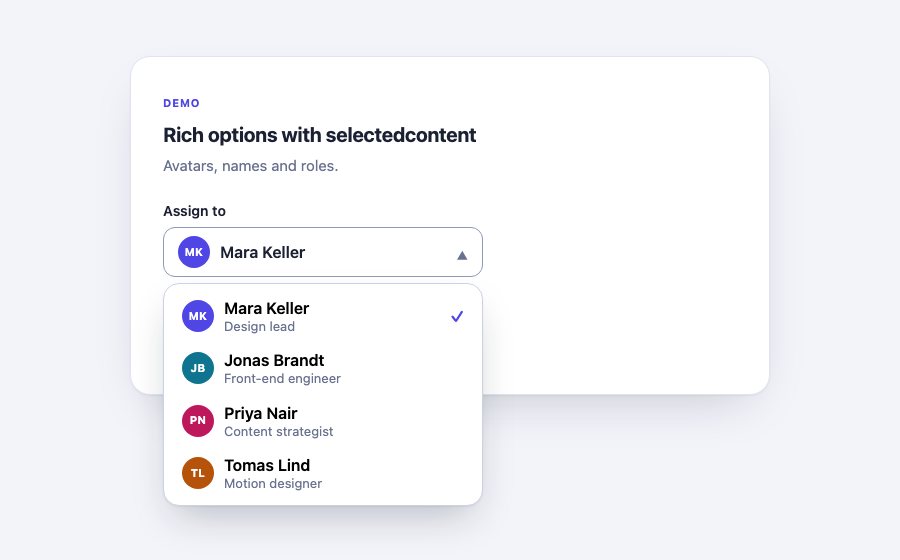
Three details make this robust.
- Put decorative bits in pseudo-elements. The initials come from
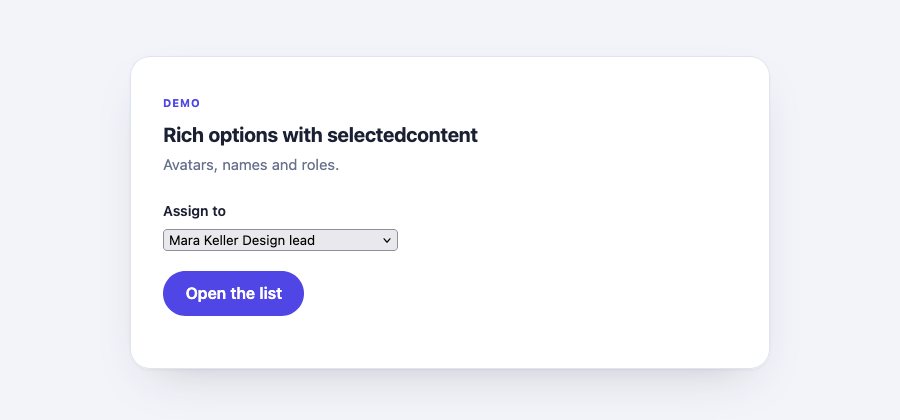
content: attr(data-initials), not from text inside the span. That matters in browsers without support, where an option’s text is simply its flattened text content. With real text in the avatar, a fallback select would read “MK Mara Keller Design lead”. With the pseudo-element it reads “Mara Keller Design lead”. - Mark decoration with
aria-hidden="true". In an accessibility-tree check the button was named “Mara Keller” and the options “Mara Keller Design lead”, with the avatars absent. Images used as decoration should carryalt=""for the same reason. - No interactive content inside options. No links, no buttons, no inputs. An option is something you choose, not a container. The parser does not stop you, which is why it is a rule you have to hold yourself.
Step 4: animate the picker
The popup is a popover, so it appears and disappears by switching display and entering and leaving the top layer. Animating that takes three ingredients: a closed-state style, an open-state style and @starting-style to say where the entrance begins. Add display and overlay to the transition list with allow-discrete so the popup stays rendered until the exit animation ends.
@supports (appearance: base-select) {
  .select::picker(select) {
    /* Closed state */
    opacity: 0;
    translate: 0 -0.5rem;
    scale: 0.97;
    transform-origin: top center;
    transition:
      opacity 0.16s ease,
      translate 0.16s ease,
      scale 0.16s ease,
      display 0.16s allow-discrete,
      overlay 0.16s allow-discrete;
  }

  /* Open state */
  .select::picker(select):popover-open {
    opacity: 1;
    translate: 0 0;
    scale: 1;
  }

  /* Where the opening animation starts from */
  @starting-style {
    .select::picker(select):popover-open {
      opacity: 0;
      translate: 0 -0.5rem;
      scale: 0.97;
    }
  }

  @media (prefers-reduced-motion: reduce) {
    .select::picker(select) { transition-duration: 0.01ms; }
  }
}
I measured both directions in the demo. On open, opacity climbed from 0 to 1 in about 190 ms while translate eased from -8px to 0. On close, opacity ran from 1 back to 0 and display only switched to none at the end. When I removed the two allow-discrete entries as an experiment, opening still animated (that comes from @starting-style) but closing snapped shut instantly. If your exit animation does nothing, that is the first thing to check.
Keep the motion short and subtle, and respect the user’s preference. Under prefers-reduced-motion: reduce, the sample above collapses the duration, and the popup appears and disappears at once. The overlay property is Chromium-only, which is fine: only engines that ship the picker need it.
The picker is anchor-positioned for you
You do not write positioning code for the popup. In Chromium the picker computes as position: fixed with a position-area that places it below the select, plus fallbacks that put it above when there is no room. I checked this in two ways: a select near the bottom of a tall page opened its list upward, and the computed fallbacks included the flipped areas. The anchor model is the one explained in the CSS anchor positioning guide. If you override it, remember that you are working with the same properties, and that you should test the flipped case.
The long-list case needs no work either. A 30-option select produced a scrollable picker bounded by the viewport instead of a list running off the page.
Forms, keyboard and accessibility
Because the element did not change, most of the work is not breaking what it already does. This script confirms the form side. It uses the plain select API and also opens the picker from a custom control with showPicker():
const form = document.querySelector('#task-form');
const assignee = form.elements.assignee;

assignee.addEventListener('change', () => {
  console.log(assignee.value);                        // "jonas"
  console.log(new FormData(form).get('assignee'));    // "jonas"
});

// Open the picker from your own button (needs a user gesture)
document.querySelector('#open-picker').addEventListener('click', () => {
  assignee.showPicker();
});
That ran as written. Choosing an option logged the new value from both the element and the form data, and the button inside the select did not submit the form (zero submit events when I clicked it). With the keyboard, I tabbed to the select, opened the list with the down arrow, moved with the arrow keys, chose with Enter and closed with Escape, and focus returned to the select each time.
A short accessibility checklist for rich selects:
- Keep a real
<label>. Tie it withforandid, as in every sample. Do not use the placeholder option as the label. - Remember that descriptions become part of the name. Screen readers announce “Mara Keller Design lead” for that option. Keep secondary text short and useful, and do not repeat information.
- Do not rely on colour or an icon alone. A status dot needs its word next to it.
- Keep contrast in every state. Check hover, the checked option, the disabled option and the focus ring, in light and dark themes.
- Do not remove the focus indicator. The samples replace it with a clear
:focus-visibleoutline. - Prefer native behaviour over scripting it. Type-ahead,
requiredvalidation,disabledand autofill come for free. Adding a script to re-implement them is how replacements go wrong.
The same principles apply to the surrounding form. For ready-made Bootstrap forms that use dropdown fields, see the event registration form, the contact form with floating labels and the search form with a category dropdown.
A progressive-enhancement strategy
The rule is the same as for any limited feature: build the version that works everywhere first, then upgrade inside @supports (appearance: base-select). Every style in this guide lives inside that block, so a browser that does not understand the value applies none of it and the select keeps its normal look. The select-specific markup is safe to leave in place: in the browser I tested, the extra <button> and <selectedcontent> stayed in the DOM, but nothing rendered them as separate controls, and the select worked normally.
| Situation | What the visitor gets |
|---|---|
| Supports the customizable select | Your styled button, picker and options |
| Does not support it | The platform’s native select with the flattened option text, working normally |
Supports it, but select multiple or size above 1 |
The normal listbox |
| No JavaScript | Everything above, since none of it needs a script |
Three habits keep this honest.
- Write option text that reads well on its own. Without support, text content is all that survives, so make that content a sensible label. Put role lines and other secondary text after the name, as here.
- Test the unsupported path on purpose. Open the page in a browser that has not shipped the feature, as I did for the screenshot above. Changing the condition to a false one, such as
@supports (appearance: foo), is a quick approximation, but a real browser also tests the markup. - Feature-detect in script only when you must.
CSS.supports('appearance: base-select')is the check. In most cases CSS alone does the job and you never need it.
Common gotchas
- Applying
appearance: base-selectto the select only. The list renders empty. Apply it to::picker(select)too. - Expecting it on multi-selects. It affects drop-down selects only.
- Assuming the popup lives inside your wrapper. Options stay in the select’s place in the DOM, so selectors such as
.select optionor.card .select optionstill match. But the popup draws in the top layer, so a wrapper’soverflow,z-indexortransformno longer affects it. Put design tokens on the select, since that is what the popup inherits from. - Forgetting that the button receives a copy of the option. Hide secondary content with
selectedcontent .role { display: none }instead of building a second structure. - Text-bearing decoration. Initials or emoji inside options leak into the fallback label and the accessible name. Use pseudo-elements or
aria-hiddenfor the decoration andalt=""for images. - Exit animations that do not play. You need
displayandoverlaywithallow-discrete, and@starting-stylefor the entrance. - A flip direction you did not plan for. The popup can open upward. If your entrance slides down from the top, check that it still looks right when it opens above the control.
- Styling only the happy state. Check
:disabled,:checked,:focus-visibleand the first option when it is a placeholder with an empty value.
Checklist
- Write a normal labelled
<select>with options. - Opt in with
appearance: base-selectonselectandselect::picker(select), inside@supports. - Style the control,
::picker-icon,::picker(select),optionstates and::checkmark. - Add the
<button>and<selectedcontent>only if you need custom content in the closed control. - Keep decoration out of text content, and keep interactive content out of options.
- Animate with
@starting-styleandallow-discrete, and honour reduced motion. - Test with the mouse, the keyboard and a screen reader, then test a browser without support.
If you want a polished starting point, the customizable select snippet applies everything here to a Bootstrap 5 form: native selects that gain avatars and icons where supported and stay ordinary Bootstrap selects everywhere else. For the older approach, when a styled dropdown meant lists and hover tricks, see the CSS3 dropdown menu tutorial, and for a ready-made menu see the account dropdown.


