View Transitions API: A Practical Guide to Page and DOM Animation
The View Transitions API lets the browser animate between two states of your page for you. You call document.startViewTransition() (or add one CSS rule for multi-page sites), change the DOM or navigate, and the browser cross-fades the old and new states, or morphs the elements you named, using ordinary CSS animations. It replaces the hand-rolled FLIP code, clone-and-position tricks and animation libraries that shared-element effects used to need.
This guide covers both flavours: same-document transitions (one page, JavaScript changes the DOM) and cross-document transitions (real navigation between pages). You will build a filterable gallery, a card that opens into a detail view, a directional step flow and a multi-page site, with the support story, the accessibility rules and the performance traps that make the difference between a polished effect and a janky one. Every sample below ran in a demo before it went into this page, and the finished component is in the library as a Bootstrap 5 card gallery with View Transitions.
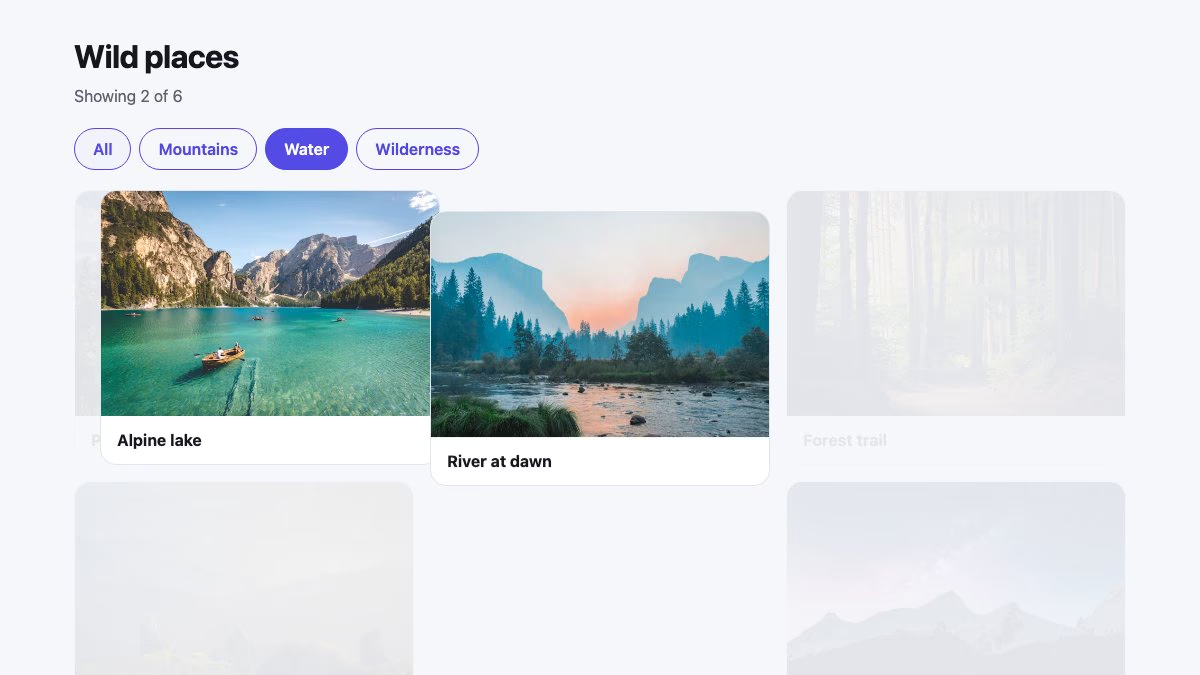
How a view transition works
A view transition is a four-step sequence, and understanding it explains almost every bug you will meet.
- The browser captures a screenshot of the current page (the “old” state), plus a separate screenshot of every element that has a
view-transition-name. - It runs your update, which is the DOM change or the navigation. Rendering is paused while that happens.
- It captures the “new” state the same way, and builds a tree of pseudo-elements on top of the page.
- It plays CSS animations on those pseudo-elements: by default, a cross-fade for the whole page and a move-and-resize for each named element. When they finish, the pseudo-elements disappear and the live page underneath is shown.
That pseudo-element tree is the part you style:
::view-transition
└─ ::view-transition-group(root)
   └─ ::view-transition-image-pair(root)
      ├─ ::view-transition-old(root)
      └─ ::view-transition-new(root)
Every named element gets its own group branch. The group animates position and size; old and new are images of that element before and after, which cross-fade inside it. The unnamed rest of the page is the implicit root group. Because these are real CSS animations, you restyle them with animation-duration, keyframes and easing, exactly as you would anything else.
Browser support and Baseline status
Support differs between the two flavours, so check them separately. The status below comes from MDN’s browser-compat data, the web-features dataset behind web.dev’s Baseline badges, and caniuse.
| Feature | Baseline | First shipped in |
|---|---|---|
document.startViewTransition(), view-transition-name, ::view-transition-* |
Newly available | Chrome/Edge 111, Safari 18, Firefox 144 |
view-transition-class |
Newly available | Chrome/Edge 125, Safari 18.2, Firefox 144 |
Types (types option, :active-view-transition-type()) |
Newly available | Chrome/Edge 125, Safari 18.2, Firefox 147 |
view-transition-name: match-element |
Newly available | Chrome/Edge 137, Safari 18.4, Firefox 144 |
Cross-document: @view-transition { navigation: auto } |
Not Baseline | Chrome/Edge 126, Safari 18.2, no Firefox |
Element.startViewTransition() (element-scoped) |
Not Baseline | Chrome/Edge 147 only |
In Baseline terms: same-document view transitions are “newly available”, meaning every major engine ships them, and they will move to “widely available” once the 30-month window that Baseline uses has passed. Cross-document transitions are not Baseline: they work in Chromium browsers and Safari, and Firefox has not shipped them. Caniuse marks Firefox’s cross-document support as partial because it only covers the same-document part of Level 1.
Two practical consequences follow. For same-document transitions you can use the API today as a progressive enhancement, remembering that users on older browsers and some in-app webviews will get the instant version. For cross-document transitions you must treat the effect as pure decoration: the site has to work and feel finished without it. Browsers that do not understand @view-transition ignore it and navigate normally.
Sources: MDN’s View Transition API overview, caniuse for same-document and for cross-document transitions, and web.dev’s note on same-document view transitions reaching Baseline.
Your first same-document transition
Wrap any synchronous DOM update in startViewTransition():
document.startViewTransition(() => {
  updateTheDOM();
});
With no CSS at all, that gives you a quarter-second cross-fade of the whole page. The callback must leave the DOM in its final state; the browser takes the “new” screenshot as soon as it finishes (or as soon as the promise it returns settles, if you return one).
The call returns a ViewTransition object with promises worth knowing: ready resolves when the pseudo-elements exist and animations are about to start, updateCallbackDone resolves when your update has run, and finished resolves when the animations end. skipTransition() jumps to the end state at once.
Progressive enhancement and reduced motion in one helper
Two checks belong in front of every transition: does the browser have the API, and has the visitor asked for less motion? Put both in one helper and route every call through it, so you cannot forget either. If either check fails, the update still runs, instantly.
const reduceMotion = matchMedia('(prefers-reduced-motion: reduce)');

function transition(update, types = []) {
  if (!document.startViewTransition || reduceMotion.matches) {
    update();
    return Promise.resolve();
  }
  const supportsTypes = typeof ViewTransition !== 'undefined' && 'types' in ViewTransition.prototype;
  const vt = supportsTypes
    ? document.startViewTransition({ update, types })
    : document.startViewTransition(update);
  return vt.finished;
}
The types check matters because startViewTransition() originally accepted only a function. Passing it an options object in a browser from before types arrived throws instead of falling back, so test for the feature rather than the engine. The helper returns the finished promise, so callers can await it to clean up afterwards.
For the CSS side, wrap your custom animation rules in @media (prefers-reduced-motion: no-preference) so the defaults are the only thing that ever plays for people who opted out, and add a belt-and-braces rule for any transition that slips through:
@media (prefers-reduced-motion: reduce) {
  ::view-transition-group(*),
  ::view-transition-old(*),
  ::view-transition-new(*) {
    animation: none !important;
  }
}
In the demos, a reduced-motion browser ran zero view-transition animations and still ended in the correct state; a browser with startViewTransition deleted did the same. Reduced motion does not have to mean no feedback. A short opacity change is usually fine; large translations, zooms and parallax are what the preference is about.
Name the things that move
The default cross-fade treats the whole page as one image. To make a specific element travel, give it a view-transition-name. The browser pairs the element carrying that name in the old state with the one carrying it in the new state and animates between them, even if they are different elements in different places.
Here is a filterable gallery. Hiding cards reflows the grid, so every card that survives should glide to its new slot. Each card needs its own unique name:
function nameCards(on) {
  cards.forEach((card, i) => {
    card.style.viewTransitionName = on ? `card-${i}` : '';
  });
}

button.addEventListener('click', async () => {
  nameCards(true);                       // unique names, only while animating
  await transition(() => {
    cards.forEach((card) => {
      card.hidden = filter !== 'all' && card.dataset.cat !== filter;
    });
  }, ['filter']);
  nameCards(false);
});
Cards that exist in both states move and resize; cards that only exist in the old state fade out and ones that only exist in the new state fade in. Setting the names just before the transition and clearing them afterwards is deliberate, and it pays off in the performance section below.
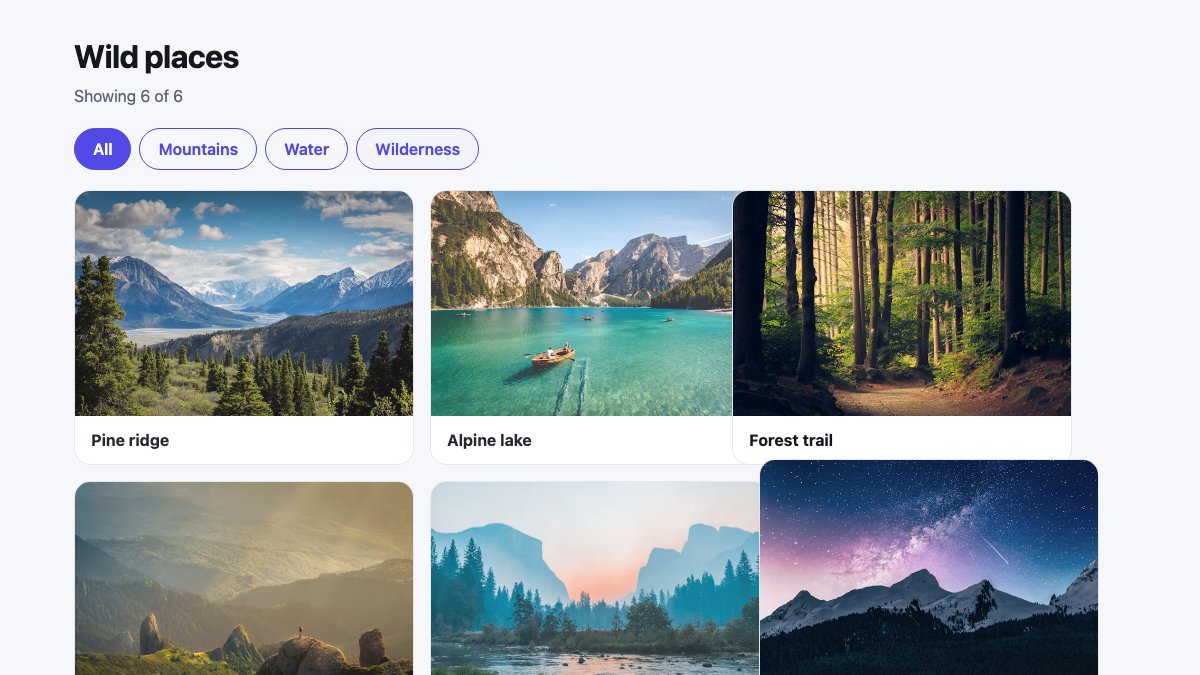
If the cards are generated from data you can skip the bookkeeping with view-transition-name: match-element. It gives each element an automatic, unique name based on its identity, which is ideal for lists where the same elements are reordered or moved. It will not pair an element in one state with a different element in the other, so use explicit names for morphs such as the hero example below.
Why names must be unique
Two elements with the same view-transition-name in the same state make the transition fail. In testing, the update callback still ran and finished resolved, but ready rejected with an InvalidStateError and the console logged “Unexpected duplicate view-transition-name”. To the visitor that is a silent, instant change, which is the worst kind of bug to notice. If you suspect it, listen for it:
const t = document.startViewTransition(update);
t.ready.catch(() => console.warn('View transition skipped (duplicate name?)'));
The usual causes are names in a CSS rule that matches a whole list (.card { view-transition-name: card }), a name left on an element after a transition, and the same name present on both a list item and its detail view at once. Names do not need to be globally unique across time, only within one rendered state.
Style every card at once with view-transition-class
Unique names are a problem when you want the same animation for all of them: you cannot write ::view-transition-group(card-0), (card-1) and so on. view-transition-class solves it. Give elements a class, then target it with the *. syntax:
.card { view-transition-class: card; }

@media (prefers-reduced-motion: no-preference) {
  ::view-transition-group(*.card) {
    animation-duration: 0.45s;
    animation-timing-function: cubic-bezier(0.2, 0.8, 0.2, 1);
  }
}
The class does nothing without a view-transition-name (explicit or match-element) on the same element; it only changes how that named element is selected for styling. You can also use it on ::view-transition-old(*.card) and ::view-transition-new(*.card). The same pattern works for any family of items: table rows, list entries, thumbnails.
Morph a card into a detail view
The classic showpiece is a thumbnail that grows into the hero image of a detail view. The trick is that the same name sits on the thumbnail in the old state and on the large image in the new state. Because only one element may hold the name at a time, you move it inside the update callback:
function morph(fromEl, toEl, update) {
  if (!document.startViewTransition) { update(); return; }
  fromEl.style.viewTransitionName = 'hero';          // old snapshot
  const t = document.startViewTransition(() => {
    fromEl.style.viewTransitionName = '';            // names must be unique per state
    update();
    toEl.style.viewTransitionName = 'hero';          // new snapshot
  });
  t.finished.finally(() => { toEl.style.viewTransitionName = ''; });
}

openButton.addEventListener('click', () => {
  morph(card.querySelector('img'), bigImage, showDetail);
});
backButton.addEventListener('click', () => {
  morph(bigImage, card.querySelector('img'), hideDetail);   // and back again
});
Both images are cropped with object-fit: cover and the two states have different aspect ratios mid-flight, so tell the snapshots to crop rather than stretch:
@media (prefers-reduced-motion: no-preference) {
  ::view-transition-group(hero) {
    animation-duration: 0.5s;
    animation-timing-function: cubic-bezier(0.2, 0.8, 0.2, 1);
  }
  ::view-transition-old(hero),
  ::view-transition-new(hero) {
    height: 100%;
    object-fit: cover;
  }
}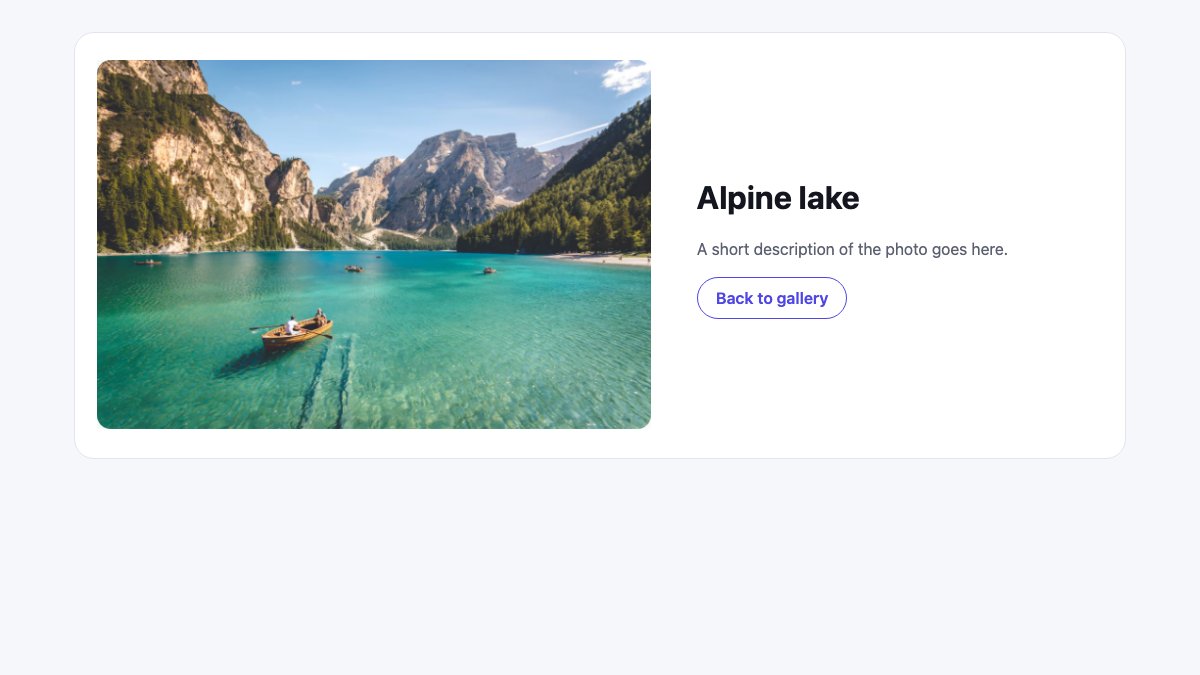
This is exactly what the card gallery snippet does, with the extras a real component needs: focus moves to the detail heading when it opens and back to the card when it closes, Esc closes the detail view, and a live region announces how many photos match the current filter. A view transition changes what people see, not what assistive technology knows, so manage focus and announcements yourself.
Transition types: different animations for different moves
A forward step should not animate like a backward one. Transition types label the transition when you start it, and CSS reads the label through :active-view-transition-type():
.panel { view-transition-name: panel; }

@keyframes slide-out-left  { to   { translate: -40px 0; opacity: 0; } }
@keyframes slide-in-right  { from { translate: 40px 0;  opacity: 0; } }
@keyframes slide-out-right { to   { translate: 40px 0;  opacity: 0; } }
@keyframes slide-in-left   { from { translate: -40px 0; opacity: 0; } }

@media (prefers-reduced-motion: no-preference) {
  html:active-view-transition-type(forward)::view-transition-old(panel)  { animation: 0.2s ease-in both slide-out-left; }
  html:active-view-transition-type(forward)::view-transition-new(panel)  { animation: 0.3s 0.1s ease-out both slide-in-right; }
  html:active-view-transition-type(backward)::view-transition-old(panel) { animation: 0.2s ease-in both slide-out-right; }
  html:active-view-transition-type(backward)::view-transition-new(panel) { animation: 0.3s 0.1s ease-out both slide-in-left; }
}
function go(delta) {
const next = index + delta;
if (next < 0 || next >= slides.length) return;
transition(() => { index = next; render(); }, [delta > 0 ? 'forward' : 'backward']);
}This uses the helper from earlier, so browsers without types simply get the cross-fade-free instant change rather than an error. Only the panel is named, so the step indicator and the buttons stay perfectly still while the content moves. In the demo, a forward step ran slide-out-left and slide-in-right, and a backward step ran the mirror pair.
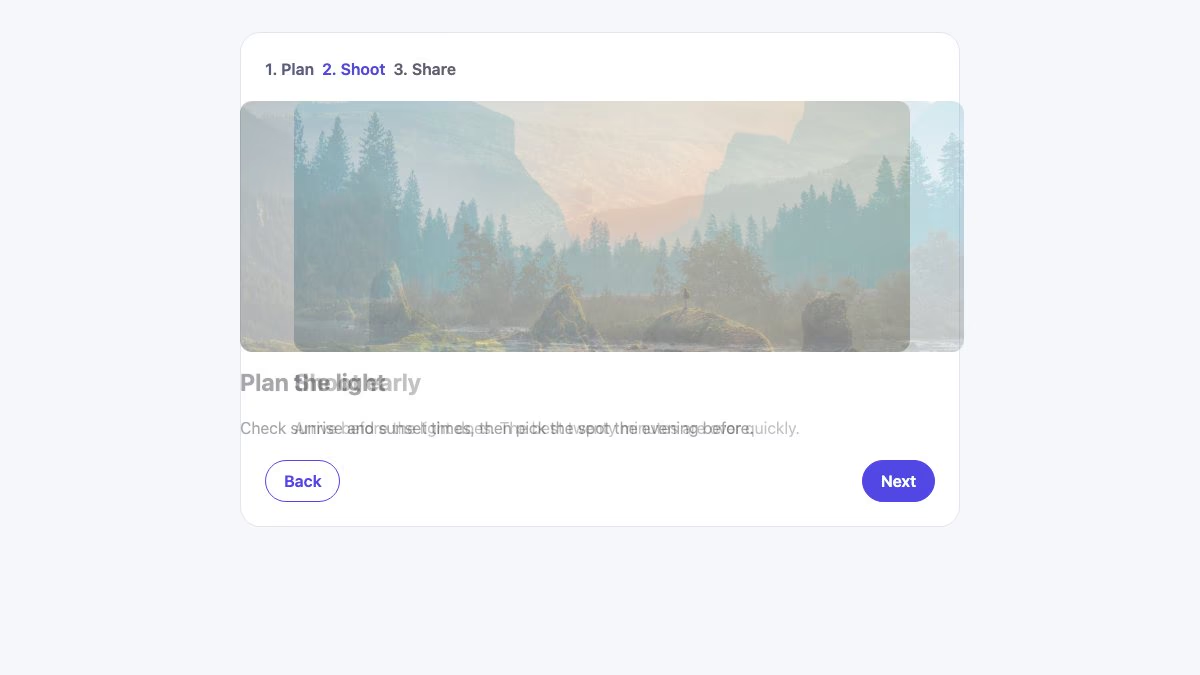
Types also let you change the animation per kind of change (filter, open, close) without adding classes to html by hand, which is why the snippet passes one with every call.
Cross-document transitions: animating real page loads
For ordinary multi-page sites there is no JavaScript to start with. Opt both pages in with an at-rule in a stylesheet they share:
@view-transition {
  navigation: auto;
}
Navigations between two same-origin pages now cross-fade. Both the page you leave and the page you arrive on need the rule, and the navigation must be same-origin and a normal link click, back/forward or location change. Everything else you learned applies: name elements to keep them steady or make them travel, and restyle the pseudo-elements. A sticky site header, for instance, should not cross-fade with the page:
.site-header { view-transition-name: site-header; }

@media (prefers-reduced-motion: no-preference) {
  ::view-transition-group(root) { animation-duration: 0.35s; }
}
Because the header exists, identically named, on both pages, it stays put while the rest transitions. In the demo, the browser created groups for root, site-header and the shared hero image across the navigation.
Shared elements across pages
The list page and the detail page are different documents, so the thumbnail and the big image cannot share a name through one callback. Instead, name the detail image statically in CSS and name the matching card on the list page with two events, pageswap (fires on the page you are leaving) and pagereveal (fires on the page you arrive on, before the first frame):
.detail img { view-transition-name: hero; }function nameCardImage(url) {
const link = [...document.querySelectorAll('.card a')].find((a) => a.href === url.href);
const img = link?.closest('.card').querySelector('img');
if (img) img.style.viewTransitionName = 'hero';
return img;
}
// Leaving the list: the destination URL tells us which card becomes the hero.
window.addEventListener('pageswap', async (event) => {
if (!event.viewTransition) return;
const img = nameCardImage(new URL(event.activation.entry.url));
if (img) {
await event.viewTransition.finished;
img.style.viewTransitionName = '';
}
});
// Arriving back on the list: the previous URL tells us which card to match.
window.addEventListener('pagereveal', async (event) => {
if (!event.viewTransition || !navigation.activation.from) return;
const img = nameCardImage(new URL(navigation.activation.from.url));
if (img) {
await event.viewTransition.finished;
img.style.viewTransitionName = '';
}
});Load the same script on both pages. On the detail page there are no cards, so the function finds nothing and does nothing; the static CSS name carries the image. Going back works for free: the detail page’s image is the old state, and pagereveal on the list names the right card as the new one.
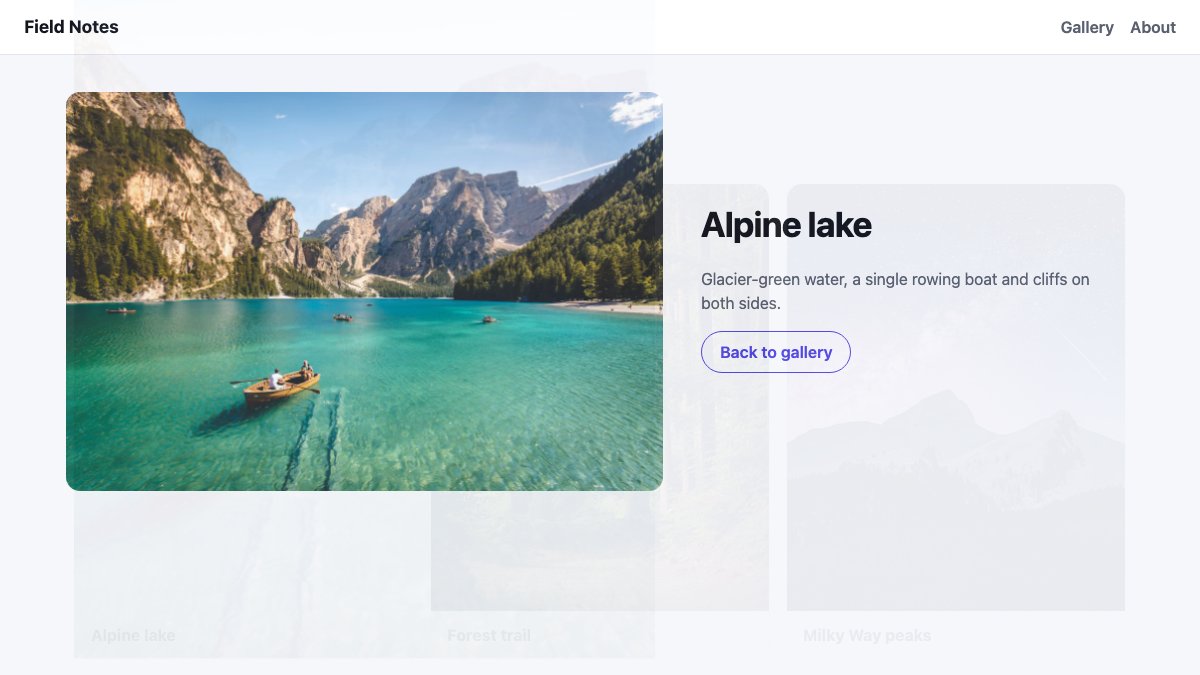
Treat this script as an enhancement. The pageswap event has patchier support than @view-transition itself, so if it never fires the link still works and the page simply cross-fades. That is the right failure mode.
The at-rule can also carry types for the whole navigation, which lets CSS pick an animation without any script:
@view-transition { navigation: auto; types: slide; }

@keyframes out-left { to { translate: -60px 0; opacity: 0; } }
@keyframes in-right { from { translate: 60px 0; opacity: 0; } }

@media (prefers-reduced-motion: no-preference) {
  html:active-view-transition-type(slide)::view-transition-old(root) { animation: 0.4s ease-in both out-left; }
  html:active-view-transition-type(slide)::view-transition-new(root) { animation: 0.4s ease-out both in-right; }
}
Performance pitfalls
View transitions are cheap when you use them as intended and expensive when you do not. These are the traps that matter.
- Every name is two snapshots. Each named element is rendered into a pair of images, so naming hundreds of elements, or full-viewport ones you do not need, costs memory and paint time. Name only what should move, and clear the names afterwards, as the gallery code does, so nothing is captured between transitions.
- The update callback blocks rendering. The page is frozen on the old screenshot until your callback (and any promise it returns) finishes. Do the data fetching first and keep the callback to DOM changes; a transition wrapped around a slow request just looks like a hung page.
- The page is not interactive while it plays. In testing, a click fired during a running transition never reached the page. Keep durations short: roughly 200 to 500 ms covers nearly every case, and anything longer should earn its time.
- Starting a new transition skips the running one. The earlier transition jumps to its end state and its
finishedpromise still resolves, so rapid clicks end in the right state, but the animation will cut short. Debounce controls if that looks wrong. - Animate cheap properties. The browser animates a group’s size and position for you. In your own keyframes, stick to
opacity,translate,scaleandrotate, which can run off the main thread. - Avoid duplicate names and name leaks. Both silently cancel the animation, as shown above.
- Keep the new page fast for cross-document transitions. The old page is held on screen while the new one renders, and a slow page can lose the transition entirely. Chromium and Safari support
<link rel="expect" blocking="render">to hold the first paint until a key element has been parsed, so the first frame matches what the transition expects; Firefox does not support it, and the page still loads normally there. - Names affect rendering. A named element can form its own stacking context, so a
position: fixedorz-indexlayout may shift subtly while a transition runs. Check overlays and sticky elements when you add names.
One emerging option deserves a mention: Element.startViewTransition() scopes a transition to a subtree, so several independent transitions can run at once. It currently ships in Chromium only and is not Baseline, so treat it as a future enhancement rather than a dependency.
A checklist before you ship
- Is every transition started through a helper that checks for
document.startViewTransitionandprefers-reduced-motion? - Does the interface work, with the correct final state, when the API is missing? Test by deleting
document.startViewTransitionin DevTools. - Are all
view-transition-namevalues unique within each state, and removed when the transition ends? - Do shared elements have matching aspect ratios or an
object-fitrule on the snapshots? - Is focus managed on open and close, and are changes announced to screen readers?
- Are custom animations short, and wrapped in
prefers-reduced-motion: no-preference? - For multi-page sites: is the effect purely decorative, with navigation unaffected in Firefox?
Where to go next
Start by adding a transition to something you already have: a filter, a tab panel or a list-to-detail pattern. If the underlying motion basics feel rusty, our guides to CSS transitions and transforms and CSS keyframe animation cover the animation properties that every pseudo-element above relies on. For ready-made gallery and filter components to wire transitions into, see the photo gallery with modal lightbox, the animated photo gallery and the filterable list with filter buttons. Or copy the finished View Transitions card gallery and adapt it.


