CSS Anchor Positioning: Tooltips, Dropdowns and Popovers Without JavaScript
CSS anchor positioning lets you place one element relative to another directly in CSS. You name an anchor, point a positioned element at it, and the browser handles the geometry, including the awkward part: moving the element to the other side when it would run off the screen. That removes the main reason designers and developers reached for Popper, Floating UI or hand-rolled getBoundingClientRect() code for tooltips, dropdowns and popovers.
This guide covers the whole feature in practical order: the core properties, a working tooltip, a dropdown built on the Popover API, fallbacks that flip the element, sizing from the anchor, and a progressive-enhancement strategy for browsers that lack it. Every sample was run in a real browser before it went into the article. If you want the finished component rather than the explanation, grab the Bootstrap 5 dropdown and tooltips with CSS anchor positioning snippet from the library.
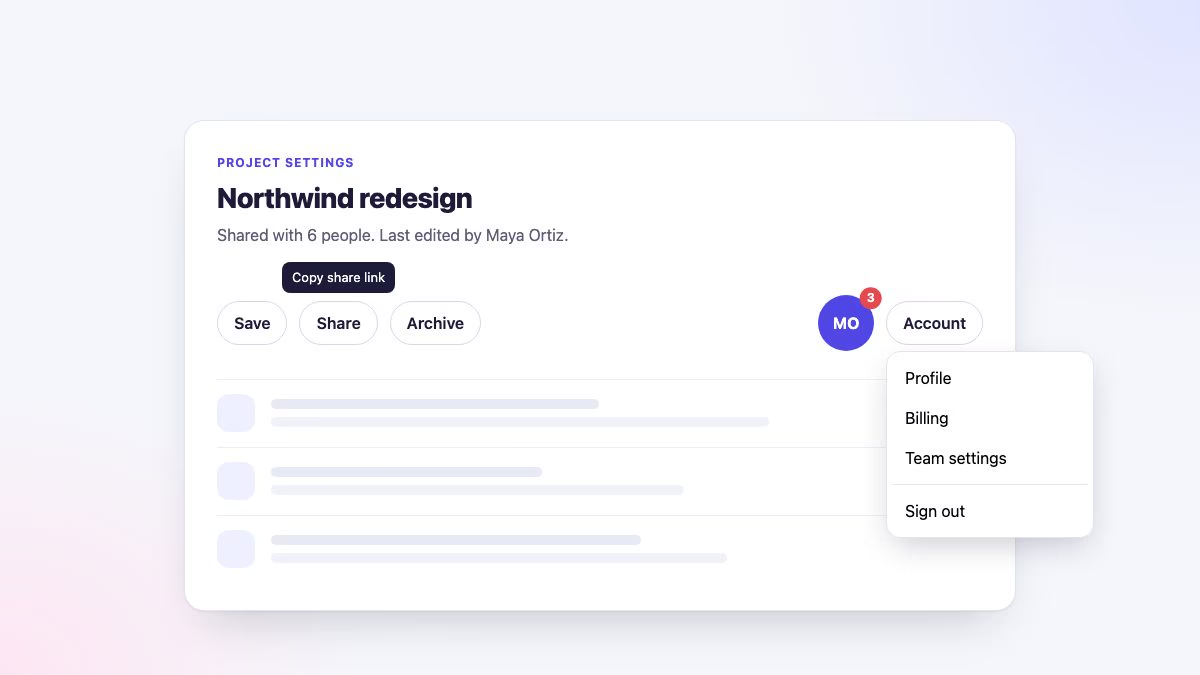
What anchor positioning solves
Absolute positioning works when the thing you attach to is the parent. Tooltips, menus and popovers rarely are. A dropdown that lives in the top layer, a tooltip inside a scrolling table, a menu that should open upward near the bottom of the window: none of these can be described with top and left relative to a parent. Scripts filled the gap by measuring rectangles, writing pixel values into inline styles and re-measuring on scroll and resize.
Anchor positioning replaces that loop with declarations. The browser knows where the anchor is on every frame, so the positioned element follows it through scrolling, transforms and layout changes without a single event listener. The same engine that does the layout also decides whether the result fits, which is why fallbacks are a CSS feature rather than a calculation you write.
The core pieces in one minute
Four ideas cover most real-world use.
anchor-name: --namemarks an element as an anchor. The name is a dashed identifier, like a custom property.position-anchor: --nametells a positioned element which anchor it follows.position-areaplaces the element in one cell of a three-by-three grid built around the anchor. It is the simple way to say “above, centred” or “below, aligned to the left edge”.anchor()andanchor-size()are functions for precise control.anchor()returns a coordinate on the anchor (for use intop,leftand friends) andanchor-size()returns a dimension (forwidth,min-inline-sizeand friends).
The positioned element must be position: absolute or position: fixed. Popovers are position: fixed by default in the user-agent stylesheet, which is one reason the two features fit together so well.
Browser support and Baseline status
Check support at the level of the individual feature, because the core of the specification and its newest additions are at different stages. The status below comes from MDN’s browser-compat data, the web-features Baseline dataset and caniuse.
The core of anchor positioning (anchor-name, position-anchor, position-area, anchor(), anchor-size(), @position-try) works in all three engines and is Baseline Newly available: Chrome and Edge from version 125, Safari from 26 and Firefox from 147. Newly available means it works across the latest browsers but not yet in older versions that people still run. It has not reached Widely available, so a fallback is still part of a responsible implementation.
| Feature | Chrome / Edge | Firefox | Safari |
|---|---|---|---|
anchor-name, anchor(), anchor-size(), @position-try |
125 | 147 | 26 |
position-area (current spelling) |
129 | 147 | 26 |
position-try-fallbacks, flip-block, flip-inline |
128 | 147 | 26 |
anchor-scope |
131 | 147 | 26 |
flip-x, flip-y |
144 | 147 | 26.2 |
Implicit anchor from popovertarget |
133 | 147 | 26 |
Two details are worth knowing. First, the newest position-visibility values (anchor-valid and anchor-visible) are not available in Firefox, so treat them as an enhancement and avoid depending on them. Second, the Popover API it pairs with is Baseline Newly available as well, with a similar fallback story: browsers without it simply show the content unpositioned in the page flow, which is why you should always write the markup so the content is reachable.
Build a tooltip
Start with the smallest useful case. The markup puts the tooltip next to its trigger and connects them with aria-describedby, which is what makes a screen reader announce the text when the button receives focus.
<span class="has-tip">
  <button type="button" class="btn" aria-describedby="tip-save">Save</button>
  <span role="tooltip" id="tip-save" class="tip">Save changes</span>
</span>
The CSS has two layers. The base layer is a plain absolutely positioned tooltip, centred above its wrapper. The @supports block upgrades it to anchor positioning where the browser can do that, and overrides only what must change.
.has-tip {
  position: relative;
  display: inline-block;
  anchor-scope: --tip;            /* each wrapper gets its own --tip */
}
.has-tip > .btn { anchor-name: --tip; }

.tip {
  /* Fallback: absolute, centred above the wrapper */
  position: absolute;
  inset: auto auto 100% 50%;
  translate: -50% -0.5rem;
  width: max-content;
  max-width: 16rem;
  padding: 0.375rem 0.625rem;
  border-radius: 0.5rem;
  background: #1c1b3a;
  color: #fff;
  font-size: 0.8125rem;
  opacity: 0;
  visibility: hidden;
  transition: opacity 0.15s, visibility 0.15s;
}
.has-tip:is(:hover, :focus-within) .tip { opacity: 1; visibility: visible; }
.has-tip.is-dismissed .tip { visibility: hidden; }

@supports (anchor-name: --a) {
  .has-tip { position: static; }  /* the page, not the wrapper, is the containing block */
  .tip {
    position-anchor: --tip;
    inset: auto;                  /* position-area takes over */
    translate: none;
    position-area: block-start;   /* centred on the block-start side */
    margin: 0.5rem;
    position-try-fallbacks: flip-block, flip-inline;
  }
}

@media (prefers-reduced-motion: reduce) {
  .tip { transition: none; }
}
Three decisions here are worth explaining.
Why anchor-scope. Anchor names are global by default. If you give ten buttons anchor-name: --tip, every tooltip resolves to the last one in the document. anchor-scope: --tip on the wrapper limits the name to that subtree, so each tooltip finds its own button. Without it you would need a unique name per tooltip, usually set from inline custom properties.
Why the wrapper becomes position: static. position-area divides the containing block of the positioned element into a grid around the anchor. If the wrapper is the containing block and it is exactly as large as the button, the “above” row has no height and the tooltip lands on top of the button. Resetting the wrapper to static moves the containing block to the nearest positioned ancestor or the viewport, which gives the grid room to work. This is the single most common reason a first attempt looks wrong.
Why inset: auto. The fallback sets inset values and a translate. Inside the @supports block you clear them so position-area is the only thing deciding the position.
The margin on an anchored element works as the gap between the two. position-try-fallbacks: flip-block, flip-inline asks the browser to try the mirrored position when the first one overflows. In my test, a button with no room above it produced a tooltip below it, and one near a side edge shifted horizontally.
Make the tooltip accessible
Positioning is the easy part. A tooltip also has to satisfy the WCAG 1.4.13 content-on-hover rule: it must be dismissible without moving the pointer or focus, hoverable, and persistent. The CSS above already keeps it visible while the pointer is over the tooltip itself, because the hover selector is on the wrapper. Dismissal needs a few lines of script:
// WCAG 1.4.13: let Escape dismiss a tooltip without moving focus or pointer.
document.addEventListener('keydown', (e) => {
  if (e.key !== 'Escape') return;
  document
    .querySelectorAll('.has-tip:hover, .has-tip:focus-within')
    .forEach((el) => el.classList.add('is-dismissed'));
});
document.querySelectorAll('.has-tip').forEach((el) => {
  const reset = () => el.classList.remove('is-dismissed');
  el.addEventListener('pointerleave', reset);
  el.addEventListener('focusout', reset);
});
Keep tooltips for short supplementary labels. Anything interactive, or longer than a sentence, belongs in a popover. If you are working with Bootstrap, the library has a tooltip with image and content and an animated tooltip that use Bootstrap’s own JavaScript positioning, which is a useful comparison.
Build a dropdown with the Popover API
A dropdown is where anchor positioning pays off most, because the Popover API handles everything except position. Adding the popover attribute to an element and pointing a button at it with popovertarget gives you open and close on click, light dismiss when the user clicks elsewhere, closing on Escape, and focus returning to the button. It also promotes the element to the top layer, so no ancestor’s overflow: hidden or z-index can clip or cover it.
<button type="button" class="btn menu-trigger" popovertarget="acct-menu">
  Account
</button>
<div id="acct-menu" popover class="menu">
  <a href="/profile">Profile</a>
  <a href="/billing">Billing</a>
  <a href="/team">Team settings</a>
  <hr>
  <a href="/logout">Sign out</a>
</div>
Place the popover directly after its button. Tab order follows the DOM, so a keyboard user presses Tab once and lands on the first link, and I confirmed that in the demo. This is a disclosure of links, so there is no need for role="menu", which would obligate you to implement arrow-key navigation.
.menu-trigger { anchor-name: --acct; }

.menu {
  padding: 0.375rem;
  border: 1px solid #e3e4ef;
  border-radius: 0.875rem;
  background: #fff;
  box-shadow: 0 12px 32px -8px rgb(28 27 58 / 0.25);
}
.menu a {
  display: block;
  padding: 0.5rem 0.75rem;
  border-radius: 0.5rem;
  color: inherit;
  text-decoration: none;
}
.menu a:is(:hover, :focus-visible) { background: #eef0ff; }
.menu hr { margin: 0.375rem 0; border: 0; border-top: 1px solid #e3e4ef; }

/* Where anchoring is unsupported the UA default applies: a centred panel.
   Dim the page so it reads as a deliberate sheet. */
.menu::backdrop { background: rgb(28 27 58 / 0.3); }

@supports (anchor-name: --a) {
  .menu {
    position-anchor: --acct;
    inset: auto;                       /* undo the UA's inset: 0 */
    margin: 0.375rem 0;
    position-area: block-end span-inline-end;  /* below, left edges aligned */
    min-inline-size: max(13rem, anchor-size(inline)); /* at least the button's width */
    position-try-fallbacks: flip-block, flip-inline, flip-block flip-inline;
  }
  .menu::backdrop { background: none; }
}
The important lines:
position-area: block-end span-inline-endputs the menu below the anchor and lets it grow towards the inline end, so the left edges line up in left-to-right text. Using logical values means the same rule works in right-to-left layouts.inset: autocancels the user-agentinset: 0andmargin: 0that centres a popover. Without it the popover stays centred regardless of the anchor.min-inline-size: max(13rem, anchor-size(inline))reads the anchor’s width, so the menu is never narrower than its trigger.max()keeps a sensible floor for short buttons.- The fallback list tries flipping vertically, then horizontally, then both.
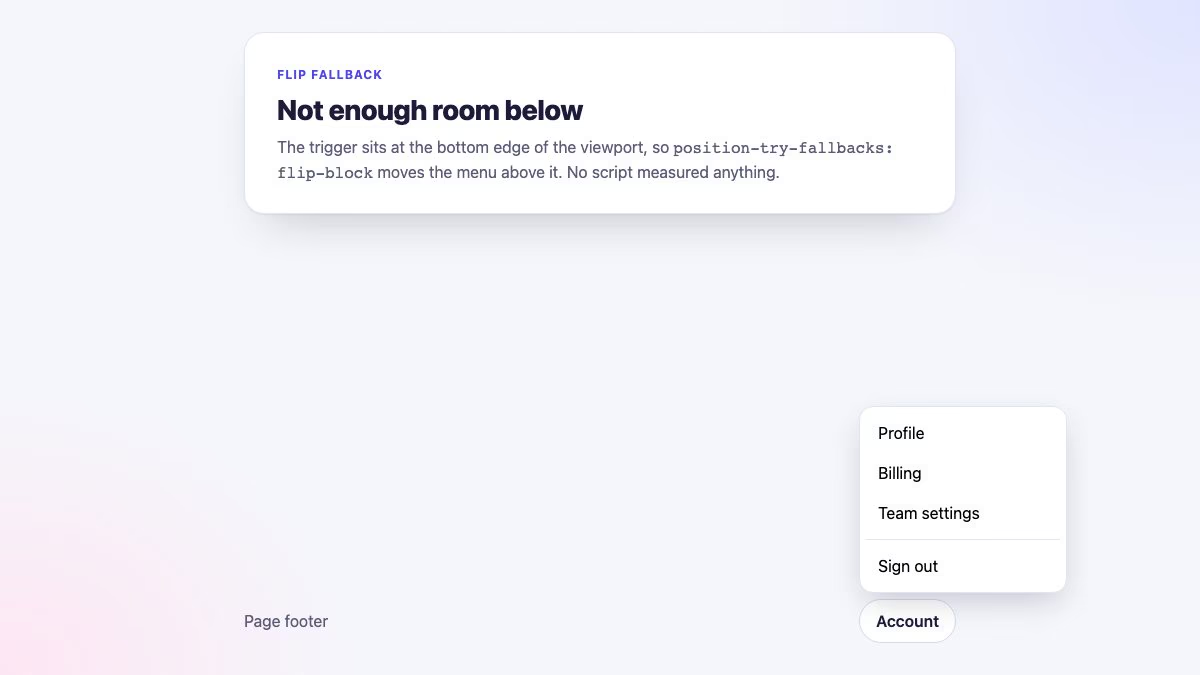
flip-block.I tested all three cases in the demo: a trigger near the top opened the menu below, a trigger at the bottom edge opened it above, and a trigger against the right edge opened it with the right edges aligned. You can try the finished component, with Bootstrap styling, in the anchor positioning dropdown and tooltip snippet.
Fallbacks with position-try
position-try-fallbacks accepts keywords (flip-block, flip-inline, flip-start, flip-x, flip-y), a position-area value on its own, or the name of a custom @position-try block. The browser tries your primary position first, then each fallback in order, and keeps the first one that fits inside the containing block. A custom block is the right choice when the alternative is not a simple mirror, for example a panel that prefers to open beside its anchor but should drop below it when the sidebar is too close to the edge.
.side-trigger { anchor-name: --side; }

@position-try --below-end {
  position-area: block-end span-inline-start;
  margin: 0.5rem 0 0;
}

.side-panel {
  position-anchor: --side;
  inset: auto;
  position-area: inline-end;          /* preferred: beside the anchor */
  margin: 0 0 0 0.5rem;
  position-try-fallbacks: --below-end, flip-block;
}
A @position-try block can contain only position and sizing properties such as position-area, insets, margins, align-self and sizes. Anything else, like colour or display, is ignored, so keep the visual design in the normal rule. In my test the panel sat 8px to the right of the anchor when there was room, and moved below and right-aligned when the trigger was against the right edge.
If you need to choose the fallback with the most space rather than the first that fits, position-try-order (for example most-block-size) changes how the browser ranks the options. For simple menus the default is enough.
Precise placement with anchor() and anchor-size()
position-area covers the nine standard placements. When you need a position that is relative to an edge, use anchor(). A classic example is a notification count that sits on the corner of an avatar:
<div class="avatar-wrap">
  <span class="avatar">MO</span>
  <span class="count">3 <span class="sr-only">unread messages</span></span>
</div>
.avatar-wrap { position: relative; display: inline-block; }
.avatar { anchor-name: --avatar; }
.count {
position: absolute;
top: 0; /* fallback: pinned to the wrapper's corner */
right: 0;
translate: 35% -35%;
min-width: 1.375rem;
padding: 0 0.375rem;
border-radius: 999px;
background: #e5484d;
color: #fff;
font: 700 0.75rem/1.375rem system-ui, sans-serif;
text-align: center;
}
@supports (anchor-name: --a) {
.count {
position-anchor: --avatar;
inset: auto;
bottom: anchor(top); /* badge's bottom edge on the avatar's top edge */
left: anchor(right); /* badge's left edge on the avatar's right edge */
translate: -65% 65%; /* pull it back over the corner */
}
}anchor(top) is the anchor’s top edge in the coordinate system of the property it is used in, so bottom: anchor(top) puts the badge’s bottom edge exactly on the avatar’s top edge. The translate then pulls it back over the corner. The anchor is resolved from position-anchor, or you can name it explicitly with anchor(--avatar top).
anchor-size() works the same way for dimensions. A select-style list can match its trigger exactly, and cap its height so it never grows taller than the space left on screen:
.select-trigger { anchor-name: --select; }

.select-list {
  position-anchor: --select;
  inset: auto;
  margin: 0.25rem 0 0;
  position-area: block-end;
  width: anchor-size(width);          /* exactly as wide as the trigger */
  max-height: min(16rem, 40dvh);      /* never taller than the space left */
  overflow-y: auto;
}
I measured the list and the trigger in the demo and both had the same width. The related keyword anchor-center (used with justify-self or align-self) centres an element on the anchor when you are positioning with insets instead of position-area.
A progressive-enhancement strategy
Because support is Newly available rather than Widely available, plan for the browser that cannot do it. The rule is simple: write a working version first, then upgrade inside @supports (anchor-name: --a). The samples above follow that pattern, and each one degrades differently.
| Component | Without anchor positioning |
|---|---|
| Tooltip | Absolute, centred above the wrapper. Loses the flip behaviour only. |
| Popover dropdown | Opens as a centred panel over a dimmed page. Light dismiss, Escape and focus return still work. |
| Badge on avatar | Pinned to the wrapper’s corner with top: 0; right: 0, which lands in the same place. |
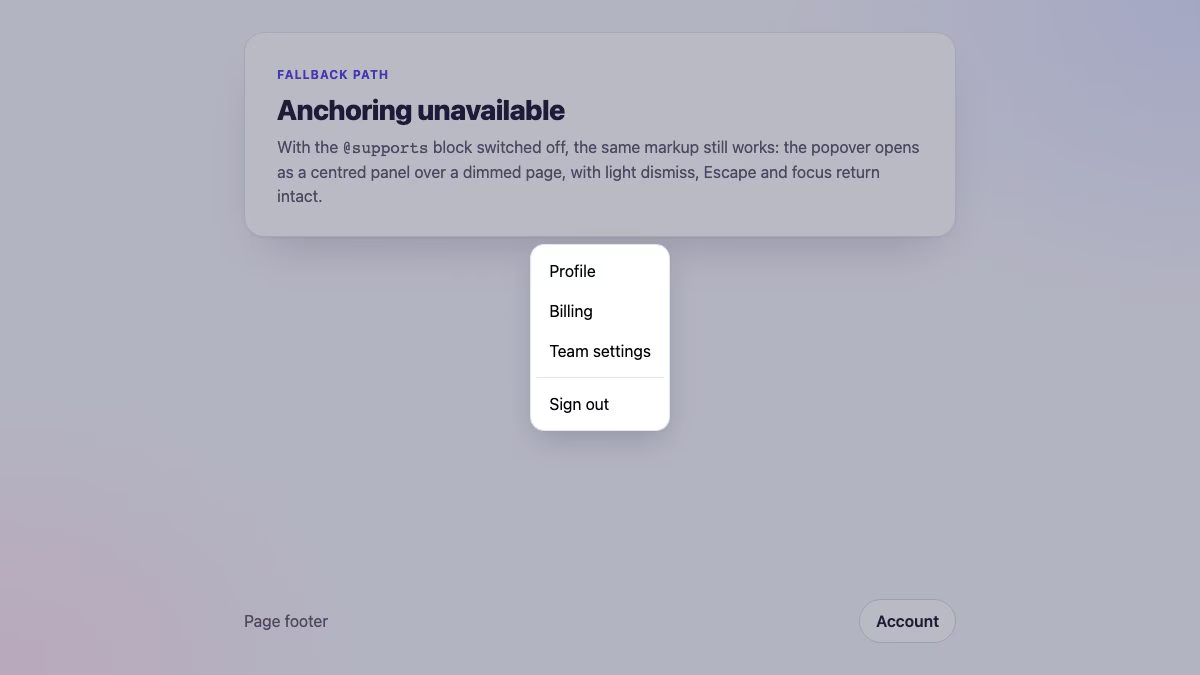
@supports block off. The menu is a centred panel on a dimmed backdrop, and every interaction still works.Two rules keep this honest. Put every anchor-dependent declaration inside the @supports block, so a browser that understands only half of it never ends up with a mixed layout. And test the unsupported path on purpose: change the condition to something false, like @supports (foo: bar), and use the page. That is exactly how I produced the screenshot above.
If a centred panel is not acceptable for your design, a small script can position the fallback with getBoundingClientRect(). Gate it with if (!CSS.supports('anchor-name: --a')) so supporting browsers never run it. For most sites the centred sheet is the better choice, since it is also friendlier on small screens.
Common gotchas
- Duplicate anchor names. The last element in the document wins. Use
anchor-scopeor unique names. - The positioned element must be absolute or fixed. A static or relative element ignores
position-anchor. - The containing block shapes
position-area. If the result looks squashed or overlaps the anchor, check which element is the containing block, as in the tooltip example. - Popover defaults get in the way. The user-agent
inset: 0andmargin: autocentre the popover. Reset both inside your@supportsblock, not outside it, so the unsupported path keeps its centring. - Logical and physical values mix badly. The
min-widthandmin-inline-sizeproperties are the same property in horizontal writing modes, and the later one wins. I hit this while building the demo: a straymin-inline-sizesilently cancelled amin-width, and the menu stopped flipping because it no longer overflowed. - Keep the anchor earlier in the source. If the anchor itself is positioned, it must precede the element that follows it in document order.
- Clipping by overflow. An absolute tooltip inside an
overflow: hiddencontainer is clipped. Make it a popover so it escapes into the top layer. - Motion. Wrap any fade or slide in a
prefers-reduced-motioncheck, as the tooltip does.
When to still use a library
Anchor positioning does not do everything Floating UI does. It does not give you arrow elements that point at the anchor from every flipped side, virtual anchors such as a text selection or a cursor position, or collision handling that spans several scroll containers. It also keeps the decision to flip in the browser, which means you cannot read the chosen side without extra work. If your design needs those, a library is still reasonable. For ordinary dropdowns, selects, menus and tooltips, CSS is now enough and lighter. The same logic applies to Bootstrap: its dropdowns and tooltips still rely on Popper, and the snippet in the library shows how to replace that positioning with CSS while keeping the Bootstrap look.
For deeper background on related fundamentals, see the library’s classic CSS dropdown menu tutorial, which shows what it took to build a menu with only hover and absolute positioning, and the account dropdown snippet if you want a ready-made Bootstrap menu to adapt.
Checklist
- Name the anchor with
anchor-nameand scope it withanchor-scopewhen there are several. - Point the positioned element at it with
position-anchorand place it withposition-area. - Add
position-try-fallbacksso it flips instead of clipping. - Use
anchor-size()where the element’s width or height should follow the anchor. - Wrap all of it in
@supports (anchor-name: --a)over a working base. - Use the Popover API for anything that opens, and keep keyboard, focus and Escape behaviour intact.
- Test the unsupported path as deliberately as the supported one.


