Common WordPress Errors and How to Fix Them
Most WordPress errors come down to four causes: a plugin or theme with a bug, a bad configuration file, a server resource limit, or a database connection that failed. You can find which one you have in a few minutes by reading the error, backing up the files you are about to touch, and then switching things off one layer at a time.
This guide gives you that order of work, then a fix for each of the errors you are most likely to meet. It assumes you can reach your site files through SFTP, your host’s file manager or a shell. WP-CLI commands are included where they save time.
Start here: a safe troubleshooting routine
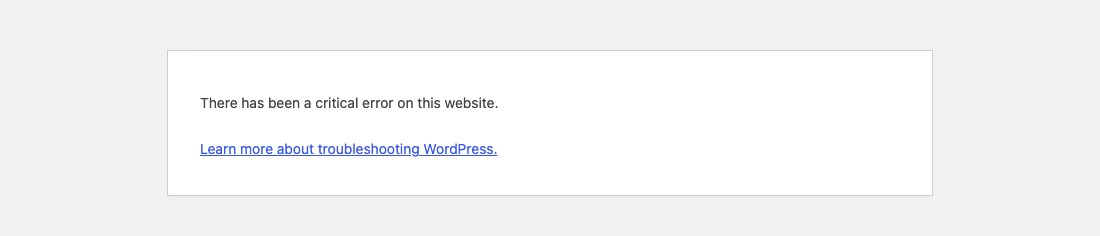
- Read the message. WordPress now shows “There has been a critical error on this website” for fatal errors, and emails the administrator address a recovery link. Check that inbox first, including spam.
- Back up before you change anything. Download copies of
wp-config.phpand.htaccess, and export the database from your host’s panel or withwp db export. If your host offers one-click snapshots or restore points, take one now: it captures files and database together and is the fastest way back if a fix makes things worse. To restore, re-import the export withwp db import file.sqland put the saved files back. Renaming a file is easy to undo only if you remember the original name. - Work locally when you can. Reproducing a problem on a copy of the site lets you break things freely. See Installing WordPress Locally for a setup, and Exporting and Importing WordPress for moving the content across.
- Change one thing at a time and test after each change. If you change three things and the site works, you will not know which one mattered.
Use recovery mode first
When a plugin or theme causes a fatal error, WordPress sends the site’s administrator email a message containing a secret link. Following it and logging in puts your browser, and only your browser, into recovery mode. The extension that crashed is paused for you, so the admin works again while visitors still see the error until you fix it. From there you can deactivate the plugin or theme, update it, or report it to its author. The exit button stays in the admin bar.
If no email arrives, check that the administrator address under Settings → General is correct and that your site can send mail at all. If email is unreliable, skip ahead to the manual plugin test below.
Turn on the debug log, not the on-screen errors
Guessing is slower than reading the actual error. Add these lines to wp-config.php, above the comment that says to stop editing:
define( 'WP_DEBUG', true );
define( 'WP_DEBUG_LOG', true );
define( 'WP_DEBUG_DISPLAY', false );
WordPress now writes errors to wp-content/debug.log instead of printing them into your pages. That matters: the old habit of showing errors on screen exposes file paths to visitors, and a blank page may simply be hiding the message you need. The WordPress developer handbook advises against leaving debugging on for a live site, and a log file inside the web root can be fetched by anyone who guesses its address unless your server blocks it. Use it to diagnose, then set WP_DEBUG back to false and delete the log. You can also give WP_DEBUG_LOG a file path instead of true to write the log outside the public folder.
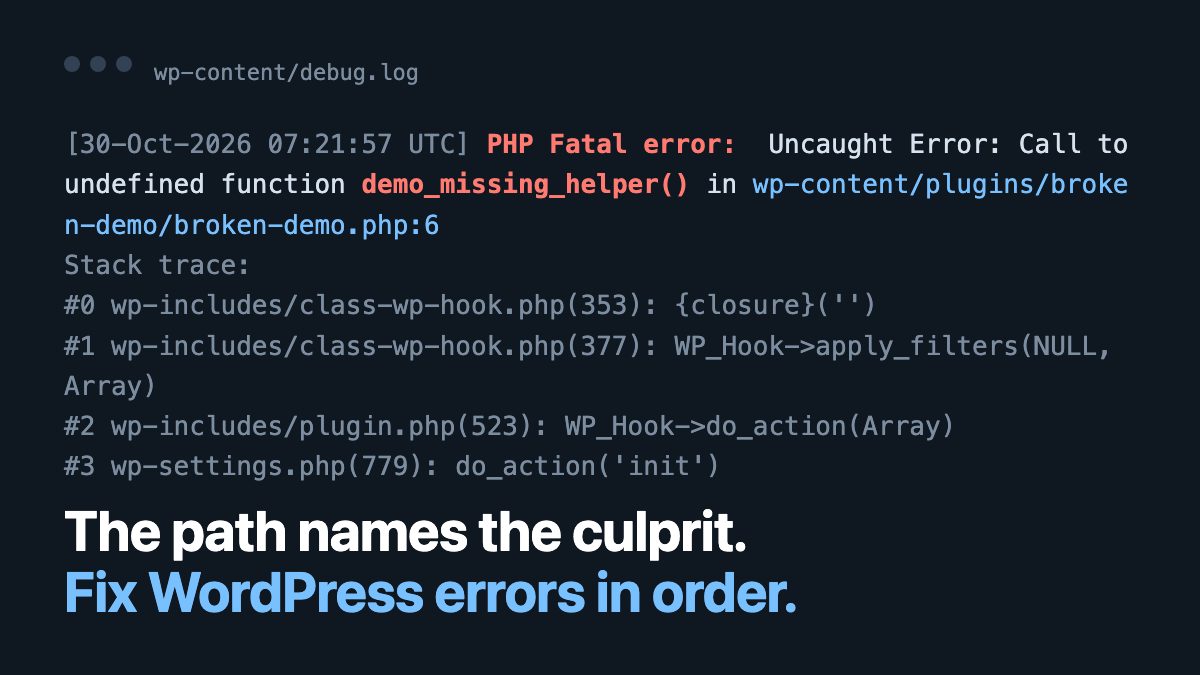
Each log line gives you the error type, the message, the file path and a line number. The path usually names the guilty plugin or theme folder, which tells you where to look. This is a real entry from a local WordPress 7.1 install where a plugin called a function that did not exist (paths shortened):
[30-Oct-2026 07:21:57 UTC] PHP Fatal error:  Uncaught Error: Call to undefined function demo_missing_helper() in wp-content/plugins/broken-demo/broken-demo.php:6
Stack trace:
#0 wp-includes/class-wp-hook.php(353): {closure}('')
#1 wp-includes/class-wp-hook.php(377): WP_Hook->apply_filters(NULL, Array)
#2 wp-includes/plugin.php(523): WP_Hook->do_action(Array)
#3 wp-settings.php(779): do_action('init')
The folder name right after plugins/ is the plugin to deactivate. WP_DEBUG_LOG only records errors that PHP hands to WordPress. A server-level 500 caused by a bad .htaccess, a PHP crash or a killed process never reaches it, so also look in your host’s PHP or web server error log (often called error_log or php_errors.log, in the site root or a logs area of the host panel).
The critical error and the white screen
The “white screen of death” is a fatal PHP error with nothing printed. On current versions you will more often see the critical error notice, but a blank page still happens when a fatal error occurs before WordPress can show its handler, or when the handler is disabled.
Check debug.log as above. The most common messages and what they mean:
| Message | Meaning | Fix |
|---|---|---|
Call to undefined function |
Code calls a function that does not exist, often because a required plugin is inactive or a PHP extension is missing. | Activate the required parent plugin, or update the code that calls it. |
Cannot redeclare |
Two files define the same function name. | Deactivate one of the two plugins, or give your own function a unique prefix. |
Parse error: syntax error |
Typo in PHP, usually in a recent functions.php edit. |
Restore your backup of the file, or fix the quote, bracket or semicolon at the reported line. |
Uncaught Error or TypeError in a plugin |
The plugin does not work with your PHP version, or a newer WordPress API changed. | Update the plugin. If no update exists, replace it. |
Allowed memory size exhausted |
A script reached the memory ceiling. | See the memory section below. |
Never edit theme or plugin code through the dashboard editor on a live site. One missing semicolon locks you out. Edit locally and upload, or keep the file in version control.
Find a plugin or theme conflict
If the log does not point to a specific file, or you simply cannot read it, isolate the cause by elimination.
Test the plugins
- Connect by SFTP and open
wp-content. - Rename the
pluginsfolder toplugins-off. WordPress can no longer find any plugin, so all of them deactivate. - Load the site and the admin. If they work, a plugin was responsible.
- Rename the folder back to
plugins. The plugins will show as deactivated. Reactivate them one at a time, reloading the front end after each one, until the problem returns.
With WP-CLI the same test is one command, and it can leave your critical plugins running:
wp --skip-plugins plugin deactivate --all --exclude=woocommerce
wp plugin activate plugin-slug
The --skip-plugins flag matters. In a local test, the plain wp plugin deactivate --all crashed with the same fatal error, because WP-CLI loads the broken plugin before it can switch it off. With the global --skip-plugins flag, the command succeeded, the site returned HTTP 200 again, and only the excluded plugin stayed active. Must-use plugins still load.
Test the theme
Switch to the newest default theme bundled with your install, which is the highest-numbered Twenty Twenty-* theme on Appearance → Themes (Twenty Twenty-Five on the WordPress 7.1 install used for this article). With WP-CLI, list the installed themes and activate one by its slug, adding --skip-plugins if a plugin is also broken:
wp theme list
wp theme activate twentytwentyfive
If the problem disappears, your theme or its child theme is at fault. Reinstall the parent theme from a clean download and re-add your customisations gradually. If you build your own themes, Complete WordPress Theme Guide covers the file structure WordPress expects.
Plugins to avoid piling up
Every active plugin is code that can fail. Delete what you do not use, prefer plugins that were updated recently and declare support for your WordPress version, and keep premium plugins updated through their vendor. Our list of useful WordPress plugins is a starting point.
Theme is missing the style.css stylesheet
This appears when you upload a zip that is not an installable theme. Every classic and block theme needs a style.css file whose header comment names the theme, in the theme’s root folder.
- Unzip the download on your computer. Marketplaces often bundle documentation, demo content and a plugin together with the theme.
- Find the zip that contains a folder with
style.cssat the top level of that folder. Upload that one. - If the zip holds a plugin, install it under Plugins → Add Plugin instead.
- If a theme’s header is genuinely absent, contact the author for a corrected package.
404 Not Found on posts and pages
If the homepage works but every inner page returns 404, the rewrite rules are not reaching WordPress. If only one URL fails, the content moved or the slug changed.
- Go to Settings → Permalinks and click Save Changes without changing anything. This regenerates the rules.
- With WP-CLI:
wp rewrite flush --hard. The--hardflag (see wp rewrite flush) also rewrites.htaccesson single-site installs. - On Apache, make sure
.htaccessis present, writable by the server, and contains the standard block for a single-site install. Multisite installs use a different block, so let WordPress regenerate it rather than pasting this one:
# BEGIN WordPress
RewriteEngine On
RewriteRule .* - [E=HTTP_AUTHORIZATION:%{HTTP:Authorization}]
RewriteBase /
RewriteRule ^index\.php$ - [L]
RewriteCond %{REQUEST_FILENAME} !-f
RewriteCond %{REQUEST_FILENAME} !-d
RewriteRule . /index.php [L]
# END WordPress- On Nginx,
.htaccessdoes nothing. The server block needs a front-controller rule, and the$argspart matters:
location / {
    try_files $uri $uri/ /index.php?$args;
}
For missing images or downloads, re-save the link in the editor, check the file really exists in the uploads folder, and re-upload if not. When you change a published URL on purpose, add a 301 redirect rather than hoping search engines will cope.
Error establishing a database connection
WordPress cannot reach MySQL or MariaDB. The usual causes are wrong credentials after a migration, a database server that is down or out of resources, or a corrupted table.
- Open
wp-config.phpand compareDB_NAME,DB_USER,DB_PASSWORDandDB_HOSTwith the values in your host panel. Some hosts use a host name other thanlocalhost. - Check the host’s status page, or open the database in phpMyAdmin or Adminer. If you cannot log in there either, the problem is server-side. Contact the host.
- Run
wp db checkto test the tables, if you have shell access. - If the admin reports damaged tables, enable the built-in repair tool by adding
define( 'WP_ALLOW_REPAIR', true );towp-config.php, then visit/wp-admin/maint/repair.php. That page requires no login, so remove the line as soon as you finish.
Stuck in maintenance mode
During an update WordPress creates a .maintenance file in the site root and shows “Briefly unavailable for scheduled maintenance.” Wait a few minutes. If the message stays because an update was interrupted, delete the .maintenance file by SFTP (it is hidden, so enable hidden files), then run the update again from Dashboard → Updates. Deleting it is safe.
Allowed memory size exhausted
PHP stops a script that uses more memory than it is allowed. WordPress tries to raise the limit to 40 MB on a single site and 64 MB on multisite when PHP’s own setting is lower, and the admin area has a separate ceiling. Image-heavy sites, page builders and shop plugins can need more.
- Add these to
wp-config.phpbefore the line that loadswp-settings.php:
define( 'WP_MEMORY_LIMIT', '256M' );
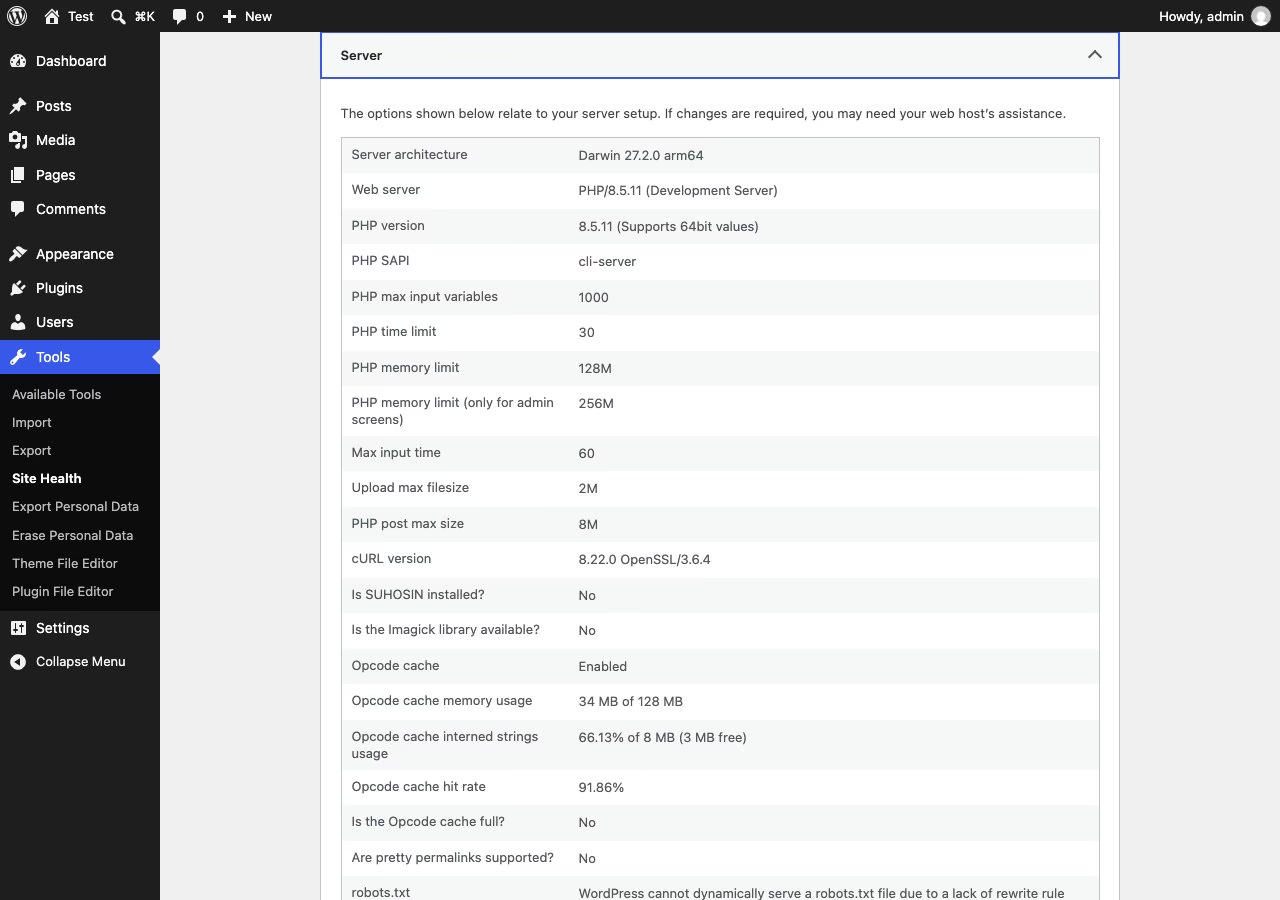
define( 'WP_MAX_MEMORY_LIMIT', '512M' );- Check Tools → Site Health → Info → Server for the limit PHP actually applies. The rows are PHP memory limit and PHP memory limit (only for admin screens), shown below. WordPress can only raise memory up to what the host allows, so if the numbers do not change, the limit lives in
php.ini,.user.inior the host panel. - Find what is consuming memory. A runaway plugin, a huge import or an oversized image is a better target than raising limits forever.
“Updating failed” or “The response is not a valid JSON response”
The block editor talks to WordPress through the REST API. When that request returns HTML or an error instead of JSON, saving fails with this message. Work through the causes in order:
- Open
/wp-json/on your site in a new tab. You should see JSON. A 404 usually means permalinks are broken, so go to Settings → Permalinks and save again, or runwp rewrite flush. - If you see a 403 or a security challenge page, a security plugin, firewall or host WAF is blocking the request. Pause the plugin or check the firewall log, then add an exception rather than leaving protection off.
- Compare Settings → General WordPress Address and Site Address. A mismatch such as
httpagainsthttps, orwwwagainst a bare domain, makes the browser call a different origin and fail.wp option get siteurlandwp option get homeprint the stored values. - Look for stray output. A PHP notice or a blank line before the opening
<?phpin a plugin orfunctions.phpcorrupts the response. The browser’s Network tab shows the raw response.
Too many redirects and the login loop
“This page isn’t working: redirected you too many times” (ERR_TOO_MANY_REDIRECTS), or a wp-admin login that returns you to the login form, means two rules are sending the browser back and forth.
- Address mismatch. If
siteurlandhomedisagree, or one still holds the old domain after a migration, fix them:wp option update home 'https://example.com'andwp option update siteurl 'https://example.com'. - HTTPS behind a proxy or CDN. If the CDN talks to your server over plain HTTP while WordPress forces HTTPS, the two loop. Set the CDN to full encryption to the origin, or make sure the server passes the original protocol so WordPress sees the request as secure.
- Cache and cookies. Clear your browser cookies for the site and purge page cache and CDN. A cached redirect can outlive the fix.
- Competing redirects. A redirect plugin, an
.htaccessrule and a host-level HTTPS setting can all be active at once. Disable all but one.
Plugin or theme updates that fail or hang
If an update stops with an error or sits on “Updating…”, first check for a leftover .maintenance file as described above. Then check free disk space and that PHP’s time limit and memory limit are not too low, and make sure the web server user can write to wp-content. If the plugin is half-written, re-run it from the command line, which avoids browser timeouts: wp plugin update plugin-slug, or wp plugin install plugin-slug --force to replace damaged files. After any failed update, take a backup before you retry.
The Customizer or Site Editor will not load
Classic themes still use Appearance → Customize, and block themes use the Site Editor at Appearance → Editor. Both are JavaScript applications, so a blank screen is usually a script conflict or a blocked REST request, not a PHP crash. Open the browser console, look for red errors that name a plugin, and test with plugins deactivated. For the Site Editor, also run the /wp-json/ check from the “Updating failed” section, because it depends on the REST API as well.
Internal Server Error (HTTP 500)
A 500 means the server failed and gave no detail. Check the server error log, which your host panel usually exposes, then work through the usual suspects in order:
- A bad
.htaccess. Rename it to.htaccess-old, test, then regenerate it by saving permalinks. - A plugin or theme fatal error. Use the plugin folder test above.
- A PHP version the code does not support. Look at the version your host runs.
- File permissions that are too restrictive. Folders are normally 755 and files 644.
- Hitting a resource limit such as memory or process count.
Check PHP, database and server versions
WordPress.org recommends running PHP 8.3 or newer with MariaDB 10.11 or newer, or MySQL 8.0 or newer, on Apache or Nginx with HTTPS. Older PHP and database versions remain available as legacy minimums, but they are end-of-life and unsafe. Many “random” errors are old plugins running on a newer PHP, or modern plugins on an old one. Test a PHP change on a staging copy first and switch it from your host panel. If the site breaks right after a PHP bump, switch the version back in the same panel: that is the quickest rollback, and it works even when you cannot reach the admin. Then read the log for the plugin that objected. Errors from a mismatched PHP version often show up in the host’s PHP error log rather than debug.log.
Also disable or purge server-level caching and CDN layers while debugging. A page cache can show you a stale error long after you fixed it, so purge it after every fix.
After you fix it
- Set
WP_DEBUGtofalseand deletedebug.log. - Restore any renamed folders and files, and remove
WP_ALLOW_REPAIR. - Update WordPress core, plugins and themes. Test updates on staging first if the site earns money.
- Take a fresh backup, then confirm you can restore it. A backup you have never restored is a hope, not a plan. Keep copies off the web server.
- Read How to Speed Up Your Slow WordPress Website and How to Protect WordPress Sites to reduce the chance of a repeat.
Common questions
Can I lose content by deactivating plugins?
Deactivating keeps their data in the database. Deleting a plugin through the dashboard may run its uninstall routine and remove its data, so deactivate first and delete only when you are sure.
Should I reinstall WordPress?
Only after plugins, theme and configuration are ruled out. Reinstalling core from the dashboard or with wp core download --force replaces core files only. It leaves wp-content and wp-config.php alone.
When should I call my host?
When the database is unreachable with correct credentials, the server error log shows resource kills, or the PHP version and memory settings are outside your control. Bring the exact error text and the time it occurred.
Thank you so much for sharing this informative post on common WordPress error and its solutions. You provided a wonderful solution to fix it.
It’s always exciting for me to read content from other writers and practice a little something from other websites.
Keep Sharing.!
I love this post and your website. Very clean, simple, eye catching and easy to read. I noticed your link “Customizer Wont Load” is broken on the very top of this article.
For the “5 Steps Solution” section on Step 2 an alternative method I like to use for deactivating all the plugins instead of renaming the plugins folder name is
1) Log into cPanel
2) Open PhpMyAdmin
3) Select the database your WordPress site is on
4) Select wp-options
5) Look for “active_plugins” and click edit (usually on page 2)
6) Delete everything within the “option_value” section then click “Go”
I found this to be very helpful when I experienced the white screen of death myself.
Just had a 503 error, which turned out something to be with the hosting!
hey,
Thanks for sharing the information. I also had problems with WordPress and it will helped me a lot
Nice post in a simple language. Most of the WordPress users have faced these errors at some time. It is a must-read for newbie WordPress users. I suggest deactivating the plugins instead of reaming the folder as a more effective approach to identify the issue.