How to Speed Up a Slow WordPress Website
To speed up a slow WordPress site, measure it with real-user data first, then fix in this order: server response time (hosting, PHP and caching), the largest image on the screen, third-party scripts and heavy plugins, and layout stability. Do that and you will usually move all three Core Web Vitals into the “good” range without touching your design.
The old advice (combine CSS files, parallelize hostnames, strip query strings) is mostly obsolete on HTTP/2 and HTTP/3. What matters now is what visitors actually feel, and Google measures that with three metrics. This guide walks through a practical workflow you can finish in an afternoon.
What “fast” means: the three Core Web Vitals
Core Web Vitals are three field metrics, each judged at the 75th percentile of real page loads, separately for mobile and desktop. A page passes only when all three are good, per web.dev.
| Metric | Measures | Good |
|---|---|---|
| Largest Contentful Paint (LCP) | How soon the biggest visible element appears | 2.5 s or less |
| Interaction to Next Paint (INP) | How quickly the page responds to taps and clicks | 200 ms or less |
| Cumulative Layout Shift (CLS) | How much the layout jumps while loading | 0.1 or less |
On most WordPress sites the problem is LCP (a slow server or a huge hero image), INP comes second (too much JavaScript from plugins, chat widgets and trackers), and CLS comes third (images without dimensions, late-loading banners and fonts).
Step 1: Measure before you change anything
Open PageSpeed Insights, enter your URL and read the report in this order:
- Field data at the top (real visitors, when your site has enough traffic). This is the number that counts.
- Lab data from Lighthouse, a simulated test. Use it to find causes, not to judge the site. Scores vary between runs.
- Diagnostics and opportunities, which point at the specific files and images to fix.
Test your homepage, your most visited post and your slowest template (often a shop or archive page). Write the three metrics down so you can prove each change helped. Change one thing at a time.
Step 2: Fix the server first (TTFB)
Everything else waits for the first byte of HTML. web.dev suggests TTFB should make up about 40% of a good LCP, so a slow server caps your score.
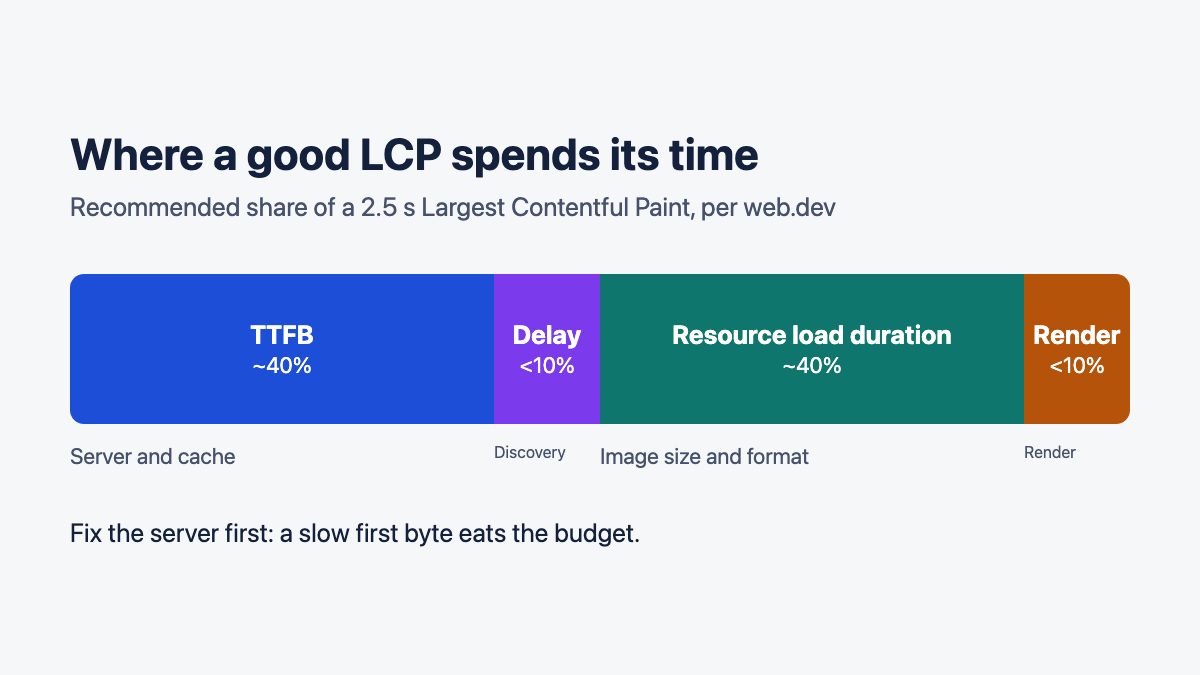
To confirm the server is the bottleneck, look at the server response time diagnostic in PageSpeed Insights, or install Query Monitor to see slow or duplicate database queries and PHP errors behind a slow page. The Performance Lab plugin, from the WordPress Performance Team, bundles features such as modern image formats and speculative loading that you can switch on under Settings > Performance.
- Hosting. Overloaded shared plans are still the most common culprit. Choose a host that offers current PHP versions, SSD or NVMe storage, server-level page caching and a CDN, which are the same levers the WordPress optimization handbook lists.
- PHP version and OPcache. Run a supported PHP version and make sure an opcode cache is enabled. Both are usually one setting in your host’s control panel.
- Page caching. Serving a saved HTML file instead of running PHP and database queries on every request is the single biggest win for most sites. Many managed hosts do this at the server; if yours does, do not stack a second page cache on top. Otherwise use one well-maintained caching plugin.
- Object cache. If you run WooCommerce, membership or heavy admin screens, a persistent object cache (Redis or Memcached, if your host offers it) cuts repeated database trips.
- CDN. Serve images, CSS and JavaScript from an edge network close to your visitors.
Two cache warnings still apply. Exclude the cart, checkout and account pages from page caching, and clear caches after every theme or plugin change before you retest.
Step 3: Make the hero image load fast
On most pages the LCP element is an image. Three rules cover nearly all cases.
- Never lazy-load the LCP image. Lazy loading waits for layout before requesting the file, which delays the very thing you want sooner.
- Give it
fetchpriority="high". Browsers do not fetch images at top priority by default. Use it on one image, two at most. - Always set width and height. This reserves space and prevents layout shift.
WordPress already helps. Its wp_get_loading_optimization_attributes() function adds decoding="async", adds fetchpriority="high" to images it judges to be in the viewport, and adds loading="lazy" to the rest, but only when the image has width and height attributes (see the developer reference). Where a theme or page builder renders the hero in an unusual way, check the final HTML:
<img src="hero.avif" width="1600" height="900"
     fetchpriority="high" alt="Studio desk with a laptop and sketches">
If a page builder or theme marks the hero with loading="lazy", fix it in that tool’s image settings, or override the attributes with the core filter:
add_filter( 'wp_get_loading_optimization_attributes', function ( $loading_attrs, $tag_name, $attr, $context ) {
    if ( 'img' === $tag_name && isset( $attr['class'] ) && false !== strpos( $attr['class'], 'site-hero' ) ) {
        unset( $loading_attrs['loading'] );
        $loading_attrs['fetchpriority'] = 'high';
    }
    return $loading_attrs;
}, 10, 4 );
The filter receives the loading attributes first and the tag’s own attributes (including class) third. Swap site-hero for your hero image’s CSS class.
Step 4: Use modern image formats and sizes
Resize before you upload. An image displayed 800 px wide does not need to be 4000 px wide, and WordPress will generate responsive srcset sizes only from what you give it. Then pick a modern format:
- AVIF is natively supported in WordPress since 6.5 and usually produces the smallest files, but it needs a server image library (Imagick or GD) that handles it. Check under Tools > Site Health > Info > Media Handling. See the core announcement.
- WebP is a safe fallback with near-universal browser support.
- JPEG remains fine for photos if you compress sensibly.
If your library of old uploads is large, use a reputable image optimization plugin or your CDN’s image transformation to convert on the fly instead of re-uploading by hand. Spot-check results visually. If you want a lightweight way to restyle images without extra files, our guide to CSS image filters shows what CSS alone can do.
Step 5: Audit plugins, scripts and fonts
The number of plugins matters less than what each one loads. A single slider or page-builder add-on can ship hundreds of kilobytes of JavaScript on every page. This is what drives poor INP.
- Delete plugins you do not use, as the WordPress handbook also advises.
- In Chrome DevTools, open the Network tab, reload, and sort by size and by domain. Look for scripts from plugins that are not needed on that page.
- Open the Performance tab, record an interaction such as opening the menu, and look for long tasks.
- Deactivate suspects one at a time on a staging copy and retest.
- Check the database too. Leftover data from removed plugins, and a large set of autoloaded options (loaded on every request), can slow admin screens and raise TTFB. Query Monitor shows slow queries, and a database cleanup should always be tried on staging with a backup first.
- Load third-party embeds (maps, videos, chat) only when someone clicks or scrolls to them.
Fonts are the quiet CLS and LCP culprit. Self-host a small number of WOFF2 files, use font-display: swap (or optional), and avoid loading five weights you never use. Our @font-face design guide covers the basics. Block themes also let you register local font files in theme.json, so no extra plugin is needed.
Finally, prefer a lean theme. Heavy multipurpose themes load a lot of code you do not use; a lighter block theme or a well-built starter keeps the baseline small. Our WordPress theme roundup is a place to compare options.
Step 6: Turn on instant navigation
Since WordPress 6.8, core uses the Speculation Rules API to load pages before a visitor navigates to them. By default it prefetches a link when the user starts interacting with it (conservative eagerness), and it is off for logged-in users and for sites without pretty permalinks, according to the core dev note. You get faster next-page loads without a plugin.
If your pages are cacheable and light on side effects, you can opt in to prerendering:
add_filter( 'wp_speculation_rules_configuration', function ( $config ) {
    if ( is_array( $config ) ) {
        $config['mode']      = 'prerender';
        $config['eagerness'] = 'moderate';
    }
    return $config;
} );
Prerendering runs a page’s JavaScript before the visitor arrives, so check that analytics and ads do not count phantom pageviews, and exclude pages with side effects such as logout links or cart actions.
Step 7: Keep the site healthy
- Update WordPress, themes and plugins regularly. Performance fixes ship in core releases, and outdated code is also a security risk. See how to protect your WordPress site.
- Watch for errors. PHP warnings and failing requests slow pages down. Our guide to common WordPress errors helps you diagnose them.
- Recheck after changes. Field data in PageSpeed Insights lags, as it aggregates real visits, so give it time before judging results.
- Browse more code. The 20+ WordPress recipes collection has handy snippets, though check older ones against current WordPress.
Quick checklist
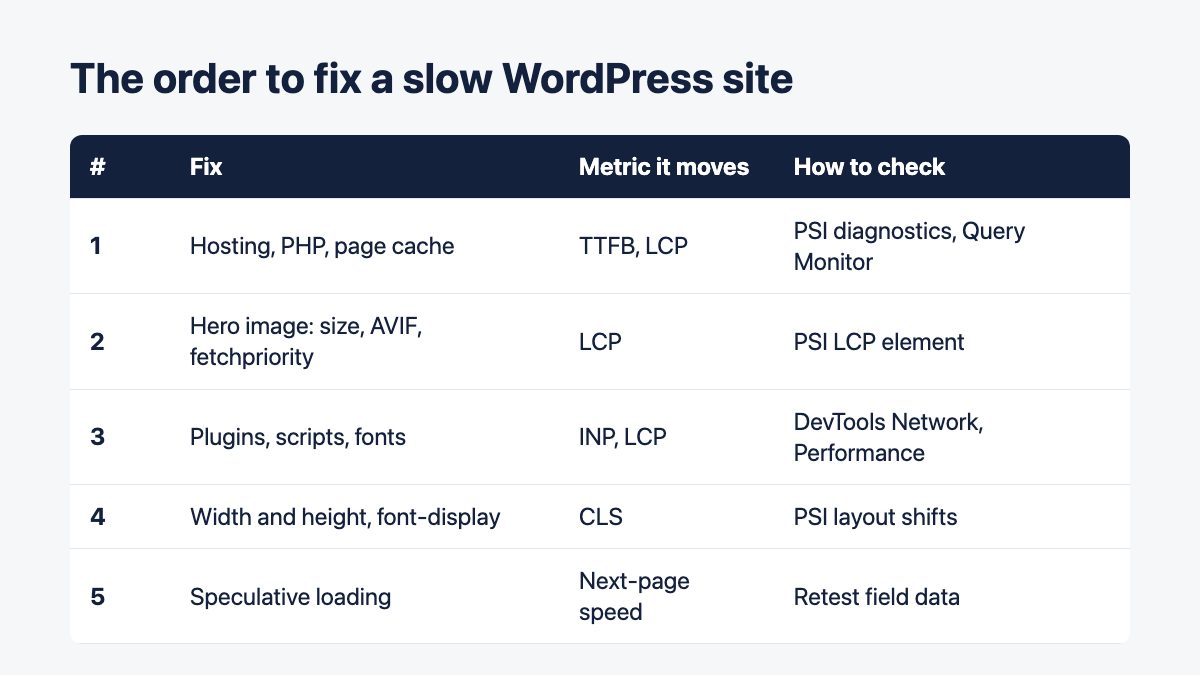
- Test with PageSpeed Insights and record LCP, INP and CLS.
- Fix TTFB: better hosting, current PHP, one page cache, optional object cache and CDN.
- Optimize the LCP image: right size, AVIF or WebP, no lazy loading,
fetchpriority="high", width and height. - Remove or defer heavy plugins, scripts and embeds.
- Self-host a few fonts with
font-display. - Keep speculative loading on and retest.
Which step moved your numbers most? Tell us in the comments.
Excellent read!
Links were very helpful, as well as “how to” enable gzip via htaccess. Works!
Every point is important. WordPress have some slow loading problem. I have learned a lot and will apply next time. Thanks for sharing.
Very handy – thanks! You mention Photon, but don’t otherwise mention the benefits of a content delivery network (CDN). That’s a little surprising, given that the page speed tools tend to make it a key recommendation. Any reason for skimming over this point?
Hi Pete! I’m glad you found this useful. CDNs and the nuances of caching plugins could fill a whole post to themselves! I personally feel CDNs are a little too complicated for the average WordPress user and require setup that goes beyond the scope of this post. The important take away when working with page speed tools is that they are not considering that your site is using a platform like WordPress when making recommendations – not everything they suggest is possible or relevant. Most web hosts do offer something like Cloudflare that can help quite a bit, but you may find it impacts your admin experience negatively when you can’t see updates taking effect. Photon is a good choice as it is designed to work with how WordPress handles images more intuitively.
Hi Vail – fair points, yes. It’s rarely possible to get 100% scores on those page speed tools, so “good enough” is a more practical target. As you say, external CDNs can complicate things a little, if only because file updates (as opposed to most content updates) can require visiting a second site to refresh the cache. Not that that’s difficult, but it can be easy to forget and confusing when that happens. Great article on the rest of the stuff, anyway!
Thanks for the very useful tips, applying these techniques can really make a difference. I’m using W3 Total Cache for some of the pages, it helps a lot if you don’t have content that changes often
Also appreciate this post. I use WP Rocket and like it. I use EWWW for image optimisation. Thanks for the information about P3 Plugin Performance.
Thanks for sharing these tips, it’s a must read for 2017. Nowadays we can see that speed truly matters, it can make or break the conversion of a site. Who would love to see a slow loading site? No one right. And I agree with investing in great Hosting, you will not just have a good choice in spending money but you’ll save in terms of convenience and lessen your worries (which means…lesser stress on our part and on our audience).
ImageOptim is a great app for optimizing images, particularly transparent PNGs. I run all my images through that before uploading to my site. I have no idea why Adobe’s export optimization is still so abysmal after all this time. ImageReady did a far better job with exporting images, yet Adobe doesn’t seem to think it’s worth changing Photoshop. I don’t use any Adobe software at home anymore, but have to use it at work.