Creating Reusable Background Patterns with CSS
The best way to make a reusable background pattern today is to skip the image file. Describe the pattern as a CSS gradient or a tiny inline SVG, use it as a mask over a background-color, and drive every variable (color, opacity, tile size) with custom properties. One pattern then gives you any number of color skins, which is the same idea this article taught in 2011 with a transparent PNG, minus the Photoshop round trip and the extra HTTP request.
Below you will build a small, copy-paste pattern system with dots, stripes, a grid, a checkerboard and two SVG patterns, then learn when to use each technique.
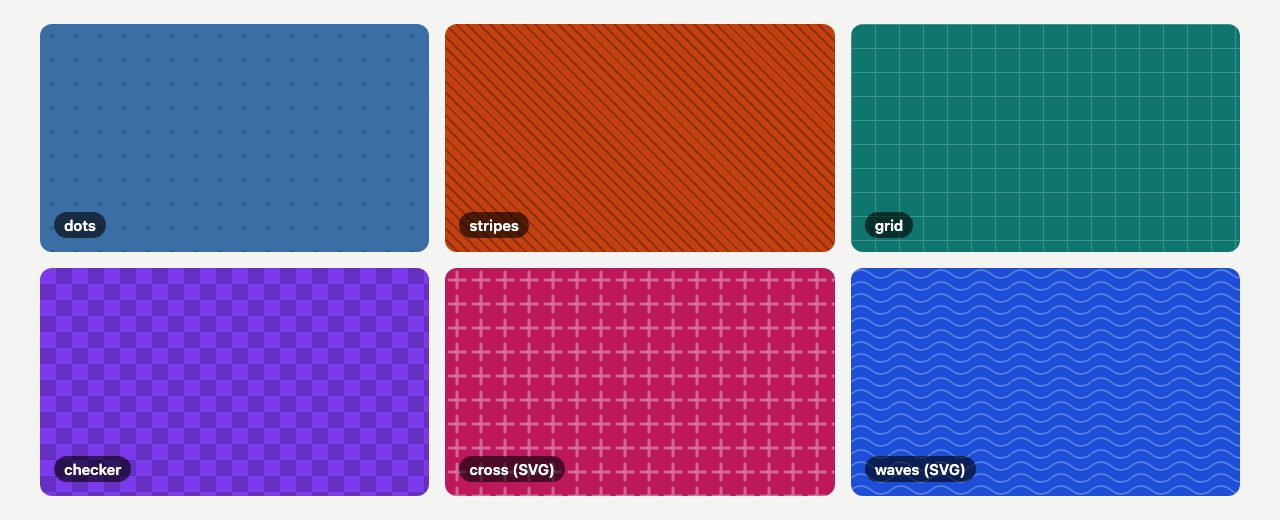
.pattern class, six patterns, six color skins. No image files.The idea: a transparent tile over a color
The original trick was to save a pattern as a transparent PNG in black at low opacity, so whatever color sat behind it showed through. Change background-color and you have a new theme. That is still the right mental model. What has changed is how you produce the tile:
- Gradients (
radial-gradient(),repeating-linear-gradient(),conic-gradient()) draw dots, stripes, grids and checkerboards with no file at all. - Inline SVG in a
data:URL draws anything a gradient cannot, such as crosses, waves or hexagons, and stays sharp on every screen density. - CSS masks turn either one into a silhouette that you can paint with any color, which is exactly what a transparent PNG used to do.
The old PNG approach also meant a request per pattern, blurry tiles on high-density displays unless you shipped a second @2x file, and a trip back to an image editor for every tweak. A pattern written in CSS is a few hundred bytes and editable in the browser’s dev tools.
Step 1: the base class
The base class does the layout work once. A pseudo-element holds the pattern so you can control its opacity without fading the content inside the element.
.pattern {
  --pattern-bg: #3b6ea5;
  --pattern-ink: #000;
  --pattern-opacity: 0.15;
  --pattern-size: 24px 24px;

  position: relative;
  isolation: isolate;
  background-color: var(--pattern-bg);
}

.pattern::before {
  content: "";
  position: absolute;
  inset: 0;
  z-index: -1;
  border-radius: inherit;
  background-color: var(--pattern-ink);
  opacity: var(--pattern-opacity);
  mask-image: var(--pattern-mask);
  mask-size: var(--pattern-size);
  mask-repeat: repeat;
}
How it works: the pseudo-element is filled with --pattern-ink, then mask-image hides everything except where the mask is opaque. The visible parts are your pattern, in your ink color, at your chosen opacity, sitting on --pattern-bg. isolation: isolate creates a stacking context so the z-index: -1 pseudo-element stays above the element’s own background instead of slipping behind a parent.
Note that --pattern-size holds two values (width and height). A single length in mask-size sets only the width and leaves the height as auto, which for gradients stretches to the full box and breaks the tiling.
Step 2: patterns from gradients
Each pattern only has to set --pattern-mask (and sometimes the size). Anything opaque in the mask is shown; anything transparent is hidden.
.pattern-dots {
  --pattern-mask: radial-gradient(circle at center, #000 0 2px, transparent 2.5px);
}

.pattern-stripes {
  --pattern-mask: repeating-linear-gradient(45deg, #000 0 2px, transparent 2px 8px);
  --pattern-size: auto;
}

.pattern-grid {
  --pattern-mask:
    linear-gradient(#000 1px, transparent 1px),
    linear-gradient(90deg, #000 1px, transparent 1px);
}

.pattern-checker {
  --pattern-mask: conic-gradient(#000 25%, transparent 0 50%, #000 0 75%, transparent 0);
  --pattern-size: 32px 32px;
}
The color #000 in a mask is only a stand-in for “opaque”; the mask uses alpha, so the actual color is irrelevant. The checkerboard is a good example of why conic-gradient() is worth learning: four hard color stops draw two squares, and the tile repeats into a full board.
If you want to go deeper on gradient syntax, our older walkthrough of cross-browser CSS gradients shows what developers used to write for each browser, and CSS3 gradient buttons puts gradients to work on a UI element.
Step 3: patterns from inline SVG
When a shape is too detailed for a gradient, draw it as SVG and inline it. The SVG needs a viewBox so it scales to whatever tile size you set, and the # in colors must be encoded as %23 inside a data URL.
.pattern-cross {
  --pattern-mask: url("data:image/svg+xml,%3Csvg xmlns='http://www.w3.org/2000/svg' viewBox='0 0 12 12'%3E%3Cpath d='M6 2v8M2 6h8' stroke='%23000' stroke-width='1.5' stroke-linecap='round' fill='none'/%3E%3C/svg%3E");
}

.pattern-waves {
  --pattern-mask: url("data:image/svg+xml,%3Csvg xmlns='http://www.w3.org/2000/svg' viewBox='0 0 40 12'%3E%3Cpath d='M0 6q10-8 20 0t20 0' stroke='%23000' stroke-width='1.5' fill='none'/%3E%3C/svg%3E");
  --pattern-size: 40px 12px;
}
Because the SVG is only a mask, you never hard-code its color. That is the big advantage over the common alternative of background-image: url("data:...") with the color baked into the SVG: with a baked-in color you need a separate string for every skin, whereas a mask lets one string serve all of them. Keep the viewBox in the same proportions as --pattern-size or the shapes will stretch.
Want to design the SVG visually first? Our SVG design tutorial covers drawing shapes you can paste straight into a data URL.
Step 4: use it and skin it
Apply the base class plus one pattern class, then override the custom properties wherever you need a variation. You can do that per element, per section, or in a theme.
<section class="pattern pattern-dots">…</section>

<section class="pattern pattern-stripes pattern-orange">…</section>
.pattern-orange {
--pattern-bg: #c2410c;
--pattern-opacity: 0.25;
}The same properties make dark mode almost free. Swap the colors with light-dark() (set color-scheme: light dark on the root) or a media query, and every pattern follows:
:root { color-scheme: light dark; }

.pattern {
  --pattern-bg: light-dark(#e8eef6, #14202e);
  --pattern-ink: light-dark(#000, #fff);
  --pattern-opacity: 0.08;
}
For a theme switcher, set a different --pattern-bg on :root or [data-theme] and you are done. This is the same reusability the PNG trick promised, extended to size, density and contrast.
Choosing the right technique
| Need | Best choice | Why |
|---|---|---|
| Dots, stripes, grids, checkerboards | CSS gradients | No file, tiny, fully tunable |
| Shapes with curves or detail | Inline SVG mask | Resolution independent, recolorable |
| Noise, paper, photographic texture | A real image (AVIF or WebP) | Gradients cannot fake organic detail |
| Pattern with several colors | Plain background-image layers |
A mask is a single-color silhouette |
Accessibility and performance notes
- Keep contrast text-safe. A busy pattern behind body text hurts readability. Keep opacity low (roughly 0.05 to 0.2) and test the text against the worst spot of the pattern, not the average. Put long text on a solid surface if you cannot guarantee it.
- Patterns are decoration. They live in CSS, so assistive technology ignores them. Never use a pattern as the only way to convey meaning, such as in a chart legend.
- Avoid motion unless it is gentle. If you animate
mask-positionfor a drifting effect, wrap it in@media (prefers-reduced-motion: no-preference). - Mind the paint cost. A single masked pseudo-element is cheap, but a fixed, full-page pattern with a large blur or many layers can slow scrolling on low-end phones. Scope patterns to sections instead of the whole body when in doubt.
- Browser support. Unprefixed
mask-imageandmask-sizeare Baseline widely available;conic-gradient()andlight-dark()are also supported in current versions of all major browsers. If you need to reach older engines, put the pattern behind@supports (mask-image: linear-gradient(#000, #000))so they simply get the flat color.
When a PNG still makes sense
Raster tiles still win for organic texture such as film grain, linen or paper fibers. If you go that route, keep the old principle: ship one neutral, mostly transparent tile and let background-color do the theming. Compress it as AVIF or WebP, and use image-set() or a 2x variant for sharp rendering on dense screens. You can also turn the same tile into a mask with mask-image: url(tile.png) to recolor it freely, as long as it is a single-color silhouette.
For anything geometric, though, a few lines of CSS now replace the whole extract-from-image workflow. If you are exploring where else large decorative backgrounds work, see how to build a CSS large background and the large background website showcase for design inspiration.
good tutorial, but instead of copying and pasting, just select the most contrasted chanel duplicate it and then use the levels. that is my way.just less steps.
Thanks Nick. Working on a new site and am just now getting around to tweaking the design- have been working mostly on the DB and function. I like this approach to making some backgrounds with depth and flexibility.
Good application of this technique. I use this all the time when clients send me their logos as jpegs and don’t have access to source files. I usually can get rid of a white background in a matter of seconds.
Very nifty tutorial. Now I know how to create my very own background pattern for my website. :) I’m thinking of changing my background soon!
Hi
Thanks for this. I am just getting into WordPress blogs and want to get into designing my own themes.
Thanks
Simon
Colchester, UK
Great idea. Although I’m not sure what use it might be, you could use jQuery to dynamically vary the background color within a set range.
Very useful, especially when prototyping. How would you do this in Fireworks?
If someone is using a browser that can’t support a simple function such as this one, they probably don’t care about aesthetics in general.
Thanks for this. There seems to be a huge push for this type of pattern these days and I see it all the time in the newer WordPress themes that are out there.
What is driving this change. Up to a few years ago it was flat backgrounds but its lieka stampede t ocreate this type of thing.
Don’t get me wrong I think they are OK and this tutorial is the first I have seen on how to do it but when eery theme on the block has it it is like Pamplona running the buuls :-)
Cool trick. Does this work with GIF’s as well?
I’d have to check with you here. Which is not something I usually do! I enjoy reading a post that will make people think. Also, thanks for allowing me to comment! thank you!
thanks for the tutorial. Can you tell me how to add this to my twitter page?
thanks, Andi
I use a very similar technique to this for backgrounds, but I set it up with 2 divs so that I can set the opacity on the pattern and the background color separately. It’s a bit more verbose, but a bit more flexible (which, imo, is a good tradeoff in a wordpress theme)
If you have Adobe Fireworks it’s a one step process.
Simply import your pattern and choose Filters > Other > Convert to Alpha.
This removes the white background. No pixels are harmed in the process, so you get a nice, clean, crisp transparent pattern. :)
Fireworks users may spare a few steps using Filters > Other > Convert to Alpha on the image. Very useful!
Nice tutorial. That pattern reminds me of my grandparents wallpaper. ;)
I love this tutorial but I was wondering what would be the best way to make this a background pattern that would keep repeating itself as you scroll down a website? I’d be afraid the lines wouldn’t match and you’d see a difference between each repeat.
I don’t think you’d want that all over your website, though : / That would be really overkill, unless you’re going for the “grandma’s kitchen wall” effect! But if you look at the picture, there are only two symbols repeated and all of their respective bits and pieces are present in the selection, so it’s just a matter of putting the puzzle back together, then cropping carefully and setting the background to repeat.
Very nice. i love simple stuff to work with.
where can i find other pattern in photoshop?
I am a newbie in photoshop and your tutorial helped me in becoming close to pro at creating beautiful templates.Thanks a lot.
Although still a struggle, I finally might get this one to work properly!! Thanks for link to shortcuts as well that’s a nice bonus.
Photoshop looks always very difficult to me. I am little confused how to start.
This is really cool. This is something that we can be used for website owners who like to make color changes to their site but still maintain their companies branding.
The second demo pattern is great, a good background makes a website more appealing and attractive.
Super fun tut! I just recently made up some seamless subtle textures to use as tiles in PS, but haven’t tried incorporating the textures as an overlay to a colored background in a website yet. I’m looking forward to playing around with this. :)
I just made a quick try to extract the pattern and very excited with the result :) ~ It will save time-load for a website with tiny transparent .png file and simple CSS to make it works!
Much thanks for sharing this idea & tips ;)
Thanks for this, i use the same technique for a website but i’m searching for a solution to change the color of the pattern itself – i mean it should be possible to change the background color and the pattern color … do you know a solution without HTML5 …
Really nice stuff.
Having a common background structure helps create a sense of continuity & have a variation with different textures on different pages, is a cool thing to do.
Thanks for sharing a great tutorial.
Thanks for the tutorial! Very detailed. Also having it set in lower transparency makes the pattern more subtle so it isn’t competing with the other images on the website (great for image heavy sites btw)
Thanks for sharing…. BTW i like your header image.