Photo Strip Effect in CSS (No Photoshop Required)
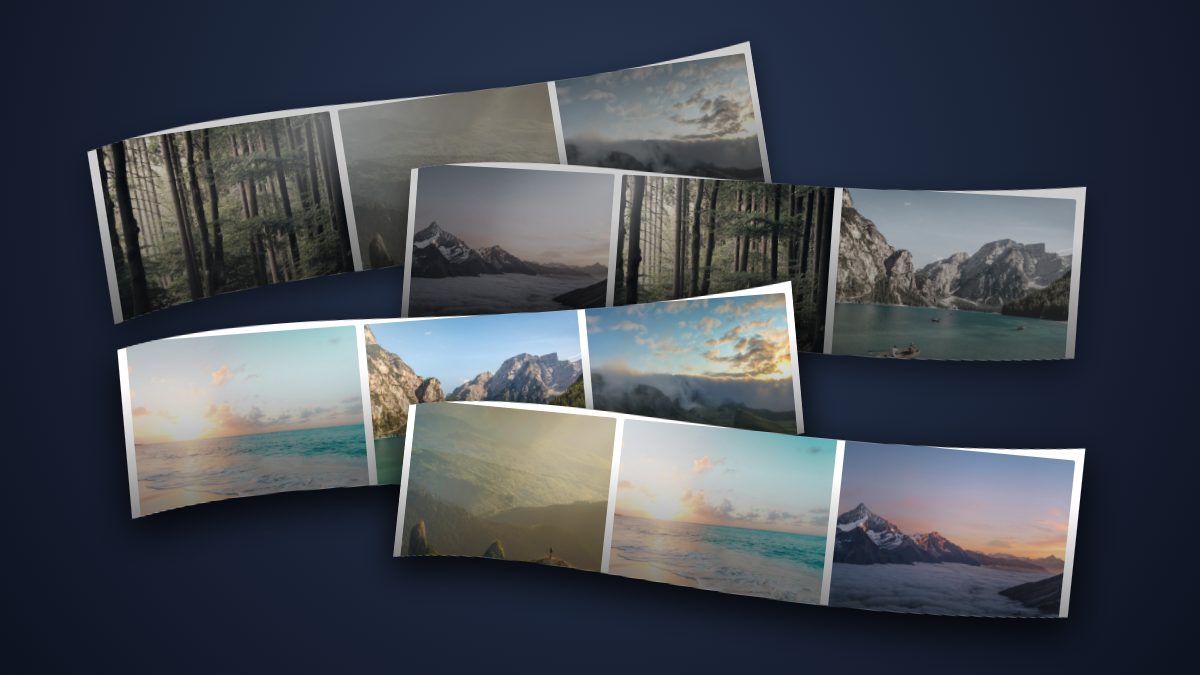
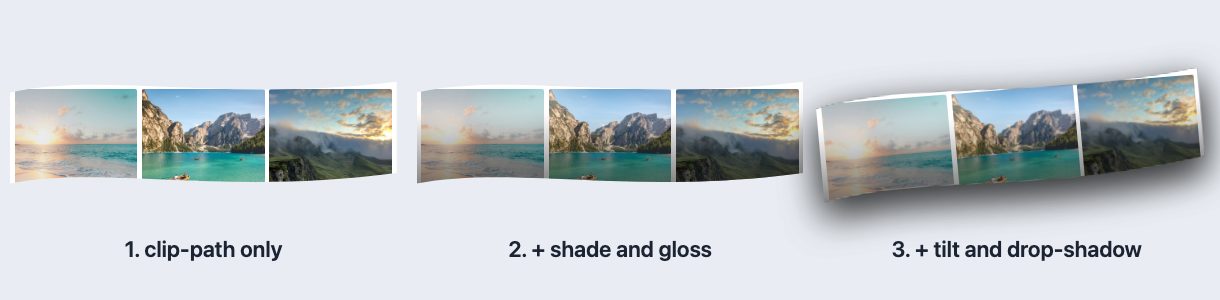
You can build a curved, glossy photo strip, the kind Apple used on iLife packaging in the mid-2000s, entirely in CSS. A strip is a row of frames clipped to a wavy outline, tilted in 3D, shaded with a gradient, lit with a soft highlight and lifted off the page with a shadow. No warp tool, no flattened JPEG, and your photos stay real, sharp, accessible images.
The original version of this tutorial used Photoshop’s Warp command, layer masks and hand-painted shadows. That workflow still works, but it produces a single raster image that cannot be edited, translated or resized. Below you will build the same effect twice: first as a numbered Photoshop workflow for fixed artwork, then as a responsive CSS component for the web.
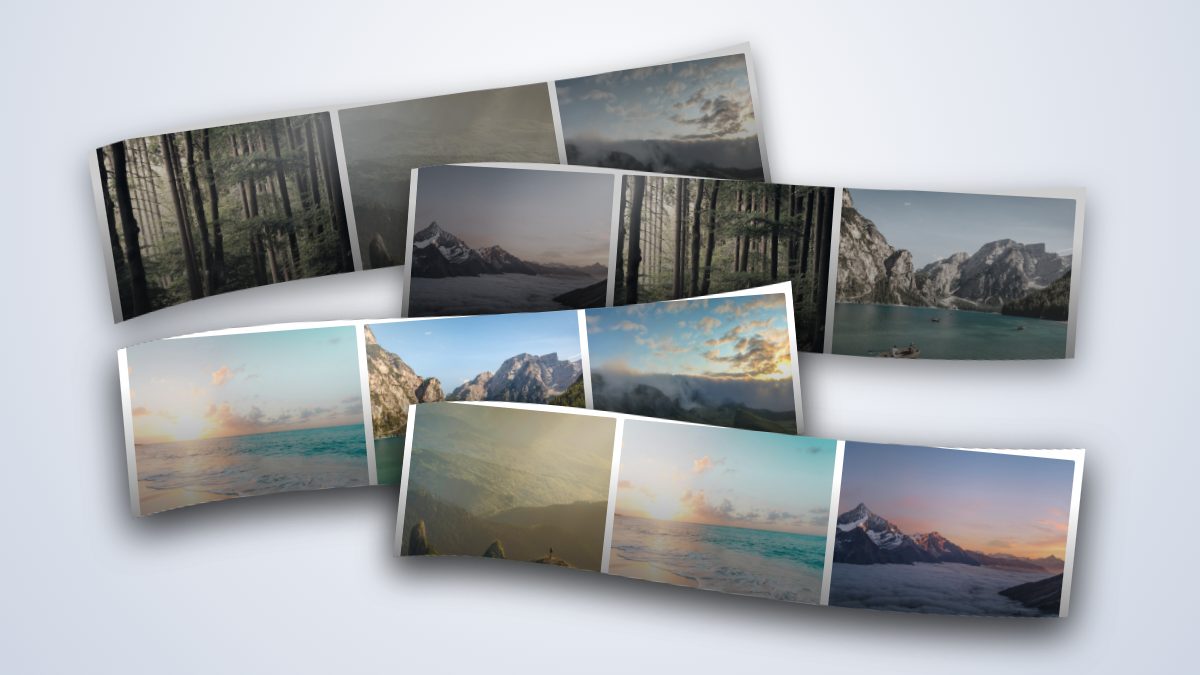
The Photoshop workflow
If you need a flat piece of artwork (a social graphic, packaging mockup or print layout), this is the classic recipe, updated for current Photoshop:
- Draw the outline. With the Pen tool in Path mode, draw the wavy ribbon shape for one strip: two curved edges joined by straight ends. Keep the curve gentle, with few anchor points.
- Stack the photos as Smart Objects. Place three photos side by side on a white rectangle that acts as the film border, then select the photo layers and choose Layer > Smart Objects > Convert to Smart Object, so every later transform stays editable and non-destructive.
- Warp to the curve. Select the group and choose Edit > Transform > Warp. Drag the grid handles until the frames follow the outline. Because the layers are Smart Objects, you can reopen the warp later.
- Mask to the outline. Turn the path into a selection (Make Selection in the Paths panel) and click Add Layer Mask on the group. Everything outside the curve disappears, but you can repaint the mask at any time.
- Add the shade. On a new layer above the group, clipped to it, drag a black-to-transparent gradient from the bottom edge upward and lower the layer opacity until the photos darken without turning muddy.
- Add the gloss. Draw a white ellipse, squash and rotate it across the top-left of the strip, then blur it slightly and drop its opacity to around half. Clip it to the group too.
- Push the back strips away. Duplicate the strip for each copy, move and rotate them, then put a Hue/Saturation adjustment layer with low saturation above the strips that should recede.
- Add the shadow. Apply a Drop Shadow layer style to each strip group so the shadow follows the masked edge.
The rest of this article rebuilds the same stack in CSS, which suits any page where the photos might change.
How the effect is built in CSS
Each step of the Photoshop recipe has a direct CSS counterpart:
| Photoshop step | CSS equivalent |
|---|---|
| Pen-tool outline plus layer mask | clip-path with an SVG <clipPath> using bounding-box units |
| Warp the photos to follow the curve | Tilt with the individual rotate property and a perspective() transform |
| Black gradient for shade | A linear-gradient in a pseudo-element |
| Squashed glowing ellipse for gloss | A blurred radial-gradient in a second pseudo-element |
| Offset stroke for the edge line | A tiny drop-shadow() |
| Desaturate the back strips | filter: saturate() |
One detail matters for the order of operations. clip-path cuts off everything outside the shape, including a box-shadow. So the shadow goes on the outer element with filter: drop-shadow(), which is applied after clipping and follows the curved edge. Keep clip and shadow on two nested elements and the effect works.
1. Markup: a strip is a row of images
Use real <img> elements for your photos, each with its own alt text. The demo uses six landscape photos from Unsplash, cropped square. Define the clip shape once in an inline SVG, then reference it from CSS.
<svg width="0" height="0" aria-hidden="true" focusable="false">
  <clipPath id="bend" clipPathUnits="objectBoundingBox">
    <path d="M0 .12 C.25 -.08 .55 .22 1 .02 L1 .88 C.55 1.1 .25 .8 0 .98 Z"/>
  </clipPath>
</svg>

<div class="strip">
  <div class="ribbon">
    <img src="beach.jpg" alt="Sunset over a beach" width="600" height="600">
    <img src="dunes.jpg" alt="Wind-sculpted dunes" width="600" height="600">
    <img src="harbour.jpg" alt="Fishing boats in a harbour" width="600" height="600">
  </div>
</div>
The path uses clipPathUnits="objectBoundingBox", so its coordinates run from 0 to 1 and scale with the element. That is what makes the strip responsive. A fixed-pixel path() in CSS would not resize with its box. The two cubic curves are the top and bottom edges of the ribbon; change the control-point values (.25, .55, .8) to make the wave deeper or shallower.
2. Frames and clipping
.strip {
  position: relative;
  width: 62%;
  aspect-ratio: 62 / 34;
  rotate: -5deg;
  transform: perspective(900px) rotateY(8deg);
  filter:
    drop-shadow(0 14px 18px rgb(0 0 0 / .55))
    drop-shadow(0 0 .5px #000);
}

.ribbon {
  position: absolute;
  inset: 0;
  display: grid;
  grid-template-columns: repeat(3, 1fr);
  gap: 1.2%;
  padding: 2.4% 1.2%;
  background: #fff;            /* the film border */
  clip-path: url(#bend);
}

.ribbon img {
  width: 100%;
  height: 100%;
  object-fit: cover;
  border-radius: 2px;
}
This block is the single-strip foundation. Step 4 repositions it, so the final stylesheet at the end replaces these rules with one consolidated version. The white background and padding act as the frame between and around photos. object-fit: cover keeps any photo from stretching, so editors can drop in portrait or landscape pictures. The individual rotate property is separate from transform, which lets you tilt on the page plane and in 3D without writing one long transform string.
The second drop-shadow at half a pixel is the cheap equivalent of the line stroke in the old tutorial: a hairline that keeps the white edge visible against light backgrounds.
3. Shading and highlights
This is where the strip stops looking like a flat banner. A gradient darkens the lower part of each ribbon, as if the paper curls away from the light, and a blurred ellipse adds a glossy streak.
.ribbon::before {            /* shade */
  content: "";
  position: absolute;
  inset: 0;
  z-index: 1;
  background: linear-gradient(to bottom, transparent 30%, oklch(0.2 0 0 / .55));
  pointer-events: none;
}

.ribbon::after {             /* gloss */
  content: "";
  position: absolute;
  z-index: 2;
  left: 12%;
  top: -30%;
  width: 40%;
  height: 90%;
  rotate: -24deg;
  border-radius: 50%;
  background: radial-gradient(closest-side, rgb(255 255 255 / .5), transparent);
  filter: blur(6px);
  pointer-events: none;
}
Both pseudo-elements use pointer-events: none so they never block clicks on the images underneath, which matters if each frame links somewhere. They also sit inside the clipped .ribbon, so the shading is trimmed to the curve for free, which was a separate masking step in Photoshop.
4. Stack several strips
Place the strips with position: absolute inside an aspect-ratio container. Each strip gets its offset, rotation and Y-axis tilt from custom properties set by a class, and the two back strips share a .back class that desaturates them. Here is the stage markup with all four strips:
<div class="stage">
  <div class="strip strip-1 back"><div class="ribbon">
    <img src="forest.jpg" alt="Sunlit forest path" width="600" height="600">
    <img src="ridge.jpg" alt="Hiker on a ridge" width="600" height="600">
    <img src="cliffs.jpg" alt="Green cliffs and a winding road" width="600" height="600">
  </div></div>
  <div class="strip strip-2 back"><div class="ribbon">
    <img src="peaks.jpg" alt="Peaks above a sea of cloud" width="600" height="600">
    <img src="forest.jpg" alt="Sunlit forest path" width="600" height="600">
    <img src="lake.jpg" alt="Rowing boat on a turquoise lake" width="600" height="600">
  </div></div>
  <div class="strip strip-3"><div class="ribbon">
    <img src="beach.jpg" alt="Sunset over a beach" width="600" height="600">
    <img src="lake.jpg" alt="Rowing boat on a turquoise lake" width="600" height="600">
    <img src="cliffs.jpg" alt="Green cliffs and a winding road" width="600" height="600">
  </div></div>
  <div class="strip strip-4"><div class="ribbon">
    <img src="ridge.jpg" alt="Hiker on a ridge" width="600" height="600">
    <img src="beach.jpg" alt="Sunset over a beach" width="600" height="600">
    <img src="peaks.jpg" alt="Peaks above a sea of cloud" width="600" height="600">
  </div></div>
</div>
Desaturating the two back strips is the same trick as the final step of the Photoshop recipe: removing colour pushes layers away from the viewer and makes the front strips read as the subject. The percentages keep the composition proportional at any width. On narrow phones, reduce the number of strips or switch to a single column so the frames stay large enough to see.
5. The complete stylesheet
This is the single, consolidated stylesheet that reproduces the featured image. It replaces the separate .strip rules from steps 2 to 4, so position, size, rotation and transform are each defined once. Pair it with the clip-path SVG from step 1 and the markup above.
.stage { position: relative; width: min(92vw, 1100px); aspect-ratio: 16 / 9; }

.strip {
  position: absolute;
  left: var(--x);
  top: var(--y);
  width: 62%;
  aspect-ratio: 62 / 17;
  rotate: var(--r);
  transform: perspective(900px) rotateY(var(--ry, 0deg));
  filter:
    drop-shadow(0 14px 18px rgb(0 0 0 / .55))
    drop-shadow(0 0 .5px #000);
}
.strip.back {
  filter: saturate(.35) brightness(.8) drop-shadow(0 10px 14px rgb(0 0 0 / .5));
}
.strip-1 { --x: 6%;  --y: 8%;  --r: -9deg; --ry: 12deg; }
.strip-2 { --x: 30%; --y: 22%; --r: 4deg;  --ry: -10deg; }
.strip-3 { --x: 8%;  --y: 44%; --r: -5deg; --ry: 8deg; }
.strip-4 { --x: 30%; --y: 62%; --r: 6deg;  --ry: -8deg; }

.ribbon {
  position: absolute;
  inset: 0;
  display: grid;
  grid-template-columns: repeat(3, 1fr);
  gap: 1.2%;
  padding: 2.4% 1.2%;
  background: #fff;
  clip-path: url(#bend);
}
.ribbon img { display: block; width: 100%; height: 100%; object-fit: cover; border-radius: 2px; }

.ribbon::before {
  content: ""; position: absolute; inset: 0; z-index: 1; pointer-events: none;
  background: linear-gradient(to bottom, transparent 30%, oklch(0.2 0 0 / .55));
}
.ribbon::after {
  content: ""; position: absolute; z-index: 2; pointer-events: none;
  left: 12%; top: -30%; width: 40%; height: 90%;
  rotate: -24deg; border-radius: 50%; filter: blur(6px);
  background: radial-gradient(closest-side, rgb(255 255 255 / .5), transparent);
}
Note that the strip uses aspect-ratio instead of a fixed height, so it scales with the stage. The hover motion from the next section is the only addition.
6. Motion, accessibility and support
A small hover lift makes the stack feel physical. Wrap it in prefers-reduced-motion so people who ask their system for less motion do not get it:
@media (prefers-reduced-motion: no-preference) {
  .strip { transition: transform .4s ease; }
  .strip:hover {
    transform: perspective(900px) rotateY(var(--ry, 0deg)) translateY(-6px);
  }
}- Alt text. Describe each photo individually. If the strip is purely decorative, use empty
alt="", and do it deliberately. - Contrast. Do not put text over the gloss or shade layers. If you need a caption, place it below the strip.
- Support. According to MDN,
clip-path,drop-shadow(), the individualrotateproperty,oklch()andprefers-reduced-motionare all Baseline Widely available, so you can ship the whole demo to evergreen browsers without fallbacks. - Performance. Filters are often GPU-accelerated but still costly on large layers, and stacking dozens of large filtered layers can cost frames. Keep the count small, and avoid animating
filterorclip-path; animatetransformonly.
When Photoshop or Figma still makes sense
CSS is the right tool when the strip lives inside a web page and photos change. Use a design tool when the result is a fixed piece of artwork: a social graphic, a packaging mockup or a print layout.
- Photoshop. Use the workflow above. Converting to Smart Objects first keeps the warp editable, and one mask per strip lets you reshape each curve later.
- Figma. As of writing, Figma has no built-in warp or mesh distortion for images, but it handles rotation, masks, drop shadows and layer blur well. Mock up the layout there, then copy the angles and shadow values into your CSS custom properties.
For web work, build in CSS and use the design tool only to choose proportions and crop photos.
Related techniques
The same ingredients (clipping, shadows and transforms) show up in many image effects. See CSS3 Image Styles for frames and polaroid-style borders, 9 Simple CSS Image Filters for more on filter, and Easy CSS Animation With Transition & Transforms for the hover motion. To present the strips as a clickable set, start from the photo gallery with modal lightbox or the animated photo gallery snippets.
Going further: sprocket holes
For a dark film-stock look, swap the white border for near-black and draw the sprocket holes with two repeating gradients, one along the top edge and one along the bottom. Add this after the main .ribbon rule and give the ribbon a little more vertical padding:
.ribbon {
  background:
    repeating-linear-gradient(90deg, transparent 0 .6em, #f4f1e8 .6em 1.2em, transparent 1.2em 1.8em)
      top .35em left 0 / 100% .55em no-repeat,
    repeating-linear-gradient(90deg, transparent 0 .6em, #f4f1e8 .6em 1.2em, transparent 1.2em 1.8em)
      bottom .35em left 0 / 100% .55em no-repeat,
    #15171c;
  padding: 5% 1.2%;
}
Because the holes are sized in em, set a font-size on .stage (for example clamp(10px, 1.6vw, 18px)) so they scale with the strip.
very very nice. I’ve been trying to think of something cool to use for a background of my photography blog. I’ll have to give this a go and see what I come up with.
This is really cool, it’s very simple and resourceful, I always thought of this effect being done on some 3d environment or some automated action of some sort. Kudos Nick, very inspiring.
This is really cool, it’s very simple and resourceful, I always thought of this effect being done on some 3d environment or some automated action of some sort. Kudos Nick, very inspiring.This is really cool, it’s very simple and resourceful, I always thought of this effect being done on some 3d environment or some automated action of some sort. Kudos Nick, very inspiring.
wow. the final image is really cool. i have to try this. nice tutorial ;)
How uncanny. Stumbled here just now – only a couple of days since planning to use just this kind of thing on my website. Thanks for the tut – I’ll be back!
Hey, very nice, man! But, anybody can’t use the Photoshop because it’s quite expensive way. I think, you can carry it out with another application for graphic designers, but it’s well by the Photoshop, too.
I really like the way you have elaborated making strips in photoshop reason being it is normally considered an illustrator job. Fantastic work. Thanks
This is an outstanding effect. I look forward to giving this a try later this evening. Wonderful design work!
Amazing tutorial. With a little trail and error a designer could expand this tutorial to create an easy to follow method for lining up the ending pixels of the over and underlapping segments of the photo strip.
So for example, if a designer decided to use one really long image, the designer could break that image into parts to match the flow of a real world photo strip.
Actually with some thought, my idea is probably easier to accomplish in a dedicated 3D program with texture support; yet it would be a niffy expansion of this tutorial.
Thanks!
Nice job! I always wondered if you did this with the Warp tool, or if there was some way to mold the pictures in 3D to the path. I see now. ;) Thanks!
very good article. there are a lot of tutorials and tips. you can do a lot of things with photoshop.
I stumbled across this site via dreamweaverlub.com. Very nice indeed and would love to win the win the 3D scrolling pic prize. Thanks and I will be using this awesome site again and again….JL
hi, thanks a lot for the tutorial, is very nice and effective. I like the effect very much i will do it in one of my designs one day.
Best
Ralph
http://www.deprowebs.com
Cool tutorial indeed! Thanks for sharing it with us. =)
I am quite smitten with that DigitalMesh design.
Thank you very much vor this tutorial!
It will help me to Illustrate my own litte Website with my own Pictures and Graphics. I hope it will be finished soon.
I really love your work!
Oh I love this tutorial. Great work. I have never actually tried this effect, but this page is most certainly bookmarked now. Thanks a lot. Great work.
Great tutorial. Use of the Warp Tool gave me some insight on how to achieve a similiar effect but with lines. I know how to do it in Illustrator but I need to find a way to make it work in Photoshop 7. Thanks!
hei,,
how to add layout for hompage?
but i must do it just for example in powerpoint…
help me pliiiish..
hheh..
This is a great tut. Usually I just do this in illustrator using the envelope mesh tool. You can get some wicked awesome retro swirly loops a la’ Elliott Smith’s “Figure 8” album cover.
Hey!
This is a great tutorial. I didn’t believe you could make such art in Photoshop but you can. I’m really surprised!
I’ve tried it out myself but I’m having problems getting the strip shape right using the pen tool. Could you make a tutorial on how you made the shape for this piece of art or an overall tutorial that shows how you use the pen tool i PS CS3? Please? :-)
I am an old fashion artist that uses knives, brushes and tourches! I am trying to learn Photoshop 7, so this is really great info. Thank you and great success!
I’m lost at step 7. “shift the selection to the left by 1 or 2 pixels” When i nudge it (arrow left) 1 step to left, I end up with a equally thick line, altho in the tutorial the line goes from thick black (1 px) to zero. Any help on this?
This was great but parts of it were baffling:
To make highlighted and glossy areas: create a round glowing circle, compress it, and rotate it in the angle according to your strip’s direction.
Thats a pretty amazing effect you’ve created there.
Although i’m not sure where i’d use it on any design at the moment I probably will in the future!
It might be quite nice to animate it a bit too…
Thanks
Is there a turorial anywhere for a noob about how to use the pen tool properly. Awesome site and awesome design. I am trying to learn how to create custom themes for wordpress so have lots to learn.
Can You Post The Strip Part Itself As A PSD???
Please
This is indeed a great tutorial – really useful for amateurs right through to professional graphic designers. It really gets you thinking about fresh ways in which Photoshop’s powerful functionality can be used.
I’ve added it as an extra to my Top 10 Photoshop Tutorials of 2008 list at here: http://www.kinocreative.co.uk/blog/?p=5, but only because you onlyposted it in 2009!
Great Tutorial! Long time Photoshop user and designer, but I’ve never played with the warp tool quite like this before.
You’ve left out some of the subtle touches, but thanks to the photoshop file I got a better idea of the complete package, really appreciate having a final file to reference.
nice tutorial…can u teach me on how to Create a Strip (Vector Shapes)???pls?
how to make the strip???any video tutorials there pls????
thank you
in french please ???
je suis Lou, de france
tres jolie tuto merci, mais serait il possible de l’avoir en français ?
merciiiiiii
wow! What a nice and easy way to create beautiful and artistic work. Thanks for helping us with this Great Post!
This is wonderful! Thank you for sharing out! Oh, I read one of the comments on page 16 from “Lou” they may want to try google translator, I put this pages url in and it translated beautifully to French ;)
This site is aving me hours of production time. I have been using Illustrator, Photoshop and all the usual suspects for years now and still finding out some truly superb techniques to speed up my workflow and continue creating powerful graphics and imagery.
Thanks Webdesignerwall! Who should I make the cheque payable too???
:-)
First thing good sites … to refer ,hi i am designer i wanted create new designs every day ………..please kindy help in color and design … all short cut in key borad thank a lot to give us this site………….. :-)
mona
Love your site. It is beautiful and I love a lot of the functions you have on here. This tutorial is great! Keep up the great work! I will be back!
this is great tutorial! however, i don’t have the finest idea how to creat the strip outline. Would somebody be so kind to help? :)
This was an AWESOME tutorial. I created a ribbon of photos for a DVD package and it turned out gorgeous. Without the sample and your perfect instructions I could never have accomplished this. Thank you so much!
Nice tutorial. There are also some good ones at DocumentLab’s photoshop page
Its excellent… good work… thank you for your great idea…
Thanks a lot! (: This was a great tutorial..But ii got stuck on Step 5. I’m a newbiee at Photoshop..any kind…&& ii don’t know how to add the smooth curve or mask the layer.. Please email [email protected] with the answeer! ;]]
-shoshana (;
i love this tutorial!
but my image when i warp it becomes blurry…how can i fix that????
You’re an excellent graphic designer, and an ever worse teacher.
“To make highlighted and glossy areas: create a round glowing circle, compress it, and rotate it in the angle according to your strip’s direction.”
Asspinchter says what?
Thanks Thanks What’s the problem here? Google could bury the meager profit number from even the biggest media conglomerates.
It very nice
thank you for keeping Download Free
Thanks for this, wicked website design as well… good work!
hi, i tried to do this tutorial but when i have my stacked photos it won’t let me select warp, if i bring the photos in seperately they are on different layers so i can’t select them as a group. how did you get your stacked photos to warp?
really wonder full but very easy and very creative tutorial,
This is a great tutorial however…im a complete beginner in editing photos and doing all these complicated things on photoshop…I tried but i couldnt do it as professional as yours – how did you manage to wrap your phtos so neatly inside the strip guidelines?! Please help :)
dear sir and madam,
a very good morning
we appreciate your website updated worldwide. please accept our heartiest reception from himalayan kingdom of Nepal.
we want to see the more & more attractive design for print advtertisement.
please demonstrate us.
regds,
rajes maharjan
maharajgung, kathmandu, nepal
[email protected]
could not make the strip like i wanted, not to good wit the pen tool can u help??
i m stuck at step 5 plz reply me
Me encanto…. siempre quise hacer este efecto… Mil Gracias
Great post, I always wondered how this was done, I’ve seen it so many times on websites and always loved the concept, will give this photo strip tutorial a go later – great job!
I try to follow the examples already. Results have recently been encouraging.
How do you create a round glowing circle?
Danny,
To create a round glowing circle, all you must to do is :
1-create a new layer,
2- press D on keyboard,
3-choose white for the foreground color,
4-take the gradient tool,
5-choose white to transparent,
6-choose radial gradient,
7-click and drag,
8-now you have a white glowing circle.
Answer.
I have never used the pen tool before. So how do I go about drawing the beginning guidelines in step one? Does anyone have a step-by-step tutorial that I could follow? I was hoping to use it in a graduation poster I’m working on.
Other than my speed bump, this is very beautiful! I hope I can figure it out.
when i try to warp my images, and hit alt T to transform, it goes to my strip that i made with the pen…so i cant warp my image! what am i doing wrong!? thanks in advance and this is a great tutorial
i know the warp function in photoshop, but i just didn’t notice that i can actually create something like this using this feature. Nice job^.^
it is easy.thx ı make it to.thx it is useful post and photoshop is very good.
Truly creative work. liked color combination and way of design.
Wish these were videos- not good at reading instructions… =[
This is a great and inspirational post. I can really visualise photos that I’ve taken in a photo strip like this. Great for displaying your portfolio in a quirky and unusual way. Thanks!
I have recently started using the blogengine.net and I having some problems here? in your blog you stated that we need to enable write permissions on the App_Data folder…unfortunately I don’t understand how to enable it.
where can i find the tuts step by seps, because i feel like there are missing a few steps, like the one at the beginning, how can i stack the first 3 pictures, cuz i do it but then when i have to apply the transform tool, it only apply for the vector but not for the picture,
TY
Simply brilliant, I need to improve my PS skills for sure. I only use it to do simple image alterations, like cropping and resizing :)
Great tutorial. Thank you so much and keep up the good work.
Brilliant guide, very simple to use, even if Photoshop isn’t.
The modern and delicate makes iphone 4 white so charming that even me, want to own one. But what i can do now, is to wait the price to decline.
People die for iphone 4 white is understandable, isn’t it? The reason is quite simple, We all want to be differnt!
Brilliant guide, very simple to use, even if Photoshop isn’t.
i need help…after i made my shapes with the pen tool and then stacked my pictures…when i go to warp the pictures, i end up warping the shapes and not the pictures…can you help me?
with the help of it, we can clear christian louboutin high heels open which a door.
In step 5 when I put the gradient what do I have to do? do I lower the opacity? do i blend it? please help
tnks , merci pour le cours , vous pouvez voire le tuto en francais je fé une tradiction de ce cours
Wow thanks for the tutorial! This will save my ass for my girlfriend’s birthday =)
This tut is great, as well as the other you do. Thanks for taking the time to put it together and sharing. Some good tips in it.
Graphic Web Design rochester, NY
Hello, i think that i saw you visited my web site so i came to “return the favor”.I’m attempting to find things to improve my website!I suppose its ok to use some of your ideas!!
whoah this weblog is wonderful i like reading your articles. Keep up the good work! You already know, lots of people are searching round for this information, you can help them greatly.
Great tutorial this, have utilised it on a few advert designs myself – Great work, thank you.