Build an Accessible Lightbox with the Dialog Element
The simplest modern lightbox is a native <dialog> opened with showModal(). The browser supplies the dimmed backdrop, the focus trap, the Escape key and the top-layer stacking that older lightbox scripts had to fake. You add a thumbnail grid, a few lines of JavaScript for next and previous, and some CSS for the fade.
The original version of this article, written in 2012, built a lightbox from the :target pseudo-class, 3D keyframes with four vendor prefixes, an XMLHttpRequest hack for old Internet Explorer and the early Full-screen API. None of that is needed now. Here is the approach that replaces it, with working code.
Why the native dialog beats the old approaches
The :target trick was clever, but it changes the URL, jumps the scroll position and leaves keyboard focus behind the overlay. A hand-built overlay div needs a focus trap, an aria-modal attribute, Escape handling and a z-index fight. A modal <dialog> handles those for you, according to MDN:
- Everything outside the dialog becomes inert, so nobody can tab or click into the page behind it.
- Focus moves to the first focusable element inside, or to the one marked
autofocus. - Escape closes it, and focus returns to the control that opened it.
- It renders in the top layer, so you never set a z-index.
- The
::backdroppseudo-element gives you the dimmed layer to style.
The <dialog> element is Baseline Widely available, working across browsers since March 2022. You can use it in production without a polyfill.
Step 1: Markup with real buttons
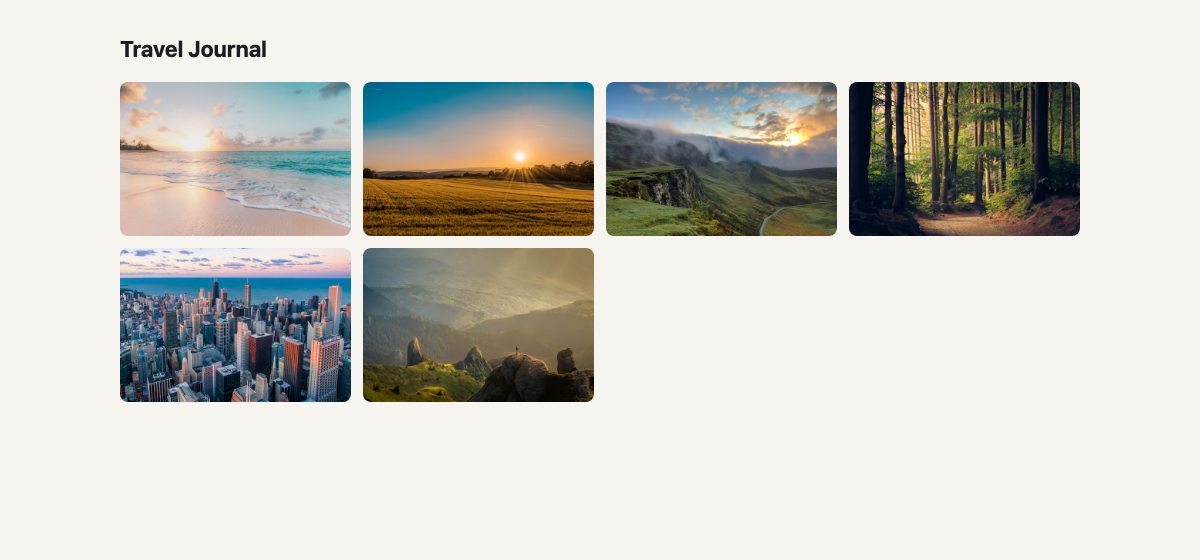
Each thumbnail is a button wrapping an img, not a bare image with a click handler. That makes it reachable by keyboard and announced as an interactive control. The dialog holds one large image, a caption and the controls. Each button carries a data-full attribute with the URL of the large file, while the img inside loads a small one.
<div class="gallery" id="gallery">
<button type="button" data-full="https://images.unsplash.com/photo-1507525428034-b723cf961d3e?auto=format&fit=crop&w=1800&q=75" aria-haspopup="dialog">
<img src="https://images.unsplash.com/photo-1507525428034-b723cf961d3e?auto=format&fit=crop&w=600&h=400&q=75" alt="Beach at sunrise" width="600" height="400" loading="lazy">
</button>
<!-- five more buttons, same pattern -->
</div>
<dialog class="lightbox" id="lightbox" aria-label="Image viewer">
<form method="dialog">
<button class="close" autofocus aria-label="Close">✕</button>
</form>
<button class="prev" type="button" aria-label="Previous image">‹</button>
<button class="next" type="button" aria-label="Next image">›</button>
<figure class="stage"><img alt=""><figcaption></figcaption></figure>
</dialog>The close button sits inside a <form method="dialog">. Submitting that form closes the dialog with no JavaScript at all. The autofocus attribute puts focus on Close when the dialog opens, which MDN recommends when nothing else is more immediate.
Step 2: Open it and move between images
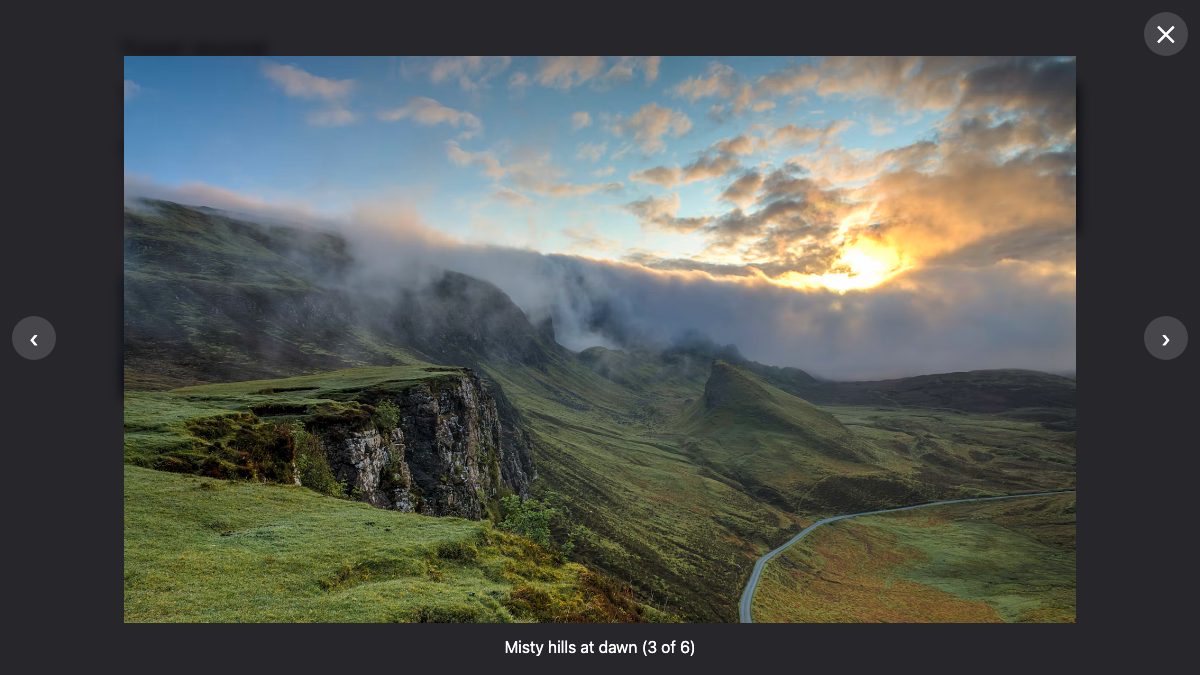
One dialog serves the whole gallery. When a thumbnail is clicked, you swap the large image and caption, then open the dialog. Event delegation keeps it to one listener on the grid. The list of images is read from the thumbnails themselves, so adding a seventh button needs no change in the script, and the alt text, caption and count always match the markup.
const gallery = document.getElementById("gallery");
const dlg = document.getElementById("lightbox");
const big = dlg.querySelector(".stage img");
const caption = dlg.querySelector("figcaption");
const thumbs = [...gallery.querySelectorAll("button[data-full] img")];
let current = 0;

function preload(i) {
  const n = (i + thumbs.length) % thumbs.length;
  new Image().src = thumbs[n].closest("button").dataset.full;
}

function show(i) {
  current = (i + thumbs.length) % thumbs.length;
  const thumb = thumbs[current];
  const full = thumb.closest("button").dataset.full;

  // Show the cached thumbnail at once, swap in the full file when decoded.
  big.src = thumb.currentSrc;
  big.alt = thumb.alt;
  caption.textContent = `${thumb.alt} (${current + 1} of ${thumbs.length})`;

  const shown = current;
  const loader = new Image();
  loader.src = full;
  loader.decode()
    .catch(() => {})
    .then(() => { if (shown === current) big.src = full; });

  preload(current + 1);
  preload(current - 1);
}

gallery.addEventListener("click", (e) => {
  const btn = e.target.closest("button[data-full]");
  if (!btn) return;
  show(thumbs.indexOf(btn.querySelector("img")));
  dlg.showModal();
});

dlg.querySelector(".prev").onclick = () => show(current - 1);
dlg.querySelector(".next").onclick = () => show(current + 1);

dlg.addEventListener("keydown", (e) => {
  if (e.key === "ArrowLeft") show(current - 1);
  if (e.key === "ArrowRight") show(current + 1);
});
Three details in show() are worth a closer look:
- Full-size images load on demand. The grid downloads only small thumbnails. The large file comes from
data-fullwhen an image is opened, andpreload()fetches the next and previous images in the background so arrow keys feel instant. - Nothing is blank while the large file loads. The dialog first shows the thumbnail, which is already in the browser cache, then swaps in the full file once
decode()resolves. Theshown === currentcheck stops a slow image from overwriting the one you have since moved on to. - Focus stays put during loading. Focus sits on the Close button, never on the image, so a pending download cannot strand it. Screen readers hear the new alt text as soon as
big.altchanges.
The arrow-key listener sits on the dialog, not on document. It only fires while focus is inside the dialog, which is always true for a modal one, because showModal() moves focus in and the rest of the page is inert. Escape needs no code at all: the browser closes the dialog natively.
Step 3: Close on a click outside the image
Escape and the Close button already work. People also expect a click on the dimmed area to dismiss the lightbox. The platform has a one-line option, the closedby attribute:
<dialog class="lightbox" id="lightbox" aria-label="Image viewer" closedby="any">closedby="any" turns on light dismiss. According to MDN’s browser compatibility data, it ships in Chrome and Edge 134 and in Firefox 141. Safari has it only in Technology Preview so far, so it is not yet safe to rely on alone. A short listener works everywhere, and you can keep both: the attribute where it exists, the script as the fallback.
dlg.addEventListener("click", (e) => {
  // Anything that is not the image, the caption or a button is empty space.
  if (!e.target.closest("button, img, figcaption")) dlg.close();
});
The fallback treats any click that did not land on the image, the caption or a button as a click on empty space. That works because .stage fills the whole dialog (Step 4), so the only things under the pointer are the figure’s padding and the dialog itself. If you wrap the image in extra elements, or add a toolbar or caption box that should not close the lightbox, add it to the closest() selector. Clicks on the caption are ignored on purpose, so people can select its text.
Step 4: Style the dialog and the backdrop
Make the dialog fill the screen, remove its default border and background, and let the backdrop do the dimming. Locking page scroll takes one line with :has().
body {
  margin: 0; padding: 2rem 1rem;
  font: 16px/1.5 system-ui, sans-serif;
  background: #f6f4ef; color: #1c1b22;
}
body:has(dialog[open]) { overflow: hidden; }

h1 { max-width: 60rem; margin: 0 auto 1rem; font-size: 1.4rem; }

.gallery {
  display: grid;
  grid-template-columns: repeat(auto-fill, minmax(14rem, 1fr));
  gap: 0.75rem;
  max-width: 60rem; margin: 0 auto;
}
.gallery button {
  padding: 0; border: 0; background: none;
  border-radius: 0.5rem; overflow: hidden;
  line-height: 0; cursor: zoom-in;
}
.gallery img {
  display: block; width: 100%; height: auto;
  aspect-ratio: 3 / 2; object-fit: cover;
}

.lightbox {
  position: fixed; inset: 0; margin: 0;
  width: 100%; height: 100%;
  max-width: none; max-height: none;
  padding: 0; border: 0;
  background: transparent; color: #fff;
}
.lightbox::backdrop {
  background: rgb(10 10 16 / 0.88);
  backdrop-filter: blur(6px);
}

.stage {
  display: grid;
  grid-template-rows: 1fr auto;
  box-sizing: border-box;
  height: 100%; margin: 0;
  padding: 3.5rem 1rem 1rem;
}
.stage img {
  width: 100%; height: 100%; min-height: 0;
  object-fit: contain;
}
.stage figcaption { padding-top: 0.75rem; text-align: center; }

.lightbox button {
  position: absolute; z-index: 1;
  width: 2.75rem; height: 2.75rem; padding: 0;
  border: 0; border-radius: 50%;
  background: rgb(255 255 255 / 0.15); color: #fff;
  font: inherit; font-size: 1.5rem; line-height: 1;
  cursor: pointer;
}
.lightbox button:hover { background: rgb(255 255 255 / 0.3); }
.close { top: 0.75rem; right: 0.75rem; }
.prev, .next { top: 50%; translate: 0 -50%; }
.prev { left: 0.75rem; }
.next { right: 0.75rem; }

:focus-visible { outline: 3px solid oklch(62% 0.2 265); outline-offset: 3px; }
The first block makes the page reproducible: it resets the thumbnail buttons and lays the grid out. In the second, the three controls get position: absolute, a fixed size and a translucent white background so they stay legible over any photo. They are positioned against the dialog, which the browser already fixes to the viewport and which we pin with inset: 0 to be explicit. box-sizing: border-box on .stage stops its padding from pushing the caption off screen. object-fit: contain keeps every image whole at any aspect ratio, and min-height: 0 lets the grid row shrink instead of overflowing on short screens.
Step 5: Animate with @starting-style
A dialog toggles between display: none and display: block, which classic transitions cannot animate. Two modern features solve it. @starting-style defines where the entry animation starts, and allow-discrete keeps the dialog on screen and in the top layer until the exit transition finishes. The dimmed ::backdrop is a separate box, so it needs its own opacity transition and starting style, otherwise it pops in and out while the content fades. MDN lists @starting-style as Baseline 2024.
.lightbox {
  opacity: 0;
  transition:
    opacity 0.25s,
    overlay 0.25s allow-discrete,
    display 0.25s allow-discrete;
}
.lightbox[open] { opacity: 1; }

.lightbox::backdrop {
  opacity: 0;
  transition:
    opacity 0.25s,
    overlay 0.25s allow-discrete,
    display 0.25s allow-discrete;
}
.lightbox[open]::backdrop { opacity: 1; }

@starting-style {
  .lightbox[open] { opacity: 0; }
  .lightbox[open]::backdrop { opacity: 0; }
}

@media (prefers-reduced-motion: reduce) {
  .lightbox, .lightbox::backdrop { transition: none; }
}
The @starting-style block must come after the rules it modifies, or the earlier rules win. Under reduced motion, transition: none removes the exit delay as well, so the dialog closes at once instead of lingering invisibly. Browsers without support skip the fade and the lightbox simply appears, so nothing breaks.
This is the sensible home for the 3D flips from the 2012 demo. Rotating every image in on a random keyframe is rarely a good idea, and the original author said as much: use motion subtly, so the image stays the focus. If you want a fancier transition between thumbnail and large image, same-document view transitions (document.startViewTransition()) can morph one into the other. They reached Baseline Newly available in late 2025, and the old advice still holds: feature-test and fall back to a plain update.
Full code: copy, paste, run
Here is everything from the five steps in one file. Save it as lightbox.html and open it in a browser. It loads six sample photos from Unsplash, so replace the URLs with your own files when you adopt it.
<!doctype html>
<html lang="en">
<head>
<meta charset="utf-8">
<meta name="viewport" content="width=device-width, initial-scale=1">
<title>Dialog lightbox</title>
<style>
body {
margin: 0; padding: 2rem 1rem;
font: 16px/1.5 system-ui, sans-serif;
background: #f6f4ef; color: #1c1b22;
}
body:has(dialog[open]) { overflow: hidden; }
h1 { max-width: 60rem; margin: 0 auto 1rem; font-size: 1.4rem; }
.gallery {
display: grid;
grid-template-columns: repeat(auto-fill, minmax(14rem, 1fr));
gap: 0.75rem;
max-width: 60rem; margin: 0 auto;
}
.gallery button {
padding: 0; border: 0; background: none;
border-radius: 0.5rem; overflow: hidden;
line-height: 0; cursor: zoom-in;
}
.gallery img {
display: block; width: 100%; height: auto;
aspect-ratio: 3 / 2; object-fit: cover;
}
.lightbox {
position: fixed; inset: 0; margin: 0;
width: 100%; height: 100%;
max-width: none; max-height: none;
padding: 0; border: 0;
background: transparent; color: #fff;
}
.lightbox::backdrop {
background: rgb(10 10 16 / 0.88);
backdrop-filter: blur(6px);
}
.stage {
display: grid;
grid-template-rows: 1fr auto;
box-sizing: border-box;
height: 100%; margin: 0;
padding: 3.5rem 1rem 1rem;
}
.stage img {
width: 100%; height: 100%; min-height: 0;
object-fit: contain;
}
.stage figcaption { padding-top: 0.75rem; text-align: center; }
.lightbox button {
position: absolute; z-index: 1;
width: 2.75rem; height: 2.75rem; padding: 0;
border: 0; border-radius: 50%;
background: rgb(255 255 255 / 0.15); color: #fff;
font: inherit; font-size: 1.5rem; line-height: 1;
cursor: pointer;
}
.lightbox button:hover { background: rgb(255 255 255 / 0.3); }
.close { top: 0.75rem; right: 0.75rem; }
.prev, .next { top: 50%; translate: 0 -50%; }
.prev { left: 0.75rem; }
.next { right: 0.75rem; }
:focus-visible { outline: 3px solid oklch(62% 0.2 265); outline-offset: 3px; }
.lightbox {
opacity: 0;
transition:
opacity 0.25s,
overlay 0.25s allow-discrete,
display 0.25s allow-discrete;
}
.lightbox[open] { opacity: 1; }
.lightbox::backdrop {
opacity: 0;
transition:
opacity 0.25s,
overlay 0.25s allow-discrete,
display 0.25s allow-discrete;
}
.lightbox[open]::backdrop { opacity: 1; }
@starting-style {
.lightbox[open] { opacity: 0; }
.lightbox[open]::backdrop { opacity: 0; }
}
@media (prefers-reduced-motion: reduce) {
.lightbox, .lightbox::backdrop { transition: none; }
}
</style>
</head>
<body>
<h1>Travel Journal</h1>
<div class="gallery" id="gallery">
<button type="button" data-full="https://images.unsplash.com/photo-1507525428034-b723cf961d3e?auto=format&fit=crop&w=1800&q=75" aria-haspopup="dialog">
<img src="https://images.unsplash.com/photo-1507525428034-b723cf961d3e?auto=format&fit=crop&w=600&h=400&q=75" alt="Beach at sunrise" width="600" height="400" loading="lazy">
</button>
<button type="button" data-full="https://images.unsplash.com/photo-1500382017468-9049fed747ef?auto=format&fit=crop&w=1800&q=75" aria-haspopup="dialog">
<img src="https://images.unsplash.com/photo-1500382017468-9049fed747ef?auto=format&fit=crop&w=600&h=400&q=75" alt="Wheat field at sunset" width="600" height="400" loading="lazy">
</button>
<button type="button" data-full="https://images.unsplash.com/photo-1470071459604-3b5ec3a7fe05?auto=format&fit=crop&w=1800&q=75" aria-haspopup="dialog">
<img src="https://images.unsplash.com/photo-1470071459604-3b5ec3a7fe05?auto=format&fit=crop&w=600&h=400&q=75" alt="Misty hills at dawn" width="600" height="400" loading="lazy">
</button>
<button type="button" data-full="https://images.unsplash.com/photo-1441974231531-c6227db76b6e?auto=format&fit=crop&w=1800&q=75" aria-haspopup="dialog">
<img src="https://images.unsplash.com/photo-1441974231531-c6227db76b6e?auto=format&fit=crop&w=600&h=400&q=75" alt="Forest trail" width="600" height="400" loading="lazy">
</button>
<button type="button" data-full="https://images.unsplash.com/photo-1477959858617-67f85cf4f1df?auto=format&fit=crop&w=1800&q=75" aria-haspopup="dialog">
<img src="https://images.unsplash.com/photo-1477959858617-67f85cf4f1df?auto=format&fit=crop&w=600&h=400&q=75" alt="City skyline at dusk" width="600" height="400" loading="lazy">
</button>
<button type="button" data-full="https://images.unsplash.com/photo-1469474968028-56623f02e42e?auto=format&fit=crop&w=1800&q=75" aria-haspopup="dialog">
<img src="https://images.unsplash.com/photo-1469474968028-56623f02e42e?auto=format&fit=crop&w=600&h=400&q=75" alt="Hiker on a ridge" width="600" height="400" loading="lazy">
</button>
</div>
<dialog class="lightbox" id="lightbox" aria-label="Image viewer">
<form method="dialog">
<button class="close" autofocus aria-label="Close">✕</button>
</form>
<button class="prev" type="button" aria-label="Previous image">‹</button>
<button class="next" type="button" aria-label="Next image">›</button>
<figure class="stage"><img alt=""><figcaption></figcaption></figure>
</dialog>
<script>
const gallery = document.getElementById("gallery");
const dlg = document.getElementById("lightbox");
const big = dlg.querySelector(".stage img");
const caption = dlg.querySelector("figcaption");
const thumbs = [...gallery.querySelectorAll("button[data-full] img")];
let current = 0;
function preload(i) {
const n = (i + thumbs.length) % thumbs.length;
new Image().src = thumbs[n].closest("button").dataset.full;
}
function show(i) {
current = (i + thumbs.length) % thumbs.length;
const thumb = thumbs[current];
const full = thumb.closest("button").dataset.full;
// Show the cached thumbnail at once, swap in the full file when decoded.
big.src = thumb.currentSrc;
big.alt = thumb.alt;
caption.textContent = `${thumb.alt} (${current + 1} of ${thumbs.length})`;
const shown = current;
const loader = new Image();
loader.src = full;
loader.decode()
.catch(() => {})
.then(() => { if (shown === current) big.src = full; });
preload(current + 1);
preload(current - 1);
}
gallery.addEventListener("click", (e) => {
const btn = e.target.closest("button[data-full]");
if (!btn) return;
show(thumbs.indexOf(btn.querySelector("img")));
dlg.showModal();
});
dlg.querySelector(".prev").onclick = () => show(current - 1);
dlg.querySelector(".next").onclick = () => show(current + 1);
dlg.addEventListener("keydown", (e) => {
if (e.key === "ArrowLeft") show(current - 1);
if (e.key === "ArrowRight") show(current + 1);
});
dlg.addEventListener("click", (e) => {
// Anything that is not the image, the caption or a button is empty space.
if (!e.target.closest("button, img, figcaption")) dlg.close();
});
</script>
</body>
</html>
Accessibility checklist
- Use buttons for thumbnails, never a bare clickable
img. - Give the dialog an accessible name with
aria-labeloraria-labelledby. - Keep real
alttext on the thumbnails and update the alt of the large image as it changes. - Label icon-only buttons, as above.
- Do not add
tabindexto the dialog. MDN advises against it because the element is not interactive. - Honour
prefers-reduced-motion, including for hover zooms. - Keep the
:focus-visibleoutline. The dialog hands focus back to the opening thumbnail on close.
When to reach for a library instead
This pattern covers a standard image gallery well. If you need pinch-to-zoom, swipe gestures, video slides, deep links to individual images or thumbnail strips, a maintained library such as GLightbox or PhotoSwipe saves real work. Otherwise, the native element means less code to ship and nothing to keep updated.
For ready-made starting points, see our photo gallery with modal lightbox and the social post image gallery with lightbox, both built on Bootstrap 5. To style the grid itself, try the animated photo gallery with hover effects or the expanding image gallery. The older CSS decorative gallery and parallax gallery tutorials show other ways to present images.
Summary
A lightbox is now a modal <dialog>, a grid of buttons and about twenty lines of JavaScript. You get focus management, Escape, inert background and a styleable backdrop from the platform, and you spend your effort on the part visitors see: the images.


Seems like not working properly in Opera. Kindly check Thanks
On Firefox it looks good.
Wahab, it’s not going to work the same in Opera as Firefox because the Full-screen API is, so far, only available in Firefox and Webkit-based browsers.
Not working properly in latest versions of Chrome or Firefox. Didn’t have behaviors I would expect from a lightbox at all. Couldn’t navigate using the gallery at the bottom on my 768 height screen since only a bit of the thumbnail showed. Didn’t have the standard arrows that appear on hover over the image to move from one picture to another either. So basically, I couldn’t navigate at all.
It’s working fine in the latest versions of Firefox and Chrome
I’ve only tested it out on the desktop so it’s not optimized for mobile devices
No there is no navigation, yet, it’s a means of presenting single images
I recommend correcting “pejorative” to “prerogative” since they mean very different things :) there are also some other typos (including an it’s/its) so maybe you’d like to do a once-over. Thank you for the article.
Well spotted. Perhaps Nick can change that mistake
Thanks for giving tutorial based on css3 and javascript with detailed description including code. I read your post really i get some knowledge.
Its working nice in firefox. Thanks for this tutorial. I wanna work in other browsers. Hope it works.
Thanks!!! it works wonders, I’ve been looking for a modern lightbox like this! I will for sure implement!!
Well, it really works for me for any browsers, this tutorial is really a good idea for us web designers.. Thanks for sharing it..
Very informative post and i have implemented it also. It feels good to say that works for any browser. Thanks Andy.
Awesome display of the capabilities that are available within CSS and Javascript. I would love to see a responsive version, well when I say see… I mean use ;)
Cheers
It doesn’t work properly in Firefox. And the inability to go through images with a mouse click or keyboard doesn’t make any sense.
Really over-designed. Just because you can do something, doesn’t mean you should. I would say that this actually enhances the worst aspects of lightboxes. Nice effort, but designers should think carefully before implementing something this over-done.
Thanks for this awesome tutorial, liked the CSS.
I can’t wait for CSS3 to be fully supported or until people stop using the older browsers. Great post!
Well, it was nice knowing Flash. Maybe it’ll be buried next to Silverlight so I can visit them at the same time…
or you could just use javascript/jquery and waste a lot less time and have it work in more devices than this css3 only method will. i wish we had a better “target” method that didn’t make the screen jump to that element, it’s just ugly that way.
css3 is new and I get that “it’s the way of the future” but I prefer backwards compatibility. Using methods only supported by new browsers seems like a bit of a waste if you plan to grow your site and make it very popular. Well, I guess it’s only a waste if conversions/sales matter to you – my personal opinion.
Maybe this is modern, but in my firefox they work very bad/slow, and does not meet the requirements of good lightboox – speed work and usefull :)
Really nice post shared by you. With the help of css3 we can make many creative things like button, menu as well as slider also. Also i would like to use this new things.
Hello Andy,
I see this CSS3 light box and I hope this will work out for all developers. Now I will start trying to integrate in local and I will try to get live once it’s done. I got lucky to get this new light box with full screen mode.
Thank you once again for this nice post and I am awaiting for new articles soon.
Nice effect! But I’m more worried about the browser compatibility issue.
I’m curious to find out what blog platform you are utilizing? I’m experiencing some minor security problems with my latest site and I’d like to find something more risk-free. Do you have any recommendations?
Do you think a case study regarding how games change the brian or stem cells
be a excellent case study?
Hello! I could have sworn I’ve visited this blog before but after going through a few of the articles I realized it’s new to me.
Regardless, I’m certainly pleased I stumbled upon it and I’ll be book-marking it
and checking back frequently!
I constantly spent my half an hour to read this weblog’s articles or reviews every day along with a mug of coffee.
What’s up everyone, it’s my first visit at this website, and piece of writing is really fruitful in support of me, keep up posting such articles.
I definitely need to sort that! Working as a newbie in a professional website development company.