Master CSS Flexbox: The Five Properties That Matter
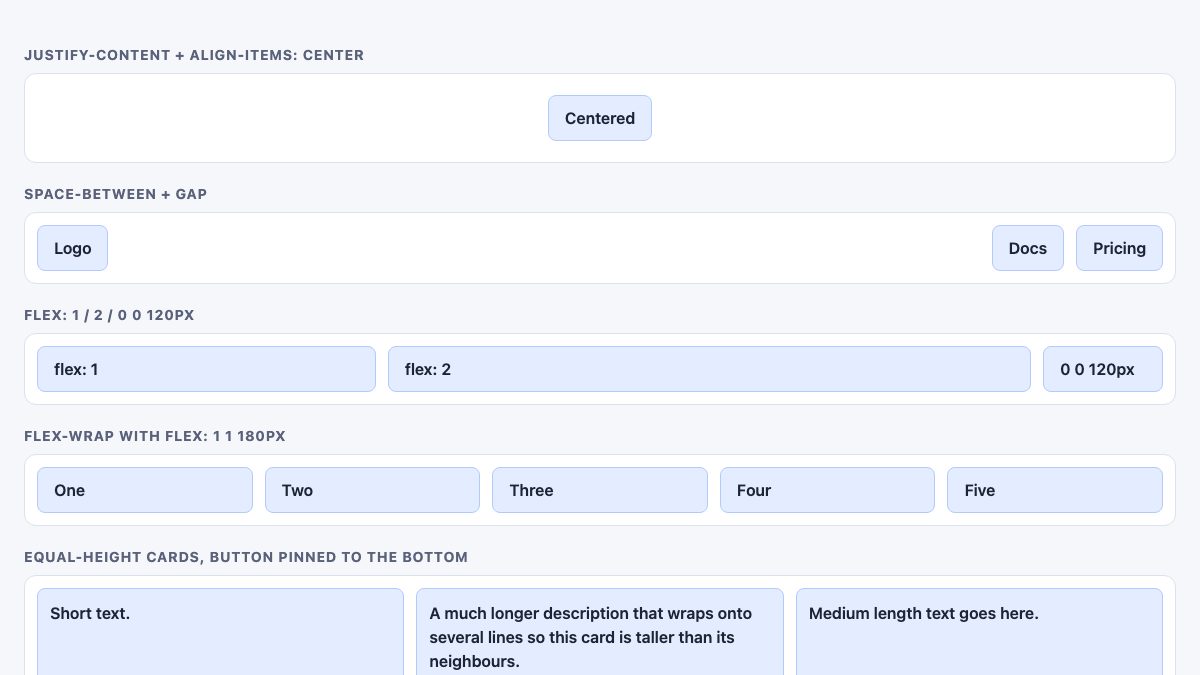
Flexbox is a one-dimensional layout system: you give a container display: flex, and it arranges its children along a single axis, either a row or a column. Five ideas cover almost everything you will do with it: the flow of the axis, alignment, spacing with gap, how items grow and shrink, and visual order.
Flexbox is Baseline widely available, including gap on flex containers, so there are no prefixes or fallbacks to write. This guide shows each idea with code that has been run, then explains when to reach for Grid or container queries instead.
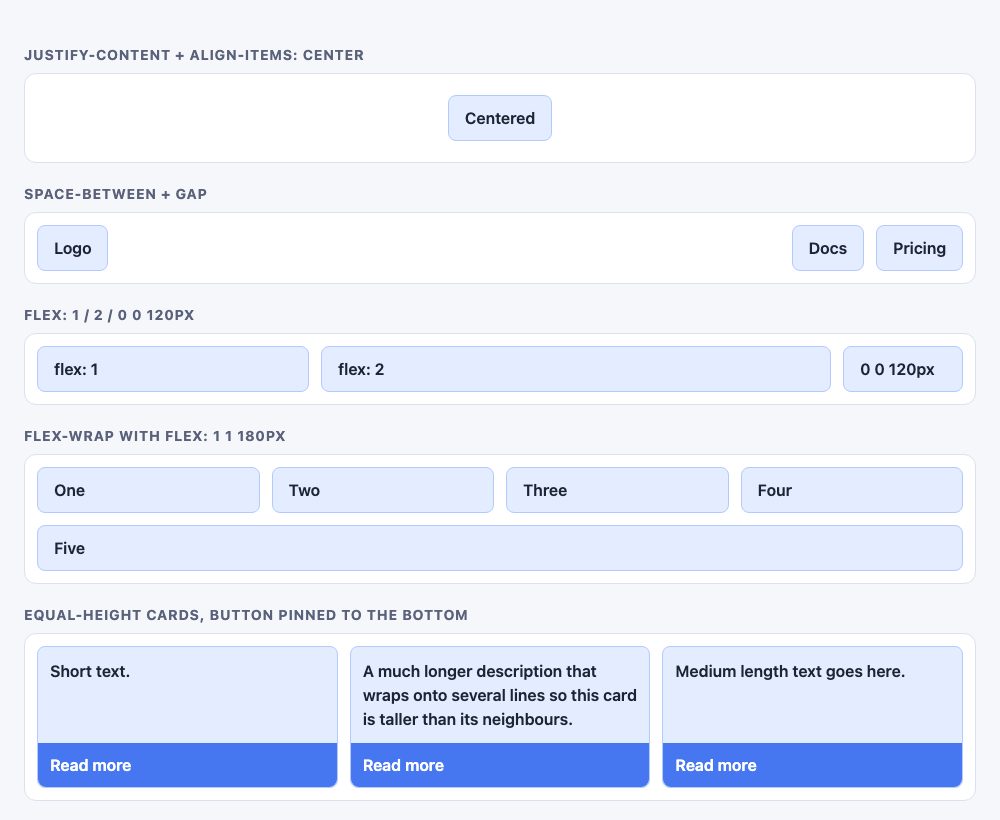
Start with a flex container
Any element can be a container: div, ul, nav, header. Its direct children become flex items.
<div class="row">
  <div>One</div>
  <div>Two</div>
  <div>Three</div>
</div>
.row {
display: flex;
gap: 1rem;
}That is a complete three-column layout. Two terms matter for everything below: the main axis (the direction items flow) and the cross axis (perpendicular to it).
1. Flow: direction and wrap
flex-direction sets the main axis. The default is row; use column to stack items. The -reverse values flip the order visually only, which can confuse keyboard and screen reader users because the DOM order is unchanged.
flex-wrap: wrap lets items drop onto a new line instead of squeezing. By default items never wrap, which is why a row of fixed-width items can overflow on a phone. The shorthand flex-flow: row wrap sets both.
.tags {
  display: flex;
  flex-wrap: wrap;
  gap: 0.5rem;
}
2. Alignment: justify and align
Alignment follows the axes. justify-content distributes items along the main axis; align-items aligns them on the cross axis. Swap the direction and the roles swap with it.
| Property | Axis | Common values |
|---|---|---|
justify-content |
Main | flex-start, center, space-between, space-around, space-evenly |
align-items |
Cross | stretch (default), center, flex-start, baseline |
align-content |
Cross, multi-line | Only applies when items wrap onto several lines |
align-self |
Cross, one item | Overrides align-items for a single child |
Centering something both ways is two lines, which is why flexbox replaced the old table-cell and negative-margin tricks. We cover every variant in CSS vertical centering.
.center {
  display: flex;
  justify-content: center;
  align-items: center;
  min-height: 12rem;
}

.site-header {
  display: flex;
  justify-content: space-between;
  align-items: center;
}
A trick worth knowing: an auto margin on a flex item absorbs all free space on its axis. margin-inline-start: auto on the last nav link pushes it to the far end while the others stay together.
3. Spacing: use gap, not margins
Before gap worked in flexbox, designers added margins to every item and then cancelled the last one with :last-child or a negative margin on the container. gap replaces all of that. It adds space only between items, never on the outer edges, and it works with wrapping.
.cards {
  display: flex;
  flex-wrap: wrap;
  gap: 1.5rem 1rem; /* row-gap column-gap */
}
4. Sizing: the flex shorthand
flex controls how an item grows, shrinks and what size it starts from. It is shorthand for flex-grow, flex-shrink and flex-basis. Always use the shorthand: it sets sensible defaults for the values you omit.
| Declaration | Behavior |
|---|---|
flex: 1 |
Share free space equally with other flex: 1 items |
flex: 2 |
Take twice the share of free space of a flex: 1 sibling |
flex: none |
Stay at content size, never grow or shrink |
flex: 0 0 120px |
Fixed 120px column |
flex: 1 1 200px |
Start at 200px, then grow and shrink as needed |
The last pattern is the most useful. With wrapping enabled, items of flex: 1 1 200px make a responsive grid with no media queries: as many 200px-ish columns as fit, and the last row stretches to fill.
.grid {
  display: flex;
  flex-wrap: wrap;
  gap: 1rem;
}
.grid > * {
  flex: 1 1 200px;
}

.sidebar-layout .main { flex: 1; }
.sidebar-layout .side { flex: 0 0 16rem; }
The overflow trap: min-width: 0
Flex items default to min-width: auto, so they will not shrink below their content. A long URL or a wide pre block inside a flex: 1 item can push the layout past the screen. Set min-width: 0 on the item (and overflow-x: auto on the wide child) to let it shrink.
Equal-height cards with a pinned button
Because align-items defaults to stretch, siblings share the same height automatically. Make each card a column flexbox itself, let the text grow, and push the button down with margin-top: auto.
.card {
  display: flex;
  flex-direction: column;
  flex: 1 1 200px;
}
.card p { flex: 1; }
.card a { margin-top: auto; }
5. Order: change visual order carefully
order rearranges items visually without touching the HTML. It is handy for moving a sidebar below content on small screens. But focus order and screen readers follow the source, so a mismatch hurts accessibility. Put the content in the right order in the HTML first, and use order only for minor adjustments.
Flexbox, Grid or container queries?
The old advice to use flexbox for everything is no longer right. Use this rule of thumb:
- Flexbox when content decides the sizes and you are laying out one line: nav bars, button groups, toolbars, a card’s inner layout, centering.
- CSS Grid when you need rows and columns to line up together: page layouts, galleries, dashboards. Our guide to a simpler CSS grid is a good next step.
- Container queries when a component should adapt to the space it is placed in, not to the viewport. A flex card that switches from column to row inside a wide container is a typical case.
.card-wrap { container-type: inline-size; }

.card { display: flex; flex-direction: column; gap: 1rem; }

@container (min-width: 32rem) {
  .card { flex-direction: row; align-items: center; }
}
Container size queries are Baseline across current browsers, so you can use them in production. For page-level changes you still use media queries, as covered in responsive design with media queries and responsive column layouts. Flexbox also pairs well with the elements of mobile-friendly responsive menus.
Common mistakes to avoid
- Flexing the wrong element. Flex properties on a child only work when its parent has
display: flex. Ifflex: 1does nothing, check the parent first. - Using
justify-contenton a column and expecting horizontal movement. In a column, it moves items vertically, and only if the container has extra height. - Forcing widths with percentages and margins. Let
flexandgapdo the arithmetic; mixing them leads to wrapped rows that are one pixel too wide. - Forgetting wrapping. A row that looks fine on desktop but overflows on a phone usually needs
flex-wrap: wrapor a smallerflex-basis. - Nesting without need. A flex container inside a flex item is normal (the card above does it), but if rows must align across siblings, Grid with subgrid is the better tool.
Quick reference
- Flow:
flex-directionandflex-wrapon the container. - Align:
justify-contentfor the main axis,align-itemsfor the cross axis. - Space:
gap, never per-item margins. - Size:
flex: 1,flex: noneorflex: 1 1 200pxon items; addmin-width: 0if content overflows. - Order: keep the HTML in logical order; use
ordersparingly.
For the full property list, see MDN’s flexible box layout reference and its pages on gap and flex.
The bottom 2 Code Pen embeds aren’t’ working (Not Found).
Thanks for the great article.
The pens have been replaced. Thanks Alicia!
More detailed information about CSS Flex on W3C: https://www.w3.org/TR/css-flexbox-1/