HTML Symbol Entities: Characters, Arrows and Quotes the Modern Way
You can still put symbols in a web page without images or icon fonts: type the character itself in a UTF-8 file, or write an HTML character reference such as → or → when you cannot. Both produce the same text, which scales with the font size, follows currentColor and costs no extra request.
The rules changed less than the habits around them. In 2010 entities were a workaround for flaky encodings. Today the question is which of three tools fits: a literal character, a character reference, or a CSS escape for generated content. This guide covers all three, plus the cases where you should reach for SVG instead.
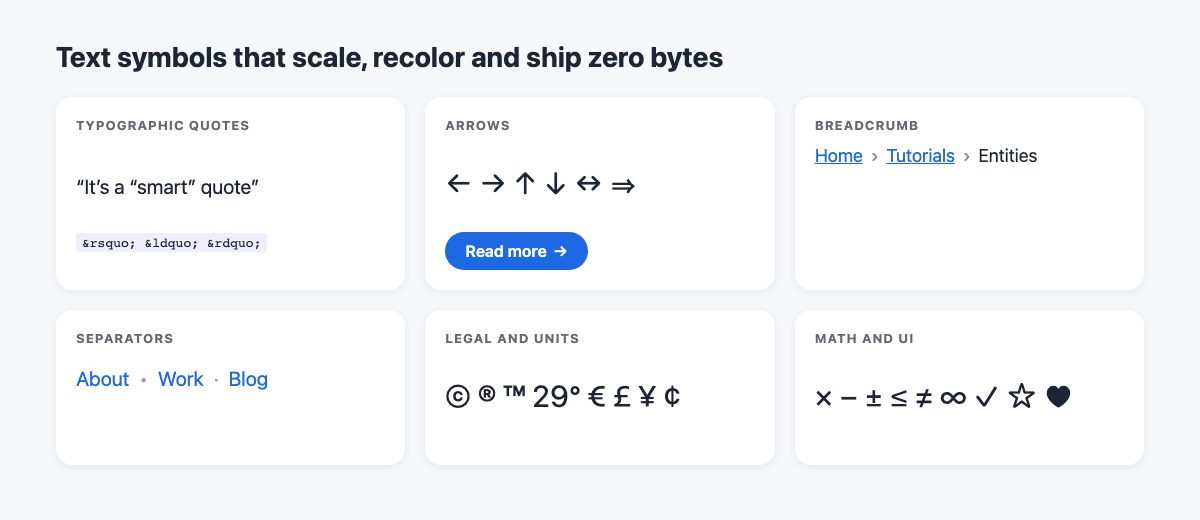
Literal character or entity: which one?
Save your files as UTF-8 and declare it near the top of the document, within the first 1024 bytes:
<!doctype html>
<html lang="en">
<meta charset="utf-8">
With that in place, ©, → and € can be typed straight into your markup. That is the most readable option and what you should prefer for ordinary content. Use a character reference when:
- the character is reserved by HTML syntax:
<,>,&and, inside attribute values,"; - the character is invisible or easily confused, such as
(no-break space), or­(soft hyphen), so the next developer can see what you meant; - your editor, CMS or build pipeline mangles non-ASCII input.
Named, decimal and hex references
There are three ways to write the same character. All three below render a right arrow:
| Form | Example | Notes |
|---|---|---|
| Named | → |
Easiest to read. The HTML Standard defines the full list of names. |
| Decimal | → |
Works for any Unicode code point. |
| Hex | → |
Matches the U+2192 notation used in Unicode charts, so it is the easiest to look up. |
Named references always end with a semicolon. Browsers forgive a few legacy names without one, but that leniency causes real bugs, for example in URLs with ©=1 in the query string. Write the semicolon and escape ampersands in URLs as &.
Typographic quotes and apostrophes
The classic typography mistake is still the straight quote: ' and " are prime marks, not apostrophes or quotation marks. Use the curly versions:
- Apostrophe and closing single quote:
’(’) - Opening and closing double quotes:
“and”(“ ”) - Dashes:
–for ranges (10–20) and—for breaks in a sentence
For inline quotations there is a better approach than typing marks yourself. The <q> element inserts quotation marks automatically, and they follow the element’s language, so French or German pages get the right style. Override them with the quotes property if your design needs something specific:
q {
  quotes: "\201C" "\201D" "\2018" "\2019"; /* outer pair, then nested pair */
}
Arrows, bullets and separators
Arrows work well for “read more” links, back links and breadcrumb separators. For text that lives in your HTML, type the character or use →. For decoration that should not be part of the content, generate it with CSS so it never ends up in copied text or in a screen reader’s reading of the link:
.btn::after {
  content: "\2192" / "";   /* decorative: empty alt text */
  margin-left: 0.4em;
  display: inline-block;
  transition: translate 0.2s;
}
.btn:hover::after { translate: 4px 0; }

@media (prefers-reduced-motion: reduce) {
  .btn::after { transition: none; }
}
The part after the slash is the alternative text for assistive technology, and an empty string marks the glyph as decorative. Declare a plain fallback first (content: "\2192";) on the line above if you must support a browser that does not understand the slash syntax; it ignores the second declaration and still shows the arrow.
In CSS, write the code point in hex after a backslash, so U+2192 becomes "\2192". HTML names such as → do not work inside CSS strings. If a hex digit follows the escape in your text, end the escape with a space or pad it to six digits.
Breadcrumbs are the best example. The separator belongs to the design, not the content, so keep it in CSS and keep the list semantic:
<nav aria-label="Breadcrumb">
  <ol class="crumbs">
    <li><a href="/">Home</a></li>
    <li><a href="/tutorials/">Tutorials</a></li>
    <li aria-current="page">Symbol entities</li>
  </ol>
</nav>
.crumbs { display: flex; flex-wrap: wrap; gap: 0.5rem; list-style: none; padding: 0; }
.crumbs li + li::before {
content: "\203A" / "";
margin-right: 0.5rem;
color: color-mix(in oklab, currentColor 50%, transparent);
}We keep a few ready-made variants if you want something fancier than a chevron: six breadcrumb styles and a breadcrumb with wrapping arrows.
For separators between inline links, the bullet • and middle dot · are still the safe choices. If the separator is purely visual, put it in a ::before rule rather than in the HTML.
Legal, currency, units and math
These are the references you will use most in production, and all of them have been stable for decades:
©©®®™™°° for degrees (29°). Use the real degree-Celsius sign℃only if you need the single glyph;29°Cis more reliable across fonts.- Currency:
€€££¥¥¢¢ - Math:
××−−±±≤≤≠≠
Use × for a close button or a dimension (1200 × 675), but give an icon-only button an accessible name. A bare × is read as “multiplication sign”:
<button type="button" aria-label="Close"><span aria-hidden="true">×</span></button>Put a no-break space ( ) between a number and its unit, or between a currency amount and its code, so they never wrap onto separate lines.
Decorative symbols and the emoji problem
The Unicode blocks the original article loved still exist: Dingbats (✓ ✗ ★), Miscellaneous Symbols (♥ ☂ ☃), and Arrows. They are useful for ratings, checklists and small flourishes. Three problems appear in practice:
- Fallback fonts differ. If your web font lacks a glyph, the browser picks one from the system, so the weight and style change from device to device. Test on at least one Apple, one Windows and one Android device, or limit yourself to common glyphs like arrows and checkmarks.
- Some symbols turn into color emoji. Hearts, snowmen and similar characters can render as full-color emoji on phones. Append the text variation selector
︎to ask for the plain glyph, or️to ask for emoji. It is a request, not a guarantee. - Screen readers announce them. A star becomes “black star”. Hide decorative symbols with
aria-hidden="true", and never rely on a symbol alone for meaning, such as a checkmark for “included” with no text.
When to use SVG instead
Text symbols are great for punctuation, arrows and a handful of marks. Switch to inline SVG when you need any of the following:
- identical rendering on every device, because glyph shapes come from the font and differ between systems;
- brand logos, social icons or multi-color artwork, which have no reliable character;
- custom stroke widths, animation of individual paths, or a consistent icon set across a UI.
Inline SVG with fill="currentColor" inherits text color just like a character does, so you keep the main benefit. Icon fonts, the other popular solution of the 2010s, are now a poor choice: they are fetched as a font, can fail to a placeholder box, and are awkward for screen readers. Our older piece on adding icon fonts with CSS shows the technique if you maintain a legacy site, but new projects should use SVG.
Finding the right character
- The named character references table in the HTML Standard is the authoritative list of names.
- The Unicode code charts list every character by block, with its code point for hex references and CSS escapes.
- MDN’s character reference glossary entry covers the syntax in short form.
If you style the surrounding UI too, see CSS social buttons and 20 pro CSS tips for related techniques.
Quick checklist
- Save as UTF-8 and add
<meta charset="utf-8">. - Type characters directly; use references for reserved, invisible or ambiguous ones.
- Use curly quotes, or
<q>withquotes. - Generate decorative symbols with CSS and an empty alt string.
- Hide decorative glyphs from screen readers and label icon-only controls.
- Choose SVG when consistent rendering matters.
I think its very important that you mentioned the rendering issues in there at the end. Most people don’t realize the massive differences cross-browser and cross-platform.
Dont forget about em and en dash (— and –) and horizontal ellipses properly set (&hellip); ellipses are not properly set with three periods (…).
PS: what you refer to as foot and inch marks (primes) are not actually primes. They are neutral apostrophe and quote marks. Primes, from a typographical and unicode point of view are actually different. Check it by searching first for “prime” in your unicode table and then for “quotation” in the table.
Damn, edited out the semi-colon by mistake. Horizontal ellipses properly set: …
The last three categories are rare on the net. I haven’t noticed them, but they are quite useful. Thanks for lining them all up. I did not even know there was a row/thumb/phone and email icons.
Just use UTF8 and type those characters directly (or copy from char palette).
Or copy them from copypastecharacter.com. A very handy site!
Thank you for this wonderful post Nick. It’s definitely very helpful for me, as I always get these wrong. I also think there’s a WordPress plugin for this, but I don’t remember what it was.
Great post Nick, I tend to ignore these, especially good quotation marks. I studied in Denmark and they dont use the same as in english and we use something else again here in Iceland.
Check this list out: https://en.wikipedia.org/wiki/Quotation_mark,_non-English_usage
…and this list is also very good: https://www.starr.net/is/type/htmlcodes.html
…thanks for reminding me of this. Typography is the most important part to master in web design, not photoshop ;)
The problem with many of these is that they are not accessible to screen readers. The screen readers do not know how to pronounce many of them.
Particularly, I would discourage the use of arrow (or any other entity-based) symbols in breadcrumb trails: They are meant to help with navigation, but to a user of a screen reader they are a great hindrance.
Those rendering issues are certainly worth noting. How much better do the OS X versions look? :)
Thanks for the info.
I agree with Rimantas. When using UTF-8 no need to suffer with HTML entities, just copy and paste a symbol as it is.
Like this post a lot.
One small note, when describing the prime symbol in the paragraph about apostophe and quotation marks. you accidentally used an open single quote instead of a prime.
I’m with Mike on this. I won’t be using these ’til I know what screen readers do with it.
@Martijn and @Mike, I think screen readers shouldn’t pronounce some entities at all. Whether entity should or how it should pronounced is up to the screen reader (software), don’t you think?
Otherwise bread crumbles would indeed be pretty annoying.
I am surprised that I have not seen a cheat sheet put together for these….
With WinXP and Firefox I can’t see all characters, some are a box with numbers in it, why use something that isn’t safe?
I’m not too fond of these entities. You’re all talking about screenreaders – I can’t even see 90% of the symbols here in my Feedreader! I would never use these, as you never know what browser the visitor is using or what special characters he has or has not installed on his machine.
As already said here, I would always prefer using UTF-8 and then just copying the symbols in, without any of that entity stuff.
Nick, this was such a fun post!
Some of these are really cool, even if I’ll probably never use them. I do use the », «, ←, →, •, ·, and ♥ sometimes, though.
A few people mentioned concern about how they would appear on screenreaders, and I think it would be wise to not use them as the sole part of a design. For example, if you want your logo to look like:
Letters of L♥ve
use an image instead. Same goes for trademarks and copyrights, though I would assume those are safe since they are pretty widely used.
The same rule for anything web design applies here: when in doubt, leave it out. (:
Wiki has a long list of different entities, for anyone who’s interested: https://en.wikipedia.org/wiki/List_of_XML_and_HTML_character_entity_references They don’t have all of the ones Nick used in this post, though. I’m still searching, though, and will post a link if I find a better list.
Here is the best list I could find: They’ve got umbrellas and lots of other goodies, but they don’t have some of the entities Nick used here. I think there are a lot of entities that we don’t know about, which makes for a fun Easter egg hunt!
Much as I enjoy working with Photoshop using (x)html and css when possible is often the best decision as long as one remains aware of accessibility issues.
I hope you all know that the way the symbols are rendered depends on the used font. You could use (for example) an @font-face declaration to implement a font which renders the way you like it. This has nothing to do with Mac OSX or Windows Vista.
And, more important then the above, it is better to use those things in utf-8. This way you don’t have to rely on the entities, just copy the sign or symbol you want as it is into your document, and Google will not parse some shitty entities.
♔ ♕ ♖ ♘ ♆ ✠ ♂ ♀ ♠ ♣ ♥ ♦ ☣ ☮ ☃ ☂ ☯ ☠
(just copied the signs)
I’ve found these triangle-shaped arrows extremely useful for table sorting and collapsable areas. ▲ (& #9650;), ▼ (& #9650;), ► (& #9650;), ▲ (& #9650;). Hardly found in any character tables.
Concerning the rendering problem in Vista, I just found this:
https://learn.microsoft.com/en-us/typography/
Maybe this helps? I can’t test it, don’t have Vista. :)
I use HTML Entity Look up by left logic. Works great!
I was eager to use the e-mail and telephone symbols, but them and most of the fancy symbols don’t work on IE and Safari…☹
(btw why are these 2 so unpaired → ☺ ☹)
All 65536 UTF coded characters are posted on utf8.of-cour.se
This is a cool post, however it would have been nice if the codes for the cool entities were given. Especially if you look at the source they are printed out not their value. The first reference may be good, but their page layout is near impossible to read.
Perfect timing! I use some of these entities in my AIR app, and copying them worked well on a Mac, but Windows doesn’t recognize some of them. Thanks!
That was a basic yet amazing post you made there. Definately will be trying some of these out in my designs.
Launched new website design – see what you think at http://www.skytemedia.com.
Click here to email me your comments!
Again, as always, an excellent post! Thanks
Interesting post, but I find IE7 and 8 on Windows XP do not show many of the symbols. Chrome is slightly better. Firefox is required to show all the symbols correctly.
Anybody else noticed this, or is it just my computers?
hey nice post,
In the past when I’ve tried to use the → entity (right arrow) , IE6 unfortunately doesn’t like it…
All good if you dont need to code for IE6 though :)
I’ve used a couple of these.
The proper quotation marks and coma look much better than the ones that most of us use.
Must try and use some of the others.
I’ve been noticing that when you pull WordPress custom page templates, you need to use the html entities or it’ll wack out the code. This list is very helpful. Thanks!
Not all the symbols work on every browser…
awesome post
cool html entities
.
.
http://www.contestdesigns.com
design contests for cash pizes!!!
Thats simply awesome. I had been using HTML for quite several years now but never realised that this is another aspect that can be used. As they say – People have their ownb perspectives and your perspective is amazing. Thanks for the lovely piece of information. Hope that I will surprise my boss too :)
Excelent, but some symbols, don`t work on every browser…
Really helpful, Nice Post.
What a great way to save on having to create images. Lucky for me, I can test on many different systems. It’s these little touches that make a website fun and interesting to look at.
I had no idea there were so many different symbols you could use in html. But you’re right, I don’t think I will be implementing the Tai Chi symbol anytime soon. Great post!
Extremely interesting. Just a shame that the entities have such poor support and render so poorly on a Windows based system. I can see these being exceptionally useful as a workaround in HTML emails for users that automatically have images turned off / email clients that cannot display images.
An even more interesting concept would be utilizing these entities as the sole design elements along with typography in a website. Think I just got my newest personal project!
It’s a shame that there are still a significant amount of users out there using XP which have ClearType turned off by default. Though I’m quite surprise that many people are not aware about the character entity reference.
Although this page is full of good info, in my opinion it is about the most UGLY Page on the net! At least use CSS to style the links so they don’t CLASH with the background.
Waou this is very resourceful, I wished I was here before starting my web design project. I guess I need to seriously start applying some of the resources here.
Thanks
This is very usefull, specially if you develop for other languages then english, like spanish, i use this on a daily basis.
I like using these where I can – Thanks for the inspiration. I went ahead and made up a reference page with the most useful ones, using 48 pixel as the font size. You can view this display here: A Designer’s Guide to HTML Symbol Entities.
I use » (raquo) a lot and I like ·(middot) as a separator too.
Great job, very handy. Too bad that most of these characters a re not supported by chrome yet – nor ie6…
@julian I see all of them on my Chrome..do u have last release? about IE6 I don’t care about it anymore.. if everybody do like me it won’t be a problem anymore ;)
great post!
Thanks for this very useful article (one amongst many on an inspirational site) – I can never remember these when I need them. I note that ☣ is a biohazard sign not a chemical hazard sign.
Thoughts Hosting:- Domain Name Rs.92/-only, 10Gb space, 100 Email id’s, Rs.2600/-only. And for every domain get FREE extras over 7900/-. *Start Your Own Web Hosting Company Only for Rs.4000/-. visit: http://www.thoughtshosting.com, Contact:9059747833
Found this tutorial very useful. I wasn’t aware of all the vast html entities. Thanks a bunch
Found this tutorial very useful. I wasn’t aware of all the vast html entities. Thanks a bunch
great stuff…………..
WebsiteReckon.com outstanding web analytic tools on the internet today. You can use it for FREE. More than website value calculation, are target specific Traffic, pageviews. Fantastic!
nice site design ………..
websitereckon.com
Fantastic post – not sure if I’ve already commented, but if so, it obviously deserves a second because I’ve come back for reference! I’ll be using these in my next project.
very good. I like the way you present your content.
These symbols are a great options for limiting the use of images in your designs. Alternatively, you can also create your own fonts via Cufon that are image fonts that will do the same thing and still allowing you to control size and color. Great post though…
Useful tutorial. I was not aware of so much like these. It gives new idea as well as suggestions about design. Surely I will use it for making my designing more creative.
Los Angeles Web Design
Though white iphone 4 is at high price, but with all-powerful function, we can see lots of people just crazy for the latest white iphone 4.
White iphone 4 Conversion Kit is now the hottest iphone 4 piece that you should get!
“I particularly find the arrow symbols useful because they can be used as direction arrows or breadcrumb separators.” it works for me too. I get confused in sites where I need to find the sign up, register, login…if you know what I mean…:) this is amazing..Thank you.
I have been exploring for a little for any high-quality articles or blog posts on this sort of area . Exploring in Yahoo I eventually stumbled upon this site. Studying this information So i am happy to show that I’ve an incredibly just right uncanny feeling I discovered exactly what I needed. I such a lot surely will make sure to don’t omit this site and give it a glance regularly.
I like the helpful information you provide in your articles.
I will bookmark your blog and check again here frequently.
I am quite sure I will learn many new stuff right here!
Good luck for the next!