CSS Decorative Image Gallery: Frames, Tape and Gloss
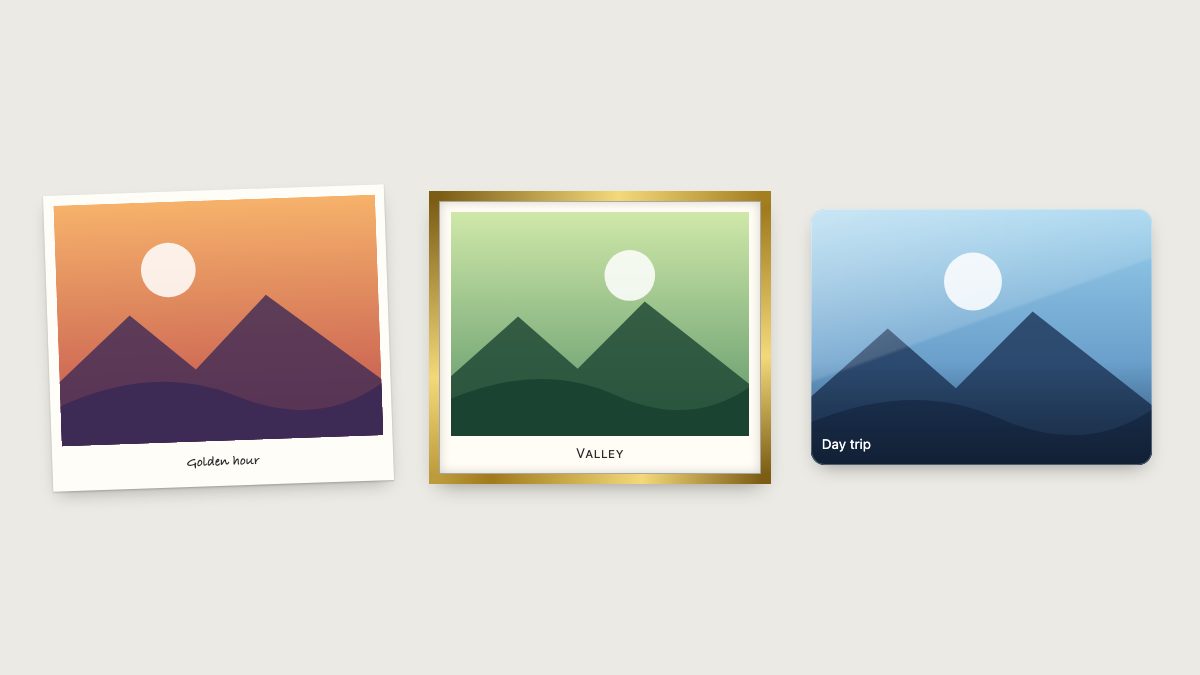
You can decorate photos with frames, tape, gloss and cut edges without touching the source images and without any extra markup. Wrap each image in a <figure>, then let CSS draw the decoration with padding, borders, gradients, shadows, ::before and ::after pseudo-elements, and mask. The result is one HTML pattern that you restyle by changing a single class on the gallery.
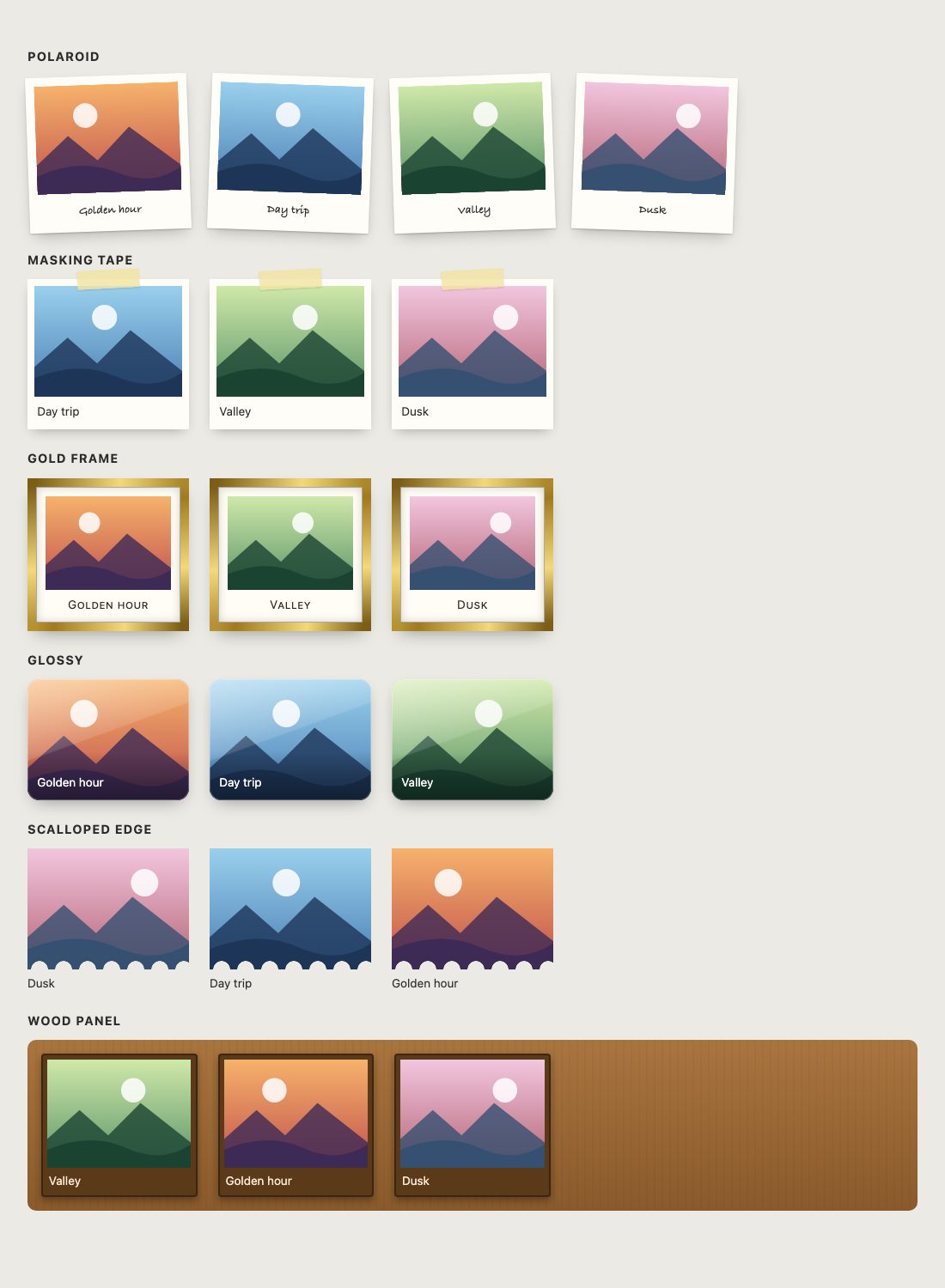
This is the same idea as the original empty-<span> trick, which layered a transparent PNG over every image. Today the extra element, the sliced Photoshop overlays, the IE PNG hack and the Flash text replacement are all unnecessary. Below are six styles built on one shared markup, with working code for each.
Why decorate with CSS instead of baked images
- Source images stay untouched. If the design changes, you edit one stylesheet instead of re-exporting every photo.
- Any image size works. Frames built from padding, borders and gradients scale with the image, so editors can upload whatever they have.
- Fewer bytes. Gradients and shadows cost a few lines of CSS. A framed JPEG per photo costs real bandwidth.
- Theming is trivial. Colors live in custom properties, so dark mode or a seasonal variant is a few overrides away.
- The markup is semantic. A
figurewith afigcaptionis exactly what screen readers and search engines expect for a captioned image.
The markup: figure, img, figcaption
Every style in this tutorial uses the same structure. There is no empty element to hide from assistive technology, which was the main objection to the original technique.
<div class="gallery polaroid">
  <figure class="frame">
    <img src="valley.jpg" width="800" height="600"
         alt="Green valley under a pale sky" loading="lazy">
    <figcaption>Valley</figcaption>
  </figure>
  <!-- more figures -->
</div>
Give every image width and height attributes so the browser reserves space before the file loads and the page does not jump. Use loading="lazy" on images below the fold, and write real alt text that describes the photo. If the caption already says everything, keep the alt text short rather than repeating it.
The base layout
A responsive grid replaces the old floated list. auto-fill with minmax() gives you as many columns as fit, and aspect-ratio with object-fit: cover keeps every thumbnail the same shape even when the originals differ.
:root { --paper: #fffdf8; }

.gallery {
  display: grid;
  grid-template-columns: repeat(auto-fill, minmax(180px, 1fr));
  gap: 1.5rem;
  margin: 0;
  padding: 0;
}

.frame { margin: 0; position: relative; }

.frame img {
  display: block;
  width: 100%;
  aspect-ratio: 4 / 3;
  object-fit: cover;
}
The one rule that matters from the old tutorial still applies: the container is position: relative so absolutely positioned decoration inside it lines up with the photo. Instead of a span, you now position ::before and ::after.
1. Polaroid
A polaroid is padding, a heavier bottom edge for the caption, a soft two-layer shadow and a small tilt. The individual rotate and translate properties let you animate each transform separately, so the hover state can straighten the card and lift it without rewriting a whole transform value.
.polaroid .frame {
  background: var(--paper);
  padding: 0.6rem 0.6rem 0;
  box-shadow: 0 1px 2px #0003, 0 8px 18px -6px #0004;
  rotate: calc(var(--tilt, 0) * 1deg);
  transition: rotate 0.25s, translate 0.25s;
}
.polaroid .frame:nth-child(odd)  { --tilt: -2; }
.polaroid .frame:nth-child(even) { --tilt: 2; }

.polaroid figcaption {
  padding: 0.7rem 0 0.9rem;
  text-align: center;
  font-family: "Segoe Print", "Bradley Hand", cursive;
}

.polaroid .frame:hover,
.polaroid .frame:focus-within {
  rotate: 0deg;
  translate: 0 -4px;
}

@media (prefers-reduced-motion: reduce) {
  .polaroid .frame { transition: none; }
}
The handwritten look comes from a system font stack, so there is nothing to download. If you want a specific handwriting face, self-host it and use font-display: swap. The :focus-within selector matters when each image is wrapped in a link: keyboard users get the same hover effect as mouse users.
2. Masking tape on a pinboard
The cork board and paper clip of the original become a single pseudo-element. A translucent rectangle, rotated a few degrees and centered at the top edge, reads as tape. color-mix() makes the tape see-through without a second color value, so the photo’s paper shows slightly through it.
.tape .frame {
  background: var(--paper);
  padding: 0.5rem;
  box-shadow: 0 6px 14px -6px #0005;
}

.tape .frame::before {
  content: "";
  position: absolute;
  inset-block-start: -0.7rem;
  inset-inline-start: 50%;
  width: 4.5rem;
  height: 1.4rem;
  translate: -50% 0;
  rotate: -3deg;
  background: color-mix(in oklab, #f1e3a1 80%, transparent);
  box-shadow: 0 1px 2px #0002;
}

.tape figcaption { padding: 0.5rem 0.2rem 0.2rem; }
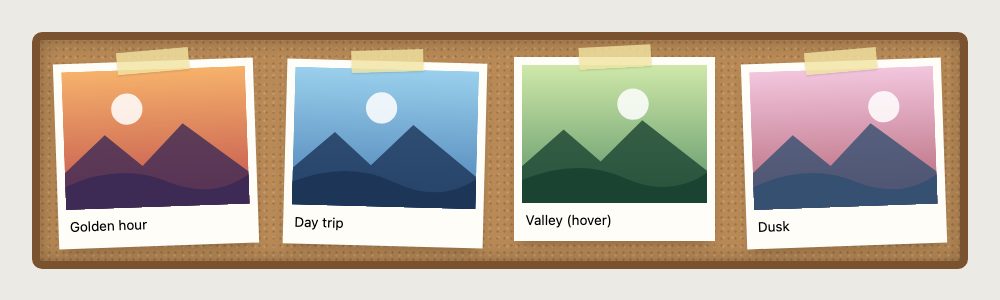
To make it a pinboard, tilt each card a little, give the gallery padding and paint a cork texture behind it with two tiled dot gradients on top of a base color. The same rotate and translate hover from the polaroid straightens the card you point at, which is the third card in the screenshot.
.tape .frame { rotate: calc(var(--tilt, 0) * 1deg); transition: rotate .25s, translate .25s; }
.tape .frame:nth-child(3n+1) { --tilt: -2; }
.tape .frame:nth-child(3n+2) { --tilt: 1.5; }
.tape .frame:nth-child(3n)   { --tilt: -1; }
.tape .frame:hover { rotate: 0deg; translate: 0 -4px; }

.cork {
  padding: 1.8rem 1.5rem 1.5rem;
  border-radius: 10px;
  background:
    radial-gradient(#0002 1px, transparent 1.5px) 0 0 / 7px 7px,
    radial-gradient(#fff2 1px, transparent 1.5px) 3px 3px / 9px 9px,
    #b98a56;
  box-shadow: inset 0 0 0 8px #7a5230, inset 0 0 20px 8px #0004;
}
A paper clip works the same way: an inline SVG as a background-image on ::before, positioned over the top corner.
3. Gold or black art frame
The old version needed a sliced frame image. border-image now accepts a gradient, so a metallic frame is a border plus an inner mat made from padding. The 1 at the end is the slice value: with a gradient source it simply stretches the gradient across the border.
.gold .frame {
  padding: 0.7rem;
  background: #fffdf5;
  border: 10px solid transparent;
  border-image: linear-gradient(135deg,
    #7a5c14, #f3d97a 30%, #a07a1c 55%, #f3d97a 80%, #7a5c14) 1;
  box-shadow:
    inset 0 0 0 1px #0004,
    inset 0 0 12px #0003,
    0 10px 20px -10px #0006;
}

.gold figcaption {
  text-align: center;
  font-variant: small-caps;
  letter-spacing: 0.05em;
  padding-top: 0.5rem;
}
For a black frame, swap the gradient for two close dark tones and drop the highlights. Note that border-image ignores border-radius, so use this style for square frames. If you need rounded corners with a gradient edge, use a gradient on a wrapper with padding, then a second background inside it.
4. Glossy overlay with a caption
This is the closest relative of the original span overlay. A ::after pseudo-element covers the image with two layered gradients: a diagonal highlight and a dark fade at the bottom so the caption stays readable. pointer-events: none lets clicks pass through to the link or lightbox underneath.
.glossy .frame {
  border-radius: 14px;
  overflow: hidden;
  box-shadow: 0 8px 20px -8px #0006;
}

.glossy .frame::after {
  content: "";
  position: absolute;
  inset: 0;
  border-radius: inherit;
  pointer-events: none;
  background:
    linear-gradient(160deg, #fff7 0, #fff2 45%, transparent 46%),
    linear-gradient(to top, #0006, transparent 40%);
  box-shadow: inset 0 0 0 1px #fff4;
}

.glossy figcaption {
  position: absolute;
  inset-inline: 0;
  bottom: 0;
  padding: 0.7rem;
  color: #fff;
  z-index: 1;
}
Caption contrast is the thing to check. The bottom fade guarantees a dark background behind white text on most photos, but test it with your lightest images and raise the opacity of the fade if needed. WCAG asks for at least 4.5:1 for normal-size text.
5. Scalloped edge with CSS mask
Cutting the edge of a photo used to mean a PNG with transparency. A mask does it in CSS: the first layer punches repeating circles out of the bottom strip, the second keeps the rest of the image. Because a mask also clips shadows drawn on the same element, apply the shadow with filter: drop-shadow(), which follows the visible shape.
.scallop .frame img {
  --m:
    radial-gradient(circle at 14px 100%, #0000 9.5px, #000 10px) 0 100% / 28px 10px repeat-x,
    linear-gradient(#000 0 0) 0 0 / 100% calc(100% - 10px) no-repeat;
  mask: var(--m);
  filter: drop-shadow(0 4px 6px #0004);
}
Each 28px tile cuts one circle of 10px radius out of the bottom edge, and the second layer keeps everything above the cut. I tested the unprefixed mask shorthand shown here. If you still support browsers from before 2023, add a matching -webkit-mask: var(--m); line. Change the circle radius and tile width to get a stamp edge, a zigzag or a wavy cut. For a custom shape, clip-path: polygon() is the simpler tool, but it cannot produce repeating cut-outs or soft alpha edges. Use mask when you need those.
6. Wood panel
The wood panel from the original applied a texture to the list, the items and the captions. A pure CSS version needs no image: a repeating gradient draws the grain, a linear gradient gives the base color, and inset shadows turn each slot into a recessed frame.
.wood {
  padding: 1rem;
  border-radius: 10px;
  background:
    repeating-linear-gradient(90deg, #00000008 0 2px, transparent 2px 9px),
    linear-gradient(#a9753f, #8a5a2b);
}

.wood .frame {
  padding: 0.45rem;
  background: #5b3a1a;
  border-radius: 4px;
  box-shadow: inset 0 0 0 2px #0005, 0 4px 8px #0005;
  color: #f7e9d3;
}

.wood figcaption { padding: 0.4rem 0.1rem 0.1rem; }
If you do want a photographic wood or cork texture, keep it as a small, tileable AVIF or WebP file and set it as the background. One cached 20 KB texture is cheaper than a decorated copy of every image.
Showing a larger version
A decorative gallery usually opens a bigger image on click. The native <dialog> element opened with showModal() gives you focus trapping, the Escape key and a dimmed backdrop without a library. The only thing it does not do for you is close on a backdrop click, which takes one line. Wrap each image in a link to the full-size file, so the gallery still works if JavaScript fails.
<a href="valley-large.jpg" data-full>
  <img src="valley.jpg" width="400" height="300" alt="Green valley">
</a>

<dialog class="lightbox" aria-label="Larger photo"><img alt=""></dialog>
const dialog = document.querySelector('.lightbox');
const big = dialog.querySelector('img');
document.querySelectorAll('a[data-full]').forEach((link) => {
link.addEventListener('click', (e) => {
e.preventDefault();
big.src = link.href;
big.alt = link.querySelector('img').alt;
dialog.showModal();
});
});
dialog.addEventListener('click', (e) => {
if (e.target === dialog) dialog.close(); // click on the backdrop
});.lightbox { padding: 0; border: 0; border-radius: 8px; max-width: min(90vw, 900px); }
.lightbox::backdrop { background: #000b; }
.lightbox img { display: block; max-width: 100%; height: auto; }
.frame a:focus-visible { outline: 3px solid #1a73e8; outline-offset: 4px; }I ran this in Chromium: a click opens the dialog, Escape closes it and a click outside the image closes it. The dialog has no padding, so the image fills it and any click that lands on the dialog element itself is a backdrop click.

::backdrop.Our photo gallery with a modal lightbox and the expanding image gallery are ready-made starting points if you would rather not build the viewer yourself.
Accessibility and browser support
- Decoration is not content. Frames, tape and gloss are drawn with CSS, so assistive technology never sees them. Put anything meaningful in
altorfigcaption, never in a pseudo-element. - Reduced motion. Wrap tilt and lift transitions in
prefers-reduced-motionas shown above, or make the hover effect a color change only. - Forced colors mode. Windows High Contrast removes shadows and gradient backgrounds. The gold
border-imageand the gradient overlays are dropped in that mode, so a plain border is what remains. Add one so the photos stay separated:@media (forced-colors: active) { .frame { border: 1px solid CanvasText; } } - Browser support. Baseline status from the web-features data used by MDN:
aspect-ratio,object-fit,border-image(which includes gradient sources),<dialog>, individualrotateandtranslate,color-mix()and theforced-colorsmedia query are all Baseline widely available. CSS masking, including unprefixedmask, became Baseline newly available in December 2023 and widely available in June 2026. Unsupported decorations should still degrade to a plain, readable photo.
Go further
These patterns combine well with other CSS techniques. Add depth with transitions and transforms, tint photos on hover with CSS image filters, or blend frames into photos with CSS blend modes. For the pinboard feel, see our sticky notes board, and for full-bleed image tiles try the category image cards with zoom hover. If you want to understand why this works with so little code, the power of CSS selectors covers the selectors used here.
The principle is the one the original tutorial taught: keep the photo clean and layer the decoration on top. What changed is that CSS can now draw nearly all of it, so the markup stays honest and the design stays editable.


I’m one of those that are opposed to the empty element, and I don’t think embedded JavaScript is the answer :) But it’s a very nice tutorial – thanks!
nice tutorial… i haven’t yet jumped into using PNGs yet, didnt know much about their compatibility and I knew there would probably be a hack to fix it….gotta love those hacks…PNGs may now come into my workflow.
thanks.
How simple! And no need to modify the source image.Great tip.You always come up with the goods. Thanks
Wow. Really nice Nick. Keep up the great work.
Great tutorial. I will use this for my next project!
Keep up the good work. I love your site!
This is a great tutorial!
Would is be possible to do a tutorial on how you made all those span images? The tape, the pin, the frame, etc.?
That would be epic! Thanks.
Before with one of my project, I was required to made a frame around a photo slideshow, so I put a PNG as a frame (with transparent center) on top of the photos. It looks perfect in FF and IE7, however I can not get it work in IE6 even with PNG fix (js stype).
So I end up using 4 GIFs wrapper around the photo, looks the same but not as code-friendly.
I might try out your method of IE PNG fix to see if this can be THE ONE! o_0
great tutorial, always enjoys it =)
Wow, really really top notch tutorial, man. Just like all great tuts I read, you make me want to go redesign my whole site right now using this effect. :)
Thanks!
But this is semantics? Use span this way is semantic?
An excellent trick, thanks.
Regarding semantic value – I don’t really understand how the hell an empty span can do anything bad. If you have no CSS (like, you are Googlebot), you don’t see it.
Great work! Common techniques, combined to stunning results!
Nice job. I am work on a new project and I think this will be very useful.
Very useful, but it don’t protect the images when you want to add a watermark of copyright ;-)
I’ve done something similiar for the site italian-furniture.it but this solution is much better! Great work!
Great stuff, only your pop up demo doesn’t work in IE6.. the problem is none of the png fixes out there can make png images hover. If anyone knows one that does, please comment.
Greets Mick
Very nice idea. Keep up the good work.
Great work, and thanks for the accessible solution: very nice.
omg! thank a lot men, i only have one doubt. how did you make that Polaroid texture? ( i mean, the shadows in the paper. photoshop?)
Oh my goodness. You are amazing. For so long I have been looking for something like this. I have put off making myself a new online portfolio for a couple of years just because I know how long it takes to format and export all those images… and with my tendency to get bored of my interface designs quite quickly I know I am just going to have to do it all again in no time.
Thankyou so much! This is one of the best tutorials I have ever seen.
Great tutorial! I love how fast the hover graphics activate as well — very slick gallery!
~Graham
how elegant and simple. will definitely use this technique!
Holy Cow! This is great! Thank you for posting this, now I need to get to work!
Thanks for tip, nice and simple!
It helped me achieve desired look of banner image. Although I ended up using nested tags rather then extra tag but the idea was the same.
I love the IE png fix. I haven’t seen that before. I will probably give that a try.
Wow, amazing! I’m sure i’m going to use it in my next work. Thanks!
Nick, have you had any luck getting the PNG-fix to work when you are repeating background-images (PNGs)? That’s what all the solutions, and this behaviour lacks. Is there a solution?
This ‘trick’ is similar to the one you used in ‘Advanced CSS Menu’, but it’s still so genius ! I just love this simple css trick and I’m always thinking to it when I see lines & lines of JavaScript for the same result (and not always with the same compatibility :D) Thank you for sharing all your knowledge, and for the quality of your posts.
PS : By the way, I would be interested in knowing how you’re doing this ‘Comment Preview’ ^^
PS 2 : Sorry for my English, I’m French :/
does anyone know if this technique works in html emails?
Hot diggety, that is some phenomenal work there, lou!
Whoa! Not only did you show me how to do a trick I’ve been plotting in my head, you also fixed the annoyance of IE6’s PNG problem. Thanks for this double whammy of an article, cheers!
This is awesome tutorial. We don’t need to edit the image. Thanks for this :)
Wow, this is great stuff!!
Bookmarked at the moment ‘cos I’m at work but I’ll check that as soon as I get home !!
Thanks a lot !!
That’s amazing !! maybe I would use it in my future projects, what kind of license have it?
Great work…. Its really gonna help me in my new website… Thanks for sharing :)
Beautiful tutorial, great examples. I’ve been looking for a way to do such an effect. Thanks. =)
Wow! I’m just starting out and looking for all sorts of tutorials. This one is amazing. And you write so that it makes sense. Thanks for that!!! Please keep these coming.
Amazing!
This is the real proof of the what you are able to do in CSS is boundaried with your imagination.
how to work with it if there are different images size on a page ?
for example, i’m working on a portal website and our clients send us pictures with many many different size (width and heigh)
thanks
Simple yet enough to make me nod and say… “aha!” :)
Hi Nick,
I implemented the png hack and it works really well with background images but for images that are on the page itself; it displays a box with an x on it. What could be the cause for that?
Great post!
Very useful and good to know that we can use this with IE6 safely.
Thanks!
I am just about to start on a web portfolio for a friend and this will surely come in handy. Thanks alot for this, your site has always been an inspiration. Keep up the good work
UberCool!!! Thanks for the great tips again. You really bring live to what css is.
Thanks!
The article is really great and helpful.
I have one question…
I tried to use the IE hack in the past, but it never worked, could you please explain the code you use? why is there [if lt IE 7] if the hack is for IE 6? (7 works fine with pngs)
Thanks
I think I may be living on this site! Where can I sleep for the nite? :)
@Vlad – The ‘lt’ in [if lt IE 7] stands for ‘if less than IE7’ meaning it will apply the changes to any version of IE lower than 7.
I agree that this tutorial is fantastic. I’ve done similar things on a few other sites, but the variety and simplistic implementation speaks volumes to your talents.
The biggest challenge one faces when using a visual style of this nature is to ensure that your thumbnails or photographs are all the exact same dimension. Another option would be to have 3 specific sets of dimensioned frames for square, tall rectangles and wide rectangles which get applied based on a class on the span.
To keep things simple from a code / content point of view, you could apply the class to the image itself in your content editor / CMS, and use a similar jQuery Solution to inspect and remove the class from the image, then apply it to the span to produce the matching frame.
This is GREAT stuff!
Just checked a few things at home and I think I’ll use this to automatically apply style to pictures in my blog posts!!
Thanks a lot again!
Great job, this gallery will be really useful for my artfolio!
This is really great!
Btw… it would be great to have also a javascript like lightbox to see the image but with a description included.
Hey! Awesome tutorial once again, will be very useful in the work I am doing right now. I just wanted to point something out. Under the “Basic Concept” header where the initial bit of CSS code is with the photo beside it, the test is not selectable for cutting and pasting. (I’m using Safari 3.1.1 (525.17) for PC.) Just makes it harder to follow along with the tut because of switching back and forth to copy the type.
Thanks for an awesome site, I always look forward to updates
NGP
Wow, what a little CSS love can do to brighten up a page! Great job once again, I’m already adding this effect to my site :).
Great work there. :D
Looks very good and quite easy to apply…
big deal, I’ve done that for years! :D
@Salvatore: Yep, but I doubt you’ve done it as good xD
@Robbi: probably not in terms of applied design, but the code is just that, it couldn’t be any different/harder/easier. It’s just common css. Good to see people shares stuff like this anyway.
too bad this isn’t working on IE6. Ok, it shows up alright, but hovering isn’t working. Thanks for the great tutorial though!
Instead of the htc hack I’m using the filter:progid:DXImageTransform.Microsoft.AlphaImageLoader(); in css
can it be done if the ‘span’ image is a transparent .gif instead of .png?
Great little tip and very usefull to create some image overlays.
Way to go with the website man! it’s rocking.
the code is not validated when using the jquery script in the head section
Hi, technique of using shadows/gradients thru 24bit transparent png with changing colors under png is also nice way how to use htc script. Alternative script for use could be this one: http://www.maptales.com/styles/default/css/pngBehaviour/pngbehavior.html
But both of these scripts doesn’t work with background position and IE 5.5 and lower are out (but who cares about win 98 users these days? Someone with conditional comments). And when I tried to “rendering by htc” all pngs on page, it seems like “flicker” to me in IE…
Thanks for handy article with beautiful examples! ♥
This is an impressive css photo gallery. Thanks for sharing this. The results are just awesome. Cheers.
Awesome! Not only are your illustrations utterly amazing, but your CSS is l33t as well.
I want to be you!
I now feel completely inadequate…
Why do you need the span? If it causes problems and you need to use a javascript to correct it would it not be better to put the image itself in there?
.photo {position:relative; width:180px; height:130px; margin:20px;}

.photo img {border:none;}

.photo .pin {position:absolute; z-index:2; width:28px; height:21px; top:-12px; left:90px;}
Slightly change your html
Of course you would need to change the IE conditioner
.pin { behavior: url(iepngfix.htc); }
This way you do not neet to include the jQuery Solution
Great article as always, it is a very useful tecnique and has multiple application fields. I recently designed a shopping cart with the product photos inside a heart.
Sorry about that, the html is something like this:
I’m sorry about all the posts, the preview shows up fine but it removes the html even in the code tags…
This is too good to be true. Thanks for the being a source of inspiration. Though I’ve been putting it to use even before reading your write-up, mine has never been this beautiful. Thanks
the thumbnails itself are interesting. what kind of art/technique are they called anyway? thanks
Love the effects. I am a huge fan of this kind of stuff and CSS is one of the main languages that I focus on today. I will of course be using these methods in my coming projects.
Well done as always, this is really great inspirational material and very useful as well. Keep up the great work!
Very nice tutorial! Just one question though: I would like to use slightly larger picture frames- where would one be able to find some? Did you create these ones yourself?
Thanks!
hello! i just surfed onto this website and i’m so in awe. i want to learn so many things to use on my blog (which i was so proud of but now i look at this and i feel sh*tty). i know zilch about css but i’m so inspired by everything here!! it looks great and hopefully one day i could use these. i mean of course if i had the money i would love to hire you guys, but this poor college student will just have to diy!!
Great work,
I’ve done something similar on my site where the date tag sits over the main image. Using absolutes has been a godsend in CSS and allow much more freedom for the web designer.
I’ve been looking everywhere for a place that describes how to add border gradients using CSS. Thanks!
Visit us at http://www.skytemedia.com
Nice tutorials for CSS Layouts on site for designers!
Amazing work…….Outstanding designs and well written tutorials…Thank you so much sharing it and hope you keep coming up with gr8 stuff like this
y dont u give all information about how made effects in photoshop?
Wonderful stuff….thanks…keep up the good work
perfect! I got the main background image! thanks
Nice article!
But we need to find some simple solution for all browser/OS.
Very nice gallery. I used to make my frame borders with photoshop tuning every picture but it’s much more easier this way.
Thank you for all these neat tips, keep posting :)
Very nice blog!
Its is good to the fond of using css for make your site attractive
I’ve been meaning to learn more about CSS, and your post has helped me a lot.
Cheers,
Sam
One of the best css tutorials I see since a lot of time ago.
Thanx
This is perfect example of a fully CSS based photo gallery. I wish all web designers could have the creativity like you.
really a great work. An awesome design. I am going to explore some of them to my students. Thanks buddy.
that is great! thank you so much! =)
i’ll try it out definitely!
you can simply add a “nbsp;” between the span tags to create valid xhtml :-)
Very very nice. Been looking for something like this. Now i wonder how to implement this to WordPress (Thumbs on pics uploaded).
I dont know what I would do without you. Keep up the good work and thank you for making my life easier :)
Eu tenho uma pergunta, para que serve a tag “em”?
Can this be adapted for a set of images that have different sizes, and the size is not known until it is grabbed off the server?
Great tutorial btw.
Hello :D
I mixed 2 kinds of gallery (the one with glassy effect and the one with the gray/orange description).
The visual is awesome but, even i tried using clear:both in the div below the gallery, the li’s still are floating and getting in the way of the lower div O.o
What should i do?
Thank you.
Sorprendente.
Me encanta este sitio web siempre esta lleno de nuevos recursos para poder innovar con las tecnicas para diseño.
Gracias.
I know that IE is of the devil, but you can’t use transparent png files because the transparent part of them turns white which would block out the picture. Just a concern. I know it’ll work on Fire Fox and Safari, the two best browsers ever.
Sam, in the tuto he uses pngfix.htc to fix that error in IE6 so, works with it too
Way to go Nick. Always pushing the boundaries of CSS.
Thank you for sharing this wonderful technique! I am using the mini paper clip theme to display a photo gallery on my company’s intranet, and it is working very well.
I really like Simple Gallery and Mini Icons. Shows that a lot of work has been put into this. Very different from traditional work. Can you we have more of these? :D
nice ….. good job dude …. keep on the good work :)
I need a solution that how could I make the backround such as your? Your design is excellent
Wonderful! Do you know if this can be used in Blogger? I was thinking in using it to decorate each post photo. Didn’t work yet. I’ll keep trying!
Thank you!
Very nice.
What about then you have landscape and portrait images mixed together?
i’ve just started to learn CSS. can anyone tell me how to apply the round-corner.png to an image of size 50×50.do i have to make another png with the desired size?? apologize for the trivial question.
awesome trick btw!
Oh and i was talking about the 8th style in the 15 different styles…
hmmm, this is actually pretty hot. Lately I’m a big fan of quick-tricks for galleries and stuff (I’ve been messing with some of the cool flash driven stuff out there), but I’ve always had a soft spot for good clean css based galleries. nice post – thanks for sharing it.
Wow, even looks great in IE6. Nice handy resource not only for great looking galleries but also for a png fix that works how they say it should.
Cool! I’m just starting to learn about web design and CSS. Can u recommend me about websites that I should visit?
Oh wow nice one.. please could you see my website if i could change it to make a gallery using those codes above?
Okey, I’II try it. I am beginer and sorry I can’t good speak english. I am come from Indonesia
Cool! I’m just starting to learn about web design and CSS. Can u recommend me about websites that I should visit?
My name is Rahim and I own a design and development consultancy in Enfield, London. We would like our site to be added to your gallery because its clean, standards compliant, great use of css and jquery as well as degrading gracefully.
Therefore, we would appreciate it if we were featured on your site so visitors can make comments and let us know their views on the design.
Regards,
Rahim
Excelent Tutorial! i’d like to use it in some of my pages =)
It’s really nice ^^
Thanks!!
Can this be used to layer a png over a .swf file?
Wow, this is awesome. Just to let you know I’ve used one of the examples for my gallery on my website. Really amazing work and it has inspired me to experiment with CSS to test its power.
como lo habro no puedo
al descargar no se puede ejecutar
Thank you so much. Now I can use on my web works. Thanks.
actualy i download the files but i dont know where to start
i have a site using impressCMS
hello, I created rollovers for my image gallery at jentank.com using this method, but the span image is showing up under the thumbnail image in ie7. Does anyone know why this would happen? IE seems to be interpreting the ‘top’ class differently than firefox and safari.
Your way of explaining the use of css allow me to really grasp the concepts. Thanks
Thanks a lot for the nice article.
As I’m a novice I wanna know how can I manage Images and Image Frames that have Dynamic sizes ?!
Thanks anyway
Never seen like this before.. very excellence CSS tips
First i will thank you for your blog! It’s very helpful!
I’ve followed this tutorial but my pictures have an ugly blue frame. I’ve tried with
.photo a:link {text-decoration:none}
but it doesn’t work…
How can I remove this frame?
Thanks again
Can you provide the full php file for the templates. I am not getting how to make them at all.
Thanks!
This is Brilliant, I have been looking for something like this for ages for my members site. I have one problem with it for use on my site, maybe someone can suggest a fix. I want to use it to display user thumbnails which are all the same width of 130px which is no problem but they are not all the same height. I would like to set the image frame to display the top 100px of the image but clip anything below that as this peaks out from behind the frame. I don’t want to set image height as this will distort the images. I have tried setting the css for li to a height of 100 with overflow hidden but this cuts off the bottom of the frame. A few other things I have tried have been just as unsuccessful.
Anyone got any suggestions?
BTW I stumbled upon this site by accident and just love it
Can somebody post a good way to get the black brush-border for all sizes?
I had a try, but im not sure, if this way is really ok. I took the background-image from the span and placed it as a real img in the span. I adapt the brush-border image size and the padding to the image size automatically by PHP so that it fits.
Awesome !!! Thanks for share.
if(woman){
write “I love you”
}else{
write “best regards”
}
:)
Very nice–but what happens if your images are not all the same height or aspect ratio? I’m thinking, for instance, the example with the photo corners. I’m designing something where the featured photo will change on a regular basis and may not have the same aspect ratio all the time.
I am trying to integrate this into my WordPress site with the NextGen Gallery plugin. For the most part, it works. Some instructions were updated here to get your CSS code to work with it here: https://alexrabe.wordpress.com/2008/11/25/new-in-version-100-templates/ however I notice that in IE it displays properly, but in Firefox, it shows BULLETS for the LI. How can this be fixed?
@Russ:
Use
ul{
list-style-type: none;
}
in your CSS file :)
This should work.
Thanks. Evething is OK, but 2b can’t working the in IE6.
Thanks. Everything is OK, but 2b can’t working the in IE6.
Why isn’t this just written as a WordPress plugin that re-writes the correct .php & .html files?
This would be a huge success as a WP plugin.
This is absolutely crafty!! I was about going the PHP+GD library way. When i found a post that led me here. This sure cuts down server overhead big time!!
Thanks for this resourceful past
This work very good! Thank you very much..
Great and really helpful post! Thanks a lot for sharing nice stuffs! You do a great work for your visitors! Thank you! ;)
Besides, I’m going to use this gallery in my new project,.. :)
As usual another great article! We have indexed webdesignerwall.com at CSS Gallery.com Keep up the great articles!
CSSGallery.com
i want to click then run an popup (the same). help me!
fixed :) I use div instead of ul…
please delete my blog url thanks for this usefull idea !
addesignlink is a beautiful, functional design gallery based directory only for best beautiful designed web 2.0 styled websites. The web organized by topic into categories. … Help build the largest human- edited directory on the web.
Submit your website for free to the internet’s fastest growing directory! Category based and cross-referenced.
Directory is a beautiful, free, and can be used as a starting point for many different types of websites: Blogs, Joomla, Web2.0, Flash and so much more.
Hi,
I like your concept but appears not to align the overlay .png correctly in Google Chrome. It does so correctly in IE7 & Firefox. I use the rounded corners example & modified to work with Next Gen Gallery thumbs.
Any ideas?
Man, your tutorials are simply fantastic!! The effects and ideas are brilliant. Love to see more amazing css tricks. thanks a lot
Thank you for the article, but how do I install the templates? I’am a little lost and a lot frustrated that I can not figure this out.
This is a fantastic tutorial – very creative. Thanks
I wonder if this will hold together with a mix of portrait and landscape orientations?
Great Tutorial. But some do they work on all browsers?
Great post about Css design tutorial, and it give me an idea of how to decorate images and photo gallaries.and i also found some benefits about CSS tricks.Thanks for sharing this useful post.
Hi!
Seems like the decorative-gallery-demo.zip file is corrupt, cant open it?!
hey great script,
I just gave this technique a go, it worked a charm the first time but the second time the borders seem to go behind the image and not covering the image like their supposed to. I was wondering if you could possibly point me in the right direction for fixing this?
Thanks What’s the problem here? Google could bury the meager profit number from even the biggest media conglomerates.
Looks nice, but your example assumes that all thumbnails are horizontal with the same dimensions. When you use different thumbs it doesn’t looks as good. Can you please do a version for different sized thumbs?
Such great work, your skills are to be admired.
Thank you very much for sharing, it really helped me understand this technique a lot more.
Regards,
Aaron
Nice article. Seems like the decorative-gallery-demo.zip file is corrupt, cant open it?!
Seems like the decorative-gallery-demo.zip file is corrupt, cant open it?!
wow…so nice…:) its really amazing ..:) :S but file is corrupt..now what??
These are great! I’m going to try and incorporate with my CSS driven promotional product and custom business gift web site. Thanks!
Would it be possible to add one of theese frames to some non image div?
Fantastic, thanks so much – these things I always imagine to be quite complex but you’ve shown how easily website design can be made to look that little bit more individual. Thanks.
Worked perfectly for me! The jQuery method is absolutely great.
Great graphics, great code, but am I the only ones that has different size images? I’m sure I,we, can tweek it like you did on you page ‘backtotop’ footer.
Very impressive tutorial. I am on my way to revamp my own website and was looking to make a good gallery page. I graduated as Graphic Designer and wished to know early about this website.
A great thank you for providing inspiration. One day I will share skill about the css and soon experimenting with SVG.
$(document).ready(function(){
//prepend span tag
$(“.photo a”).prepend(“”);
});
Dude you are wesome, I love your site and your tutorials are outstanding…I just was curious in ordert to make the css decorative gallery work in wordpress with the NextGen Gallery do I need to somehow alter any php documents to get the extra span tag added in wherever a thumb is??? thanks in advanve for any help
OK, 408 comments, don’t have time to read them all, I just wanted to say thanx ;-) So many articles, so many solutions. This was by far the simplest – and easy to implement in a ColdFusion webstore environment where the HTML is dynamically created!
Again, thanx for putting this out there ;-)
I used this technique to create some fancy image bases checkboxes in a form I am desigining. You can read the full details here on my blog. Thanks for posting this great technique!
This is one of the best CSS tutorial ever I have seen on NET.I really thankfull to you for this great tutorial.Beacuse you have publish your technique.Really really Great CSS Tips and Tutorial.
The designs showed here show what simple and tasteful design is all about. Another one to consider
really a gr8 script..now its easy to frame a image. thanx for sharing it !!
Awesome trick!
Is it possible to overlay THREE images? I have three PNG’s with transparency, I’d like to have them overlaid so I can create some neat effects with each individual PNG.
Hi, there!
when you came out with this, quite a time ago, i was really impressed but i realized (as well as also other people commenting here) that you can not use the decorative frames with any other picture sizes than the frame size. so you had to create the frames for every picture size you wanted to use them with, but since i have no idea of PS, i had to think in something else…
now i come back to give you a cross-browser jquery plugin based mainly on the border-image and border-width CSS3 properties where available and the jQuery Border Image Plugin by lrbabe where not.
check it out
and enjoy carnival!
One of the best website of learning CSS design. Thanks for all the tips.
belle realisation en CSS c’est simple et toujours efficace d’embellir des images d’un site .. car trop de jquerry kill mootools
Hi!
Great post again!
I’m trying to implement this method in the default wordpress [gallery] and I don’t understand where should I prepend the in this case?
Could you, please, give me any tips?
Thanks!
cool design – i like it! really beautiful.
i’m trying to find out how to make complex design with css and images, but i can’t understand how to correctly position blocks and how to add background images in order, for example, to make a frame consisting of top left, top right, bottom right and bottom left corners, each of them should have background image and between them should be positioned some text…
Hi, Tkx for the tutorial. I have a question: how did u manage to overwhelm the IE 6 png transparence problem?
Thank you!!!
The span tags are unnecessary. Create an unordered list like so:
<ul>
<li> <a href=”#”></a> <img></img> </li>
</ul>
Assign the <li> “position:relative; height:whatever; width:whatever;” and assign the <a> “position:absolute; display:block; background-image:your overlay image; height:whatever; width:whatever;”
This is a visually simple and yet effective trick to know thanx a lot
#Beaming :-)
Hi guys, I need your advise, I have 30 galleries in nextgen gallery with 8 different TAGS and i want to use the mini icons gallery in wich the icons shows according to the tag I assign to gallery or photo. I was thinking in create different templates for the different galleries, but I don’t know how to make the icons appear. I ‘m using wp 3 and ngg 1.5.5.
Thanks for any help.
(Sorry for my english)
Hello,
I represent http://www.dollarcade.com – an online game site. This site is made with css and without the help of
table.
Please review our website and consider it to feature it on your site.
Thanking you for your time.
With Regards
Joy
Is the css compatible with IE6 and firefox???
hey i used sample 6 (the one with the yellow car here), just modified the non-javascript version, so you can use it for any size for any picture. So what i basically did is, cutting 4 cut edges (ol=oben links=upper left; or=oben rechts=upper right; ul=unten links=down left; ur=unten rechts=down right) as single images and include each of them in a seperate span tag placing them absolute:
CSS:
.image_container {
margin: 10px;
position: relative;
float: left;
}
.image_container img {
background: #fff;
border: solid 1px #ccc;
padding: 4px;
}
.image_container img:hover {
border: solid 1px #999;
}
.cut_corner_ol {
display: block;
position: absolute;
width:25px;
height:25px;
top: -5px;
left: -5px;
background: url(images/cut_corner_ol.png) no-repeat;
}
.cut_corner_or {
display: block;
position: absolute;
width:25px;
height:25px;
top: -5px;
right: -5px;
background: url(images/cut_corner_or.png) no-repeat;
}
.cut_corner_ul {
display: block;
position: absolute;
width:25px;
height:25px;
bottom: 15px;
left: -5px;
background: url(images/cut_corner_ul.png) no-repeat;
}
.cut_corner_ur {
display: block;
position: absolute;
width:25px;
height:25px;
bottom: 15px;
right: -5px;
background: url(images/cut_corner_ur.png) no-repeat;
}
BODYCODE:
–> without the * of course… works like a charm :)
BODYCODE:
*div class=”image_container”*
*a href=”#” rel=”lightbox” title=””*
*span class=”cut_corner_ol”* */span*
*span class=”cut_corner_or”**/span*
*span class=”cut_corner_ul”**/span*
*span class=”cut_corner_ur”**/span*
*img src=”images/3.jpg” width=”300″ height=”200″ alt=”” /*
*/a*
*/div*
–> without the * of course… works like a charm :)
Hi,
I have a question I was wondering if you could help me with. I am using nextGEN gallery and on the demonstration pages of this plugin it shows that examples 1 – 6 are the Idea & Design from Web Designer Wall. I am trying to remove links from my thumbnails and notice in example 5, you have done just that. How did you do it? Did you manage to do it with CSS? I noticed that there is a template=sample5 in the code. Did you create a new template and how? I would really like to figure this out. I posted the question “How to remove thumbnail links” in the nextGEN forum as well as maybe there is something easy I don’t know about.
Thanks in advance.
professional teaching you should pay we for this tutorial
I loved the styles demonstrated here. I’m a beginner with CSS and I just would like to know if I can use any border style for mouseover effect. For example you would put the “brown city” frame as a mouseover effect in one of your examples.
Thanks!
ive been looking online for some css to modify the existing wordpress css for galleries. this post is great but i just don’t know how to get from A to B
It’s a vevy interesting idea use CSS for decoration pictures.
Thanks.
AMAZING! Thanks for the amazing article, everything I was looking for as a matter of fact!!
I had so much fun here!! keep up the good work!! :)
Is it possible to use this customization with a WordPress gallery ? Which one of my theme .css i need to modify to have this new frames on my gallery?
Thank you :)
la verdad me gustaria aprender muchisimo a hacer este tipo d cosas pero lastimosamente la pagina esta en ingles y no e podido leerla muy bn =( me encantaria q ubiese una pagina como esta en español mi idioma! =)
First out was the iPhone 3G and as you can see the end result is very washed out and a bit grainy but you can choose white iphone 4 instead.
Your article’s resource box should help to persuade your readers. No matter how amazing your article is if it’s not succeeding in driving traffic to your website cheap ugg boots
No wonder, with white iphone 4 in your hand will make you be the focus of the crowd! You won’t miss it!
I need a well decorate html for my site
Another great source for those who wants to see menus, web site trends, galleries, free extension and job for freelancers etc, visit http://www.1artmedia.com, you have online demo and free download. Hope that will be useful for you…
What talent you have!
I have seen websites where an image(s) has a frame around it and I always wondered how that was done and now I know coming across your website.
Anyways, I’d like to know if this can be done to a rotating banner/jquery/carousel. I don’t understand the difference or the jargon. I need to see examples in action and cut and paste instructions.
Any help, suggestions, ideas, links, books would be greatly appreciated.
Thank you!
(I am a total newbie to website building and design.)
Oops!
forgot to mention that I am talking about the “#5b. Art Gallery – Gold Frame”
I need a well decorate html for my site
CSS is a very important part of designing. I must say that you had given a great idea to decorate the image without changing source image.
Florida Web Design
Hi,
nice usage of CSS. I would like to ask you, for your golden frame.
it is possible to upload 2 photos into it rather than just one ?
Your answer to this is greatly appreciated.
Warmest Rdgs,
Chun Wey
Hi, I’ve been playiing around with the HTML & CSS code, but can’t seem to get this to work.
Any advice on what I;ve done wrong would be appreciated !
By the way had to take out the ”
head>
title>
/head>
body>
div class=”photo”>
a href=”#”>
span>
img src=”photo09.jpg” />
/a>
/div>
/body>
/html>
}
body
}
.photo {
margin: 30px;
position: relative;
width: 180px
height: 130px;
}
.photo span {
width: 20px;
height: 18px;
display: block;
position: absolute;
top: -12px;
left: 90px;
background: url(antique_frame1.jpg) no-repeat;
}
Thanks
Many thanks for the tutorial !
I have found one problem I can’t seem to resolve and any advice would be greatly appreciated.
I have notice I can only get the code to work/display correctly if the image files I use have block security within the properties. If i unblock the security restriction then the images do not display within the gallery ! I have looked at forums to find a solution for this but have to date been able to find one that works.
Another questionnaire, the participants’ problem identification and structuring, idea generation, problem elaboration and clarification, such as creativity, problem solving insertion sezkin idea which one’s preferred styles are evaluated. While participants preferred the style of non-disclosure and intellectual development of ADHD, with ADHD, participants chose to produce ideas.
Thank you for sharing all of your marvelous tricks! Do do beautiful work!
Great tutorial – I’ve used it as basic image protection on my partners website, a transparent png overlay. Preferable to disabling right click.
Is a program that can design a variety of styles, very interesting.
I’m curious if you can apply these styles to NextGen Gallery ALBUMS. I’ve seen plenty of styles applied to galleries, but it’s tough to see any for styling the albums themselves. Thanks!
Hi I am still learning php,css. can you share the template code so we can get an idea…
Is a program that can design a variety of styles, very interesting.
Hey just wanted to give you a quick heads up. The text in your post seem to be running off the screen in Internet explorer. I’m not sure if this is a format issue or something to do with web browser compatibility but I figured I’d post to let you know. The layout look great though! Hope you get the issue resolved soon. Thanks
i ever try this tutorial it’s very great but i have problem when use a gradient, gradient didn’t work..could you help me
#2. Photo With Text is so Good, Thank you.
Good – I should certainly pronounce, impressed with your site. I had no trouble navigating through all tabs and related info ended up being truly easy to do to access. I recently found what I hoped for before you know it at all. Reasonably unusual. Is likely to appreciate it for those who add forums or anything, website theme . a tones way for your client to communicate. Nice task.
I am curious to find out what blog system you’re utilizing? I’m experiencing some small security issues with my latest website and I would like to find something more secure. Do you have any recommendations?
Hi Matthew,
I’m having the same problem. Did they respond to you? If so, what was there response?
Peace,
Cecelia
This frames are for one size of thumbnails only?