Make Your HTML Email Mobile Friendly with a Fluid Hybrid Layout
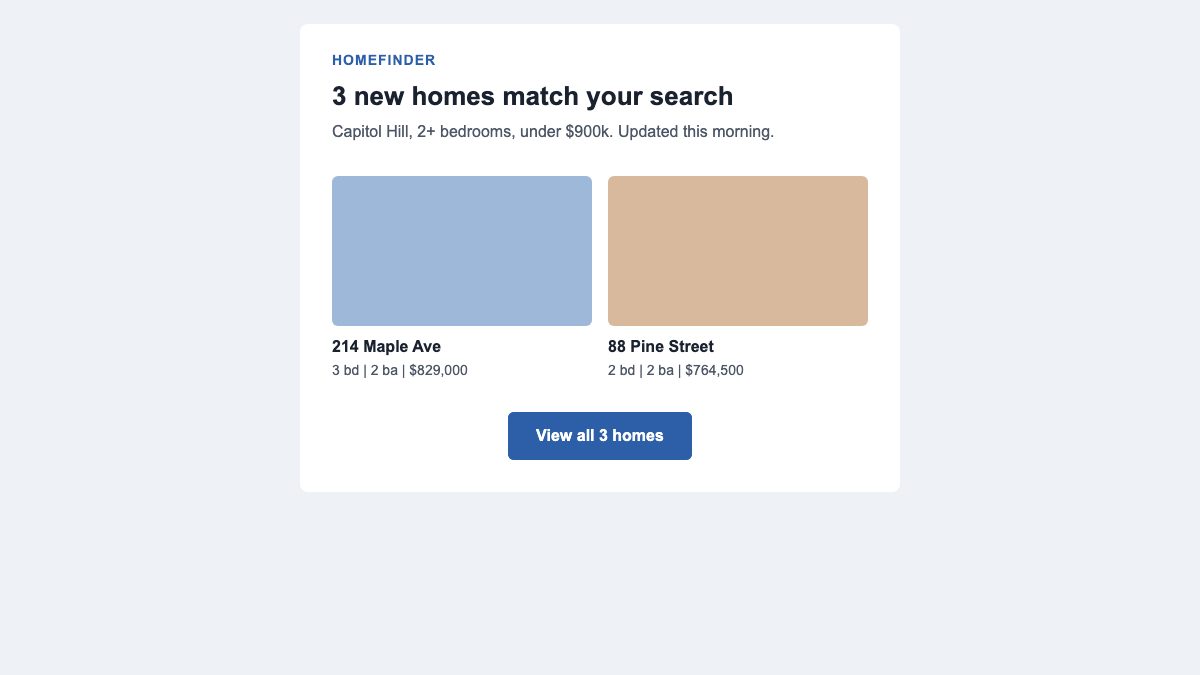
The most reliable way to make an HTML email mobile friendly is a fluid-hybrid layout: a single 600px-wide container built from tables, columns that are inline-block divs which wrap by themselves, a viewport meta tag, large tap targets, and a small @media block that only polishes what the layout already does. The email still works in clients that strip or ignore your media queries.
That is the same idea as the original 2011 version of this article, which avoided depending on media queries and used percentage widths with max-width. What changed is the toolbox: most clients now render on modern engines, dark mode is something you have to design for, and a lot of 2011 tricks (retina logo hacks, -ms-interpolation-mode workarounds for old Internet Explorer, text-size hacks) are either unnecessary or harmful.
What is different about email CSS
An email is not a web page. Every client rewrites your HTML before showing it, and the support gap is large enough that the community tracks it feature by feature on Can I email, the email counterpart of Can I use. Three facts shape everything below:
- Classic Outlook for Windows renders with Word, not a browser. It ignores much of modern CSS, so layout still needs tables and conditional comments. The newer Outlook uses a Chromium-based WebView2 engine and behaves much closer to Outlook on the web, but both versions are in use, so you code for the weaker one.
- Media queries are supported, but not uniformly. Apple Mail supports them fully. Gmail supports them with limits (no nested or height-based queries, and missing on non-Google accounts in its mobile apps). Yahoo! Mail only handles a narrow set of queries and needs a hack on Android.
max-widthis broadly supported, but in Outlook for Windows it only works ontableelements, and some other clients ignore it on tables. That is why the pattern below sets awidthin a conditional Outlook wrapper and amax-widthfor everything else.
The practical rule: build a layout that is already fine on a phone without any CSS in the head, then use media queries as an enhancement. This is progressive enhancement, and it is the right default for email.
The demo: one template, every screen
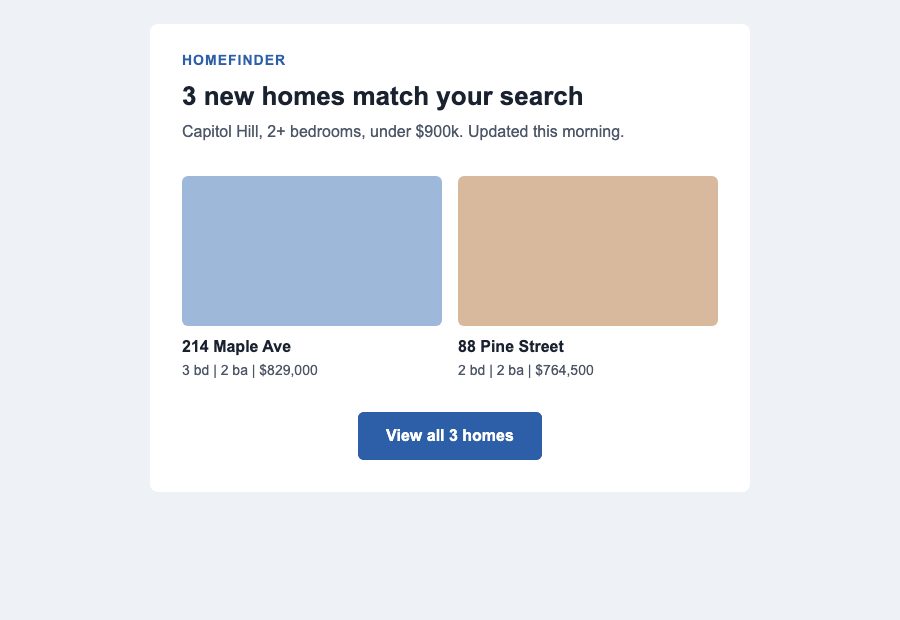
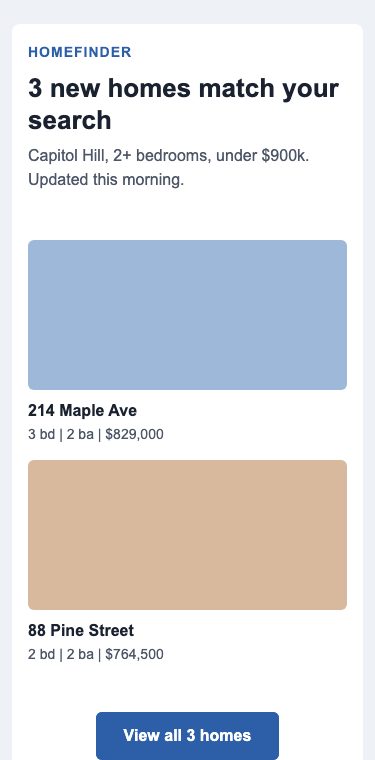
Here is the template built in this article, a saved-search alert like the one in the original post. On a wide screen the two listings sit side by side; on a phone they stack, with no media query required for the stacking itself.
Step 1: Set up the document
Start with a proper head. The viewport tag makes phones lay the email out at device width instead of zooming out a desktop-sized page. The color-scheme tags tell clients that support dark mode that you have designed for both.
<!DOCTYPE html>
<html lang="en" xmlns:o="urn:schemas-microsoft-com:office:office">
<head>
<meta charset="utf-8">
<meta name="viewport" content="width=device-width, initial-scale=1">
<meta name="color-scheme" content="light dark">
<meta name="supported-color-schemes" content="light dark">
<title>Your weekly saved searches</title>
<!--[if mso]><noscript><xml><o:OfficeDocumentSettings>
  <o:PixelsPerInch>96</o:PixelsPerInch>
</o:OfficeDocumentSettings></xml></noscript><![endif]-->
The lang attribute and a real <title> help screen readers. The Outlook block stops classic Outlook on Windows from scaling images on high-DPI screens.
Also set a hidden preheader, the snippet shown next to the subject line in the inbox, as the first thing in the body. Keep it short and useful.
Step 2: A fluid container that Outlook respects
Wrap the email in a full-width table for the background colour, then put a 600px card inside it. Browsers and modern clients use max-width:600px; Word-based Outlook gets a fixed-width table through a conditional comment.
<table role="presentation" width="100%" cellpadding="0" cellspacing="0" border="0"
       style="background-color:#eef1f5;">
<tr><td align="center" style="padding:24px 12px;">
<!--[if mso]><table role="presentation" width="600" align="center"
     cellpadding="0" cellspacing="0"><tr><td><![endif]-->
<table role="presentation" width="100%" cellpadding="0" cellspacing="0" border="0"
       style="max-width:600px;background-color:#ffffff;border-radius:8px;">
  <!-- rows go here -->
</table>
<!--[if mso]></td></tr></table><![endif]-->
</td></tr></table>
Use role="presentation" on layout tables so assistive tech does not announce them as data tables. Put width and cellpadding as attributes, not only CSS: attributes are the one thing every client understands.
Step 3: Columns that stack without media queries
This is the hybrid trick. Each column is a div with display:inline-block, width:100% and a max-width equal to the column width. When the container is wide enough, two columns fit on a line; when it is not, the second one wraps beneath the first. The parent has font-size:0 so the whitespace between inline blocks does not create a gap.
<td style="padding:16px 32px;font-size:0;text-align:center;">
  <!--[if mso]><table role="presentation" width="100%"><tr><td width="268" valign="top"><![endif]-->
  <div style="display:inline-block;width:100%;max-width:268px;vertical-align:top;">
    <!-- listing card 1 -->
  </div>
  <!--[if mso]></td><td width="268" valign="top"><![endif]-->
  <div style="display:inline-block;width:100%;max-width:268px;vertical-align:top;">
    <!-- listing card 2 -->
  </div>
  <!--[if mso]></td></tr></table><![endif]-->
</td>
The conditional comments rebuild the columns as a real table for classic Outlook, which does not understand inline-block columns. Everyone else ignores them as ordinary comments.
A small @media (max-width: 480px) block then handles polish that wrapping cannot: reducing outer padding and removing the gutters between the stacked cards. In Gmail apps where that block is dropped, the email is slightly less tidy but fully readable.
@media (max-width: 480px) {
  .stack { display: block !important; width: 100% !important; max-width: 100% !important; }
  .pad   { padding: 20px 16px !important; }
  .cell  { padding: 8px 0 !important; }
}
The !important flags are needed because the base styles are inline, and inline styles beat anything in a stylesheet.
Step 4: Touch-friendly buttons that survive Outlook
Buttons and links need room for a thumb. Apple’s Human Interface Guidelines recommend a minimum 44 by 44 point target, and Google’s Material guidance uses 48dp. Both echo the 2011 advice to design touch-friendly clicks, and they still hold. Make the padding part of the link itself so the whole button area is tappable, and keep a background colour on both the cell and the link so the button still reads as a button if padding is stripped.
<table role="presentation" cellpadding="0" cellspacing="0" border="0" class="btn"><tr>
  <td align="center" bgcolor="#2d5fa8" style="border-radius:6px;">
    <a href="https://example.com/results"
       style="display:inline-block;padding:14px 28px;font-family:Arial,Helvetica,sans-serif;
              font-size:16px;line-height:20px;font-weight:bold;color:#ffffff;
              text-decoration:none;background-color:#2d5fa8;border-radius:6px;">
      View all 3 homes
    </a>
  </td>
</tr></table>
With 14px of padding above and below a 20px line, the button is 48px tall. Keep link text descriptive (“View all 3 homes”, not “Click here”), and leave space between neighbouring links so a thumb does not hit the wrong one.
Step 5: Images that scale and still say something
The old retina-logo hack, which swapped in a background image through a pixel-ratio media query, is gone. Modern phones are all high-density, and some clients strip or rewrite that CSS anyway. The replacement is simple:
- Export images at twice their display size (a 600px-wide hero as a 1200px file) and set the display size with
widthandheightattributes. - Add
max-width:100%; height:auto; display:block; border:0so they shrink with the container and leave no stray gap below. - Always write real
alttext, and style it (colour, size) on theimgso it still looks intentional when images are blocked, which is the default in some clients. - Use JPEG or PNG. AVIF and WebP are not reliably supported across email clients, so check Can I email for the format before relying on either.
- Do not put key information, like a price or a promo code, only inside an image.
The -ms-interpolation-mode: bicubic hack from the original post targeted old Internet Explorer. It is harmless to keep in a global img rule for classic Outlook, but it is no longer a major concern.
Step 6: Dark mode
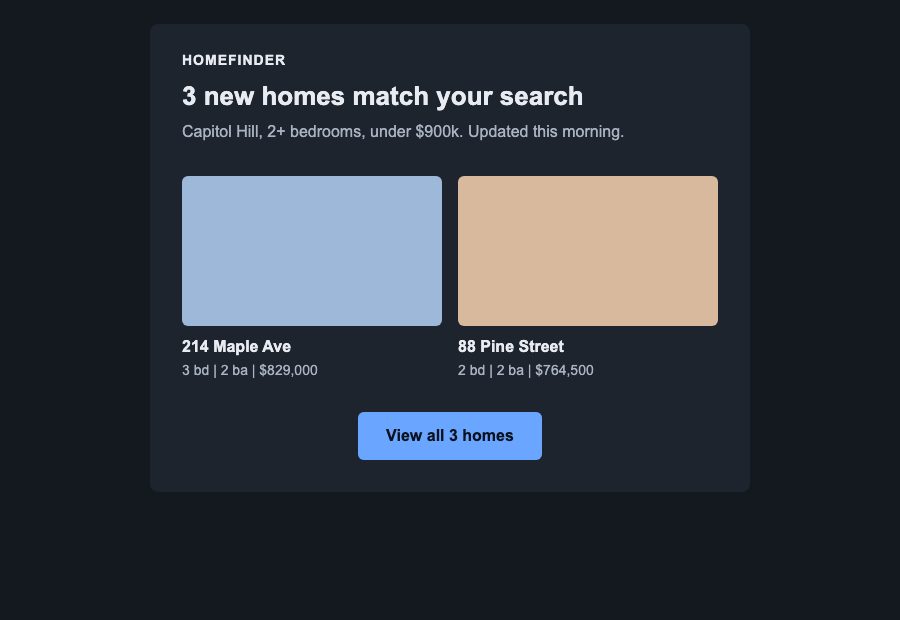
Many people read email in dark mode, and clients handle it in different ways: some leave your colours alone, some partially invert them, and some fully invert them whether you like it or not. You cannot control the last group, but you can make the first two good.
- Add the
color-schememeta tags and:root { color-scheme: light dark; }. - Add a
prefers-color-scheme: darkblock that overrides background and text colours through classes on your elements. - Avoid logos and transparent PNGs that only work on a white background. Use artwork that reads on both light and dark surfaces.
@media (prefers-color-scheme: dark) {
  .bg    { background-color: #14181f !important; }
  .card  { background-color: #1e242e !important; }
  .text  { color: #e8ecf2 !important; }
  .muted { color: #a9b3c1 !important; }
  .btn a { background-color: #6aa6ff !important; color: #0b1220 !important; }
}
Support is a mixed picture. According to Can I email, Apple Mail, Gmail, the Outlook apps, Samsung Email, ProtonMail and Thunderbird honour the media query, while Yahoo! Mail, AOL and HEY do not. Those clients are the reason your light design must also stand on its own.
What to drop from the 2011 version
| 2011 technique | Today |
|---|---|
Retina logo via pixel-ratio media query and :after alt text |
One image at 2x size with width and height attributes |
-webkit-text-size-adjust inside device-width queries |
A plain text-size-adjust: 100% on body, if you want it at all |
| Targeting Yahoo! with attribute-selector tricks | Test it in Yahoo! Mail and keep the base layout independent of the CSS |
| Fixed 600px design plus a separate mobile version | One fluid-hybrid template |
| Light-only design | Light and dark, declared with color-scheme |
The old advice warned against -webkit-text-size-adjust: none because it blocked zooming. Setting it to 100% on the body avoids that problem and stops mobile Safari from inflating text in landscape.
Accessibility and testing checklist
- Body text at 16px or larger, with line height around 1.5, and contrast of at least 4.5:1 in both the light and dark versions.
- Semantic headings,
langonhtml,role="presentation"on layout tables. - A plain-text alternative and a visible unsubscribe link.
- Test in real clients: Gmail (web and app), Apple Mail, classic and new Outlook for Windows, Outlook.com and Yahoo! Mail. A rendering service such as Litmus or Email on Acid shortens the loop.
- Keep the total HTML small. Gmail clips long messages, hiding the footer behind a “View entire message” link.
The pages your email links to need the same responsive care. See our newsletter subscription form for the sign-up side, the contact form with floating labels, and the footer with newsletter field. For the inbox itself, browse the email inbox layouts and the responsive mail inbox layout.
Frequently asked questions
Can I use flexbox or grid in email?
Not safely. Classic Outlook ignores both, and other clients vary. Use tables, with the inline-block hybrid pattern for columns that wrap.
Should I still use tables?
Yes, for structure. As long as Word-based Outlook is in your audience, tables are the only layout method that works everywhere.
Do I need a separate mobile template?
No. One fluid-hybrid template with a few media-query refinements covers phones, tablets and desktops.
Is an email framework worth it?
Often, yes. Tools such as MJML compile short, readable markup into the table-and-conditional-comment code shown above. Understanding the pattern still helps when you debug a client.
The original version of this article was a 2011 guest post by Josh Rubinstein of Estately. It has been rewritten from scratch for current email clients.


Well done! Great read. Makes me want to throw out the WPtouch plugin.
I have never come across such a thoughtful approach to HTML email. There is way too much compromising taking place in this department. Great post!
Useful post, thanks. There will be some who insist the answer is to just use plain text but there has to be a place for graphic and text rich email – you just have to put some thought in to it.
Great article! Loved your writing style and the example illustrations. WORD! ;)
HTML email is the wrong approach. Email should be plain text.
Um, no? HTML emails are highly successful and well tested to be many times better than plain-text emails. Plain-text is valid for a fallback, yes, but your answer and assumption is definitely lacking of any real world metrics proving otherwise.
Thanks for the useful tips and detailed code explaining. Very interesting!
Hello,
I want to hire a pro designer for one of my websites. Someone who has UX ideas. I just can’t seem to find the right people on freelancing websites.
Can you recommend anybody? Please mail me at [email protected] if you can.
Hi,
Link of this text is wrong “”
Thanks
Jitender
Sorry for mistake.
Test is “See CSS Tricks for image examples and further reading.’
Great post!!!! I am learning to design web for mobile and I found your post… thanks
The tips on individual mailboxes such as yahoo mail are really helpful. Been trying to send out surf clothing details to folk for ages now and since we stopped using paid 3rd party services a while ago we lost lots of subscribers straight away probably through result of our html table based emails would not showing properly. Media queries are the way forward for us too, we don’t need mobile sites, print.css or mobile apps, just one html5 template and some media query ready css, mobile friendly client side scripting to keep all visitors happy. We just need to work on making our whole site more responsive and cross device compatible now.
Great post about HTML emails for mobiles, considering the popularity of smart phones.
Found a great resource here: on how to automatically scale images based on devices.
So instead of using , you just prepend the src like so:
The API provides SEVERAL useful options including custom sizes, format conversion, percentage scaling, offset scaling, base64 encoding, callbacks etc. and it’s free!
Sorry my tags got stripped, just go check out the API :)
The Sencha.io image resizing resource looks really sharp. It’s in beta now http://www.sencha.com/products/io/. I would imagine that there will be some fee associated with the service.
My hope is that the W3C will introduce to HTML some way to trigger the download of source images based on the media query. Here’s one discussion about using a “prefixing” model,
Thanks for putting this together! Great tips with code samples; added to my personal must-do-optimizations for new projects.
a little bit OT but did you know that by making
eg.
the phone numberA phones make call onclick :)
Very interesting post! Be careful that “See CSS Tricks for image examples and further reading” link is broken…
Great article. More and more we need to improve in mobile webdesign.
If it wasn’t for outlook I wouldn’t even remember how to build a table. Thanks for the tutorial. I was amased how much of this I was already doing. However, I still learned a few things. Thanks. bookmark’d
Great article. I always love the code that I can just copy and paste into my document. You guys make it so easy for me ;)
A nice list of options, but I would like to argue a counterpoint for Tip #1:
“Tip #1: Design all “clicks” to be touch friendly!
Large “Touch Target Sizes” for images, links and buttons will ensure you are a humble champion.”
Not so. The number of emails, especially newsletters, which I receive which have massive linked areas is astounding, and, I have to admit, when viewing these emails from my iPhone, 90% get deleted without reading.
Why? Because if I try and scroll down the page, the fact that the email is a veritable minefield of links (both obvious and not-so-obvious) means that touching the screen to move the viewport down the page triggers these links and opens them in new windows.
Not cool.
I would suggest that, if you are trying to formulate a clear and concise set of commandments for newsletter designers with a view to mobile viewability/usability, I would strongly suggest the following:
1) Do not have massive links. Certainly, use images to get your message across, but having a link/hotspot which is 800px wide is probably overkill.
2) Using Call To Action images is cool, but try and make them fairly moderate in size, and very clear in appearance – this way you don’t need to pick up clicks across the entirety of a 800px wide banner.
Really, until these points are considered, I, and I would suggest a good number of other, mobile email-readers will delete your message without even looking beyond the first image.
Luke I am definitely not suggesting a designer/developer make anything a minefield of links but rather to consider that touch-size needs to be considered.
Hand n’ hand, content and usability of the email are essential. I agree if the content and call to action are hollow the subscriber will use the delete button and eventually unsubscribe :)
Doesn’t your tip about including higher resolution images for retina displays mean that all devices will download two versions of the same image regardless of whether only one is shown?
John, since I use the media query for the high resolution device it means only the devices capable of understanding it will download the higher resolution image, but…
Your comment is a great catalyst for another solution (which would eliminate a HTTP request) to simply include the higher res image in the image tag but with adjusted width and height properties so that it’s 1/2 the resolution for typical screen sizes, while reserving the media query for higher res devices with a css rule to size the image back to the higher fidelity.
Thanks for the feedback…I think you just gave me another idea to test :)
Nice css styles explained using the example of iphone.
Some great techniques here, I would definitely keep this in mind when I start mobile development in the near future.
This post is very useful. I will keep this post in mind when I create my newsletter for my wp theme customers.
I found this article after I’ve posted 100+ Email templates on my site and an Email Validator from Fractal – but i have to ssay this went well above my expectations when reading the headline.
Your examples are much appreciated and I’ve not yet seen anyone discussing the images sizes for phones with touch screen – probably just me being ignorant – but this was a great read.
Thanks!
Thanks for this article – always been a bit careful with CSS usage in html emails but might give this a shot :)
Thanks for such a useful article. Can some one also refer some good pre designed Email Template website.
I hardly found a website discuss about HTML email. When I design email template, but I set it with fix width and limit the CSS usage. This articles must be spend lot of time for preparation. Good job!!
great tips! I’m about to make my html email mobile friendly. :D
Great post,
We need one template for all for sure!
Also to take into account the displays of the new breed of iphones like the retina but also all of the HD android phones, Ipad alternatives etc.
Again great post,
Peace
Yep, it’s becoming more and more important to get email (and web content in general) formatted nicely for mobile devices.
We’re a little way from the point where people will use their mobiles for ‘work’ type operations with the exception of communications –
Most folks are a lot more likely to check something like email / facebook / twitter, or work-related ‘status’ or ‘overview’ information on a mobile device.
The percentages are still very low for most website statistics I check – but will be growing fast with the explosion of mobile devices.
Great post – something we’ll all be paying more and more attention to.
Many Thanks,
Darren.
I have always concentrated on keeping the html and page design simple. Do we still need a WAP friendly design or can the new browsers on the smart phones handle standard html now? A simple test on my wife’s new Google android based phone would indicate they can indeed do just fine if you keep it simple.
This is awesome! No more mobile plugins. Good reading. Thanks
i dunno, i seem to get different results from different phones, despite OS, don’t know enough about the differences in mobile display, why can’t we get a standard, maybe one day…
Thank you for such a fantastic blog. Where else could anyone get that kind of info written in such a perfect way? I have a presentation that I am presently working on, and I have been on the look out for such information
Regards
Thanks for the specs on Windows and iPhone buttons. I’ve never seen those before.
I guess design specifically for smart-phone and related applications is inevitable… I was hoping the “smart” phones would evolve to “read” and properly render standard website designs. So, it is time for designers (ME) to evolve, again!
Nice article, mobile becomes an increasingly important medium. As more and more Iphones flood the market. Crafting your e-mails so they are mobile friendly is a good way to stay connected with your customer on the go.
I was hoping the “smart” phones would evolve to “read” and properly render standard website designs.
Wow. This is amazing. Many people search everything on iPhone nowadays and this is a must!
webkit :none; to the rescue. thanks for the web design tips.
There is a problem with media queries.
@media only screen and (-webkit-min-device-pixel-ratio : 1.5),only screen and (min-device-pixel-ratio : 1.5)
Should be
@media only screen and (min-device-width : 320px),only screen and (max-device-width : 480px)
Otherwise different resolution images do not load…at least they didn’t load for me.
We’re just starting a mobile email campaign, so this piece is both topical and well timed. Many Thanks Joel
having problem viewing my youtube video on my mobile phone.
having problem viewing my youtube video on my mobile phone.
Today mobile is not needed just for communicaiton, it has evolved lot and is becoming a big uitility of life. This is a fantastic post and really will helpful for lots of people. Each information is in full detail. Thanks for investing so much time for such post.
Interesting suggestions..Your tip made my internet explorer very smooth:-)..surely I’m making my email format more mobile friendly..Keep the good work going
Interesting post! I still have a question
My problem is that i didn’t put retina images so on Iphone 4 mail images look a little bit blurry.
I saw your code about query but my question is it : can i use this query as an inline style? I don’t have a separate css for emils and all my styles are inline
Great tips! For some reason, the hi-res version of my image does not show on my iPhone mail app. Any ideas?
thank you nice article, i will try it to code in html 5
What’s a good idea or a good think!
What I don’t understand is when I’m making an email it only allows me to paste in what’s inside the body tag so it strips out what’s in the head so how are you to use @media? Do it inline somehow?
My brother recommended I might like this web site. He
was entirely right. This post truly made my day.
You cann’t imagine simply how much time I had spent for this info! Thanks!
Thanks for tips, this is quite helpful since most of the people use a mobile phone to view emails.