How to Protect Your WordPress Site From Hackers
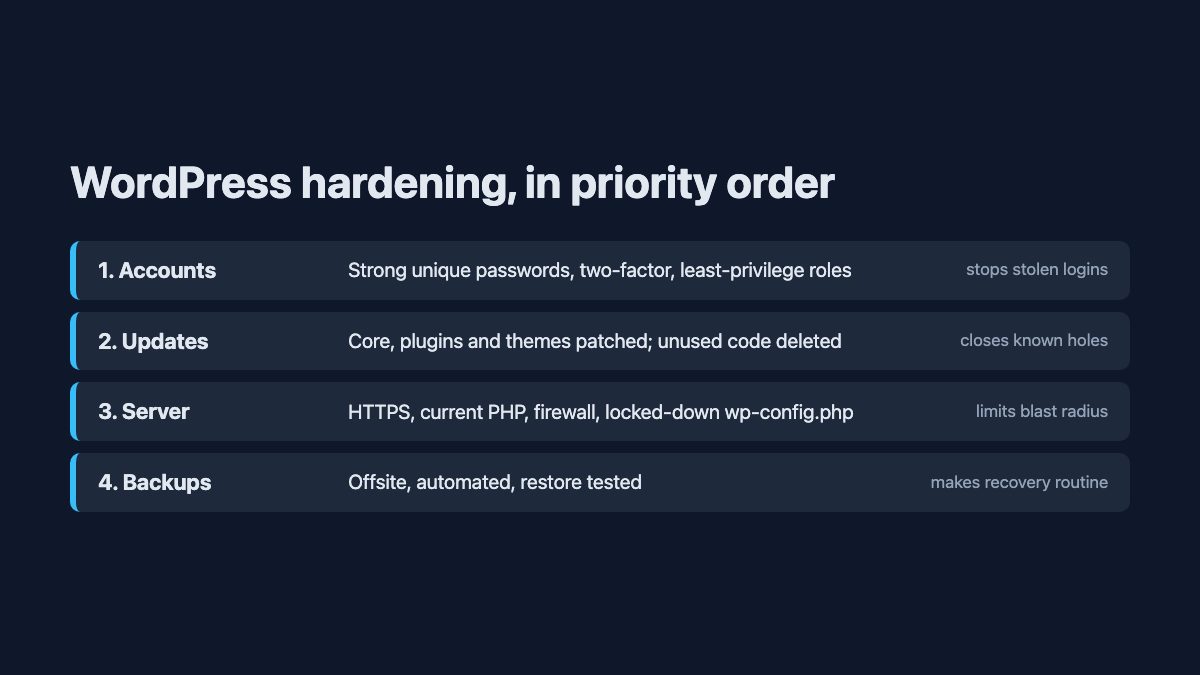
To protect a WordPress site, fix the things attackers actually use: weak or stolen logins, outdated plugins and themes, an exposed or writable server, and no way back after a bad day. A handful of settings and habits covers most of the risk, and none of it needs a security degree.
The steps below are ordered by what matters first, so you can stop when you run out of time.
Lock down logins first
Most compromises start with a valid login or a vulnerable plugin, not a clever exploit of WordPress itself. So start with accounts.
- Use a password manager and give every account a long, unique password. Reused passwords from other breaches are the usual way in.
- Turn on two-factor authentication for every user who can publish or manage the site. The community-built Two Factor plugin supports authenticator-app codes (TOTP), emailed codes and backup codes. Passkeys and hardware keys are not built in; the plugin page points to a separate WebAuthn add-on for those.
- Give people the lowest role that works. A writer needs Author or Contributor, not Administrator. Keep one or two administrators and delete accounts for people who have left.
- Avoid guessable usernames such as
admin, and set a separate display name so author archives do not reveal login names.
Since WordPress 5.6, application passwords let tools and integrations authenticate to the REST API without your real password. They are available by default on HTTPS sites and local environments, and the wp_is_application_passwords_available filter lets you switch them off if you do not use them (see the function reference). Revoke any you do not recognise.
Keep everything updated
Known vulnerabilities in plugins and themes are the most common technical way sites get breached, and fixes only help once they are installed. WordPress has installed minor core releases automatically since version 3.7, and from 5.6 new installations also receive major releases unless a version-control checkout is detected.
You control core behavior with a constant in wp-config.php. According to the WordPress upgrade documentation, true enables all core updates, false disables them, and 'minor' allows only minor releases. For plugins and themes, switch on auto-updates from the Plugins and Themes screens, or use the auto_update_plugin and auto_update_theme filters in a must-use plugin.
Updating is only half the job. Treat every installed plugin as code you are responsible for:
- Delete plugins and themes you are not using. Inactive code can still be exploited if the files are reachable.
- Avoid plugins that have not been updated in a long time or that are no longer in the directory.
- Prefer one well-maintained plugin to three overlapping ones. Our guide to useful WordPress plugins lists well-maintained options.
- Keep a staging copy for major updates, and see the common WordPress errors guide if an update goes wrong.
Harden wp-config.php
A few constants take away dangerous features you probably do not need.
// Remove the theme and plugin code editors from the dashboard
define( 'DISALLOW_FILE_EDIT', true );

// Require HTTPS for login and admin
define( 'FORCE_SSL_ADMIN', true );

// Keep minor (security) core releases automatic
define( 'WP_AUTO_UPDATE_CORE', 'minor' );

// Never print PHP errors to visitors
define( 'WP_DEBUG_DISPLAY', false );
DISALLOW_FILE_EDIT is equivalent to removing the edit_themes, edit_plugins and edit_files capabilities from every user, so a hijacked administrator account cannot paste code into a theme file. The official hardening guide is honest about the limit: it does not stop an attacker from uploading malicious files.
Be careful with DISALLOW_FILE_MODS. It blocks all plugin, theme and core installs and updates from the dashboard, so it only suits sites where you deploy through version control and update by another route. On a normal site it would stop the updates this article tells you to run.
Two more things belong here. Regenerate your authentication keys and salts if you ever suspect a compromise; WordPress.org offers a generator at api.wordpress.org/secret-key/1.1/salt, and changing them logs everyone out. And restrict who can read the file: the hardening guide recommends permissions of 400 or 440 for wp-config.php, and notes you can move it one directory above the web root.
Set safe file permissions and block sensitive files
The hardening guide recommends that WordPress files be writable only by your user account where possible, with directories at 755 and files at 644. The web server needs write access only to places like wp-content/uploads.
If you run Apache, older guides use Order, Allow and Deny. Apache’s own documentation calls those directives deprecated and tells you to use Require instead (Apache access control). Here are the modern equivalents.
# Block direct access to wp-config.php
<Files "wp-config.php">
    Require all denied
</Files>

# No directory listings
Options -Indexes
Some older advice no longer holds up:
- Protecting
.htaccessitself is already the default in standard Apache configurations, so the extra rule is rarely needed. - Blocking
.exefiles protects visitors from nothing on a Linux server and is not worth the clutter. - IP allow-lists for
wp-login.phpandwp-adminstill work if you have a fixed address, usingRequire ip 203.0.113.10. Test it carefully, because it will lock out you and any contributor on a changing IP, and it can break admin-ajax calls that front-end features rely on. - nginx and managed hosts do not read
.htaccessat all. Ask your host, or put equivalent rules in the server config.
Whatever the server, confirm the site runs on HTTPS and a supported PHP version. Outdated PHP stops receiving security fixes, and most good hosts let you switch versions in one click.
Add a firewall and limit brute-force attempts
A web application firewall filters malicious requests before WordPress sees them. The hardening guide suggests running one at the web server, naming ModSecurity as the most popular open-source choice, and mentions firewall plugins and reverse-proxy services as alternatives. In practice that means one of three routes:
| Route | How it works | Good for |
|---|---|---|
| Host-level firewall | Provided by your hosting company at the server, for example ModSecurity rules or the WAF built into a managed host | Managed hosting, least setup |
| Reverse-proxy WAF | A DNS-level service such as Cloudflare WAF filters traffic before it reaches your server | Sites that attract bot traffic |
| Security plugin | Rules run inside WordPress itself | Shared hosting with no server access |
Pair the firewall with rate limiting on wp-login.php, for example a Cloudflare rate-limiting rule or your host’s equivalent. Two-factor already makes password guessing nearly useless, but throttling also keeps bots from hammering your server. Also consider XML-RPC, the legacy remote-publishing endpoint (xmlrpc.php) that bots use for password guessing. If you do not use the old mobile apps or Jetpack-style remote tools, turn it off with add_filter( 'xmlrpc_enabled', '__return_false' ); in a must-use plugin, or block the file at the server. Security plugins also scan for modified core files and flag known vulnerable plugins, which helps if you cannot check manually.
Custom login forms deserve the same care. If you design your own, our login form snippet and registration form with password strength show front-end patterns, but remember the front end never replaces server-side checks.
Back up and practice the restore
You will not stop everything, so plan for recovery. The WordPress backup guide says a complete backup is two parts: the database, and the files (core, themes, plugins, uploads, wp-config.php and .htaccess). Downloading the folder does not capture the database. Treat them as one set made at the same time.
- Automate daily backups on busy sites, weekly on quiet ones, and always before updates or migrations.
- Store copies somewhere other than your web server, so a server compromise cannot erase them.
- Keep several recent versions. Malware is sometimes noticed days late.
- Restore a backup onto a test site now and then. An untested backup is a guess. Our guide to exporting and importing WordPress covers moving content, and installing WordPress locally gives you a safe place to practice.
Details are in the official backup documentation.
If you are already hacked
Warning signs include unfamiliar admin users, new files you did not upload, spam pages in search results, redirects for visitors and a host suspension notice. Work through these checks:
- Look for unknown administrators. Review Users in the dashboard, or run
wp user list --role=administratorwith WP-CLI, and delete accounts you do not recognise. - Compare core files with the originals.
wp core verify-checksumschecks WordPress core files against WordPress.org’s checksums and reports anything modified or added. Reinstall core withwp core download --forceif it finds changes. Plugins can be checked the same way withwp plugin verify-checksums --all. - Scan for malware with your host’s scanner or a security plugin, and inspect
wp-content/uploadsfor PHP files, which should not be there. - Rotate every secret: regenerate the salts in
wp-config.php, reset all user passwords, change database and hosting passwords, and revoke every application password under each user’s profile. - Restore and update. If cleaning is uncertain, restore a backup from before the compromise, then update everything before bringing the site back online.
A quick hardening checklist
- Two-factor on every privileged account, unique passwords, least-privilege roles.
- Core, plugins and themes on auto-update where safe; unused ones deleted.
DISALLOW_FILE_EDIT,FORCE_SSL_ADMINand sensible file permissions set.wp-config.phpnot publicly readable; directory listing off.- HTTPS, supported PHP and a firewall in front of the site.
- Offsite automated backups with a tested restore.
Security is a habit, not a one-off setup, so review this list whenever you add a plugin or a user.
Another great WordPress plugin is: Limit Login Attempts
It automatically blocks someone after they try to login numerous times.
Lately the brute force attacks on the wordpress login page has increased, and plugins like “Limit Login Attempts” don’t help as much. This is because the attacks are spread out over many different IPs.
A good solution for this type of attacks is to lock down the wp-login.php file and wp-admin directory like Nick mentioned with .htaccess.
Typo on “Deny Executable Files Like .exe Extension”:
# deny all .exe files
> <———-
It’s great that you recommend to delete old and inactive plugins and themes. It is so simple to do and yet, although many people deactivate unused plugins/themes, they don’t delete them.
Great tips.Thanks a lot for mentioning the code here.Keep updating.
Great tips. Might want to correct that typo in the EXE blocking bit:
>
That second “>” will cause a server error.
Thanks. It is fixed now.
The tips you have shared are really useful and simple to understand. People who have WordPress sites, they need to make sure its protection in each way.
I have found a plugin which enables all of this and more and highly recommend it.
http://wordpress.org/plugins/better-wp-security/
I’ve read similar post like this before but I can still remember the tip provided their about having a long password. :D
Incredible Tips to protect WordPress sites! As usual you just rock in producing excellent blog and the codes are very useful.
Thanks for the informative post. I have heard that there are WordPress plugins that make your site vulnerable to hacking. Is this true? can you provide a few examples?
This is more than useful information that you have shared here. I love WordPress and I probably don’t see myself using another CMS anytime soon so I really appreciate these tips and I am going to implement them. I tried out Better WP security Plugin a while ago and it was also impressive for those who don’t want to fiddle with WP files.
I agree with you. I also use Better WP security Plugin for my security. But thank you WDW for your post. I learned some new things that will hep me in my next project.
Interesting and acceptable tips which must consider while in security concern about WordPress site. As today, It’s more challenging to be secure and protect online business from any external attack. So be ready to protect your WordPress site by following above mentioned tips.
Great information to help fend off hacker intrusion. Clients often disregard even the basics like updating as something they believe optional and without consequence. For that reason, security and the importance of updates are something we address with clients at website delivery presentations. It’s so critical with WordPress that some hosting companies will actually shut a WP website down over this issue.
Great tips! I would also recommend Jeff Starr’s “Block Bad Queries” http://wordpress.org/plugins/block-bad-queries/ Thank you.
Great overview of WordPress security.
I use a combination of free and paid WordPress plugins for security including the one that @Theo recommends “Block Bad Queries”
My paid plugin is Sucuri.
Its perfect solution but can you please tell me how i can secure my payments issue? because may be some time i am hiring admin for few necessary work so i want to know more solutions about it.
Also thanks for sharing this awesome information keep it continue
I’ve used the technique to whitelist specific IPs, but the problem comes in when my clients aren’t using static IPs, or try to edit their website when they are travelling. It’s not ideal because then you have to keep updating the whitelist with the new IPs, and the clients get frustrated because they can’t access their website. Is there any way around that? I mean, I think the other security measures are really good, but whitelisting just seems to cause problems and frustrations so I don’t use it for client websites.
Hi, first of all thanks for the article.
But I have an issue with one of your suggestions. When I try to add the “Options -Indexes” code line to my .htaccess file, no matter where I put it, I always get a 500 server error and I cannot access the website neither the wordpress dashboard. Any idea why could cause the problem?
Thanks
Hi, great details you have provided us. I was fed up about attaining the complete information with such coding details.
Thank you for solving my problem.
Thanks Nick, for such an informative post on WordPress security. Since so many sites these days are built using WordPress, it tends to be vulnerable to attacks.
Thanks, but how to test the security of WP ?
Great advice. Every blog owner (new and old) should read this. :) Sadly, most blog owners who run into WordPress security problems have to learn the hard way.
What the best thing i like about this post is that you have provided the code snippets for direct usage. Otherwise I have to search for these and spend some more time on each one. I used to work on many WordPress sites simultaneously, and so this information is really a beneficial one for me for effective working.
Thank you for sharing. Especially the whitelisting of IP-addresses is useful for me as I often work from very different locations and therefore change IP-address often. I love WordPress, though I know other systems are even more flexible, but WordPress saves time with all the plugins and is not entirely for geeks.
Nowadays everyone wants their sites more protective and secured and your tips and points for making a wordpress website secured are awesome and the coding which you have written in this article is really useful and helpful for everyone.
I’m a fan of the plugin BulletProof Security, which handles the .htaccess issues for me. A few clicks, and it’s configured. I’ve used it for every WordPress site for a couple of years now with no problems.
Great tutorial, It`s a pain sometimes trying to protecting WordPress from hackers and spammers. I will bookmark this page for future reference, Thanks!
Interesting and acceptable tips which must consider while in security concern about WordPress site. As today, It’s more challenging to be secure and protect online business from any external attack. So be ready to protect your WordPress site by following above mentioned tips.
Nick, this may be a bad question… But do you have to re-upload these files (wp-config.php and hta.access) with the new security code everytime WordPress does an update? Don’t they overwrite files? Thanks!