Building a Custom WordPress Theme: A Block Theme Tutorial
To build a custom WordPress theme today, you create a block theme: a folder with a style.css, a theme.json and a handful of HTML template files written in block markup. You design the look in the Site Editor and in theme.json, and you write PHP only when you need custom behavior. You can have a working theme in about fifteen minutes.
This tutorial builds a small blog theme called Field Notes from scratch and runs it on a local site. If you learned themes the old way (slice a PSD, cut an HTML file into header.php and footer.php), the concepts carry over; the files and the workflow are what changed. Every file shown below is the file that was run to produce the screenshots, copied unchanged.
What changed since PHP-only themes
A classic theme is built from PHP template files that call template tags such as the_title() inside The Loop. A block theme describes the same pages as block markup in .html files. WordPress renders that markup, and site owners can edit it visually in Appearance > Editor. Block themes are the default direction for WordPress theme development, and the official theme handbook is organized around them.
| Old workflow | Block theme workflow |
|---|---|
| Design a Photoshop mockup, hand-code static HTML | Pick type, color and spacing in theme.json; compose layouts with blocks and patterns |
header.php, sidebar.php, footer.php |
parts/header.html, parts/footer.html loaded by the Template Part block |
The Loop with have_posts() |
The Query Loop block and Post Template block |
| Theme options pages, hard-coded colors in CSS | Global Styles generated from theme.json, plus style variations |
| Install XAMPP or MAMP | WordPress Studio, wp-env or Playground |
1. Set up a local WordPress site
Work locally so a typo never takes a live site down. Three options are officially maintained:
- WordPress Studio is a free, open source desktop app (macOS, Windows, Linux) that creates a local site in a click. It also has a CLI, and it replaces the XAMPP and MAMP setup older tutorials describe.
wp-envfrom the Gutenberg project runs WordPress in Docker. Afterwp-env startthe site is athttp://localhost:8888with useradminand passwordpassword, and thethemesandmappingsoptions in.wp-env.jsonmount your theme folder.- WordPress Playground runs WordPress in the browser or via
@wp-playground/cliwith no Docker. That is how the screenshots below were produced: the CLI mounts the theme folder into a fresh site, so every edit shows on refresh.
Whichever you choose, open the wp-content/themes folder of the site. That is where your theme lives.
2. Create the required files
Per the theme handbook, a block theme needs exactly two files: style.css and templates/index.html. The presence of index.html is what makes WordPress treat the folder as a block theme. Everything else is optional, but real themes add the files below.
field-notes/
├── style.css
├── functions.php
├── theme.json
├── assets/
│   └── fonts/
│       └── inter-latin-wght-normal.woff2
├── templates/
│   ├── index.html
│   ├── single.html
│   └── page.html
├── parts/
│   ├── header.html
│   └── footer.html
├── patterns/
│   └── intro.php
└── styles/
    └── midnight.json
Create wp-content/themes/field-notes/ and start with style.css. The comment block at the top is the theme’s identity. WordPress reads it; the CSS below it is ordinary CSS.
/*
Theme Name: Field Notes
Theme URI: https://example.com/field-notes
Author: Your Name
Description: A small block theme for a personal blog.
Version: 1.0.0
Requires at least: 6.6
Tested up to: 7.1
Requires PHP: 7.4
License: GNU General Public License v2 or later
License URI: https://www.gnu.org/licenses/gpl-2.0.html
Text Domain: field-notes
*/

a { text-underline-offset: 0.2em; }
.site-header {
	border-bottom: 1px solid var(--wp--preset--color--line);
	padding-block: 1.25rem;
}
.site-main,
.site-footer { padding-block: 3rem; }
.wp-block-navigation .wp-block-navigation__responsive-container.is-menu-open {
	padding: 1.25rem;
}
Requires at least is 6.6 because theme.json version 3 (used below) works with WordPress 6.6 or later, per the theme.json reference. Tested up to names the release series you actually ran the theme on; update it each time you retest, and do not guess. Keep the file small: colors, fonts and spacing belong in theme.json, where the editor can see and reuse them. The two rules at the end are explained in step 4.
Load style.css with functions.php
A surprise for anyone coming from classic themes: a block theme does not put style.css on the page by itself. When this theme was first run, the header padding and borders silently did not apply until the file was enqueued. functions.php fixes that and also loads the stylesheet inside the Site Editor, so the canvas matches the front end:
<?php
/**
 * Field Notes theme setup.
 */

// Load style.css on the front end. Block themes do not enqueue it for you.
add_action( 'wp_enqueue_scripts', function () {
	wp_enqueue_style(
		'field-notes',
		get_stylesheet_uri(),
		array(),
		wp_get_theme()->get( 'Version' )
	);
} );

// Load the same file inside the Site Editor so the canvas matches the front end.
add_action( 'after_setup_theme', function () {
	add_editor_style( 'style.css' );
} );
Keep functions.php this small. If a rule can live in theme.json, put it there; functions.php is for the things JSON cannot express, such as enqueueing or registering block styles.
3. Define your design system in theme.json
theme.json replaces most of what you used to write in CSS and in functions.php. Its settings section declares what the editor offers (palette, font sizes, layout widths, spacing), and styles applies defaults to the site, to elements like links, headings and buttons, and to individual blocks.
{
	"$schema": "https://schemas.wp.org/trunk/theme.json",
	"version": 3,
	"settings": {
		"appearanceTools": true,
		"layout": { "contentSize": "42rem", "wideSize": "68rem" },
		"color": {
			"palette": [
				{ "slug": "paper", "name": "Paper", "color": "#fbfaf7" },
				{ "slug": "ink", "name": "Ink", "color": "#1d2330" },
				{ "slug": "accent", "name": "Accent", "color": "#c2410c" },
				{ "slug": "line", "name": "Line", "color": "#e3ded3" }
			]
		},
		"typography": {
			"fluid": true,
			"defaultFontSizes": false,
			"fontFamilies": [
				{
					"slug": "inter",
					"name": "Inter",
					"fontFamily": "Inter, system-ui, sans-serif",
					"fontFace": [
						{
							"fontFamily": "Inter",
							"fontStyle": "normal",
							"fontWeight": "100 900",
							"fontDisplay": "swap",
							"src": [ "file:./assets/fonts/inter-latin-wght-normal.woff2" ]
						}
					]
				},
				{ "slug": "serif", "name": "Serif", "fontFamily": "Charter, 'Bitstream Charter', 'Sitka Text', Cambria, serif" }
			],
			"fontSizes": [
				{ "slug": "small", "name": "Small", "size": "0.875rem" },
				{ "slug": "base", "name": "Base", "size": "1.125rem" },
				{ "slug": "large", "name": "Large", "size": "1.5rem", "fluid": { "min": "1.35rem", "max": "1.75rem" } },
				{ "slug": "x-large", "name": "Extra Large", "size": "2.5rem", "fluid": { "min": "1.9rem", "max": "3rem" } }
			]
		},
		"blocks": {
			"core/button": { "border": { "radius": false } }
		},
		"spacing": {
			"units": [ "rem", "%", "vw" ],
			"defaultSpacingSizes": false,
			"spacingSizes": [
				{ "slug": "xs", "name": "Extra small", "size": "0.375rem" },
				{ "slug": "s", "name": "Small", "size": "0.75rem" },
				{ "slug": "m", "name": "Medium", "size": "1.5rem" },
				{ "slug": "l", "name": "Large", "size": "2.5rem" },
				{ "slug": "xl", "name": "Extra large", "size": "4rem" }
			]
		}
	},
	"styles": {
		"color": { "background": "var(--wp--preset--color--paper)", "text": "var(--wp--preset--color--ink)" },
		"typography": { "fontFamily": "var(--wp--preset--font-family--serif)", "fontSize": "var(--wp--preset--font-size--base)", "lineHeight": "1.65" },
		"spacing": {
			"padding": { "left": "1.25rem", "right": "1.25rem" },
			"blockGap": "var(--wp--preset--spacing--m)"
		},
		"elements": {
			"link": {
				"color": { "text": "var(--wp--preset--color--accent)" },
				":hover": { "typography": { "textDecoration": "none" } }
			},
			"heading": {
				"typography": { "fontFamily": "var(--wp--preset--font-family--inter)", "lineHeight": "1.2" }
			},
			"h1": { "typography": { "fontSize": "var(--wp--preset--font-size--x-large)" } },
			"h2": { "typography": { "fontSize": "var(--wp--preset--font-size--large)" } },
			"button": {
				"color": { "background": "var(--wp--preset--color--accent)", "text": "var(--wp--preset--color--paper)" },
				"typography": { "fontFamily": "var(--wp--preset--font-family--inter)", "fontWeight": "600" },
				"border": { "radius": "0.375rem" },
				":hover": { "color": { "background": "var(--wp--preset--color--ink)" } }
			}
		},
		"blocks": {
			"core/site-title": { "typography": { "fontWeight": "700", "fontSize": "var(--wp--preset--font-size--large)" } },
			"core/post-template": { "spacing": { "blockGap": "var(--wp--preset--spacing--l)" } },
			"core/post-title": {
				"typography": { "fontWeight": "700" },
				"spacing": { "margin": { "top": "0", "bottom": "var(--wp--preset--spacing--xs)" } },
				"elements": {
					"link": {
						"color": { "text": "var(--wp--preset--color--ink)" },
						":hover": { "color": { "text": "var(--wp--preset--color--accent)" } }
					}
				}
			},
			"core/post-date": {
				"typography": { "fontSize": "var(--wp--preset--font-size--small)" },
				"spacing": { "margin": { "top": "0", "bottom": "var(--wp--preset--spacing--s)" } }
			},
			"core/post-excerpt": { "spacing": { "margin": { "top": "0" } } }
		}
	},
	"templateParts": [
		{ "name": "header", "title": "Header", "area": "header" },
		{ "name": "footer", "title": "Footer", "area": "footer" }
	]
}
Every preset becomes a CSS custom property. The accent color is available as var(--wp--preset--color--accent), which is how style.css refers to the line color. The fluid typography setting scales sizes smoothly between viewport widths, so you no longer write breakpoints just for headings. contentSize of 42rem keeps lines near 70 characters, which is the single biggest readability win for a blog.
What version 3 changed
Use "version": 3 for new themes. Older versions keep working, but the migration guide lists what v3 changes: the defaults for presets. In v2, defining your own fontSizes or spacingSizes replaced WordPress’s defaults. In v3 the new defaultFontSizes and defaultSpacingSizes options are true by default, so core’s presets stay visible and your presets with the same slugs cannot override them. That is why this file sets both to false: Field Notes reuses the slugs small, large and x-large. Also new in v3, spacingSizes and spacingScale can be set together.
Self-host a font with fontFace
System font stacks cost nothing, but a self-hosted web font gives headings a distinct voice without third-party requests. This excerpt of the file above registers Inter as a variable font. file:./ paths resolve relative to the theme folder, and WordPress writes the @font-face rule for you:
{
	"slug": "inter",
	"name": "Inter",
	"fontFamily": "Inter, system-ui, sans-serif",
	"fontFace": [
		{
			"fontFamily": "Inter",
			"fontStyle": "normal",
			"fontWeight": "100 900",
			"fontDisplay": "swap",
			"src": [
				"file:./assets/fonts/inter-latin-wght-normal.woff2"
			]
		}
	]
}
Use WOFF2, which every current browser supports, and a variable font so one file covers every weight ("100 900" is the weight range). fontDisplay: "swap" shows fallback text immediately. The font file in this theme is the Latin subset of Inter, which is open source under the SIL Open Font License. Check the license of any font you ship.
Build a spacing scale
Instead of typing rem values everywhere, declare a scale once. Each entry becomes --wp--preset--spacing--{slug} and shows up in the editor’s spacing controls:
{
	"units": [
		"rem",
		"%",
		"vw"
	],
	"defaultSpacingSizes": false,
	"spacingSizes": [
		{
			"slug": "xs",
			"name": "Extra small",
			"size": "0.375rem"
		},
		{
			"slug": "s",
			"name": "Small",
			"size": "0.75rem"
		},
		{
			"slug": "m",
			"name": "Medium",
			"size": "1.5rem"
		},
		{
			"slug": "l",
			"name": "Large",
			"size": "2.5rem"
		},
		{
			"slug": "xl",
			"name": "Extra large",
			"size": "4rem"
		}
	]
}
The scale then drives styles.spacing.blockGap, the vertical gap WordPress puts between sibling blocks, and the margins of the post title and date. That is what groups each post title, date and excerpt tightly while leaving a larger gap between posts in the screenshots below. If you would rather generate a scale from a formula, spacingScale takes an operator, increment, steps and unit instead.
Style elements, buttons and individual blocks
Global Styles users expect the same control you have. styles.elements targets things that appear in many blocks (links, headings, the button element), and styles.blocks targets one block by name:
{
	"color": {
		"background": "var(--wp--preset--color--accent)",
		"text": "var(--wp--preset--color--paper)"
	},
	"typography": {
		"fontFamily": "var(--wp--preset--font-family--inter)",
		"fontWeight": "600"
	},
	"border": {
		"radius": "0.375rem"
	},
	":hover": {
		"color": {
			"background": "var(--wp--preset--color--ink)"
		}
	}
}
Post-title links get their own treatment under styles.blocks["core/post-title"].elements.link: ink-colored, accent on hover, so titles do not look like body links. There is also block-level settings: this theme sets settings.blocks["core/button"].border.radius to false, which hides the radius control for Button blocks so editors cannot break the rounded look you chose. Everything you set under styles appears in Appearance > Editor > Styles and can be changed there.
4. Build the header and footer parts
A template part is a reusable fragment stored in parts/, with no nested folders. Templates include it with the Template Part block; the slug must match the filename, and tagName picks the wrapper element. The templateParts entries in theme.json assign each part to the header or footer area so the Site Editor lists it correctly.
<!-- wp:group {"className":"site-header","layout":{"type":"constrained","contentSize":"68rem"}} -->
<div class="wp-block-group site-header">
	<!-- wp:group {"layout":{"type":"flex","justifyContent":"space-between"}} -->
	<div class="wp-block-group">
		<!-- wp:site-title {"isLink":true} /-->
		<!-- wp:navigation {"overlayMenu":"mobile","overlayBackgroundColor":"paper","overlayTextColor":"ink"} /-->
	</div>
	<!-- /wp:group -->
</div>
<!-- /wp:group -->
<!-- wp:group {"className":"site-footer","layout":{"type":"constrained"}} -->
<div class="wp-block-group site-footer">
<!-- wp:paragraph {"fontSize":"small"} -->
<p class="has-small-font-size">Built with a block theme.</p>
<!-- /wp:paragraph -->
</div>
<!-- /wp:group -->The header uses the Site Title and Navigation blocks. The Navigation block stores its menu in the database, so site owners edit links in the editor; you do not hard-code them. overlayMenu: "mobile" collapses it to a button on small screens, with keyboard and screen-reader behavior handled by core. By default the overlay has no background or padding of its own, so the header sets overlayBackgroundColor and overlayTextColor from the palette, and the last rule in style.css adds padding:

If you want to see what a hand-built responsive menu involves, compare our navbar with animated dropdowns.
5. Write the templates
Block templates follow the same hierarchy as classic ones, and index.html is the fallback for everything. Add single.html for posts and page.html for pages; home.html, archive.html, search.html and 404.html are optional and fall back to index.html when absent.
The index template replaces The Loop with a Query Loop block. Setting inherit to true makes it use whatever query WordPress already built for the URL, so the same template serves the home page, categories and tags.
<!-- wp:template-part {"slug":"header","tagName":"header"} /-->

<!-- wp:group {"tagName":"main","className":"site-main","layout":{"type":"constrained"}} -->
<main class="wp-block-group site-main">
	<!-- wp:query {"queryId":0,"query":{"perPage":10,"postType":"post","inherit":true}} -->
	<div class="wp-block-query">
		<!-- wp:post-template {"layout":{"type":"default"}} -->
			<!-- wp:post-title {"isLink":true,"level":2} /-->
			<!-- wp:post-date /-->
			<!-- wp:post-excerpt /-->
		<!-- /wp:post-template -->
		<!-- wp:query-pagination -->
			<!-- wp:query-pagination-previous /-->
			<!-- wp:query-pagination-next /-->
		<!-- /wp:query-pagination -->
		<!-- wp:query-no-results -->
			<!-- wp:paragraph --><p>Nothing here yet.</p><!-- /wp:paragraph -->
		<!-- /wp:query-no-results -->
	</div>
	<!-- /wp:query -->
</main>
<!-- /wp:group -->

<!-- wp:template-part {"slug":"footer","tagName":"footer"} /-->
The single template swaps the loop for a Post Title, Post Date and Post Content block, followed by the comments blocks (title, a template that prints each comment, and the reply form):
<!-- wp:template-part {"slug":"header","tagName":"header"} /-->

<!-- wp:group {"tagName":"main","className":"site-main","layout":{"type":"constrained"}} -->
<main class="wp-block-group site-main">
	<!-- wp:post-title {"level":1} /-->
	<!-- wp:post-date /-->
	<!-- wp:post-content {"layout":{"type":"constrained"}} /-->
	<!-- wp:comments -->
	<div class="wp-block-comments">
		<!-- wp:comments-title /-->
		<!-- wp:comment-template -->
			<!-- wp:comment-author-name /-->
			<!-- wp:comment-content /-->
		<!-- /wp:comment-template -->
		<!-- wp:post-comments-form /-->
	</div>
	<!-- /wp:comments -->
</main>
<!-- /wp:group -->

<!-- wp:template-part {"slug":"footer","tagName":"footer"} /-->
page.html is a separate file. Pages usually have no byline date or comments, so it is the same shell with only the title and content:
<!-- wp:template-part {"slug":"header","tagName":"header"} /-->

<!-- wp:group {"tagName":"main","className":"site-main","layout":{"type":"constrained"}} -->
<main class="wp-block-group site-main">
	<!-- wp:post-title {"level":1} /-->
	<!-- wp:post-content {"layout":{"type":"constrained"}} /-->
</main>
<!-- /wp:group -->

<!-- wp:template-part {"slug":"footer","tagName":"footer"} /-->
6. Save your Site Editor work into the theme
Writing block markup by hand gets tedious, and the Site Editor is the faster way to design a layout. The catch is where its changes go. When someone edits a template or part in Appearance > Editor and saves, WordPress stores the result in the database, and that copy overrides the file in your theme folder. Your files do not change.
The standard way to move that work back into files is the Create Block Theme plugin, maintained by the WordPress project. Install it on your development site, then:
- Change templates, parts and Styles in the Site Editor as usual.
- Open the plugin’s panel from the new icon next to the Save button at the top of the editor.
- Choose Save Changes to write the edits into the active theme’s files, or export the theme as a ZIP to share. The plugin can also create a blank theme, a child theme or a style variation, and it copies images used in templates into the theme’s assets folder and makes strings translate-ready.
Treat it as a development mode: saving can change your theme files permanently, so keep the theme in version control. The no-plugin fallback is to open Options > Code editor in the editor and copy the markup into the matching file yourself. Either way, deliver the theme with the files, not with edits stored in your own database.
7. Activate it and look at the result
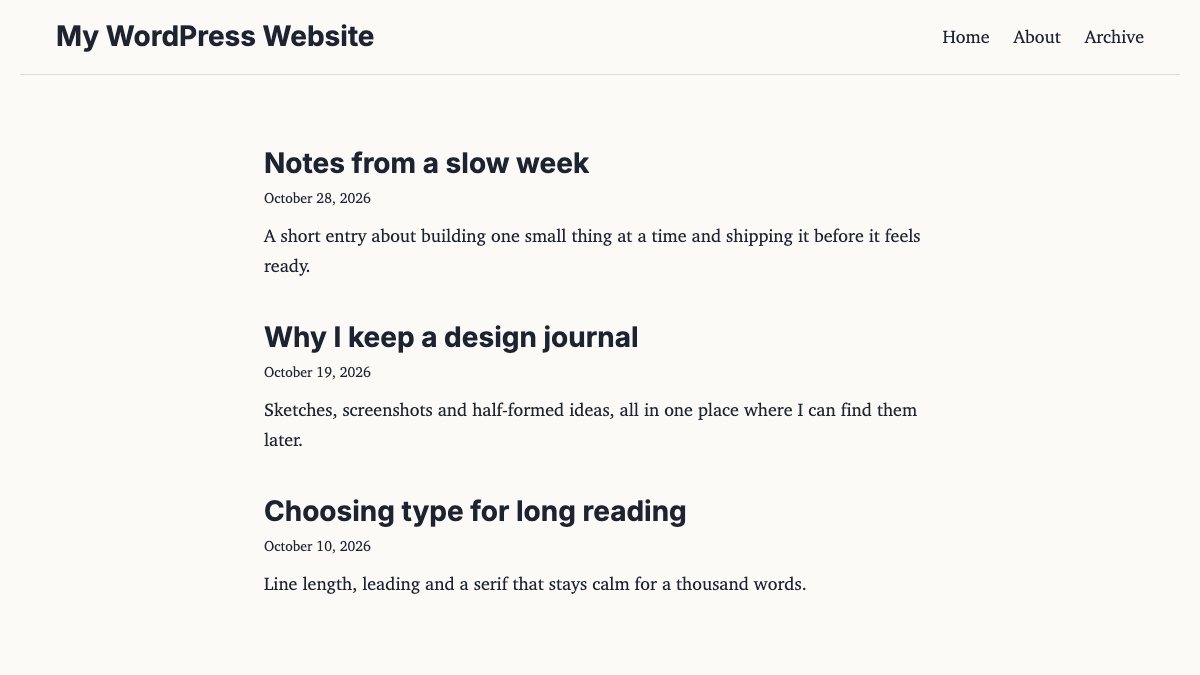
Open Appearance > Themes and activate Field Notes. Here is the home page on a fresh local install with three sample posts. Title, date and excerpt sit together, and the larger gap separates one post from the next:
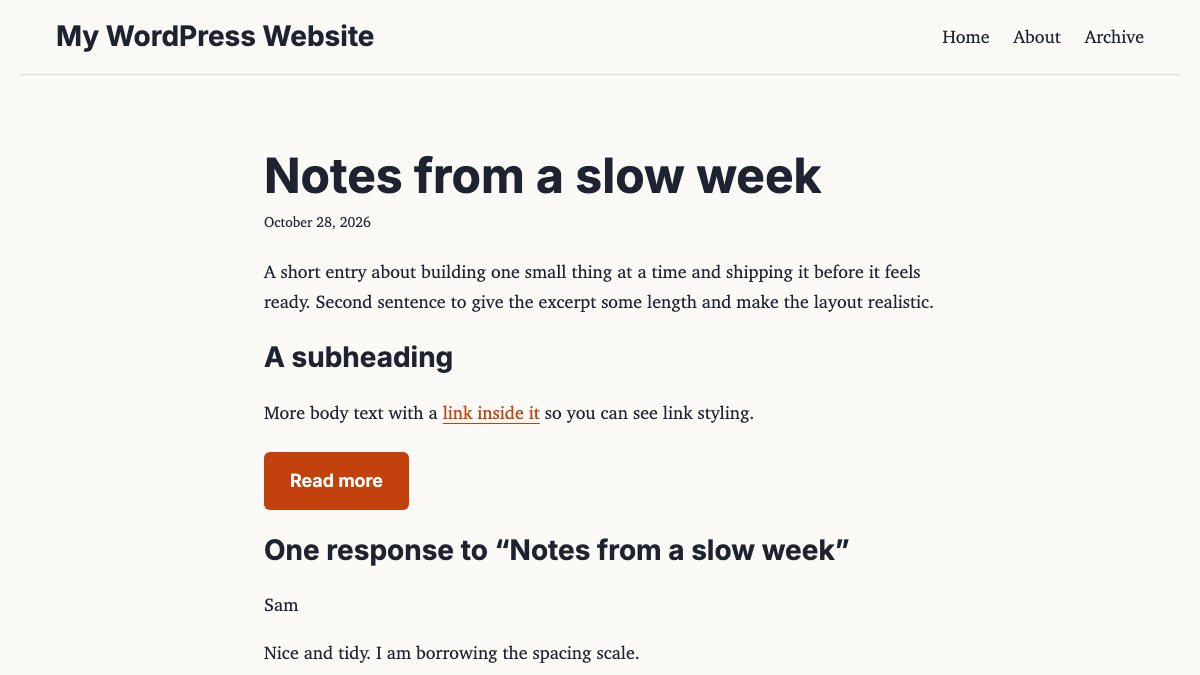
A single post uses single.html: the title, date, content with the themed link and button, and the comments below.
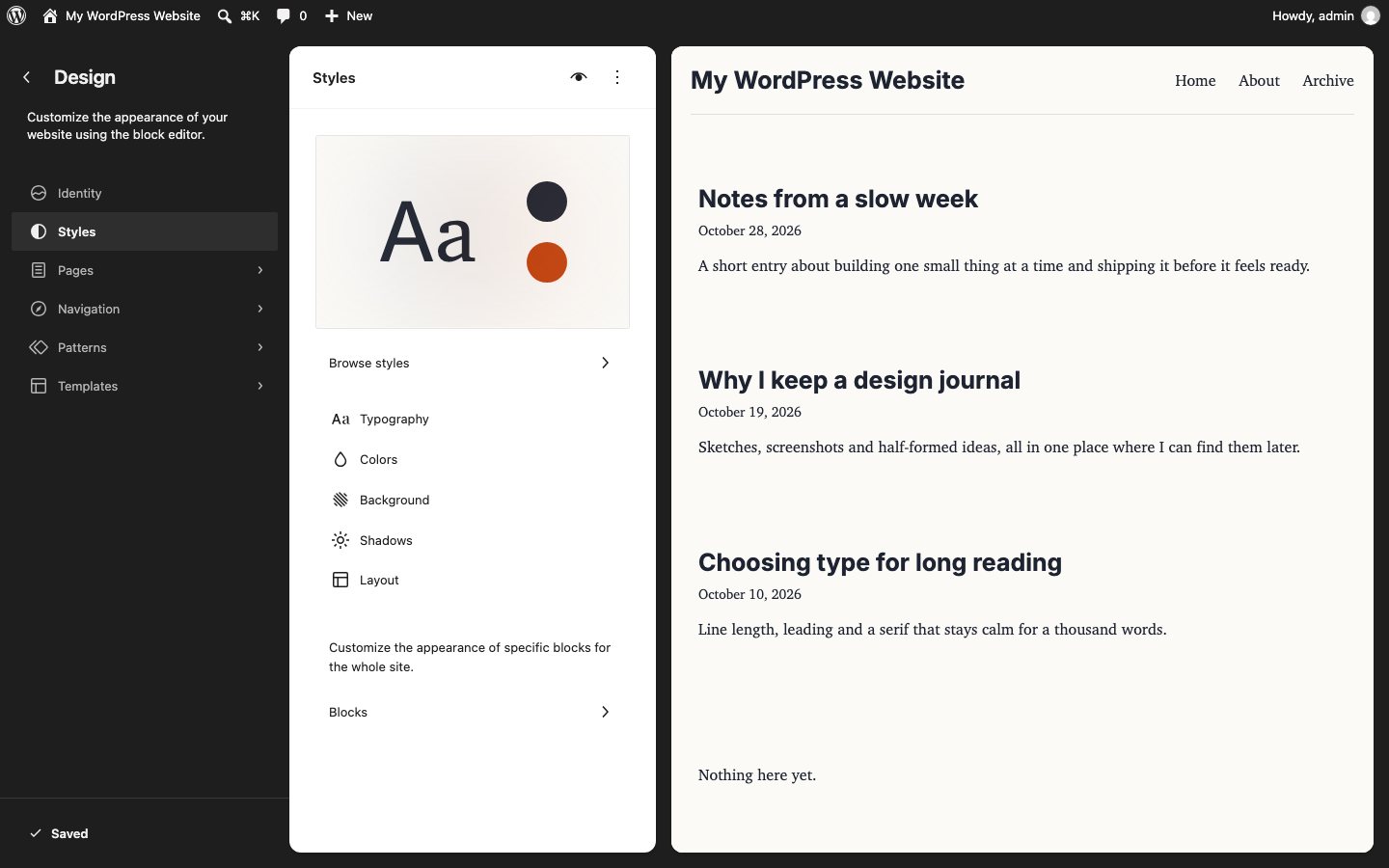
Now go to Appearance > Editor > Styles. The palette and font sizes you declared appear there, and changing a color in the UI does not touch your files. That separation is the point: you ship defaults, the site owner customizes.
8. Add a pattern
Patterns are reusable block layouts. Any PHP file in patterns/ with a valid header is registered automatically; you need at least a Title, a unique Slug and usually Categories. Use PHP only for translation functions. This one is patterns/intro.php:
<?php
/**
 * Title: Intro banner
 * Slug: field-notes/intro
 * Categories: featured
 */
?>
<!-- wp:group {"layout":{"type":"constrained"}} -->
<div class="wp-block-group">
	<!-- wp:heading {"level":1} --><h1 class="wp-block-heading">Notes on making things</h1><!-- /wp:heading -->
	<!-- wp:paragraph --><p><?php esc_html_e( 'A short intro that visitors can insert anywhere.', 'field-notes' ); ?></p><!-- /wp:paragraph -->
</div>
<!-- /wp:group -->
The pattern now shows up in the inserter and under Appearance > Editor > Patterns. Do not register the same pattern both from the folder and from PHP.
9. Offer style variations
Any JSON file in styles/ is a style variation: an alternate theme.json that site owners can switch to under Styles > Browse styles. You only write what differs, and it needs a title. This one swaps the palette for a dark one. Because styles in the main file refers to palette slugs rather than hex codes, everything recolors:
{
	"$schema": "https://schemas.wp.org/trunk/theme.json",
	"version": 3,
	"title": "Midnight",
	"settings": {
		"color": {
			"palette": [
				{ "slug": "paper", "name": "Paper", "color": "#14171f" },
				{ "slug": "ink", "name": "Ink", "color": "#ece8df" },
				{ "slug": "accent", "name": "Accent", "color": "#fb923c" },
				{ "slug": "line", "name": "Line", "color": "#2b303c" }
			]
		}
	}
}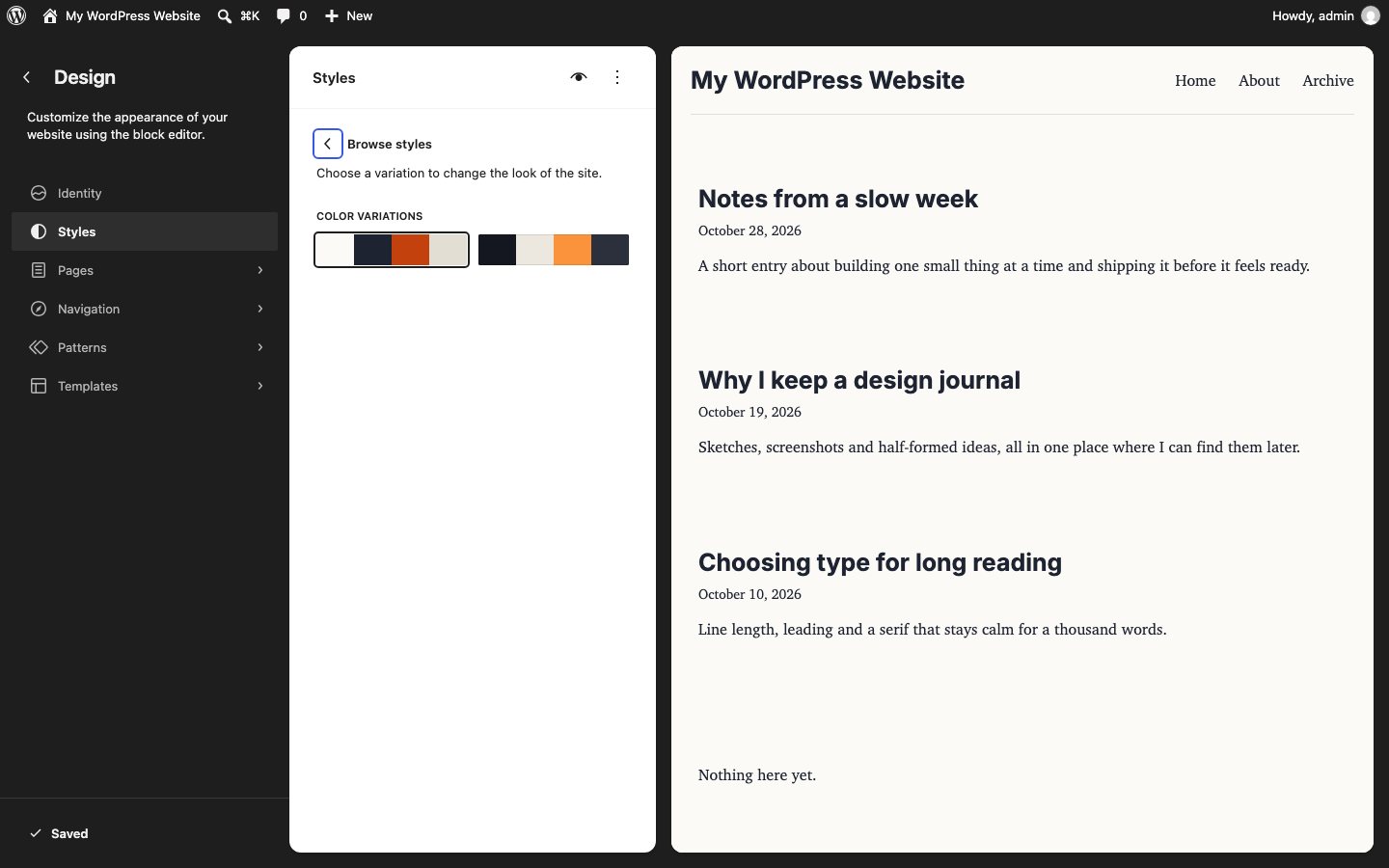
The handbook’s style variations guide covers typography and per-block variations too.
When you still want a classic theme
Classic PHP themes still work, and you may meet them on older sites or when a project depends on PHP-rendered templates. The minimum is a style.css header and an index.php that outputs wp_head(), wp_footer() and The Loop:
<?php get_header(); ?>
<main>
	<?php if ( have_posts() ) : while ( have_posts() ) : the_post(); ?>
		<article>
			<h2><a href="<?php the_permalink(); ?>"><?php the_title(); ?></a></h2>
			<?php the_excerpt(); ?>
		</article>
	<?php endwhile; endif; ?>
</main>
<?php get_footer(); ?>
For new work the block approach is easier to maintain, gives clients visual control, and gets new core features first.
Checklist before you ship
- Turn on
WP_DEBUGand check for PHP notices and block validation warnings in the editor. - Install the Theme Check plugin and fix what it reports, then read the handbook’s theme review guidelines. They apply if you plan to submit to the WordPress.org directory.
- Test keyboard navigation through the header, menu and skip link. Check color contrast of your palette pairs, in every style variation too.
- Look at every template: home, single, page, search, 404, and an empty category.
- Update
Tested up toafter running the theme on the current WordPress release. - Move the site between environments with the approach in exporting and importing WordPress.
Where to go next
You now have the skeleton every block theme shares. Extend it with more patterns, per-block styles and custom templates. For the original multi-part series this tutorial replaces, see the Complete WordPress Theme Guide, and for snippets that still apply to classic themes, browse WordPress theme hacks and 20+ WordPress recipes.
Great work Nick! Thanks for making life a little bit easier :)
-Josh
—————————–
http://www.afreshnewlife.com
That was really in detail. I however am looking for a few more resources that would make things easier.
1. a skeleton theme from which i can start
2. good editors and other tools
3. Is there a tool where i can draw and edit divs for wordpress?
4. psd to xhtml conversion.
This is what I’m looking for
I agree to save the HTML + CSS version, so you can convert the template to another CMS (Blogger, Drupal).
a good naked theme comes from elliot jay stocks. starkers is basically the default theme stripped.
and thanx for the Guide, it helps ^.^
THX for this great Tut. I love wordpress and because of your tut i can make my WP-pages better. Thank u very much!
good job! I agree to save the html+css version, maybe someday you will update your theme very easily
I’ve wriiten a bare SEO WordPress Sandbox Theme that is SEO’d and ready for styling with css alone.
It uses the yahoo css framework.
Great walkthrough, this will be alot of help for the theme creation process.
good job nick. perfect for the first experiments with wordpress.
Child themes are an easy way to get started. Use a theme framework (Sandbox or Thematic) as a starting point. Firebug plugin tells you everything you need to know about the styles in your themes.
Modula White Dwarf is a clean and minimalistic Sandbox child theme. Check it out too.
Thanks for this article, it’s really useful for a WordPress beginner as myself. These kind of tutorials help us to understand the functions of WordPress theme and are well worth a bookmark. It’s something valuable for the community.
One day I will build my own theme, and do something creative. And release it as a free theme for others, of course. But before that, there’s a few lessons to be learned.
Thanks again for the inspiration!
Great article man, I’m a beginner with WP too and this is very very very useful. Thanks! Keep up the good work.
Hard work and nice done, visual workflow, thank you !
MAN only 9 more hrs before I can go home and work on this.
Great article/series, really appreciated
Looking forward to giving it a go when I have some time tonight. Thanks very much Nick! It’s not hard to find WordPress tutorials, but it’s very hard to find clear, well thought out tutorials with visual examples like this.
Can you show us how you customize the dates that go next to posts like the tabs that you have in your posts?
This is a very insightful and elaborate tutorial. Excellent work. I’m not a huge WordPress user, and tend to swap between that and MovableType although the former has far more plug-ins. Anyway, very useful, many thanks.
Thanks for this. I struggled for months figuring out WordPress, and though I’m proud to say I’ve finally got it (through trial and error), I hope this tutorial helps others. I never thought of creating XHTML/CSS pages first. I think I’ll implement that into my next theme venture. Thanks, Nick!
Really useful tutorial. I will try to create my own WP theme.
Thanks again.
You know Kuya Nick your blog is really helpful.
Thank you very much and God Bless you always!
=)
Excellent! I’ve got my work cut out for me now. Thanks for showing the way.
HI Nick…thanks for the tutorial!…hey are you filipino?
I saw someone said “Kuya” – awesome!
Thanks again. Wonderful work.
Great tutorial. I love the diagrams, nicely done and perfect for the designer novice or someone more experienced. The diagrams provide experienced people with a quick glance to understand it all at once. Thank you!
Heh, nice job! I have designed my WordPress theme from scratch and this is much easier. Great work!
Owe you lots dude. It makes the web what its supposed to be. Genuine information.
Thanks for this very helpful tutorial (complete with pics and sample files). Is it the same if I wanted to create Blogger themes?
@Michelle Lana – No, I’m not Filipino. I’m Chinese.
@verdandi – I’m not sure. I’ve never created a Blogger theme before.
God bless your knowledge.
Man, that was the most easy-to-follow tutorial for WP i ever seen.
Keep up the wonderful work and designs :)
Awesome. Thanks for sharing your knowledge.
I just switched to mac and I was wonder how you guys are testing your websites on all major web browsers. As Mac Os x doesn’t have IE, how do you test it ?! I don’t feel comfortable to use boot camp or any virtual software to switch to windows and test my websites, When I was Windows user, I had IE tab on my Firefox so I was simply able to view my websites on IE. however, It would be great if you can show me your way, cause I searched a lot and I don’t like the methods. thanks
Thank you for this tutorial. So much more easier to follow then the many tutorials over at wordpress.org!
@Soheil Alavi – You can download most major browsers to Mac OS X…just google each one for Mac and I’m sure you’ll find a link to download. At work, I use a Mac also and have Firefox, IE, Safari, and Opera downloaded on it for cross-browser compatibility. =D
I’ve been looking for a good tut on how to make my own wordpress theme and then you guys put up this sweet tutorial. Thanks!
Thats Cool! Very Helpfull in building a custom wp theme
Incredible and easy to follow, my first successful WordPress theme must because of your tutorials!
Hey, thanks for this. I’ve made one or two custom wordpress themes before but I’ve always kind of winged it. This tutorial helped me better understand a lot of what I was doing.
I wanna say its the best tutorial and the best guide to create wordpress theme , i did read many articles about how to create wordpress theme, and the screen shoots are very helpful.
thanks alot, cause its clear that you spent alot of time working on it .
Super nice tutorial! This will be very usefull to explain how to build a wordpress theme!
Really great. Can I ask you to include a section on how to add a portfolio section to run along side a blog on the same WordPress site?
Many thanks
Thanks for sharing! May I translate theese posts in italian in the future?
Hey. thnks men. It’s really helpfull.
but are this wp themes Widget ready and work with the wordpress default widgets??
Will be building my first wordpress theme for a client starting next week – thanks for a very useful and detailed tutorial.
I’d just like to say thank you so much for your time and effort on this article! I can never seem to find a good WordPress tutorial that I can actually understand.
I’ve made WordPress themes before, but they never turned out the way I wanted. I knew I could do much better designing a webpage, just not as well with a WordPress theme worked into it. After this, I feel confident enough to try again, and make designs that I’m actually proud of!
Cool, another wordpress guide. I haven’t visit this site for a long time. And now when I visited it back, it still has such a cool post :) Looking forward for your next update.
Always wanted to get into WP themes but always found the tutorials complex, this has helped alot so no more excuses. I am going wordpress in a week or maybe two…
Very nice tutorial to learn how to implement wordpress custom theme, i will do it myself on next project. Thanks a million man
Just what I need! I’ve been thinking about building a custom template for my blog, but haven’t taken the time to do it – I’m going to print out your instructions and plug away.
Hey after hours and hours of trying to find out why my NextGen gallery wouldn’t work i found out that you left out “” which comes in the header page right before the “” tag. Hope that helps for those who had the same problem as me :)
http://www.beckaworld.com
for comments below it looks like tags dont work in comments so you left out the which comes right before the tag. Take out all the “+”s
Excellent tutorial! Thank you!
I think I’ve missed one step though… please help…
I can’t find the php page that calls the that has the “content_bg.gif” background image and the borders for the main container . Really excited to start working on this, but need clarification on this one step. Thanks so much!
sorry, I used HTML in the post below….
I can’t find the php page that calls the “div id=page” that has the “content_bg.gif” background image and the borders for the main container . How does WP know to use the container “page” with the “content_bg.gif” file?
Thanks for the help!
Help..I’m lost in “Recent Posts” and “Recent Comments”..
Oh right, I can always look at the theme demo, D’oh! :p. I love webdesignerwall :D
Wow, this is extremely useful to me.
I’ve been messing around with my own blog htttp://www.fuminyang.com by modifying existing template. This article gives a very good explanation of how things are pieced together.
nice job friend. many thanks… you did a very useful thing for wordpress lover.
-regard-
You’ve done it again! Bravo! Although I’m a little more experienced with WordPress than I was a year ago, I sure do appreciate your contribution to reducing the learning curve for newcomers, and veterans who never quite figured out how to fully utilize the WP Codex. You’re my hero!
so, i forget it, can you write some sentences about “How to make dynamically sidebars” ?
Thanks! English is not my mother tongue, but this tutorial was clear enough for me to design my own wordpress theme!
Thank you for putting up this tutorial. What I do is only create the HTML file of the index page. I then continue working on the other files after I converted the template to WordPress.
Wow, this is great! Thanks so much for putting this together. I stumbled through my first attempt of getting a site/blog up using WordPress. But this tutorial will provide the much needed ‘sense’ when I put together Volume 2.
I know it may sound repetitive, but try explicitly showing the result of each step. This will give the truly new to wordpress theming a solid foundation progress step to step.
Thank you so much for this! I’ve been having a nightmare of a time with my WordPress – I made a custom layout about a year or so ago, then neglected my website completely. Now I’ve come back to it all, I can’t remember how I changed the theme in the first place. Oops =)
I’m not a total novice, but the WordPress Codex just baffles me. I’ll get to work with your handy guide straight away,
I cannot see the homepage in the theme selection and Im not sure what I did wrong. I followed everything to the tee and cannot see it. Please help.
Thanks in advance
Rob
WOW this is a great write up! So much information. I’m going to have to make a WordPress theme now. Since I already have several mock ups that will work pretty well. Thanks for this.
~Ilya
Wow, this is great! I stumbled through my first attempt of getting a site/blog up using WordPress.
my blog
Thanks for the article. I’m curious, where do all these web design blogs get their content (articles + beautiful pictures)??? I’m lost how each blog has unique articles with all these related pictures. I’ve tried Googling about this, got nothing much but generic article repo sites with no pictures.
thanks, this is a good work, i translate this to my site :) thaks u
As usual an amazing resource, and such a great contribution to all designers. Especially print graphic designers that have moved into web design and need tidbits to help materialise whats in their head…
Holy crap, this is the best wordpress tutorial Ive seen by far, great job!
Is there a printer friendly version somewhere? I printed to pdf and lots of stuff is getting cut off at the page breaks. Would really love to have a copy I could print to paper.
Thanks for the outstanding tutorial.
Hey Nick,
this page and this article are great.
I’ll write you an email about using
a few descriptions on a tutorial for a expression engine website.
EE is a little bit easier to handle without the php codings.
So, great job.
Keep up the very good work. Head’s up.
Greetings,
Frank
Hey, i followed this tutorial. And it should be right, but when i try to preview/install the theme, it’s just white! What to do?
Very easy to follow, especially for someone like me who is new to WordPress! Thank you!
An amazing resource, and such a great contribution to all designers. Especially print graphic designers that have moved into web design and need tidbits to help materialise whats in their head…
my blog
hey,
i was wondering if you could help. Basically ive been looking for a plugin for wordpress which would let me do advanced searched like on this site: :http://www.usedcartrader.co.uk/
wordpress is pretty limited as you can only search by categories. Do you know any plugins that could do the job or do i need to get someone to code one for me? Thank you
thank you very much for all of this! You have no idea how long i’ve wanted to build a wordpress theme! the codex was really to hard to understand! Thanks again man :)
thank.. u & thank u & thank u
i donno what to say.. i’ve really got tired of taking someone theme .. and modifiy it to suit my ideas about my site..
i’m a graphic designer and web designer and animator..
but i donno this techniques, and i hate programming … so that for i need wordpress .. but i want my own design..
now i can do it by my self.. thank u again.. and i’ll show u my design later …
Wow nicely put together and the formatting makes it so easy to follow as well. I’m wondering if you’re interested in getting involved in a project called wpteacher.com which I hope to turn into a comprehensive wordpress learning space from beginner to advanced.
This was so easy to follow. I looked for hours for a tutorial and finally found this one. I’m up and running and feel confident about making custom themes. Thank You!
Great in depth tutorial. Being someone who is going from a few years of desktop publishing and pursuing and interest in web development I want to use something like WordPress or Joomla! not only as a tool to get results, but to also get a good understanding of how to work with php and javascript.
Eventually I would love to be someone fluent enough to consider myself a hobbyist AJAX developer. Who knows where I will really end up. Probably cold and alone still trying t decide whether I want to use Linux or Windows as my platform because I’m to old and still too broke to get a Mac. But I digress.
Great post, very informative.
So great. Thanks you ! I just wonder how to improve this part of my work !
Grégoire
in the footer section, some images have the right side part chopped off. This makes it difficult to use them. I tried the footer.php file of the default theme, but there I found only the wp_footer() function called.
I dont understand this. :( I am totally new to this, is this the most basic? :S
It encouraged me to make a wordpress theme.
And, I’d really made a wordpress theme.
Thank you!
How to add banner ads to two sides that are outside the content table?
I have a question: How to add banner ads to two sides that are outside the content table.
Look at this blog: http://www.spunk-ransom.com/. This blog has 2 sides that are obviously outside its content table.
I don’t know if my question is clear. The thing I want is to add banner ads to such 2 sides. Here is a good example of what I mean:
You have encouraged me to make my own WordPress them. Thank you so much for the details tutorial.
I dont understand, how the PSD coud be generated to WP themes?
It takes some (read long) time but it’s worth it.
Brilliant tutorial and excellent website.
How do you make the left date tabs in your template at the side of each days post?
Is this a plugin or just in your custom template?
Respect!
How do you assign titles to blog post URLs instead of just have them display post numbers?
Great post! I used this tutorial to create my custom theme and didn’t have any troubles at all.
Thanks for this great tutorial!
I still have one question, after modifying and creating my own theme will it be displayed or do i have to apply for the custom css upgrade for them to be viewed?, thanks for the helpful guide
After changing the commented author info in the css file, it doesn’t show the theme thumbnail in the admin/manage theme area anymore. What can be done to change this so it can be viewed?
What HTML editor do you use? Which one is the best to use? On a Mac, i mean.
Great post! Thanks..
Great tutorial, but just one thing is being left out I think. The CSS! How does that come into play when you build your own theme?
Need help understanding how the .psd files are used in WordPress for my custom theme, can you point me in the right direction?
Would love to see how to implement a free picture gallery with a template.
I got templates enough but getting it to work smoothly and linking stuff is quite hard for me
Jason,
in this example, the CSS is only used to tell WordPress that there’s a new theme which can be activated. It doesn’t contribute to the layout (in this case), but it important because WordPress the comments (i.e. Author, Theme Title, etc).
When you create your own templates, the CSS can influence how your text is formatted (i.e. font, colour, etc).
Great article.
I’m currently building a custom WordPress install to a designers spec, and this is proving to be incredibly easy…
Great tutorial, can’t tell you how much this help me. I’m having a little issue with my archive and category pages but i’m sure i’ll work it out.
Thanks
The explanation is very good. it is easy to understand to the members who are the beginners and experts in multimedia and web designing, dot net and so on. they can easily understand by coding the design.
Anyway Congrats to you for your explanation.
prasanth
Can you embed flash into the wordpress theme?
Simple and easy to read. Perfect for a WordPress beginner.
thank you so much for this. i felt like a moron trying to read other tutorials on custom wordpress themes. this was really easy to understand and i think i get it now.. :D
OMG How awesome is this?! You rock Nick. This helps out so much. I’ve been customizing “already made” free themes and I wanted so badly to create my own from scratch. Thanks so much for this tutorial!!! Beautiful site btw!
The explanation is very good. it is easy to understand to the members who are the beginners and experts in multimedia and web designing
shame you don’t show the entire code for the plugin, i can’t find it anywhere , the coments’s plugin in the theme folder? i don’t think so
This blog helped me a lot for building my own theme to my site. thank you very much.
Thanks for those details. I am a newbie with designing WP. I have been flipping 100s of sites to get info and found many. Yours is ranked among the best. Thanks a lot.. Will be writing an article on where to get the best articles related to WP design. URs will be added for the vast info it provides. thanks a lot
hi there ,
i have one Q, when u finish ur works on Photoshop, u save the images as what u explained here by ( save for web…. ) and then u choose ( imagesand HTML ) from the buttom. where can i get CSS regarding to the picture here
i will be happy to find the answar
Love the tutorial, and I got almost everything to work, but I am having trouble wit the side bar. Because when I go to widgets it says that i do not have any sidebars defined. So i not sure what needs to be done, and I wanted to add a blogroll which is a widget,
one of the best tutorial on wp ive seen! you rock!!!
Hi. On the php codes for post-comments etc.
would be very helpfull if you could POST THE CODE instead of just cutting it out of frame suddenly
I wanted to make the blog mirror our site. I got the header and footer to work, but the content is just plane text. How I customize the content now without messing with the appearance
This is amazing. A complete custom job without really knowing PHP but the basics. Thanks for the tutorial.
This tut itself is a piece of art.
Congratulations!!
Your work is amazing… Thanks for this post..
Seems like a very useful and in depth article.
I have been trying to get my head around WP template creation…. This has helped a lot thanks :)
I can’t find the searchform.php file in the default folder…
There’s a search.php in there but no searchform.php???
can you talk a little bit more about the psd2html process. When you are done with the design in photoshop how do you go about cutting the slices. Do you use image ready??
I just bought “WordPress Theme Design” by Tessa Blakeley Silver, and basicaly all I got, can be found in this tutorial…
I wish I hadn’t spend all that money (300 DKR=60$)
Nice work :-)
thank you for this thread, i am going to do some tests on my wordpress based website , and i will get back to you
i already printed this article and downloaded the files, ready to try
hope it will work
Thank you
Excellent, I looking for something like this. I want to create my own theme.
tnx
Hi, I’ve never done this before. Does the Blog need to be the homepage? Or can it be another page on your website?
If you are hosting the site yourself, or have purchased hosting from a service like GoDaddy, you can put the site in any directory. By default, your wordpress site will be http://www.yoursite.com/wordpress. If you dump the contents of this folder into the web root folder and adjust the settings in wordpress, your wordpress site will be http://www.yoursite.com. I am hosting my site on my own computer which I set up as a Ubuntu server.
in my opinion , it is easier to start designing the theme from the classic theme , not from the defult one.
Great article! I have been looking around at other similar guides and this is one of the better ones. It helped me greatly in converting one of my existing layouts to a theme. Thanks.
thanx for the article buddy. u nailed it so simply. although i know php inside out but didn’t had any experience in building custom themes for wordpress. after reading ur post, i was able to create my own theme for wordpress in just 1hr. thanx again :)
This tut is great! I had a good time going through and I learned quite a bit. I even figured out where to add the missing pieces that you didnt include for alignment and such. The only thing is that I’m still not sure what php goes where and why. I look at the wordpress faqs for the php and I feel like I’m trying to read a completely foreign language :(
I guess I need more practice but this was my first try, thanks for this!
Has anyone looked at “Web Designer London” ‘s website? (comment #212) Its a complete rip of this site!!! haha! Well “W.D.L.” in my opinion its easier for you to just rip this theme than design it from the classic one like you claim! hahahahaha
@219 el-woods It’s a free theme from Smashing Magazine.
Thanks for the tutorial.
Hello,
This is a great series of posts. However, I have downloading the demo.zip file 6 times and it will not unzip. Is there a different copy of the file available?
Thanks.
“Although the Codex site provides very good documentations on how to create a theme, but I find it too complicated for a beginner ….” and maybe for others.
Thanks for providing such a common sense approach to theme development!
I don’t understand; I’ve followed all the steps to the letter yet my admin panel declares the theme broken as the ‘Template is Missing’. What could this be? Any help would be much appreciated…
Thank you for the tutorial on creating custom theme design for WordPress. Unfortunately, many parts of the tutorial went over my head. So, could not get much benefit.
Anyways, thanks for the effort.
This tutorial is maby, not for complete beginners.
I am a theme designer and I would say that the tutorial is not for the beginners. Overall, it is a good tutorial :)
real great stuff…. as all the contents of your site. Only one thing, I can’t open your demo zip file… I downloaded many times, but nope it does not work.
Anyway, thanks for all you teach us.
Love your site!!!
This maybe not for complete beginners but it’s easy enough for a complete beginner to understand and thankfully we have people/sites like this one who are kind enough to share their skills so complete beginners can start somewhere. Bruce Lee was forbidden to teach Kung Fu but he taught whoever wants to learn. Web Designer Wall is my Bruce Lee
Great Work. People are more interested for this type of articles
Thanks you very much webdesignerwall………………….
A great tutorial and look forward to more! The code examples are amazing
A great tutorial and look forward to more!
Great Work. People are more interested for this type of articles
Thanks again for this…
Very detailed instructions on making a custom theme, thanks for the help. Definitely bookmarking the site for future reference!
Your post is really very helpful to building custom WP theme
This has been REALLY useful for me. I am an oldschool web designer that use HTML 4.0 and am so lost in CSS/AJAX etc. Really gives some good understanding on how to start designing with these new protocols.
Thanks a lot for this :) i am learning to code wordpress theme, this tutorial of yours is gonna help me a lot for sure :)
This would work great with the demo psd files, etc.
Latest version of WordPress has been released. in addition to over 790 bugs fixes, there are improvements in themes, widgets, taxonomies, and overall speed. W3Avenue has compiled a list of resources for WordPress developers that will help them quickly upgrade their themes or plugins to accommodate latest features.
great tutorial, really open my eyes on how to make my own theme.Thanks!!
Thanks a lot for this tutorial, It was very useful to me, it helped me develop my wordpress theme take a look at : ProxBlog and it showed me how simple it is to turn a static Html template to a WordPress theme.
Thanks
Prox
Just wondering if you’ve ever built a child theme based on something like thematic. Any thoughts on if that’s the way to go?
Hi. I already have my website set u pand would simply like to copy my existing template so that it can be used on the wordpress pages. can anybody help with this?
Hi. I am trying to use my html template of my existing website in order to create a wordpress template. how can this be done?
Antonis, this tutorial explains step by step on how to do so, All you need to do is to split the Html Code into the php files, and insert the php code, it is really simple.
The tutorial is great! I’m working on it right now but I’ve seem to catch a snag. The sidebar isn’t on the side, it’s moved under the posts and there’s no background colour to it either. I didn’t touch the CSS file, and I’ve copied everything and gone over all the code again and again and I’m not quite sure why it’s not working out. Any ideas?
Thank you!
I built my own theme with this useful tutorial, but it just cant load any of the java scripts used by different plugins. I couldn’t run nextGEN plugin, even on the sample glossyblue theme. Any suggestion?
Thanks for this great tutorial. In the process of creating my own design I’m stuck between the Photoshop psd and the making of a static HTML+CSS template. I’ve looked at your example psd but there seem to be no ‘slices’. Slices is the only way to make a html page in Photoshop, or isn’t it? What is the procedure from the PSD file to the static HTML+CSS template? Please help.
Amazing! Thank you so much. I’ve recently been designing a new WP blog (first time), and very much looking forward to creating my own theme, as opposed to blindly hacking an existing one!
well thanks for this tutorials but if i want to create a theme which have many images then what should i do. i followed the above procedure but images does not appears on the theme, only the content appears?
Where do I find the “admin panel”? See below
“Now, login to your admin panel, write a new page, title it Archives. On the Page Template dropdown, select Archives.”
Hey, Can you possibly record a tutorial of this for youtube? That would help me a lot. Right now I program things by hand, but your tutorial looks amazing, but it’s still been a little daunting venturing into wordpress world – I like the idea of creating a custom theme, because that’s what everyone and their mom wants these days, and thank you for your help and instructions!!!
This page I am looking at is so pleasing! Great work! Thanks for the tutorial.
This a great tutorial. Your descriptions are clear and helpful. I’m finally getting my head around how to go from layered comp (though I work in fireworks, not photoshop) to working WP blog. Thanks for taking the time to share your knowledge. word!
thanks so much for this awesome tutorial! although i could have figured things out myself, i didn’t have much time (about an hour) to turn around the code. so, i turned to google and up popped your fabulous tutorial. it was VERY easy to follow and well-illustrated!
Hi,
You made to look very easy dude. I feel like i got the right info i was looking for. Thanks! No wonder this many ppl have posted comments on this blog.
FourPx
Thanks a lot…
It works!!!
It is really helpful…
Thanks again…
[email protected]
Hi, Thanks for this great tutorial that we’ve used as the basis for our new band website.
I’me trying to get the little comment count bubbles to work on the right hand side of the post title – could you let me know what php or wordpress code to use to get that to display?
Many thanks!
Lee
I’m fairly new to WP and the general information out there seems to be more confusing than it needs to be. You have a gift for making things simple and easy to understand. Can’t wait to try it. I will be camping out at your site. I checked out your other sites and you are an AMAZING designer!
Great tut! This is exactly what I was looking for to understand the structure of WP. However, how about something a little more customized? For instance, what if you want to display a ‘featured post’ on top and then underneathe it, have the column split in two, for stuff like ‘news’ or ‘deals’? Is this pretty complicated? How can I go about doing something like this?
These instructions worked beautifully, thanks! With regard to the appearance of the post entry, what bit of code could I add to the CSS in order to align the tops of my text and image inserted? Currently the text is posting below the image. I’ve tried experimenting with .entry w/o luck.
Also, is there a plugin or tutorial you would recommend for greater post layout control? Thank you
Absolute kudos for writing this up. The step wise structure did help me a lot in making a dummy theme. I wish to incorporate a PSD I have to be applicable to Thesis.
Pls share how v can do that. Thanks a ton again.
la verdad, muchisimas gracias, espero que puedas leer esto :P
A great article. I was ready to give up on using wordpress as a cms when I found this post. Needless to say I will be using wordpress for a cms from now on.
Thanks for taking the time to write this. Lots of appreciation and greetings from Amsterdam.
demo.zip doesn’t work..its says:unexpected end of achieve
Great tutorial!
I’m having the same problem as student101 with all the files I’ve attempted to download here. It doesn’t seem to want to download the full file, it stops at anywhere between 50-90%. :[
Your guide is just what I’ve been looking for. It makes it all so simple. I’ve searched for weeks looking for something like this. I’m just about to start my site now (locally for now but shouldn’t be long before I upload following these instruction’s).
Thanks. it;’s cool stuff. I want to learn all that.
demo.zip doesn’t work..its says:unexpected end of achieve
I really really love love love this site! All I know (okay not ALL…) about Webdesign I know from this webside. Thanks thanks thanks! And know I start my first wordpress blog. How amazing! First it was easy, then I had a stupid problem to show a image in my sidebar, then google fix it and now I’m happy. I used the glossyblue theme code at a base for the first little blog… But I think… now I understand that codething and I can start “free”.
I did my first webdesignsteps with changing myblog.de themes… it’s way more easy… but it’s similar! ;D
Maybe: Sorry for my English! It’s what a German can speak. (#_#)
And: Danke danke danke danke! 8D
i’m getting an error page when I open the readme.html and click on the install link. I have no idea what I’m doing wrong. And the url “” does not work. It says page not found. I renamed the config file and changed the info(I think??).I have somehow set up managed site in dreamweaver that only loads the WAMP page, none of the wordpress files. Maybe a pre-tutorial to get started? Haven’t even gotten to use your example to finish the rest of this. Thanks.
I just wanted to let you know that this is one of the best blog posts I’ve ever seen. I’m not a designer, but my wife is, and I just sent her your post here because we are keen to learn how to build custom blogs. This is a home-run in my opinion,. Thanks much! God bless! -John
Point # 10: Sorting out the footers has some incomplete instructions regarding what should be removed from index.html. Also, the images used has been cropped thereby not showing everything.
I had to go into the final version of your accompanies theme to find out what should be in there – it’s a bit unclear in the instructions above and might lead one helluva confusion :)
Thanks for this. Is there a application to use that would help like dream weaver?
When I try to download the demo.zip the file somehow doesn’t work when I try to unzip it with winzip.
excellent… I am under the pump from a client to make a site using wordpress. I have never used and bang I have the makings of a site. thanks so much
thanks for tutorial, only thing I’m going to point out is what every tutorial lacks
– LOGIC BEHIND.
They all say: here’s this here’s that and here’s my 500 line CSS, now make your own or copy mine..
I am not asking to hold my hand while writing CSS for static page but for example telling us if WordPress has anything reserved in classes for php to call so we don’t change names and fail tha app, something you kept in mind while writing css and something we might not do. What are the must dos in CSS for WP to work and where can we improvise.
Thanks and your blog looks incredibly cozy, i don’t wanna leave it ever , hehe.
Hi great article, however I fallowed your tutorial and made my theme and the problem is that WP-Table Reloaded plugin is not working properly neither in my or your theme – Glossy blue.
Is there something specific I have to do to make my theme work properly with any plugin.
Thank you!
Oh found a simple soulution – included these functions:
in header and in footer and it works now!
Very good tutorial anyways :)
Thanks!
This was an excellent explanation although I still have some more HTML learning to do.
Great great great! Very simple way to create a theme. I would like to translate the post to spanish and post it on my blog, if u don’t mind!
Thx again!
Hey, this is a great tutorial. But while following, i encountered a problem. At step 14, i applied the files to my wordpress and it comes out blank. Do i have to use all the components? Such as archives to title descriptions?
I am excited about trying this method. You have illuminated my consciousness. How can I say it? Like this – You may be a wordpress bodhisattva. I’m going to try this method. Thank you for sharing your process. It’s like you can convert html to wordpress. I don’t know if I’ll actually install LAMP or whatever on my personal computer and run wordpress locally but instead maybe I’ll just install a separate instance of wordpress on my web host as a “sandbox” so I can test everything from there on an identical site before “going live”!
Thank you very much. I’ve looked at a couple of other tutorials, and this one is truly a fast way to get a site up and includes a lot of critical to success info.
Very nice tutorial! Used it 2 times now, beginning to understand. But I think you are forgetting a “” tag. (Without the space between the < and the ?. It solved some problems for me with the stylesheets of external plugins and javascript.
I’m wondering why you didn’t go into any detail with the searchform.php and comments.php files… I glossed over step 5 (pun intended), so I retardedly wasted a lot of time trying to figure out what I did wrong until I finally opened both folders and just copied over whatever files weren’t in my folder. Then it worked, of course.
This is the best tutorial on WordPress theme writing ever i had read. Its really good article. Covers every basic detail and its very easy to understand.
Well done.
Muhammad Irfan Mansha
Excellent post. Probably the most complete post on this subject that I have found so far and I have spent too much time looking for something like this :) Thanks for the effort.
Nice Tutorial. Is it possible to get it in grman?
Slit
Now that’s what I am talking about, this is one of the best tutorials on learning to build a custom wordpress theme yet! Great work.
Hey great tut, one issue I’m having though and I’m hoping you can shed some light. I’ve developed the html and css and it works flawlessly as it is.
One I start breaking it apart (header, nav, sidebar, footer, etc) it breaks. It appears that the isn’t doing what it needs to do.
I’ve read around and I’m not sure if I need to define that in any way to look for header.php, footer.php, etc. But as it is I’m stuck and frustrated.
Any help would be awesome! Thanks and great work!
Great post, very helpful steps in creating custom wordpress themes.
Thanks, this is the most helpful tut I’ve found. How would you name the sidebar if you wanted a 3 column layeout? I.e. Sidebar left, index, sidebar right? Header, footer? Thanks again for this
I’m also trying to figure out how to make a 3-column layout, like the recent comment below.
cam you please help me with my sit .i want to improve the look.i an a novice
A quick note, its not super simple to create a static html and css from a psd if your not familiar with slicing and basic css coding. Does anyone have any good links to ruts for this process? Something for starting with a blank page, custom format for the layout?
ankara evden eve nakliyat
http://www.evdenankaraevenakliyat.com
http://www.ankara-nakliyat.com
http://www.emlakpiyasasi.net
I really appreciate the way you’ve built your GlossyBlue template. I’m a css developer, and for some reason, the way the style sheets were created within the default theme of the wordpress version I installed was very confusing. Great job and thanks for the tutorial.
Pure genius, I was trying to build a WordPress theme backwards so to speak. I really like the way you have made the whole process so simple. Trying to build a theme using php, html and css at the same time while following WordPress docs is so time consuming and stressful.
Thanks alot
Excellent visual instructions Nick! I referred to them often as I put together my 1st WordPress custom template.
Thank you!
~ gabriel
Excellent tutorial… I already bookmarked this page..today i m going to start mine own theme..very handy tutorial
Thanks
Atul
Great article. There is more informaiton you can find at wordpresswiki.com on creating themes, and also individual theme files. Nice break down of the code. Site is being updated and the community is building. Thanks again for your contribution here on your site. Very informational and good for WordPress users.
ankara evden eve
ankara nakliyat
nakliyat firmaları
emlak piyasasi
ankara nakliyat firmaları
evden eve taşımacılık
This blog was a good read! I could not have said things better myself.
This is the best wordpress tutorial I’ve seen so far. Simple, to the point and lots of very explaining images!
Good work!
Can you post something about how to make a form mail on wordpress and a gallery?
On step 5 I do not have a searchform.php file inside my default theme folder. Using WordPress 2.9.2
What is the fix for this?
Thanks
Use https://wordpress.org/plugins/spam-free/ to get rid of the spam!
Random Number: 5976540527
Use https://wordpress.org/plugins/spam-free/ to get rid of the spam!
Random Number: 8125354657
Use https://wordpress.org/plugins/spam-free/ to get rid of the spam!
Random Number: 1733516826
Use https://wordpress.org/plugins/spam-free/ to get rid of the spam!
Random Number: 9918141164
Great Tutorial, the best one about “how to make a wordpress theme”. Easy and consice.
Congratulations!!!
I had been looking for something like this. The explanations offered are so explicit and easy to follow. Its a really good tutorial. Do you not run a practical workshop because that would be more useful?
Wow this is a really good tutorial on building a custome wordpress theme. I have some html skill so it’s easy for me to follow. I really like how you used lots of graphics in this tutorial.
I think was really well explained! Great work! And John Gregory it’s “too” buddy.
This looks like a great tutorial! I’ve tried going through WP’s Codex and the language is very complicated. It takes reading several times to understand some of it, and although I’m starting to understand a lot more, as a learner I find it very confusing. I’m trying to learn JS and PHP but it’s going to take some time, so any help I can get along the way is a boost! Thanks for this.
Hi,
I want a Twitter-feed badge on my WP blog that is custom like yours – it’s real nice!! Where can I find a plug-in that?
Thanks,
Sindi
Dude, you saved my life! The one and only step by step guide that wasn’t hard work! Fankyou! Chee
Thanks for the tutorial, it helped me to learn a bit more about wordpress. However I have one problem: I’m trying to put a background to the whole page, giving a brackground to the div #page, but it doesn’t work, it only shows that background in a tiny place near the header. Does anyone has any idea of why it happens? Thank you very much.
add the background to the html body tag, worked for me :)
This is by far the best tutorial I have ever seen for creating WordPress themes. Very nice job. Keep up th egood work.
Wow amazing tutorial .. thanks.. I’m new with wordpress theme and still learn how to custom my website..
I want to make a WP theme directory, but just dont know, how to make one?
LIke People should come and submit their themes to my site.,
How will that work?
I have zero knowledge on programming
This tutorial is excellent! I searched Google for hours and couldn’t find an easy solution on how to convert my HTML/CSS page to WordPress PHP. Then I found this site and had it up and running in no time!
Thank you so much!!
i’m in the middle of this tut which i’m finding pretty easy except for step 13 that says
“Then, replace the static text with the WordPress Template Tags: post date, title, category, comments, next and previous link.”
.. i’m not sure what that means exactly, any help would be appreciated.
thanks
Website Design & Development and Web Promotion Software Design System help your businesses to get online, increase your sales, rank high on search engines, and increase traffic to their websites.Web marketing is fast becoming the best way for companies around the globe to develop business and generate sales.
Software Design System has the expertise to deliver a structured Internet marketing strategy tailored to your company’s precise needs and designed to deliver you more customers
i need some help, i’m getting errors on wordpress after installing the theme i made …
Warning: fopen(…/style.css) [function.fopen]: failed to open stream: No such file or directory in …/wp-includes/functions.php on line 3598
Warning: fread(): supplied argument is not a valid stream resource in /home/djmecca1/public_html/wordpress/wp-includes/functions.php on line 3601
Warning: fclose(): supplied argument is not a valid stream resource in …/public_html/wordpress/wp-includes/functions.php on line 3604
You know what/be great?!
You know the way you have the default WP index.php image with visual outlines and captions to sections like: header , sidebar .. etc. to have actual corresponding php tags written along side that call for those sections, as well as php tags visually associated with post header, post, comment count etc.
Imagine how liberating this would be to a non-php guru designer who tries to grasp and manipulate layout to specific needs.
all good till the end. i need to make the latest post in each category [news, articles] different from the rest on my home page. any tricks i could employ?
Holy Mother of God. BOMB!! I don’t know anywhere I have seen it explained so well and easy to understand. 5 STARS.
Thanks so much for this. I’m doing something a little more complicated, but this is a great start and really allowed me to see exactly what I need to do. Thanks also for the lovely Photoshop demo file. It’s so clean and makes so much sense. You are the bomb!!
thank you so much, anyway i will implement those theme into my site.
That is a fantastic blog post. So clear and straightforward. You did a great job covering the basics so a beginner can get their feet wet and make their own themes. Thanks for all the screen shots – they are a tremendous help.
Though I have installed . customized themes for my WP clients , I have never tried designing a theme from scratch because of the cross-browser compatible issues.
This article has given me an idea on how to make it happen , let me try it shortly :-)
Getting into designing wordpress themes this is just what i needed. thanks
kompresor market, kompresor, kompresör, vidalı kompresör, comressor, air, 2 el kompresör, ikinci el kompresör, hava kurutucu
hai thanks for you tutorials….thank you so much, anyway i will implement those theme into my site.
Thanks for this. On step 10, footer.php, the “Recent Posts”, and “Recent Comments” code is partially hidden. Can you expand this so the entire code is viewable? Thanks again.
Can someone please explain to me how Nick magically turned his psd file into html & css files? There’s no explanation of that. Was this done by hand or in photoshop or another app? Anyone have a link showing me that process or can you explain it for me Nick? thanks
@shinobi-wan
you have to build a static website yourself first. When you’re done with that Nick shows you how to split your static webpage and turn it into a dynamic one suitable for wordpress.
most of the times you create a mock up with ps or fireworks and start building your site within dreamweaver. Since it is hard to build websites within wordpress it is prefered by webdesigners to create it elsewhere. Therefore, this tutorial is really helpful.
This is an amazing Tut, keep up the good work ! :D
This is the tutorial what i’m looking for, Thanks for sharing , I’m php developer but dont know how tao customize wp template , now i now, thanks to you .
Perfect, just what I was looking for! There are some other great tutorials out there, but this is the best I’ve found so far. It seems that you’ve almost provided a framework that will be invaluable for building themes.
Thankyou! I’ve been dreading learning wp until now.
Hi, I wasn’t looking to create my own theme, but I bookmarked this page as I really would like to.
For now, I am tweaking a theme and try to:
Create a second tag which will link to a 2nd singe.php
In other words i want my normal blog posts to have the standard more tag which takes them to the single.php
AND THEN
I want a tag which take them to single-services.php
single services.php is a duplicate if single.php with slight changes.
Is this possible?
Many thanks
This is an excellent tutorial. Any chance of a revised version of this tutorial to focus on WordPress 3 in the future? I’ve noticed there are some differences (although they haven’t derailed me completely, yet)
O dear… this tutorial comes as an answer to prayer for folks like me.
Thanks for sharing!!! ;-)
Fantastic tutorial for my first theme. Many thanks.
Hi, great tutorial, really useful.
Just one thing, the side bar isnt widget friendly? how can we friend it up to widgets?
Thanks
i got it, just needed to copy the functions.php into my directory, thanks
Very good explanation of how to do a theme. Thanks! I needed that one for a class project.
This tutorial sucks!… :-) just kidding this is a double thumbs Up, Ass kicking, Answered prayer, Awesome tutorial on wordpress theme I’ve ever read.
Nice post… Thank you so much. Fantastic tutorial for my first theme.
Many thanks for your post! I used your tip today
Kevin Mahoney
Brush Country Web
Hunting Web Design
What’s tutorial !! clearly useful easy to learn to creat yourself wp-theme …Thank you a lot
Hmmm , can i with this tut from some templete html code make an php theme for wordpress?
finally i really get tired of editing other people themes very good tutorial now i can do all what i like in my blog great work
Hi. Great information here! I need some help.
When I create new “pages” every single article I write has the same header ( meaning the same H1 Words and thats not good for the search engines )
I want to keep the H2 title above the content ( which matches the page title ) but I need the header to have a unique H1 Title that matches each page I write.
I hope I didnt confuse you because Im dizzy already :)
Thanks
Dave
Las Vegas
Can you give or show me a real example of a word press php page set up. This is still not helping. I don’t see where to put the html.
thanks
Great sites! hanks for sharing. Is there anyway that we can make boundary line as well?
Could you please let me know how to modify the glossyblue comments.php in order to establish a paged navigation of comments?
Wow, I wish someone had shown me this article when I started making WordPress websites, would have made things a lot easier. Nice design on your website btw.
I can’t wait to use these tips; I’m sure it’s SO helpful! This does not require wordpress users to purchase the Custom CSS option, right?
This was best post on wordpress theme.
This helped me to install and customes my blog.
Screnshot given me clean idea.
Thanks a ton.
Just want to say what a great blog you got here!I’ve been around for quite a lot of time, but finally decided to show my appreciation of your work!
Nice tutorial, but it would be much more helpful if either a syntax highlighter was used, or if all the code was included in the images provided. (it’s cut off in several)
I know alot of people will understand how to do some of this, but stating “No PHP skill is required” and not showing the code to do it, only a link to the codex site that was stated “I find it too complicated for a beginner.” in the beginning is confusing. It’s either meant for beginners or it’s not.
Thanks for the tutorial. I will try to make my own theme for my blogs
Love the theme you have going here. I am just starting out with theming wordpress and I am pretty excited about it. I could see myself just creating themes instead of building websites.
Dh,
Sorry my bad english…
Help me, i want to add frontpage in my blog.
My plan the frontpage has different style with other pages.
Please help me,, :(
thanks this seems to wat i’ve been looking for :-}
This was Coll post I really loved Reading this.
Latest messages.
Hi, I did follow your steps but at step 14. Preview your theme was not able to complete, when I am at theme management screen of wp-admin, can’t see glossyblue theme, I am pretty sure I did follow all steps carefully, but may be I missed something, I didn’t see where we are adding our theme in the theme list,
Help me please
Hi,
I have read your post it is really good and may be helpful for me. I am retired mathematics teacher and provides quality online tutoring if anyone need can contact me.
thanks
For days I was thinking to move a step forward from static html websites to WordPress or Joomla. I have found this tutorial very helpful for the beginners like me to start understanding the ins and outs of WordPress. Thanks a lot.
Hey, i’ve successfully customised a theme and am ready to deploy it to our live server. I have tried to zip the theme folder and upload it using wordpress’ theme uploader. No love. Other themes upload fine, but i am getting a “the uploaded file could not be moved to…” error. Looks like it is trying to add it to an uploads folder with the year and month subfolders.
Any advise? Is there a special way to package the theme zip file? Special zip encoding that needs to be used. I am using standard Mac zip process.
I am stuck at step #3.
How do I convert my psd into a html and css file?
Please help!
Great tutorial. I’ve been looking for something like this for a while. Is there one like this for drupal or joomla out there?
Is there any other easy way how to understand the step 8??? What do u mean by this??
Go to the default theme folder, open the header.php. Copy and replace the tags where it requires PHP code (Template Tag): , stylesheet, , and .????
any other instructions???
What is a photoshop mockup?
I have PS CS5
but I have no idea how to go about creating a mockup.
Please help?
Just what I’ve been looking for…
Been designing and coding for a while now, an decided it’s about time I learned how to build wordpress themes… Thank you for sharing…
Brilliant tutorial, looking forward to working though it and building a nice WordPress theme!
Cheers
I don’t understand this sentence:
>Go to the default theme folder, open the header.php. Copy and replace the tags where it requires PHP code (Template Tag): , >stylesheet, , and .
What am I replacing with what? Please be very specific. Thanks.
Just tried using WordPress and I am not sure I see the benefit of using it at all. Can’t I just use the css, xml, html, etc. and run my own blog? Why do I need WP?
@502
The point of WordPress (and any other CMS) is to abstract the content away from the rest of the site; this way css handles design, html laypout, and wp content. The advantage of this is that you can change the design/ layout without having to reformat the content.
Thank you for posting this. You made wordpress customization simple without making me dumb down my design.
I’ve been trying to find a good explanation for how to customize wordpress. This is the only one I’ve found to date that I could actually follow. I still have a few kinks in my customization, but now that the code no longer looks daunting, I should be able to figure it out.
It relies heavily on touch because the pages I have a user acting on, are usually a collection of child records. uggs outlet Caching is a big help in this respect.Thanks
Thank you for this helpfull tutorial, I’v made a great looking theme with this tut.
hi i want to create a theme of my website like the chive.com…can you help me out with that plz
Thanks for sharing. I get satisfaction from this site. preserve it up. I am content to uncover this short article very beneficial for me, since it consists of whole large amount of information. ugg bailey button I whatsoever occasions choose to look at the great quality content materials and also this create a difference I found in you post. many thanks for sharing.
Thank you a lot for your time and effort to share your knowledge.
I am about to code my first theme and was looking for a tutorial exactly like this one.
Cheers!
You saved me soo much time with the clear screenshots and everything I was able to put a basic theme together under an hour using a wamp installation. Love it! Thank you!!
Usefull post can i translate into Polish for our blogs readers? If thats acceptable what type of acknowledgement would you prefer?
This is a very well written post! Keep them comming!
Still wonder white iphone 4 avaiable or not? We tells you the answer is "yes". Now you can buy the hottest white iphone 4 Conversion Kit and make a change!
This teeth whitening system is approved by health experts and made by expert panel of dentists. Most of people believe that surgical option is the best and fastest way to obtain a sparking smile but it not so true. Teeth Brilliant contains all necessary ingredients which are needed to get a dazzling smile.
teeth brilliant
Is white iphone 4 available right now? Cuz my friend told me he just got the white iphone 4 panel. But i haven’s seen it sold in my area. What’s wrong?
thanks for share… very help me for building my blog theme
One of the main reasons behind the pale and stained teeth condition is foodstuffs that you consume every day. Foodstuffs which most of the people consume everyday are coffee, tea; colored vegetables and fruits, soda etc which ail your teeth. People who prefer to smoke everyday are often seen with stained and pale teeth condition. Smoking also lead to several oral complications as well.
teeth brilliant
Thanks you saved me a LOT of time configuring my wordpress blog on my site. The blue theme you had made it easy to work with that little template… I’m still plugging away at it, but hopefully have it done soon. I had been using squarespace service, though I cannot install that on my domain and customize it as much as this. WordPress rules!
Thanks for taking the time to document this process. I’m building my own theme at the moment and this is one of the clearest tutorials I’ve come across.
Thanks for sharing. I get satisfaction from this site. preserve it up. uggs discount I am content to uncover this short article very beneficial for me, since it consists of whole large amount of information. I whatsoever occasions choose to look at the great quality content materials and also this create a difference I found in you post.
Thanks a ton for this tutorial..I am slowly trying to learn the ropes of WordPress, and am only beginning to see what can be done with it. Bookmarked this page for future reference!
This tutorial will not work with the new TwentyTen theme that comes as the default theme in WP 3.0. Just a heads up. I found this out after I completed most of the tutorial (several hours of work). It’s too bad, because the tutorial was great and well explained. Maybe there will be an updated version?
Thank you Peck, this indeed doesn’t work with the new twentyten wordpress theme.
hi, this does not work with twentyten FYI.
but honestly, if you are familiar w PHP and HTML, you should be able to edit the twentyten files directly (back them up first) and accomplish customization in a few minutes.
in the themes folder, you will primarily edit header.php, footer.php and style.css.
it took about 15 minutes to get where i needed to be.
there may be another more correct way, but this was indeed easy.
Hi
Really apreciate this tut but I am lost near the start-I think I’m missing something vital about how you name the folders. By ‘default’ folder are you using that syntax in the way people write ‘yoursite.com’ meaning someone should put their own url in (and not like some do, type in ‘yoursite’ then complain it doesn’t work…sigh…You say to “copy searchform.php and comments.php file to the glossyblue folder” Err-they are already there… Should I be only copying the ‘GlossyBlue-html files’ folder to the themes folder then using that as the folder for the newly designed theme? Sorry to be obtuse but I am very confused here.
awesome tutorial, in 2 hours i mad emy own template :D ty
VİDALI KOMPRESÖR, PİSTONLU KOMPRESÖR, 2 EL KOMPRESÖR, ALIM SATIM,0216 526 06 66, SATIŞ VE SERVİS’DE 12 AY TAKSİT, kompresör satıyorum, satılık kompresor, ikinci el kompresör, silobas kompresor, sessiz kompresor, Pistonlu hava kompresoru,kompresör tamiri,kompresor,elkom kompresor, dizel kompresor, sessiz kompresör, dişci kompresöru, komprasor, kompresör tamir, kompresor, marangoz makimanaları, 2 el kompresor, kompresor satış, ünit kompresör, jeneratör servis, hidrafor servis, dudullu kompresör, ucuz kompresör, vidalı kompresörler, imes kompresör, kompresörler, kompresorler, ikinci el kompresör, kiralık kompresör, turbo kompresör, seperatör, hava kompresörleri, hava tankı, kompresör servisi, istanbul kompresör, pistonlu kompresörler, marangoz makinası, 2 el marangoz makinası, استخدام برغي ضاغط صومعة ضاغط الديزل ضاغط مستعملة ضاغط برغي ضاغط الهواء ، باستخدام ضاغط الهواء ، ضاغط الهواء ، وبيع وشراء screw compressor, used compressor, piston compressor purchase and sale of spare parts винтовой компрессор, используемый компрессор, поршневой компрессор покупки и продажи запасных частей ikinci əl və sıfır Vidal kompressor alm satqı ehtiyat hissələri 2 əl kompressor hər tutum də vardır hər markalı Vidal porşenli kompressor ehtiyat hissələri silobas kompressor dizel kompressor
Thank you for this great tutorial, i was having trouble with my search for hours, then i stumbled on your tutorial. and it solved my problem.
I agree with creative web design. Twentyten wordpress theme is different. BTW thanks for the tutorial. I Hope you can post some Twentyten theme.
I loved your article, I will try to change the theme of my wordpress blog Mouseover to suit my taste
thanks your
you can help-
i ask a question
how to use custom single.php file in wordpress
Hello..
What a great tutorial this is. I have searched for hours trying to find some tutorial as simply layed out and instructed as this one.
One request though, please please please can you do an update for the latest WordPress theme, just update what needs to be changed, as a novice i would really appreciate this. ;-)
Thankyou
very very very very nice articel….
i like, can u help me?
how to make gallery look like lincah.com??
please help me…..
you can send to my e-mail…
Cool I will be creating wordpress themes for themeforest in no time.
WordPress here I come. Tomorow…….
how do i work with the %postname% it gives me nothing when put this in permalinks..
kompresör alım satım vidalı kompresör pstonlu kompresör, compressor
kompresör, vidalı kompresör, air compressor, pistonlu kompresör, elkom kompresör
air compressor, kompresor, vidalı kompresör,pistonlu kompresör, air scraw compressor
kompresor, vidalı kompresör,pistonlu kompresör, air scraw compressor
This tutorial will not work with the new TwentyTen theme that comes as the default theme in WP 3.0. Just a heads up. I found this out after I completed most of the tutorial (several hours of work). It’s too bad, because the tutorial was great and well explained. Maybe there will be an updated version?
thanks for share
How much do you charge to do this?
thanks so much ! but is this the newest WP version >>???
kompresor, vidalı kompresor, 2 el kompresör, dizel kompresör, marmara kompresör, elkom kompresör
kompresor, vidalı kompresor, 2 el kompresör, dizel kompresör, marmara kompresör, elkom kompresör
air compressor, kompresor, komprosor, vidalı kompresör, silobas kompresör
air compressor, kompresor, komprosor, vidalı kompresör, silobas kompresör
vidalı kompresor ikinci el kompresor kompresor alım satım
ELKOM KOMPRESÖR, air compressor, kompresor, komprosor, vidalı kompresör, silobas kompresör
VİDALI KOMPRESÖR, air compressor, kompresor, komprosor, vidalı kompresör, silobas kompresör
dizel kompresör, air compressor, kompresor, komprosor, vidalı kompresör, silobas kompresör
marangoz makinaları, ikinci el marangoz makinaları, 2 el marangoz makinaları, air compressor, kompresor, komprosor, vidalı kompresör, silobas kompresör, silobas kompresör
marangoz makinaları, ikinci el marangoz makinaları, 2 el marangoz makinaları, air compressor, kompresor, komprosor, vidalı kompresör, silobas kompresör, silobas kompresör
marangoz makinaları, ikinci el marangoz makinaları, 2 el marangoz makinaları, air compressor, kompresor, komprosor, vidalı kompresör, silobas kompresör, silobas kompresör
blog, elkom kompresör, air compressor, kompresor, komprosor, vidalı kompresör, silobas kompresör, silobas kompresör
Great article. I use word press and had no idea what to do after design was completed. When you have no idea what your doing is like putting 16 inch wheels on a bike 14 inches tall.
Thank you very much, this tutorial helps me to learn wp theme, I just want to create my own wp theme,
I have a website I’ve designed in Front Page using .asp. I’d like to convert it to a wordpress site, but I need the same grid format. It needs to look similar. If somebody’s up to it, I’ll pay. Here’s what it looks like now… http://www.truckingplanet.com
with the help of it, we can clear christian louboutin high heels open which a door.
Good tutorial for the beginning wordpress webmaster. I’d want to see something more in detail though.
Amazing tutorial for any beginner and anyone eager to learn wordpress development,
Marios
lol
what a beautiful theme
may I’ll learn this tutorial deeply
the WordPress code. By doing so, I don’t have to worry about HTML or CSS bugs during my theme making process.
A developer provide us this theme, i customize it & load on other sites as well, but could not change most of matter, well this is very nice tutorial, very helpfull for biggners like me
Yes, as many have already said – PLEASE do un update for WordPress new default theme twenty ten. This tutorial seems so good!
Thanks,
Lina
Hi!
I just found this webpage and I just gotta say it’s amazing! I’m trying to create my own layouts with Photoshop CS2 and later use them in WordPress. I find it very difficult but I think this can help me so I’ll keep on practicing. I love this page! Cute design, bright colors! Yay!
xox.
This site taught me about building custom WordPress themes. At the comfort of my home!!!!:) Thanks.
Is there a tutorial for for wordpress to create a site without looking like a blog so no posts, comments, or etc. How do you take a comp from a regular small business to a wordpress theme?
This is such a great article, but the very best thing about it is this: The dark art of WP template-craftery has always been one of those “keep-plugging-code-straight-into-the-template-files-and-pray-everything-works” kind of things. You’ve beautifully managed to arrange it into an actual organized process.
Thanks for being excellent.
do you have to slice up the PSD file and include all the buttons and link neccessary?
I feel the same way, it’s still way to confusing. What if I want to create a theme from my design and just apply the necessary php word-press code?
do i have to learn php first before making a custom templates in wordpress
…ugh. that just gave me a headache. Why can’t I understand all of this?
Google keeps bringing me back here today thanks for the wordpress help!
Thank you! You helped me save a WHOLE lot of time! I was able to change my html website to a wordpress website very quickly thanks to your tutorial!
when it gets approved by my client, it will be viewable at https://merrepenarts.com.au/ … should be up in a few days!
Awsome article, just what I was looking for,
keep up the amazingg work!
Peace!
Another questionnaire, the participants’ problem identification and structuring, idea generation, problem elaboration and clarification, such as creativity, problem solving insertion sezkin idea which one’s preferred styles are evaluated. While participants preferred the style of non-disclosure and intellectual development of ADHD, with ADHD, participants chose to produce ideas.
Copy and replace the tags where it requires PHP code.
Thanks for this guide…much apprecitaed. I use it everytime I need to build a new wordpress site
For some reason, the search funtion is not working, any work arounds?
While participants preferred the style of non-disclosure and intellectual development of ADHD, with ADHD, participants chose to produce ideas.
Thanks for this guide…much apprecitaed. I use it everytime I need to build a new wordpress site.
I will be looking this over and giving it a whirl. If it works… you are the king!
its to hard for me because i m making first time this theme :s
i m tired of facing problems :'(
Good work to come out with a tutorial, good for the basics, but for the more professional and elegance it requires more time and better effort, no offense for this, cuz its actually and indeed a good tutorial for the beginners, cheers.
very usefull . i want to know more about creating wordpress template & i have to make web design do you help .which site is usefull for me . could help teach me thanks.
I help teach you. I best web design in world. I strong. I are best. I are baboon!
awesome tutorial. the demo files helps a lot. thanks soo much
I think im being a be stupid but I didnt understand the splitting it up stage as I didn’t know hat php code I need to add to the header and footer etc.
I have tried another method of putting it in to wordpress but it hasn’t worked very well . see below
could someone help me make my site into a template.
willkerswell.com
[email protected]
would be sooo help full
Thank you for tutorials
I find some code for add image slide to theme.
To configuration in theme .
My Web site is using Joomla template.
I want to create wordpress theme for free download.
Thank you for share.
I also recommend you WordPress, its better platform for blogging as I’m transferred from Joomla to Wp.
It’s very useful to learn wordpress in design~!!
It’s very useful to learn wordpress in design~!!
one of the best wordpress theme making tutorial available in the net.thanks for your great works.:)
Hey! many thanks for sharing such valuable information here, especially for me :)
I’m pretty sure can design my won template by myself rite away.
I will now embark on this journey of customising a wordpress template! :D
Thank you so much… finally I learnt converting customized design into wordpress theme!!!
Thank you. I will to start a wordpress.
it doesn’t work for me =( . I stopped in the first step i put the theme glossyblue in wp-content/themes and it gave me an error in the funtions.php file, someone can help me with this? this is beacuse i have the latest wordpress version?
followed the tutorial quite well but when i try to activate the theme it crash the dashboard. I have to clear my database and reinstall wordpress to get it working again. can’t see where i have gone wrong.
Great tutorial. Really clear and helpful instructions. You’ve given me the inspiration to try and create a WordPress site from one of my designs. Thanks for sharing.
Oh it realy is! I have got so much new about wordpress from this site!
Excellent! Your article has a ton readers. How did you get so many viewers to look at your site I’m jealous! I’m still studying all about posting articles on the web. I’m going to look around on your blog to get a better understanding how to get more visable. Thank you!
i war not user to comment you this article.. but i want to say that.. we want see your new articles on this blog.. see you..
Well, I am so excited that I have located your post because I have been searching for some information on this for almost three hours! You’ve helped me a lot indeed and by scaning this post I have found many new and useful info about this subject!
Thank you for any other informative website. The place else may just I get that kind of information written in such a perfect manner? I’ve a challenge that I’m just now operating on, and I have been on the look out for such info.thanks
i war not user to comment you this article.. but i want to say that.. we want see your new articles on this blog.. see you..
This series is the best for beginners – it’s what helped me finally “get it” and be able to create my first WordPress theme for my portfolio. I now am a WP dev for a living. Your tutorial series is the one I always recommend to beginners. Thanks for providing such an amazing, easy-to-understand resource!
your post was very usefull! thanks
If anyone wants a custom made wordpress themes please let me know. here is my fiverr.com gig: https://www.fiverr.com/cmitsakis/make-a-unique-wordpress-theme you will get your own unique wordpress theme for only $5! an insane price only for a limited time!
Thanks for the great tutorial! I wonder what about if I don’t install wordpress locally? Instead I have wordpress install with bluehost? That’s what I had already done. Can I still build a custom wordpress theme? I am a 100% beginner with database and PHP.
Hello! Thanks for the great tutorial! I wonder what about if I don’t install wordpress on my local computer? Instead I have it install with bluehost. That’s what I had already done. Can I still build a custom wordpress theme that way? I am not a PHP programer. I only know the front-end coding, HTML and CSS.
Hello, you need to learn to modify the templates WP but in reality I have no knowledge of PHP.
I would like to include in the index with all categories last 3 entries each. I’ll try. Thanks friend.
My friend, your are a brilliant. This tutorial is tops in my books. And thanks for the template download, made life a lot easier for someone setting up a wordpress site for the first time. Thanks again, have a virtual drink on me.
This is basic tutorial, what about advance conversion? Can you explain it please?
Good summary. I’d like to see this fleshed out even more. I’m halfway through building my first custom theme and still finding my feet.
The challenge I’m finding at the moment is how to make sure all the default widget types are styled acceptably. Of course, Firebug is helping here, to identify all the classes I need to specify…
The other issue I’m facing is understanding templates… For example, I’ve only just realised that the Calendar widget will output to archive.php
Hi,
I have some questions. Can you please email me so I can come back to you? Facing some problem :(
Regards,
Saad
very nice tutorial, “my dream is come true” can make own wordpress themes…. Thanks Nick :D
a very dedicated service and can be applied anywhere you want and get better results. Excellent brief and this article helped me alot. Say thank you I looking for your information
I followed all the steps but when I go to preview my new theme the page is completely blank. What have I done wrong!?
FYI using WordPress 3.2.1 and WAMPServer 2.2
Saved all .php files to c:\wamp\www\wordpress\wp-content\themes\glossyblue-html files
Hello, thanks for this great tutorial, you helped me find my way into WordPress and thanks to you I´m building beautiful WordPress themes :)
thank for tutorial with better explanation, i like your web site i will visit it again next time. good work and thanks
8. Header.php
There is no in the index.html file
I am confuse on 8. Header.php.
Open the index.html file. Cut from the top to where the ends, paste it in a new PHP file, and save the file as header.php.
there’s no in the index.html file. header.php contains , why save it in a new file when it already contains the same content? could anybody clarify me on this. tnx.
I attempted to build a custom html/css based wordpress theme where the background image extended from the header to the end of the body container. In other words, instead of a header.gif image, I created a main background image. Check out mymobilebarista dot com to see the example. Could you tell me how to add a main background image instead of a header image to the custom theme? I also added a footer background image for the footer container.
this tutorial is very usefull, woow, I can make a theme my self.. thanks
This post is about the best thing that has happened to my professional career in 2011.
I have a website and I need a blog to look like the website. My problem has been how to customise it. But, with the information in this site, I am sure I can do it.
Thanks.
Thank you on awesome tip. Keep doing awesome job. ;) THX one more time.
awesome explanation ; this is going to my favourite bookmark tab!
Hi, I don’t know PHP but with the help of this post I’m able to develop WordPress Themes now. Thanks.
Very helpful tutorial on builder custom WordPress templates there. Not a PHP expert but working with this really helps. Thanks for sharing.
It is very helpful to new learners how to create a new theme to their website…
I wanna say thank’s for this..
I’d love to see updated version of the tutorial but most online tuts are ancient.
Lots of things changed in wordpress. It has now new html5 structure, new calls new functions, I’d seek more updated information then this. This tut is old. WordPress creates its own core CSS IDs that shouldnt be ignored etc etc…
If anyone is trying this tutorial and finds it hard to follow because there are the twentyeleven and twentyten themes in the latest versions instead of the default, they can download the default theme from the wordpress website. The URL is: http://wordpress.org/extend/themes/default
This was great. I have a new understanding of wordpress.. I do have a problem however, ..
I get this error ” Parse error: syntax error, unexpected T_ENDWHILE in /home/brown/public_html/wp-content/themes/glossyblue_/footer.php on line 12 ”
Can you Help ?
Wow, custom made wordpress… Excellent job.. Worthy Website i found :)
Now I finally understand a thing between HTML and WP. Thank you for taking your time explaining this.
Finally i understand how the wordpress works. Thank you for this sharing, you help me a lot :)
Some Pictures are not complete which you have provided such as :
>> “Recent Comments” topic etc….
Do Something of that….
Else, very well explained and helpful topic Provided…
THANKS.
Thank you on awesome tips. Keep doing awesome job. ;) thanks one more time. GOD bless u !
Hello Sir/Madam
Give me information that the wordpress easily customize and easily customize the menubar in wordpress.
This is meant to be used for wordpress websites hosted on private servers right? You can’t do this on a wordpress blog hosted on wordpress.com?
Your kids look so cute! We used to do so much for Halloween (yes my husband and I would dress up too) but them it all got to be too much since my husband loves to decorate for Christmas. He loves lights! So now we don’t really do anything for Halloween because we start the stringing of the lights in early Novembe3!
As always you have such fun and informative posts!
The scrapbook pages are SO precious – I love the one in the pumpkin patch especially. GREAT costumes through the years, and wonderfully documented for posterity! The pumpkins turned out really great, good job! I’m with you on staying behind the camera for THAT job, lol!
I really love the ghost and skulls treats – Lisa, you are the Queen of Creativity!
And oh how I love that Cruella costume – awesome!
It is wonderful for visitors at the Hubbard museum to be directed to the Copper Shop to see and hear of the work being done.
What a super post! I love your scarecrows! The scrapbook pages are SO precious – I love the one in the pumpkin patch especially. GREAT costumes through the years, and wonderfully documented for posterity! The pumpkins turned out really great, good job! I’m with you on staying behind the camera for THAT job, lol!
I really love the ghost and skulls treats – Lisa, you are the Queen of Creativity!
And oh how I love that Cruella costume – awesome!
this is realy good website for learning wordpress
Do you know if there’s a plugin to create a header with multiple rotating images?
There is a “big road” that i must travel to do all that but i will try to create my custom theme. Thanks a lot for your help
Yeah its easier to take a ready theme but its awesome to have a unique layout.
Today, while I was at work, my sister stole my apple ipad and tested to see if it can survive a forty foot drop, just so she can be a youtube sensation. My apple ipad is now destroyed and she has 83 views. I know this is totally off topic but I had to share it with someone!
Its good but some code are not displaying properly in image.
can you do somthing for that.
Sorry I found your source file so all code is already there thanks
I have been trying to find a good resource that would help me both understand building a theme and going through the actual build. Let me just say that you’re a lifesaver! Thanks a lot for the helpful details!
Thank you for this detailed tutorial. And congratulations for the design of your website. I love the static menu on the left hand side with transparent background. Very inovative!
I’ll give it a try and see if i can create my own WordPress template… my main concern comes from the menu. I’m afraid it’s hard to have very stylish menu dynamically generated at runtime…
Anyway, thanks a lot for the good work!
Aymeric.
I took a few shortcuts since this is still too complex and I got it working!
This looks great, except when I get to the copy/paste HTML to the PHP files… this guide was created in 2008 and the newest WP technology looks like it’s using HTML5 and I’m having trouble applying the 2008 guide to this 2012 WP technology. There are more PHP codes in the default theme that are not mentioned in this guide… I’m not sure if I need to adapt to the 2012 version or ignore the other PHP tags and HTML5…
Glad to found this post, I will do follow this post to learn the conversion from html to word press theme.
This is definitely a great article. Hooray!!! I finally found one that actually helped me. It’s very self explanatory and simple to where anyone can follow to design their very own. Thanks!!!!
I’m really stuck. When it says on step 8 to open header.php and copy and replace the tags that require PHP what does that mean? My code looks nothing like the image, I can’t find the thing you’re talking about. Copy what, and replace with what? The header.php file from the default folder looks absolutely nothing like this one you show on that step.
So cool! Do you have an equivalent post for creating a Plugin from Scratch, I am planning to create a plugin to create online multiple choice exams!
This post plus a post on creating a plugin would help me a lot! Thanks again!
Awesome thats cool for learning wordpress theme creation.
You made it look so easy! How many websites did you have on your portfolio???
Great post. Really inistructive … I’m planning to move my website to a WordPress platform and your tutorial was very helpful. Thanks for posting.
The method that you have put across these uncomplicated suggestions make
them appear to be pretty logical and refreshingly outcome focused –
especially those in relation to emotional aspects and positions – I actually knew about timing and wellness
factors.
Attention-grabbing opinions. Appears like the majority of them accept the details provided in your
write-up. I will hold my responses till I practically check out if it works or not.
It’s a shame you don’t have а ԁonate buttοn!
Ι’d most certainly donate to this superb blog! I guess for now i’ll settle foг bοokmarκing and addіng
your RSЅ feeԁ to mу Gоogle account.
I look fοrwarԁ to fresh upԁates and ωill share this
sitе with my Facеbook grοup. Chаt soon!
Which banks are the very best for property
credits in regards to mortgage costs?
Your bedroom should be literally and metaphorically quiet and straightforward.
konya kompresor, kompresor, kompresör, vidalı kompresör, comressor, air, 2 el kompresör, ikinci el kompresör, hava kurutucu
vidalı kompresor, kompresor, kompresör, vidalı kompresör, comressor, air, 2 el kompresör, ikinci el kompresör, hava kurutucu
ikinci el vidalı kompresör, kompresor, kompresör, vidalı kompresör, comressor, air, 2 el kompresör, ikinci el kompresör, hava kurutucu
2 el vidalı kompresör, kompresor, kompresör, vidalı kompresör, comressor, air, 2 el kompresör, ikinci el kompresör, hava kurutucu
hava kurutucu, ikinci el vidalı kompresör, kompresor, kompresör, vidalı kompresör, comressor, air, 2 el kompresör, ikinci el kompresör, hava kurutucu
komprosor, ikinci el vidalı kompresör, kompresor, kompresör, vidalı kompresör, comressor, air, 2 el kompresör, ikinci el kompresör, hava kurutucu
dizel kompresor, ikinci el vidalı kompresör, kompresor, kompresör, vidalı kompresör, comressor, air, 2 el kompresör, ikinci el kompresör, hava kurutucu
pistonlu kompresor, ikinci el vidalı kompresör, kompresor, kompresör, vidalı kompresör, comressor, air, 2 el kompresör, ikinci el kompresör, hava kurutucu
air compressor, ikinci el vidalı kompresör, kompresor, kompresör, vidalı kompresör, comressor, air, 2 el kompresör, ikinci el kompresör, hava kurutucu
kompresor satış, ikinci el vidalı kompresör, kompresor, kompresör, vidalı kompresör, comressor, air, 2 el kompresör, ikinci el kompresör, hava kurutucu
kompresor servis, ikinci el vidalı kompresör, kompresor, kompresör, vidalı kompresör, comressor, air, 2 el kompresör, ikinci el kompresör, hava kurutucu
kompresor tamir, ikinci el vidalı kompresör, kompresor, kompresör, vidalı kompresör, comressor, air, 2 el kompresör, ikinci el kompresör, hava kurutucu
silobas kompresor, ikinci el vidalı kompresör, kompresor, kompresör, vidalı kompresör, comressor, air, 2 el kompresör, ikinci el kompresör, hava kurutucu
marangoz makinaları, ikinci el vidalı kompresör, kompresor, kompresör, vidalı kompresör, comressor, air, 2 el kompresör, ikinci el kompresör, hava kurutucu
ikinci el marangoz makinaları, ikinci el vidalı kompresör, kompresor, kompresör, vidalı kompresör, comressor, air, 2 el kompresör, ikinci el kompresör, hava kurutucu
The above screen shots about wordpress page creation and Php basic codings are very useful for who are learning wordpress.
Codings are very useful for who are learning wordpress.
Thanks for this, I just started developing WordPress themes and this was a really nice eye opener into how basic it is. Thanks for posting this content.
I have been struggling over months figuring out this issue,finally got one.. thanks a lot
Thaks for your tutorial, but i want to ask you, How to make Image slider on top post or header image slider ? thanks
This is a great tutorial. Although dated, it is still valid. It would be useful if you could do a similar tutorial using your base theme as that is responsive.
Thanks for your great site.
Awesome website…Even after all these years of using wordpress for my sites I didn’t know much about coding but you have cleared a few things but need to visit more to read more in-depth to wrap my brain around all this coding. Thanks for the high quality information provided. Will be back soon.
Reinaldo
Typically I do not examine report with websites, but I would like to claim that that write-up pretty required my family to perform therefore! Your composing flavour has been pleasantly surprised everyone. Many thanks, very nice post.
i want to make single page theme of worpdress
will u help me plz
So, how are these groups-prime targets for lenders in recent years-going to get protected with this new era of expanded government oversight of
America’s financial system. It is just not stated what’s reasonable but clearly the procedure
used to define this for those products must be
documented by any party to whom this Act may apply.
The law was created to protect consumers against unfair and fraudulent lending practices.
Here is my site – dodd frank mortgage reform :: Jeffery :
:
Having the handle and blade all one piece provides you with have the strongest knife available.
The Ultimate Survival Knife better be lightweight, an easy task to
conceal, complete the task for which it is intended and be adaptable
to the situation. Over the years, my perception of the Best Survival Knives have changed
to the better.
Also visit my website :: axen custom knives and
swords (Gabriel)
Building a WordPress theme is what every beginner or expert desires the most and this tutorial serves a great help to them.
When I design my own WordPress themes I prefer going for TT owing to it’s flexibility and compatibility with major CMSs plus it doesn’t require any coding knowledge allowing me build themes with ease.
Although wordpress has. I’ve on site ce you first posted it, there is some great nuggets of info here. Thanks for sharing this.
Ive made WordPress sites in the past, but Ive never tried building my own custom theme. Till now! Turns out its not as hard as I thought itd be, thanks to this helpful tutorial
I wanted to keep my custom WordPress theme simple, so after following Steps 1 and 2 of the tutorial I backtracked and pared down a lot of the code, eliminating the sidebar and archive and things like that. I also didnt bother with any widgets. Id named my theme SuperSimpleTheme, after all.