Working with SVG: Inline Icons, Animation and Clipping
SVG is a vector image format written as XML that browsers render natively, so it stays sharp at any size and can be styled and animated with CSS. In practice you use it three ways: as a file (<img src="logo.svg">), as inline markup inside your HTML, or as a reusable sprite with <use>. Inline SVG is the one that unlocks design control, because the shapes become part of the DOM.
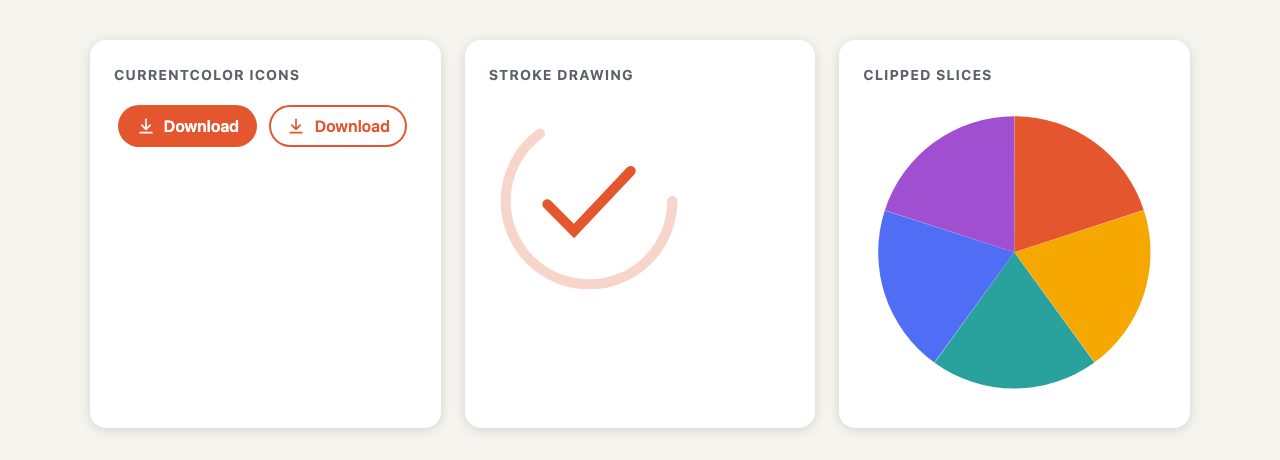
This guide covers what a designer needs today: choosing between those embedding methods, recoloring icons with currentColor, drawing and animating strokes with CSS, clipping shapes, and exporting clean files from Figma or Illustrator. It replaces an old tutorial that built a rotating image wheel with a JavaScript drawing library; every effect in it now works with plain markup and CSS.
Pick the right way to embed SVG
The method decides what you can style. Choose by asking whether CSS on your page needs to reach inside the graphic.
| Method | Style inner shapes | Cached | Best for |
|---|---|---|---|
<img src="x.svg"> |
No | Yes | Logos, static art |
CSS background-image |
No | Yes | Patterns, dividers |
Inline <svg> |
Yes | No | Icons, animation |
<use href="#id"> sprite |
Via inheritance | Only if external | Reused icon sets |
Two caveats are worth remembering. SVG loaded through <img> or a background runs in a sandbox: scripts do not execute and external resources are not fetched. And SVG inside <use> lives in a shadow tree, so your page CSS cannot target its internal elements. It can only influence them through inherited properties such as color, fill, stroke and custom properties.
Recolor icons with currentColor
The single most useful SVG habit for UI work is letting icons inherit the surrounding text colour. Set fill or stroke to currentColor and the icon follows its parent’s color, including on hover, in dark mode and inside disabled buttons, with no extra rules.
Define the icon once as a <symbol> and reference it wherever you need it:
<svg class="sprite" width="0" height="0" aria-hidden="true">
  <symbol id="i-download" viewBox="0 0 24 24">
    <path d="M12 4v12m0 0-5-5m5 5 5-5M5 20h14"/>
  </symbol>
</svg>

<button class="btn">
  <svg aria-hidden="true"><use href="#i-download"/></svg>
  Download
</button>
.btn {
display: inline-flex;
gap: .5rem;
align-items: center;
color: #fff;
background: oklch(63% .19 38);
}
.btn svg {
width: 1.25em; /* scales with the text */
height: 1.25em;
fill: none;
stroke: currentColor; /* follows .btn's color */
stroke-width: 2;
stroke-linecap: round;
stroke-linejoin: round;
}
.btn:hover { color: oklch(95% 0 0); }Sizing the icon in em keeps it proportional to the label. Plain href on <use> is fine in current browsers; the old xlink:href is deprecated. Mark decorative icons aria-hidden="true"; for an icon-only button, give the button an aria-label instead of labelling the SVG.
For more ready-made patterns with SVG inside, see the pure CSS and SVG leaf navbar and the animated checkmark success alert. If you still style icons with fonts, our icon font tutorial shows the older technique, and SVG is the better replacement because it is crisp, accessible and needs no font download.
Animate strokes with CSS
The “line drawing itself” effect is a stroke dash trick. A dashed stroke has a dash length and an offset; if the dash is as long as the whole path and you start with it shifted off the end, nothing shows. Animating the offset to zero reveals the path.
The pathLength attribute makes this painless: it tells the browser to treat the path as that many units long, whatever its real length. Set it to 1 and you never need to measure paths in JavaScript.
<svg class="draw" viewBox="0 0 120 120" fill="none" stroke="currentColor"
     stroke-width="6" stroke-linecap="round" role="img" aria-label="Check mark">
  <path pathLength="1" d="M35 62l16 16 34-36"/>
</svg>
.draw path {
stroke-dasharray: 1;
stroke-dashoffset: 1;
animation: draw 1.2s ease forwards;
}
@keyframes draw { to { stroke-dashoffset: 0; } }
@media (prefers-reduced-motion: reduce) {
.draw path { animation: none; stroke-dashoffset: 0; }
}Always provide the reduced-motion branch and make sure the final state is the visible one, so people who disable animation still see the complete graphic. CSS can animate most SVG presentation properties (fill, stroke, opacity, transform), and transform on SVG elements works with the usual CSS syntax. Animating the d attribute or complex paths is also possible in some browsers, but check support before depending on it. For choreographed or scroll-linked sequences, reach for the Web Animations API or a library; for everything on this page, CSS is enough.
SMIL (<animate> elements), which the original article’s era leaned on, still works but is a legacy route. CSS keeps your motion in the stylesheet where you can theme it and respect user preferences.
Clip and compose shapes
Clipping is what made the original wheel: each slice was an image cropped by a wedge-shaped path. There are two tools. The SVG <clipPath> element crops anything inside an SVG, while the CSS clip-path property crops regular HTML elements with circle(), polygon() or path(), and can also reference an inline <clipPath> with url(#id).
To build the wheel, draw one wedge as a path and rotate copies of it around the centre. The wedge below runs from the top of the circle clockwise through 72 degrees, which is one fifth of a full turn:
<svg viewBox="0 0 400 400" role="img" aria-label="Wheel of five slices">
  <g transform="rotate(0 200 200)">
    <path class="slice" d="M200 200 L200 20 A180 180 0 0 1 371 144 Z"/>
  </g>
  <!-- repeat with rotate(72), rotate(144), rotate(216), rotate(288) -->
</svg>
.slice {
fill: oklch(63% .19 38);
transform-origin: 200px 200px; /* pivot on the wheel centre */
transition: transform .3s;
}
.slice:hover { transform: scale(1.06); }There is one trap here. A CSS transform replaces the transform attribute on the same element. If you put rotate() as an attribute on the path and then scale it on hover, the rotation disappears and every slice collapses onto the first one. Put the rotation on a wrapper <g> and the hover effect on the path inside it, as above.
To put photos in the slices, add an <image> element and apply clip-path="url(#clip)" to it, or use a single <pattern> as the slice fill. Either keeps the picture as a normal, cacheable file.
For shapes on ordinary HTML boxes, skip SVG altogether. clip-path: polygon() and circle() are enough for angled section edges and avatar masks. For an interactive example that uses SVG as the whole interface, see the interactive SVG region map.
Make SVG accessible
- Decorative graphics: use
aria-hidden="true"on inline SVG, oralt=""on an<img>. - Meaningful graphics: add
role="img"and anaria-label(or a<title>child referenced witharia-labelledby). Describe the message, not the shapes. - Interactive elements: a clickable slice or map region needs to be a real link or button, or have
tabindex, a role and a keyboard handler. Add a visible:focus-visiblestyle. - Contrast: strokes and fills that carry meaning need the same contrast as text, and should hold up in dark mode, which
currentColorand custom properties make easy.
Export clean SVG from your design tool
Most SVG problems come from export settings, not code. In Figma, select a frame or layer and add an SVG export in the Export section of the right-hand panel. Use “Outline text” only when you cannot guarantee the font will load. In Illustrator, use File > Save As, choose SVG, and in the options keep Responsive checked and Minify on for production. In either tool, convert strokes to outlines only when you must, because live strokes are what you animate.
Before shipping, run the file through SVGO (or its web version, SVGOMG) to strip editor metadata, then:
- Delete fixed
widthandheightattributes and keepviewBox, so CSS controls the size. - Replace hard-coded
fillcolours withcurrentColoror a CSS variable where the icon should be themeable. - Check that duplicated
idvalues from several inlined files do not collide, since clip paths and gradients are referenced by id. - Keep a small sprite for icons you reuse, and leave large illustrations as
<img>files so they cache.
Where JavaScript still helps
You no longer need a library to draw SVG. When the shapes must be generated from data, create elements with document.createElementNS('http://www.w3.org/2000/svg', 'path'). The namespace matters: createElement('path') makes an HTML element that renders nothing. For motion that is not a simple transition, the Web Animations API gives you playback control on the same elements, and SVG filters such as the one in the gooey floating menu can be applied with filter: url(#id).
Browser support is no longer a concern for the features here. Inline SVG, <use>, <clipPath>, currentColor, pathLength and CSS transforms on SVG elements all work across current evergreen browsers. The only things to test before relying on them are path-morphing via CSS d and anything exotic in SMIL.


amazing…
heres one about SVG too SVG Girl
hihi :D
cheers m/
wohoo, didn’t know that svg is native to html5 – thats gonna be awesome …
PS: thanks for the tutorial!
Great article. I’m very glad to see SVG a native part of HTML5.
I love working with svg but it cannot be used at standard yet because not all web browsers support this yet
Thanks for tutorial!!!!
The demo works perfectly also on Ipad.
SVG is cool. Thanks for making easy to follow.
…this Guy is also known as “The Css World Champ”…!
I still don’t think it’s going to catch on after all these years.
I have a few creative ideas where I can use this, lets see how it works out.
My mind is dry with creative idea. SVG is a cool design, it give me new idea for future project.
The Vlog.it website lags on my PC quite a bit, it is very processor intensive.
SVG designs might not be most suitable at this stage and I am yet to see a practical use of it.
Wow, this is interesting seein the power of HTML5, how many of you out there are design with the new standard?
Cheers,
Two aspects of SVG i.e clipping paths and scalable 2D motion graphics sounds interesting.
Scalable Vector Graphics represents a collaborative effort by some of the biggest players in the computer world to find a workable cross-platform solution to Web imaging. The blog is quite informative.
I like SVG a lot and think there is potential there. The big drawback is that it won’t run on Android. Thoughts?
When using IE9 everything looks perfect, but it gets stuck on option “read the story”
Asking questions are truly good thing if you are not understanding anything totally, except this piece of writing offers fastidious understanding even.
I actually don’t know what’s this SVG design all about.
Great. But I’m not a fan of SVG :)
This does look like a great theme.s
Scalable Vector Graphics represents a collaborative effort by some of the biggest players in the computer world to find a workable cross-platform solution to Web imaging.
SVG design is really very nicely created with HTML 5 by someone very creative person. It is totally unique design that I have first seen in this post.
Buy diablo 3 powerlveling, buy arena rating, buy arena carry
awesome SVG rocks ….. am search SVG and my next will be done in SVG :)
Hello Marco !
These this awesome post. I really liked the wheelayout. really I am impressed by its demo. This would definitely make our site different from others.
Thanks for sharing about SVG design with all the explanations.
Cleaning Equipment
WOW, It’s totally a new experience for me about playing with svg design. Truely love this. Keep share, following you mate. Just awesome.
Previously I tried SVG in a different way, but you did a very easy and simple way. Thank you so much