Today I would like to share something that is slightly off topic — how to use iPhone GPS map on the road without a data or WIFI connection. To be more specific, I mean how to use the iPhone Google Map as a GPS (without a network connection on the road) by pre-caching the map. This trick is very useful if you don’t have a data plan or want to avoid the data roaming charges when you are travelling.
Cache the Map First
First you have to cache the area of your destination at various zoom levels with Google Map (you need a data or WIFI connection for this part):
- search the location where you will be visiting in Google Map
- drag the map around the area to cache it
- zoom in & out and drag around again to cache the map at various zoom levels
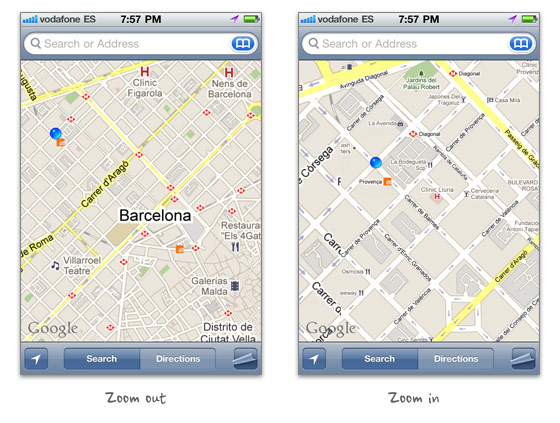
On the Road
When you are on the road, launch Google Map and press the GPS locator button to locate yourself. The iPhone built-in GPS can communicate with the satellite even when you don’t have a data or WIFI conncection. The purpose of caching the map is to know where you are.

Limitations
- you can not search or find direction
- the area or zoom levels that you didn’t cache will not be viewable
- sometimes you need to zoom in or out to reset the cached map
Final Remarks
This trick was first discovered by my brother accidentally. I have tested it in Toronto, New York City, Los Angeles, Madrid, Barcelona, and Paris. It hasn’t failed on me yet. It has saved me a lot of time and data roaming fees particularly travelling in Europe. You should test it before using it.
84 Comments
Comments are closed.
Fazreen
Cool tricks. People can save a lot by using this trick. By the way nice sharing
Tom
Do you know how much data can be cached?
BTW, nice font in these form elements.
oh boy
for real? you mean there is a way to cache javascript, images AND scripts????
Joe
yeah, been doing this for a few years now.
2 things to be cautious of:
obviously when you close the app the cache is cleared. that means for 3G users (or anyone before ios 4) dont close the app at all!!
secondly, there does seem to be a time limit on the cache as ive done this before and occasionally after leaving it for a while it requests new data.
Bearded Yeti
I don’t think the gps actually is used… I read that it pings off of wifi connections in the area and get your location that way. I found this out after a friend of mine said he could still use his iPad after they left for their trip. They used the maps until they got out of the city but then it stopped working… Wifi only iPad too.
Daniel Ogden
The Maps app uses GPS but when it doesn’t have access to a satellite signal it then tries to triangulate its location with cell towers and WiFi hotspots.
So GPS is the most accurate and this is tried first, but if that fails, it goes down the list to the less accurate methods.
André
Yeah… I’ve noticed this as well…. for example: I can look up subway directions at home, and while I’m in the subway (no service), I can still look at detailed information about each step.
As for GPS, I think “Bearded Yeti” is right. In the subway, I get no GPS cos it can’t find any towers. However, when I was in Korea, I looked up direction before I ventured out or at a café. On the street, with data completely off and not on any WIFI, I was still getting my GPS location. I remember reading that iPhone uses “assisted-GPS”, which means your phone cheats by using data and cell towers to assist itself in finding your location and the correct satellites fast, no data required.
alex
Wow. Nice! Hope it works. I went testing!
And almost forgot, bookmarked this!)
vale
Has anyone also tried this trick with an iPod touch/iPad?
Kyrodes
This trick works on iPod Touch and iPad (without 3G) too. Old iPod Touch don’t have GPS signal but can cache.
A tip to cache a path: With a data connection, just search the directions, click Start (top right) and press the arrow -> to navigate full path from start to end and at the each turns, crossroads and final destination make caches from various zoom levels. The cache is limited, but that way, the cache will be more consistently on final location and important places to pay attention.
Do not miss the way so much or you can get out of cache area.
Gary
Galileo does some really nice map caching. I think it’s free.
Then, for $1.99 you can create maps offline for it at all sorts of zoom levels. I use it out and about in costa rica. And in michigan where I only get edge service.
Beldar
How was Barcelona? Plaça Catalunya a bit full right? heheh
Sai-Kit Hui
This also works with Google Maps for Android. I also discovered this by accident carrying around my Verizon Moto Droid around Hong Kong.
Hixster
Excellent tip – I just came back from a trip to France and had data roaming turned off the whole time – if i’d have seen this earlier , I would have been able to get around the town we were staying in for free :-)
Katrina
Great tip — I can usually get by without my phone when traveling internationally, with the exception of the maps feature. This is going to be really helpful on my next trip.
Thomas
The whole drag-around-to-do-precaching-thing is a bit annoying. If you want a decent solution, you may want to try OffMaps. Okay, it’s not free, but definitely worth the 99 cents.
Manifo
It is even to easy to came up with it :D
Mark
The Maps app uses GPS
Ellen
I’ve been using this trick with my Wifi-only iPad2 for a while now. I’ll just load up the map and directions of where I want to go when I’m at my apartment, click through all the steps to load them, zoom in and out of tricky areas to cache those as well. Then when I drive out of the network area, my map is still loaded and I have directions to where I need to go! :)
Saskatoon Edmonton Regina Web Design
Interesting, I’m assuming it would work with other devices too?
phil
old stuff. did you just get the iphone?
Diagonismos
That’s a very old trick..
Velva Cables
I have to express my respect for your kindness for persons that really want assistance with that study. Your special commitment to getting the message along became wonderfully functional and has in every case made guys just like me to get to their pursuits. This warm and friendly information entails much a person like me and especially to my colleagues. Best wishes; from all of us.
WebVisible
I was wondering if you could use GPS without a data plan (without 3G)? For example, the AT&T no-contract iPhone 4’s don’t require you to purchase a data plan… Would I still be able to use GPS or do you need 3G to do so?
Thanks!
Matt Fairbrass
My friend and I used this technique two years ago when we were traveling up the east coast of the US. Was very handy indeed!
New Day Properties
Thanks for the tip!!
I will definitely use it, when traveling in Europe!
william
Great!! Very good idea!
Icky
Awesome!
Emprego de Doméstica
Great tips! Very usefull! I`m gonna cache my entire city! lol
SEOMonkeyz
Fantastic article, thank you for sharing – and keeping up in comments too!
Browse Design
Sounds great to me. i will try it.
Sim
Jailbreak and use x-GPS, much better solution : )
Mike Mai
yeah, i’ve been using this trick for a while. pretty handy cuz I don’t have a data plan.
Ben
CityMaps2Go is a great app that offers offline downloadable maps of thousands of cities/regions around the world and you can still use GPS with no data necessary. I’m in Europe right now using it. Definitely worth the couple of $.
few
Few
Rashid
This is a nice solution to use maps offline on non-jailbroken iPhone.
Sarang
If you say its out of topic, even then it is useful. Tech marvels are often discovered accidently… Pretty helpful accidents ! Very brilliant ✫
Vance
gotta love the iPhone
Kelvin
This happened to me in Toronto. I was not sure why my GPS was still working when I left the range of the hotel’s free WIFI. However, I was happy to be able to tour the city without using any roaming services.
GPSForCar
Real cool. Can save some money on data and roaming charges. Your brother is a genius.
Piter
If not for the cache is not a service to the clogs:)
Milan
I have actually used this trick as well, but I wish there was a way to increase the size of the cache and/or control what is cached.
scb
I tested this trick n India also. Its working perfectly.
Nitin Reddy Katkam
Try using Nokia Ovi Maps. I have the Nokia E72 and I just load the maps whenever they have any updates and use them for GPS navigation. It does not need an Internet connection and you can download the maps from your PC too!
Rg Enzon
Hey thanks for this one! Really helpful :) This off topic post is nice btw :)
Nexstair
I tried it in my area and found it proficient, thanks for sharing great information
crowd SPRING
WOW! finally i got to know how to use iPhone GPS map on the road without a data or WIFI connection. your posts are always very helpful!
orhanbt
This is verry good.
cyrus pondeno
On the iPad, the app OffMaps2 lite allows for similar shinanegans (minus the tedious caching!). I was very surprised, the first time, on the road in Berlin, with neither wifi nor data connection, to find my precise location reliably indicated on a map I had only downloaded to, well, have a map, with no expectation of being globally positioned on it.
Patrick
This is very first time, you put a non design topic. This article still benefit me, as I dint subscribe any data plan. Thanks!
Mark Petherbridge
Awesome article, thanks for sharing
Just wondering if you would allow me to repost this on the resources section of my blog: http://ios-blog.co.uk/iphone-application-development-resources/ ? full credit will be given of course
complex41
And then he handed you the thirty-five 45
Brisbane Osteo
Much appreciated article! Really good! Cheers :-)
Damian
Clever stuff, keep these gems coming, Cheers
John M. Weaver
This is an awesome work around for using maps with no signal. Nothing more frustrating then losing your signal when you need the maps.
Saravanan
Looks like it will be time consuming? Now the data plans a really low!
iphone 4 case
Thank you for sharing of the article, I like it very much
ห้องน้ำ
This article still benefit me, as I dint subscribe any data plan.
ห้องน้ำ
I can usually get by without my phone when traveling internationally.
Sam
Unbelivable work around for using the maps without having a decent signal. Keep up with the good work guys! – Sam
Translation Services
Can this be done on an Android?
janeil
learn how to make money but first of all we’ll teach you how to make iphone apps and games with no programming skills required
mybookmart
i like that teach us
robin
i am a wedesigner. it’s really useful for me
thank you
Ed
I was expecting something else, but useful nonetheless. :3
Nick
Ahhaha! I LOVE IT! I didn’t know that!
thextremedesigner
I travel alot and I kinda knew this already but definitely a great link to send to my non techy friends.
Yogesh
I’ve been using this for a few years now around the world. Especially useful if you are in a train and need to know how far you are from your destination.
However I was recently surprised and really annoyed that this feature is MISSING in ANDROID devices. Google left it out, god knows why ? In android, without a data connection, google maps will now show your position.
TJA
@Yogesh, maybe your android device gets its position from its cellular signal rather than having an actual GPS chip inside.
Joe
Android actually has a built in feature to cache maps of an area. No zooming and panning required. Just drop a map pin and select ‘cache this area’. It’s a feature I really miss since trading in my galaxy nexus for a 4s.
adumpaul
Great useful article.Than you.
Will
This is great since I can’t afford a real gps or roaming charges :)
garmin
You’ve got great insights about gps navigation, keep up the good work!
Dave
This works. Your iPhone or iPad needs a map upon which to project your location. With Google Maps, you can cache the standard map, an aerial photograph, or a hybrid map for the area you want to travel in. Once cached, your current location can be pinpointed in real time as you travel, and you can see all the roads, buildings, and even restaurants by name. We used this feature of the iPhone to navigate through complex, unmarked streets in the towns of Costa Rica, without any WiFi or 3G connection on an iPhone showing “no service”. This saved our bacon when our regular GPS was stolen.
Hans
Good tips. It’s very useful
Alain
It would be nice to show the demo on you tube. I don’t know how to cache the maps and how to call them up and use it with the locator.
deborah
Thank you for the explanation. I accidentally tried this in Amsterdam and didn’t understand why there were no data charges on my plan. This works great, just load your map over wifi before going out. Tracked us walking along the street and didn’t get lost!
Hyon Diggins
Hi there, You’ve done a fantastic job. I’ll certainly digg it and personally suggest to my friends. I’m sure they will be benefited from this site.
Dimitris
This post is very useful for drivers who travel often to new places. Thank you very much.
Ibiza yates
Once cached, your current location can be pinpointed in real time as you travel, and you can see all the roads, buildings, and even restaurants by name. We used this feature of the iPhone to navigate through complex, unmarked streets in the towns of Costa Rica, without any WiFi or 3G connection on an iPhone showing “no service”. This saved our bacon when our regular GPS was stolen.
British Expats Forum Spain Cabo De Palos
I always used to study paragraph in news papers but now as I
am a user of web thus from now I am using net for articles, thanks to web.
jim pack
great info but how do I cashe the map on my iphone?
www.articlesnatch.com
Thankfulness to my father who shared with
me concerning this webpage, this web site is really remarkable.
Mopping-Microfibre
Hello !
I found that you and your brother both are talented one. So, we should be thankful to him for this innovation and to you for sharing this post with all of us.
Thanks.
Mopping-Microfibre