Although CSS3 @font-face is supported by most major browsers (IE, Firefox, Chrome, and Safari), but not all. When it doesn’t, your custom fonts might break the layout or come out with undesired results. In this article, I will explain the common issues with using custom fonts, picking the matching fallback web safe fonts, and how to create a perfect fallback font style with Modernizr.
Common Mistake
One common mistake that most people make when implementing custom fonts is not specifying the fallback fonts or picking the wrong fallback fonts.
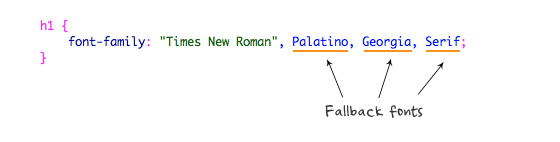
Web Safe Fallback Fonts
When using custom fonts, it is important to include the web safe fonts as fallback. The fallback font helps to keep your design looking consistent when @font-face is not supported or available. The key point for selecting fallback fonts is to pick the web safe fonts that best match the custom font. For example, if the custom font is Clarendon, then the best web safe fallback font is Georgia because they both are in serif classification and they have similar font width.
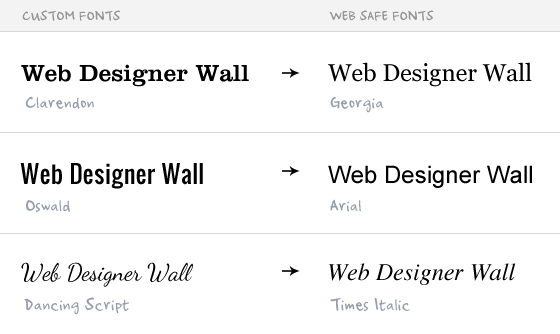
Layout Issues
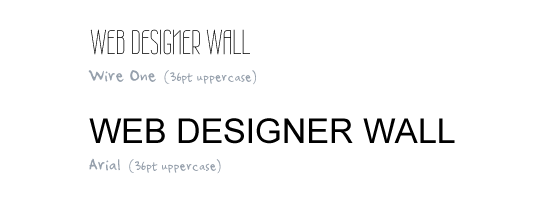
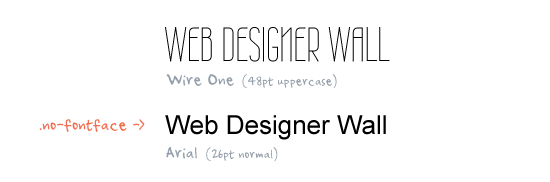
Because every font face has its own width, height, weight, kerning (letter-spacing), etc., some fonts are not substitutable with the web safe fonts. Take a look at the example below. It is a comparison between Wire One (custom font) and Arial (web safe font) at 36pt uppercase. As you can see, the Arial text takes more than double the space compare to Wire One text because Arial has a wider width and kerning.
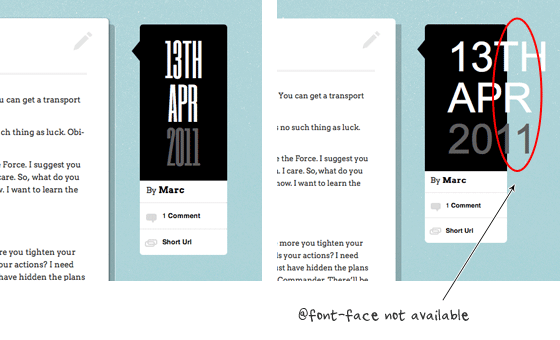
This might causes layout issues as shown in the image below where the fallback font extends off the boundary.
Modernizr
Fortunately, there is a Javascript called Modernizr that can help to fix the issue as mentioned above. Modernizr is a Javascript that detects what CSS3 features are supported by the browser. It will then add a CSS class in the <html> element to indicate whether the features are supported. For example, if @font-face is not supported, it will add no-fontface class in the <html> element (eg. <html class="no-fontface">). These CSS classes are added with Javascript and they are not visible in the source code. In order to see them, you need to inspect the page element or view the generated source.

Fallback Font Styles With Modernizr (demo)
So we can use Modernizr to detect if @font-face is supported and then provide matching fallback font styles. For instance, you can adjust the styles for the fallback font (size, letter-space, weight, text-transform, etc.) to best match the custom font.
Including Modernizr
To implement Modernizr, you need to download a copy of Modernizr and include it in the html document.
<script src="js/modernizr.js"></script>
.no-fontface CSS
Then you will need an additional rule for specifying the .no-fontface. Check out this demo to see the final result.
/* wire one font */
h1 {
	font-family: 'Wire One', arial, serif;
	font-weight: bold;
	font-size: 48px;
	letter-spacing: 1px;
	text-transform: uppercase;
}

/* no-faceface fallback */
.no-fontface h1 {
	font-family: Arial, Helvetica, sans-serif;
	font-weight: normal;
	font-size: 30px;
	letter-spacing: 0;
	text-transform: none;
}
100 Comments
Comments are closed.
Evan Skuthorpe
this article is very timely for me, just implementing @font-face on a project now ;)
acbo
Nice Guide, but the demo’s are not working getting a 404 keep up the good work
Nick La
The demo url is fixed now.
Chandan
Handy for me! I was actually searching for some information on webfonts and @font-face & this guide just perfect for it :) TY
Jinson Abraham
Nicely put article, and it will help me. I did not know about Modernizer up until now.
Thanks
TiS
Yeah, a very helpful text, thanks! I’ve been thinking about using @font-face and this article gave me clues (and solutions) about possible problems.
crowd SPRING
This post explains very nicely about custom fonts, picking the matching fallback web safe fonts, and how to create a perfect fallback font style with Modernizer….REALLY A GOOD WORK!keep it up! and keep updating us!
Bill
Nice job. Very well put together article and full of useful info.
It’s starting to get crazy with all of the scripts we need to include these days. jQuery, Modernizr, etc. I can’t wait until we can get some more uniform browser support. But, it seems like this type of request hasn’t really changed since the dawn of the browser wars. [sigh]
wendelle
I must say, thank you for the article, I’m a big fan of @font-face and this is a big help for me, for my future projects :D thanks
Joseph
What’s the benefit to using Modernizr for matching font styles rather than just adding them in the CSS for the class you are targeting? In your example:
h1 {
font-family: “Times New Roman”, Palatino, Georgia, serif;
}
I am not really getting why Modernizr does this better, especially when it’s adding more load time to your page and does (as far as I can tell from this tutorial) exactly the same thing as backup fonts in CSS.
Can anyone clarify if I’m missing something?
Kenny Landes
If you observe the examples, using the no-fontface class, you are not only changing the font, but also changing other characteristics such as size, weight, etc. Example shows Wire One 48pt upper case, with a no-fontface fallback of Arial 26 normal. Simply adding Arial to the font stack would result in Arial 48 upper case. So, basically, you can style your no-fontface font to fit the space provided in your layout. It’s a complete alternate style fallback that results in a similar-enough experience for all users.
Joseph
I see now. Sorry I’m a bit new to advanced CSS/etc and didn’t pick up on that. Thanks for the clarification!
Adam
Great article. I’m planning on using modernizr on my next project!
Ted Goas
Thanks for pointing out the importance of fallback fonts, Nick. I’m with ya!
In addition to @font-face, this idea can also be applied to various font-embedding services. In my experience with Typekit, the default font stack I copy from the kit looks something like this:
font: 'tk-sans-1', 'tk-sans-2', serifObviously not ready for production. Typekit also provides some control that looks like it does some of what Modernizr is doing above.
Juan
Nice article.
But what happens if the browser supports @font-face but the font is not found (‘Wire One’ in your example)? Will we still see the fallback font out of boundary?
Back to the example, if the browser supports @font-face but the font ‘Wire One’ is not found we will see Arial 48px instead of Arial 30px, correct?
maLakai
The browser downloads the font from the server and loads it. If the font not found on the server due to error, or the browser can’t load the font then you are right, the original 48px arial will be displayed.
There is another css3 property – I hope will be implemented in browsers – is the font-size-adjust, which basicly sets the font size by the x-height, not the capital letter height. This is also useful for font fallbacks. Unfortunately it is only implemented by Mozilla right now (who proposed the property and in Firefox since 1.0).
Mark Wong
Thanks for the article and info on Modernizr. I’ll be giving it a shot :D
Dale
Nick,
Thanks much for clarifying some things. I have been “playing” around with @font face a bit and have run into snags.
Always a pleasure reading your posts.
Dale
Pascal
Very nice of course, but I would suggest a slight tweak that would handle rare, edge cases: what if JavaScript isn’t enabled on the browser AND the browser is not compatible with @font-face? Solution is quite simple: instead of using the no-fontface class generated by Modernizr, it would be best to first write the fallback CSS rule for fonts, that will be processed by every browser, no matter if there are JavaScript or not, and then write a CSS rule applying only to the “fontface” class generated by Modernizr. Since Modernizr generates both possibilities (“with or without the feature”), that allows the feature to degrade even more gracefully for non-Javascript enabled browsers. Only downside: if a browser has JavaScript disabled BUT @font-face… it will only display the fallback layout. Then we have to decide what is worst: for someone that has @font-face enabled but no JavaScript to see a perfectly suitable, though not-as-cool-as-it-could-be fallback layout, or for users without JavaScript AND without @font-face to see a bizarre layout, due to the rules based on a no-fontface class that won’t apply because there is no JavaScript… Hard choice, all depends on the targeted users, but that “inverse” option is pretty neat too, I think!
Tom
I had the same remark…
I guess it’s ok to give people who turned JavaScript off a less visual experience ans just use a web safe font for them.
Gaurav Mishra
Hello, WebdesignerWall
May you cover a tutorial on modernizer and how to use this library effectively?
thank you!
Elliott the web design guy
Nice resource I have many website that could use this fallback thanks!
Christoph Zillgens
Nice article on web fonts!
There’s one thing I miss. In my opinion the biggest problem with web fonts are not the browsers that don’t support @font-face, but those that do support it but don’t render most of web fonts correctly. I’m looking at IE on Windows XP. Even with clear type activated, the masses of web fonts look bad. I don’t see any other solution than UA sniffing here, but maybe there’s something else?
Pablo
Yes, I missed that too in the article, the problem is with the lack of proper font smoothing in Windows XP, I found a script that can solve that issue detecting if the OS is having some kind of font-smoothing via the canvas element, check it out:
http://www.useragentman.com/blog/2009/11/29/how-to-detect-font-smoothing-using-javascript/
The script adds a conditional statement that you can use to add a custom class and switch between different fonts. In my testing I’ve discovered that some fonts do look OK in XP.
Ethan Hackett
Great post. I’ve heard of modernizer but never really looked into it. In my mind it was the same as PIE for ie CSS3 support. Thanks for the clarification and clear presentation of graceful degradation.
patrick
I learn a new thing, it save my time to edit those styling text. Previously I am so painful to create such text in images format. The best is, you covered web safe fonts part for unsupported web browser.
M Francis
Helpful tips if you really want to use custom fonts. I still have no problems using old fashioned fonts, or creating images with descriptive alt tags behind them.
orhanbt
beautiful. Good idea.
Luan Ramos
Very Good…….
CuPliz
Hey Nick, another wonderful tutorial! Thanks!
I’m working with @font-face and I’ve found that your tutorial is so useful.
Yesterday I tried to find the best way to specify the fallback fonts and your tutorial has simplify this! Thank you
Ali
another good trend!
thank you
Web Design Stuff
This is very nice post. thank you.
HumanBlade
For a post highlighting @font-face, it has an extreme dearth of @font-face content. None, to be precise. And especially nothing particularly CSS3. You mention fallbacks, which any designer worth their weight in artistic poseurishness knows. Then you shoehorn the modernizr JS lib which ‘automagically’ does stuff for you as far ask checking for capabilities. Which would be a perfect time to talk about the actual @font-family issue. The differences between using .EOT .OTF/.TTF .SVG fonts, their requisite support in major browsers, maybe the previous commentator’s recognition of IE’s decidedly lackluster support for any sort of decent hinting/smoothing for webfonts and how that basically breaks the spirit of webfonts….. I don’t know. Couldn’t help feeling letdown by this article, or at least it’s misleading title.
Bud Kraus
Nice article. I know some will not like this but I’m not sure that @ffont-face is such a good idea. Could that lead us to a lot of pages which are illegible? We already have too many of those and giving designers a broader array of fonts may not be in the best interest of users. This we shall only see with time. I hope I am wrong! Will tweet this article.
alex
Great article. Thanks
Manifo
This Javascript save much time. Great to know it!
Pam
Comment from Pam! I love this site!
Richard
Very nice and simple explanations.
Kenseiden
I was still reluctant to start adding custom fonts, because of the mentioned bugs. It never occured me to run modernizr!
This article is so useful. Thx.
Belmonster
Very useful tips and time savings tips. I really don’t know that using custom fonts in my blog is that easy! Thanks to Modernizr!
James
Awesome post as always! Thanks
Ansimuz
Great short article very useful and direct to the point.
Spletodrom
Nice article.
Thanks for this!
Samy Saeed
Thank you! that is very helpful!
Mr T
Thank for the article
Froi
Nice to know about the Modernizr script, thanks for sharing this.
Aquecedor Solar para Piscinas
Great tip. I didn`t know that was possible to use non default fonts.
tks
Bambi Corro III
Thanks for the great tip! And thanks to Modernizer’s author/s! So i guess we dont need to write fallback fonts to WireOne since theres a specific fallback script?
Naoki
Useful tips. Thanks
Pixeno Web Host
Ah I always make that mistake of not including a web safe fallback font, or any fallback font at all!
Deepika
Interesting tip. I still feel @ font-face would still take sometime for the developers to start using it, as it has its own fall outs.
Mark Blethen
If the script is looking for browsers that don’t support @font-face/CSS3, do we really need to list fall back fonts for those browsers if we’ve set up .no-fontface rules for those browsers? I’d love to hear the reasoning behind that need. (I’ve always forgotten to set them up, but I’d like to think that styling with the modernizr script in mind makes that unnecessary.)
Shawn Scammahorn
There’s always the few out there who have javascript turned off AND running older browsers that don’t support @font-face.
The .no-fontface is only used by Modernizr, so if no javascript is enabled in the browser, the .no-fontface styles will not be used either.
It’s good practice not to rely 100% on javascript being turned on. However, if there’s no available fallback fonts defined, the browser will still display it (in it’s default font-face). It just won’t be pretty.
fahad
that’s cool, never used it before.
Youssef
Thanks for the great explanation!
Damian
Thanks this one goes in the tool kit
skincare
Thanks for sharing the popular mistakes as i am also one of the those who commit mistakes as the same way as explained above.
jucelin
Useful tips. Thanks
Luca Cavallotto
Nice tutorial! But since there could be someone with javascript disabled, maybe it’s simpler to use the google fonts API. I would like to have some opinions :D
Jon
I agree. I think this is a lot cleaner than a javascript solution, and Google has really built a nice collection of fonts.
Jay Rajput
Nice tutorial
checkout new elegant photo slider psd
http://jayrajput.deviantart.com/art/Elegant-photo-slider-251303154?q=gallery%3Ajayrajput&qo=0
john web designer
Looks really cool but needs javascript !!
Natalie Dewhirst
Love the idea of using modernizer to protect the layout when fallback fonts need to be used. I have also noticed that custom fonts don’t display correctly on mobile devices (even when using Droid font from Google API on an Android phone). Any solution for that?
accurate jewelry appraisals
A unilateral mistake is where only one party to a contract is mistaken as to the terms or subject-matter contained in a contract. This kind of mistake is more common!
Kamal.
Perfect guideline to develop a front page using css3. Any one
can be do it simply follow the instructions.
iphone 4 case
I’d have to check with you here. Which is not something I usually do! I enjoy reading a post that will make people think. Also, thanks for allowing me to comment! thank you!
Devon Wedding Photohrapher
Thanks for clarifying “how to do it” … easy when you know how! Great post!!
Free Sick Wallpapers
http://www.freesickwallpapers.com/
Check this out everyone Featured Wallpapers
Especially to suit your Mobile Phone!!
Web Design - Jared
You bring up some good points out about styling breaking if correct fonts aren’t used.
ddsign
There is a Modernizr plugin for WordPress (http://wordpress.org/extend/plugins/modernizr/)
Do you know it? What is your opinion about it?
Web Design Hull
Thanks, this was really useful checklist of some of the common font problems, I’ll definitely have a go with Modernizr, it sounds pretty useful
GraphicClouds
Ty, i was searching for font importing in css for a long time)
ubrushes
Thanks this is very helpful.I am facing the same probelm but now it solved.
JB Web Design
Thanks for this. I will look into using Modernizr. Great post
Scott
Good stuff.. I must experiment with some nicer looking fonts for my sites.
Tomas
Very nice tutorial, thanks :)
Seattle Real Estate Guy
I’m currently working on a website and this is very helpful. Thank you!
Nick
wanted to use this in an older project, problem was that I couldn’t check if it worked! Couldn’t find a browser that didn’t support fontface (older ie versions worked perfect, ipad didn’t had any troubles with fontface, even with the free atomic browser..). if someone could tell me a browser that doesn’t support this pls tell me :)
mybookmart
i use this in my site its nice
Geert-Jan
Great use of modernizr for this., but wouldn’t the last css-example still give layout issues, i.e: a browser supporting @font-face but lacking font ‘Wire One’ would fallback to arial font-size:48px NOT arial font-size: 30px.
adumpaul
Great useful article.Thank you for sharing.
GNtemplates
great usefull post thanks for sharing it…
JASKNi
maybe… /* no-faceface fallback */ is should be /* no-fontface fallback */ ?
nice tutorial, thank you.
Anjali
I love your blog and i love your ideas.i was having trouble with font selection and spending too much time to select the right one. Now i think this article may help me. Thanks a lot. I will surely use these tips in my blog Blogger Tricks.
24 the movie
Just used this tutorial to add the bank gothic font to my site. Useful post, thanks a lot
Sana
Amazing tuts thanks for sharing it at one place..
Lokesh
So nice information, I really wanted to know about it’s solution… Great help
many thanks. :)
Lance
In your demo example the Google font “wire one” is used. Is it possible to use a font like for ex. Helvetica. You don’t have to include the Modernizr js when using the Google fonts I think?
sarwa
Great post. Thanks for sharing it.
Harshal
yes … Great post. Thanks a lot
evolution
Nice tutorial!
design
great examples i would not of thought of testing a fallback font to make sure it stays within boundaries etc. good suggestion and post.
kumaresh
same here…not taken care about fallback, text size etc., thanks for this great tip.
mike brick
What is point of having a fallback font for your fontface style if it’s going to just fall back to your non-fontface solution?
Dale
Such a great tutorial!
Is there a website or a way that we can test to see if the script works?
If I remove the custom font from my remote server whilst using the modernizr fallback as explained above, it doesn’t seem to pick up the modernizr fallback font. Am I testing it the wrong way?
Karl Kelman
Dale,
If I understand how Modernizr works correctly, it’s testing your browser to see if the browser supports @font-face. Whether or not your page actually uses @font-face isn’t tested. The fallback class is only activated if you are viewing the page with a browser that doesn’t support @font-face.
Craig Smith
I think Google Fonts you shouldn’t have any problems with fonts not rendering, and you don’t have to worry about backup fonts. Since fonts load via Google. I never had a problem with it.
Ibiza yates
If I remove the custom font from my remote server whilst using the modernizr fallback as explained above, it doesn’t seem to pick up the modernizr fallback font. Am I testing it the wrong way?
Oliver
It does not work with Firefox when web fonts are disabled (about:config > gfx.downloadable_fonts.enabled > false) and all the content is displayed with fallback fonts (e.g. Arial). So how can I test it?
Purple Lime Design
I was thinking of finally going wild on my site redesign and finally breaking away from websafe fonts but wasn’t sure if it was a good idea – think i’ll give it a try with this fallback! Thanks!