One of the nice enhancement in HTML5 web form is being able to add placeholder text to input fields. Placeholder attribute allows you to display text in a form input when it is empty and when it is not focused (it clears the field on focus). This is a nifty feature, but it is not supported by all browsers yet. This tutorial will show you how to use Modernizr to detect if placeholder is supported, or else use jQuery to display the fallback placeholder text dynamically.
Old School Javascript Way
Before we had the placeholder attribute, we relied on Javascript to fake the placeholder text. Below is an example. The text is inserted in the value attribute. On focus, it checks if the value is "search" and returns empty to clear the field. If the value is empty, it returns "search." As you can see, this way is not an efficient way because each field has to be checked.
<input type="text" value="Search" onfocus="if (this.value == 'Search') {this.value = '';}" onblur="if (this.value == '') {this.value = 'Search';}">jQuery Placeholder Text (Demo)
Now with HTML5 placeholder, it is more semantic to use placeholder than value attribute. However, placeholder text is not supported by all browsers. To make it cross-browser, Modernizr and jQuery come in handy here.
Modernizr is used here to check if placeholder is supported. If placeholder is not supported, the jQuery code will run. It finds all elements with placeholder attribute and stores in a variable. It then compares the input value with the placeholder attribute. If the input value is empty, it will display the placeholder text and add a "placeholder" class to the input field. View Demo.
To use this on your site, download a copy of Modernizr and jQuery and paste the following code any where in your html page (be sure the jquery.js and modernizr.js file is in correct path).
<script src="jquery.js"></script>
<script src="modernizr.js"></script>

<script>
$(document).ready(function(){

if(!Modernizr.input.placeholder){

	$('[placeholder]').focus(function() {
	  var input = $(this);
	  if (input.val() == input.attr('placeholder')) {
		input.val('');
		input.removeClass('placeholder');
	  }
	}).blur(function() {
	  var input = $(this);
	  if (input.val() == '' || input.val() == input.attr('placeholder')) {
		input.addClass('placeholder');
		input.val(input.attr('placeholder'));
	  }
	}).blur();
	$('[placeholder]').parents('form').submit(function() {
	  $(this).find('[placeholder]').each(function() {
		var input = $(this);
		if (input.val() == input.attr('placeholder')) {
		  input.val('');
		}
	  })
	});

}

</script>
Remove Webkit Search Input Styles
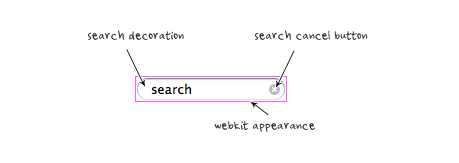
Webkit browsers add extra styling to the search input field. To remove them, add the following CSS code:
input[type=search] {
	-webkit-appearance: none;
}

input[type="search"]::-webkit-search-decoration,
input[type="search"]::-webkit-search-cancel-button {
	display: none;
}
Credit
The jQuery code is found at Nico Hagenburger.
109 Comments
Comments are closed.
Dave Sparks
I posted something similar a while ago on my own blog
http://www.kamikazemusic.com/quick-tips/jquery-html5-placeholder-fix/
There were concerns raised in the comments about the accessibility of injecting text into the val attribute, personally I think used sensibly and as long as the text is injected with JavaScript then it should be fine, maybe some readers here have a different view?
René
I read your post Dave, but I think it’s fine to use it. Only thing I could think of is if you don’t have a seperate label, an older browser, and no Javascript enabled. You don’t see any hints about the field. But hey, who doesn’t have Javascript these days.
But I think it’s just great to use this new feature.
KF
Regarding JavaScript: I am looking at the demo code and see jQuery, Modernizr, and a ton of extra markup, when all of the above could have been taken care of by jQuery alone. Just a thought :)
René
That’s a great feature. Last week I made something like that, but than for Mootools cause I like it better:
http://codeviewer.org/view/code:18cf
But it’s a powerfull css feature
John Catterfeld
This is a useful resource for seeing what attributes are supported by the modern browsers when styling the placeholder.
http://blog.ajcw.com/2011/02/styling-the-html5-placeholder/
It’s not possible to style the placeholder at all in IE9, Opera 10 (and below) or Firefox 3.6, and the rest also have mixed support.
Doug Neiner
Though my comment here doesn’t change the *technical* aspect of the post (providing a fallback for placeholder), I think there is a large problem with the use case of the placeholder.
There is a difference between the HTML5 placeholder, and what I call an in-field label (What you are actually showing in this post). The placeholder is supposed to show *how* the user should input data. An in-field label serves the same purpose as a real label, only it appears in (or over) the field.
Here are some examples of the difference:
Label: Email
Placeholder: [email protected]
Label: Phone number
Placeholder: 413-123-4567
Just because the HTML5 placeholder looks like in-field labels we see around, it doesn’t serve the same purpose. If you plan to use the placeholder attribute, you should probably also provide a label.
Dave Sparks
That’s a debate I’ve had with a few people, too many treat it like a label where as a placeholder should simply show the format of an input and not be it’s label.
Jonathan
I think it’s fine to use placeholders as a replacement of labels, it’s cleaner and more condensed. It’s not apart of yesterdays semantic web, but i think tomorrow it should be.
René
Well Jonathan, I think that’s different with every person.
Personally I really really hate it when my label is gone on focus. Because I tab all my forms, I don’t see what type of input is needed in the next inputfield.
So I have to make 2 extra tabs, to see what inputfield I have when there is no seperate label.
But hey, that’s me of course
Dave Long
I agree with Rene. For people who tab through forms, which is gaining popularity as forms grow more on the web, not being able to see what type of input is required is just bad coding. That being said, I think it is perfectly acceptable, and I do this all the time, to use placeholders as labels on text inputs that are easy to discern the required data. For example a search form on a website could use a placeholder. They are usually only one field and the submit button will actually help act as a label because it will say something search or just be a search icon.
Doug Neiner
Jonathan, but they serve completely different needs. Even though the HTML5 spec isn’t finalized, the goal of a placeholder is quite different than a label. A label also provides screen-readers with essential information about the field. I am not sure how they do with placeholders. Even though web standards have been widely adopted, mis-using an attribute or element is just as bad as it ever was.
Nick La
I agree with Doug Neiner here, I think label is still required in web form. Label and placeholder serve two different purposes. Placeholder is not equal to label.
The entire point of my demo is just to show placeholder (not web standard form). Hence I didn’t even put a submit button in the form.
Joe
You might be interested in “Formalize CSS”
http://formalize.me/
It also removes the placeholder text, if you submit the formular, so there is no wrong data submitted.
john
I fail to see how this is better than value.
Jon
2 reasons:
1) Value serves a different purpose. It can be used as the default form submission value when the visitor doesn’t input one, whereas placeholder text is meant to be replaced, and will not return a value if the visitor doesn’t supply one.
2) Without javascript, value doesn’t disappear when the input is clicked. The user has to manually delete it.
john
I see your point and it is cool but as Jake pointed out in a comment below : “That’s all very well, but why not just use the jQuery code and not bother with the HTML5? This would mean you don’t have to add modernizr to your page load”. Plus your form validation would catch the default value out before submitting the form.
ethan
what about password input?
Michel Kuik
Thanks for the helpfull article.
I believe it’s quite common to remove the ‘Chrome’ borders of input boxes with outline:none (on the :focus) state. What’s the difference between this method and input[type=”search”]::-webkit-search-decoration?
Robert
You’re not styling the element, you’re styling the “Shadow DOM.” http://glazkov.com/2011/01/14/what-the-heck-is-shadow-dom/
meodai
The JS could be better. In general, avoid to select twice the same DOM elements. Store stuff in variables if nesseserly. And you should use ‘===’ instead of ‘==’ and i wonder why you need a second .blur() after the .blur()…
Jake
That’s all very well, but why not just use the jQuery code and not bother with the HTML5? This would mean you don’t have to add modernizr to your page load.
James A. Rosen
Be *very* careful when doing this. It interacts very poorly with other jQuery plugins because they can’t tell whether the input’s value is legitimate or not. For example, this completely breaks most autocomplete and combobox plugins.
Юрий
Печать конвертов-в этой области есть ли применение.
Robert
So, we’re importing two libraries to do something that was formally one line of JavaScript? I think that’s a bad idea. If you’re already using jQuery and Modernizr, thats OK. If you’re not and this is all you want to do, save all the extra HTTP requests / downloads, and roll your own. It’s not that hard to detect placeholder support and use the “old school” way (even though the jQuery is doing almost the exact same thing).
Adrian
hey, i have a problem to see the demo, please put the right link please.
thanks.
chenchen
Good,I like it,that is good way to placehold text!
Roberto
If you wanna test just placeholder support you can use this instead Modernizr:
function placeholderSupport(){
return ‘placeholder’ in document.createElement(‘input’);
}
Derek
Cool HTML5, I will learn it (http://myfavorpages.com)
Mathias Bynens
For a more robust solution, feel free to use my placeholder plugin for jQuery. It works for password inputs, textareas, and detects placeholder support for inputs and textareas separately.
Matt Hinchliffe
If you’re not using jQuery and don’t need to test a bunch of features then you could try my standalone version in good old-fashioned Javascript: https://github.com/i-like-robots/Placeholder-Labels
Ltpy
Oh! My God! IT’ S very complexif and pepfull I was going to take when I need the instruction.Who it works?
html languages code
gr8
Christian Krammer
Thanks for the inspiration. I didn’t know about this specific Webkit properties.
I handle the placeholder text a bit different at my site (www.css3files.com).
I use both the placeholder property and a normal . For modern browsers the label is set to display: none with the help of CSS browser selector (http://rafael.adm.br/css_browser_selector/).
Ben Ellis
Your focus() callback should apply the same check (check whether input.val() is empty or equal to placeholder value, not simply check whether equal to placeholder value) used in the blur() callback. Otherwise IE8 winds up never removing the placeholder class from the input.
Html Codes Dude
This is good but I think it’s a little bit of over kill. My personal opinion is the placeholder should be used as an enhancement if the browser supports it if not then leave it.
Theo Hubenet
Nice one Dude, I agree on the overkill part, but if I use a placeholder, I want all my users to enjoy it.
Gleenk
What is the advantage of writing all these code instead of old method? I think it’s too early to introduce this new html5 tag. Isn’t it?
bardakta mısır
thank you This is good but I think it’s a little bit of over kill
Web Design Nottingham
@Gleenk it can;t be too early… especially as most browsers now support HTML5
Great share.
Daniel Weinand
It would be great if the input field would not remove the placeholder text on focus but rather as soon as a key event happens. That way you will still know what to type in the input field. The problem comes when you use [tab] to cycle through your input fields; there is a chance that without a label you won’t know what you’re supposed to fill in.
For our signup page (at shopify.com), we’re using transparent input fields with labels that emulate that functionality – even though not HTML5 – are more user friendly.
website designer uk
That is great post. It’s very nice. Thanks for shearing your ideas.
pandora uk
good post !Thanks very much for sharing
Website Design Lonon
I want to take this moment to say that your post is really useful for the people who are working on HTMl5. I really like the work that has gone into making the post.
Jesse case
its a good language where any person can understand easily.web designer can modify but the person can also care the language and modify. skygatemedia is our site if any person have want to make web design then contact us
addfrog
AddFrog.com is a free classifieds site to post ads to buy and sell products and services online. Post free classifieds for sale, purchase, rentals and services related to jobs, real estate, education, automotive, pets, travel, matrimonial, electronics, home appliances, health, machines etc. Find local classified advertisement ads for used and new products at best price in India.
Sunny Singh
I love the fact that you clear the input fields of the placeholder text when the form is submitted. This was one big advantage to using the HTML5 placeholder, and it’s great to see an exact implementation in JavaScript.
Clã Celestial Blog
This is the future.
dexx
Recent surveys, children of depressed mothers’ negative patterns of activity occurring in different brain reveals. This is for children of mothers who take more risks in the future is going to have depression.
Seo India Company
Unique Internet Marketing Services – the Marketing division of Uniqueweb Technologies in India. Explore the sections of SEO, PPC, Social media and avail the best services for your business now.
dan
http://crab-tree.com is now a worldwide web design services website
banhawi
placeholder is a very nice addition to html , saves alot of js usage .
Empregada Doméstica Sorocaba
This is really useful HTML5 trick. Tks jQuery, tks Nick!
thedevelopertuts
You make posts that are really interesting. Thanks webdesignerwall!
Web Design Sheffield
This is most certainly useful for HTML5 beginners and refreshers. This even helped me out.
Carl Doppler
I find your Website Blog interesting and full of ideas. If you want to read another related site. You can find this Web Developer Site helpful http://pmadesk.com/ Thank You!
cipro
Wow amazing. Thanks for the great tutorial.cipro
Small Business Logo Design
One thing is sure that HTML5 will really ease the pressure on css coders. You can code fast and make more money.
xinyo
It`s do work in IE9
fantazi ayakkabı
This is the future.
koçluk
This is the future.
Mont Blanc Pen
What is friendship?Mont Blanc PenWhy do we call a person our friend? When do we call someone a very good friend?
mal
I just tried to tab through this page to get to the link to your demo (I cannot use a pointing device) and got taken straight to the comment form. Since I’m here…
That is a major nuisance to say the least and there is no good reason to mess about with the tab order in this case (or, indeed, in any but a very few specific cases). And aside from the form elements, there are no focus styles, so I cannot see where the focus is without constantly moving my attention between the page content and the browser’s status bar. That is another nuisance.
Still, the part of the article that I got to read, before being dumped down to the bottom of the page, was quite good…
London Car Rental
It gets worse when you start mixing the charsets.
barn
Nice tip! Thank you!
orhanbt
This is verry good.
David William
Great tutorial, I translate this post for portuguese here http://www.frontendbrasil.com.br/tutoriais/cross-browser-html5-placeholder-em-todos-navegadores/
Web Design
It’s easy to resent punctuation. Its purpose is to clarify sentences, so why are the rules governing it so complicated? There are so many exceptions, so many exceptions to exceptions — it’s enough to make you want forego punctuation altogether. Well, back when it was alive and kicking, the Latin language did just that — and it didn’t stop there. Written Latin also omitted spaces between words or lowercase letters.
john
I was searching this kind of blog on internet, after finding you my search has been finished. I have learnt many new ideas from this blog, which are very beneficial for me. Thanks for the nice information.
Web Design
Part two of last week’s examination of the personality of punctuation. Click here to read Part 1. Em Dash and Hyphen Em dashes and hyphens are sisters, and whenever they go out together, they get stopped by strangers. “Are you twins? You all look so much alike!” At this, they roll their eyes. Sure, they look similar, but it’s obvious — to them, at least — that they’re each completely unique.
Rafael Fiori
Its look like theres a issue with passwords fields
DishonestMan
Man enough of coding & stuff just use a form builder like http://www.jotform.com/
Web Design Staffordshire
I think the best advantage of using HTML 5 is the fact that is can be rendered correctly very easily in multiple browsers which renders the need for different versions of a site to be no longer necessary.
Daniel Cob
You can use cross-browser JS scripts like Placeholder.js (http://widgetulous.com/placeholderjs).
Matthew James Taylor
Unfortunately you can’t simply make the value of a password field equal to ‘password’ because it will be obfuscated to ******* so the only reliable way is to have a background graphic of the word ‘Password’ instead.
Personally, I prefer to use the proper HTML5 placeholder text and leave nothing for passwords. If people can’t update their browsers, poor them! ;)
Tom
another method is cloning the entirely, but changing the type before appending it to the DOM, thereby circumventing the jQuery protection as well as the bug in older versions of IE. this is how we’ve solved it in our plugin: https://github.com/aplusldesign/jquery-defacto
Andres Roberto
Well, you can use a label and absolutely position it over the password input and then change its display state via JS. When user focus in the input and it’s empty, the label (false placeholder) will appear and so it will if the user focus out and the input is empty. If user press a key when focus in the input and value is null, then display it. If input is not empty in any of these cases, the false placeholder will disappear.
Andres Roberto
You have to use ID and FOR attributes so input will get focused when clicking the label.
Jon Raasch
I tweaked it to fix this issue, by cloning the input as a text input and hiding the old. Then removing the new one / switching focus to the old one on focus:
https://gist.github.com/2892148
Beth
I believe you are wrong, Matthew. If you use js to change the HTML5 input type from “password” to “text” when the user has not entered text, it will be displayed in plaintext while the password is obscured properly when entered.
Peter Schreiner
Thanks for another great tip!
Mesothelioma
Your HTML5 might totally different. feature really clean and useful they are very exacting addition to my browsing list. Thank for sharing
j_hatfield
Great tips, thanks for sharing. I just found this blog as well about cross-browser testing in general:
http://www.back40design.com/news/m.blog/22/cross-browser-testing-why-it-s-important
jsadfasd
what a nice tips it well help me
mybookmart
what a nice tips it well help me!!!!!
Greg
I’m having an issue with IE8. I’m loading in forms through ajax and in IE8 all I get is empty inputs with no placeholders. Every other browser seems to handle this OK, and if the inputs are on the page initially, they work in IE8 too.
Thoughts?
Jason Merino
Not sure why this is only a problem only in IE8, but to be sure that all your events are firing in the correct order you might want to place Nick’s code into a function then execute that function with a callback after you have loaded the form.
Or, as a second thought just hit me, you might want to change the .focus and .blur to .live(‘focus’ … and .live(‘blur’ … to make sure those events are bound to elements that get injected into the DOM after the .ready event fires.
Good luck, hope that helps. :)
Pieno
Me like HTML 5 a lot, a whole lot!
2012 in social media
One thing is that one of the most popular incentives for utilizing your card is a cash-back and also rebate present. Generally, you will get 1-5% back upon various expenditures. Depending on the credit card, you may get 1% in return on most expenses, and 5% again on expenses made at convenience stores, filling stations, grocery stores plus ‘member merchants’.
Henry London
Thinking about where this could be used – perhaps the comment form wouldn’t be a good place. If for example you used the placeholder text “enter your website” for the website input field and the commenter decided not to enter a website – thereby leaving the placeholder text along – then “enter your website” would be submitted with the comments as the web address. This would basically mean lots of links to “enter your website” which would of course be a broken link.
gfd
fgd
ucuz tatil
thanks for tuts.. I like java and jquery.. good luck..
katalog tasarımı
nice sharing.. thank you..
Tiffany
Thank you, this helped me! Simple, easy solution.
Tayler
Thanks for the tips.. it’s a big help for my web design
magazin
The closing date is May 2012 right ?
Steve Roberts
Erm… just downloaded the demo, opened it in Multiple IEs (6, 7, 8, or 9) and it doesn’t work.
Am I missing something here?
Yates en Ibiza
just downloaded the demo, opened it in Multiple IEs (6, 7, 8, or 9) and it doesn’t work.
xD
Nice
officer
I do not know if it’s just me or if everybody else encountering issues with your website. It seems like some of the written text in your posts are running off the screen. Can someone else please comment and let me know if this is happening to them too? This may be a issue with my web browser because I’ve had
this happen before. Appreciate it
george
nice
Kasio99
Toooooo easyy!
Jared Christensen
What Modernizr test does this require if I’m doing a production build?
Mandeep Singh
I didn’t want to install Modernizr so, here is a fix I wrote: http://www.sciencestudioz.com/input-element-placeholder-attribute-in-ie
Hope it helps!
Kattie
I’m amazed, I have to admit. Seldom do I come across a blog that’s equally educative and entertaining, and
let me tell you, you have hit the nail on the head. The issue is something that not enough men and women
are speaking intelligently about. Now i’m very happy I came across this in my hunt for something concerning this.
Nathan
This is so good. It’s good when things work.
Dymo L
Excellent post. I think that HTMl5 is one of the best lanaguage and we can change and do many things with it.
Thanks
metys
usefull,
thx