Today we have a guest post by Andy Walpole sharing his experience from creating the Lightbox Ultra on Mozilla Demo Studio. Several years ago developer Lokesh Dhakar created the familiar Lightbox script with Prototype and script.aculo.us. It’s smooth animation and sleek aesthetics were an instant hit in the web design community and it was used on a multitude of different projects.
There have been many imitations – Fancybox and Thickbox to name just two – but Lightbox still remains as the favoured way to present images to a user. This, primarily, is due to its 3d animation and background dimming which allows the user to view the image without any distraction. It’s a useful, timeless technique.
Since CSS animation first started to be used a few years ago, coders have enjoyed creating their own CSS-only Lightbox versions. Indeed, there is a real craze for CSS-only animation experimentation. This is something we should all welcome. In the near future CSS will completely take over from JavaScript on the presentation layer so using it now for this purpose is perceptive forward thinking.
Just recently I had a CSS project exhibited on the Mozilla Demo site called Lightbox Ultra. Its core is CSS3 – in particular 3d animation – but in the process of creating the demo I realised that JavaScript added important usability and design features.
This guide is not a line-by-line explanation of the code I have written for my Lightbox project. Going into such tiny detail will only confuse the reader. Instead, I’ll explain some of the key concepts behind creating a modern take on the popular Lightbox script. That way you can then use these ideas in your own coding projects.
CSS and Lightbox
Firstly, the HTML is as below:
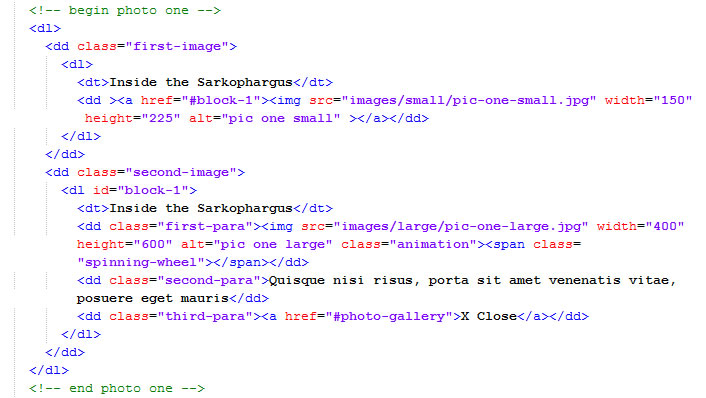
I used definition lists but I could have as easily used unordered lists. Note how the HTML code block for each image is split into two different parts – one for the thumbnail and the other for the full sized image.
The full-sized image needs to be set to “display: none” so that the initial state for the viewer is one where only the thumbnail is visible:
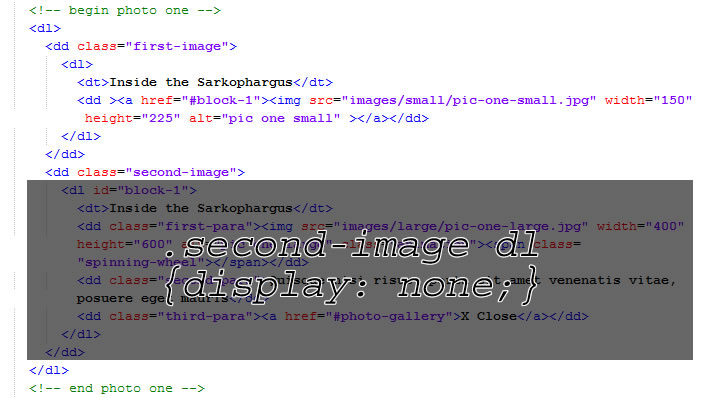
The Lightbox approach is for the full-sized image to appear after user interaction with the thumbnail.
This is possible with JavaScript events. The small code block below changes the CSS to “display:block” when the user clicks on the thumbnail (Here I use the querySelector() method which only has partial cross-browser support):
var thumbnail = document.querySelector(".first-image img");
var fullSize = document.querySelector(".second-image img");

thumbnail.onclick = function () {

    fullSize.style.display = "block";

}
The closest we have to JavaScript events in CSS is the :target pseudo-class. I don’t know whose idea it was to introduce :target into the CSS3 spec, but its inclusion was a minor act of ingenuity.
Instead of a script event like above it is possible to use the following CSS:
.second-image dl:target {
    display: block;
}
:target works by using a fragment in the URL. The link in the thumbnail has the following fragment: “#block-1”. The ID for the full size image is block-1. Clicking on the link with the fragment then triggers the HTML with an ID that is exactly the same as long, of course, as you specify this in your style sheet.
Because it is so different to other CSS, :target may appear a little confusing at first. The best method to become familiar with it is by rolling your sleeves up and experimenting with this pseudo-class on your own code.
:target will become one of the most used CSS3 features in the future. The reason it has only had limited use so far is that it is not supported in Internet Explorer versions 8 and below. I’ll discuss workarounds in the next section.
The actual CSS keyframe animation is fairly straightforward:
/* animation for main image */
.second-image dl:target .animation {
    -moz-animation: image3D 2000ms cubic-bezier(0.950,0.050,0.795,0.035);
    -webkit-animation: image3D 2000ms cubic-bezier(0.950,0.050,0.795,0.035);
    -ms-animation: image3D 2000ms cubic-bezier(0.950,0.050,0.795,0.035);
    -o-animation: image3D 2000ms cubic-bezier(0.950,0.050,0.795,0.035);
    animation: image3D 2000ms cubic-bezier(0.950,0.050,0.795,0.035);
}

/* image3D is used on the main image */
@-moz-keyframes image3D {
    0% {
       -moz-transform: rotateY(90deg);
    }

    100% {
       -moz-transform: rotateY(0deg);
    }
}

@-webkit-keyframes image3D {
    0% {
       -webkit-transform: rotateY(90deg);
    }

    100% {
       -webkit-transform: rotateY(0deg);
    }
}

@-o-keyframes image3D {
    0% {
       -o-transform: rotateY(90deg);
    }

    100% {
       -o-transform: rotateY(0deg)
    }
}

@-ms-keyframes image3D {
    0% {
       -ms-transform: rotateY(90deg);
    }

    100% {
       -ms-transform: rotateY(0deg);
    }
}

@keyframes image3D {
    0% {
       transform: rotateY(90deg);
    }

    100% {
       transform: rotateY(0deg);
    }
}
I will not explain the code above in detail because this article isn’t a tutorial on CSS3 animation. For that I would advise you to read introductions written by Tim Van Damme, Louis Lazaris and Tom Waterhouse.
Note in the code above I used Webkit, Firefox, Microsoft and Opera prefixes. As of yet there is no keyframe support in Internet Explorer or Opera but it will be coming soon so it’s best to future-proof your code.
JavaScript and Lightbox
On my Mozilla Demo page I had a lot of fun creating a modern take of Lightbox with CSS3. I used box-shadows, the calc() function, gradients and CSS3 transforms. If you turn off JavaScript in your browser and try the demo out in a modern non-IE browser you will see it is in perfect working order.
However, there are are number of pitfalls with a CSS-only approach.
Firstly, CSS3 animation only fires once. This is an issue previously well documented by Oli Studholme and Chris Coyier.
CSS3 keyframes animation will only work again if the page is refreshed. One way around is to use transitions instead of keyframes. Another way is to use JavaScript to rebuild the node every time the animation is fired.
In the change_animation() method I remove the old class, clone the relevant part of the DOM, randomly add a new class, delete the online node and replace it with the DOM clone:
change_animation: function (htmlElement) {

    var items, random, regEx, result, key, mainBlock, cloneBlock, parentBlock;

    // below finds the unique key which is in the parent div id
    function removeArrayElement(element, index, array) {
       return (!element.search(_private.REMOVE_SEARCH));
    }

    regEx = /.([0-9]+)$/;
    result = regEx.exec(htmlElement.parentNode);
    key = result.filter(removeArrayElement).toString();

    // this unique key is then used to find the large image in the overlay
    // this is an alternative to some bonkers DOM transversal method
    mainBlock = document.querySelector("#block-" + key + " img");

    // remove previous animation class
    mainBlock.removeAttribute("class", "");

    // In order for CSS animation to run more than once on the same element
    // It is necessary to rebuild the node
    // See for further details: http://css-tricks.com/restart-css-animation/
    cloneBlock = mainBlock.cloneNode(true);

    // select a class at random
    items = this.classes;
    random = items[Math.floor(Math.random() * items.length)];

    // rebuild the html adding the new class
    cloneBlock.setAttribute("class", random);

    parentBlock = mainBlock.parentNode;
    parentBlock.removeChild(mainBlock);
    parentBlock.appendChild(cloneBlock);

}
I’m sure you could write less verbose code if you used jQuery.
What this means is the global object user interface is as below:
lightbox.init({
    // declare CSS classes that are used for animation
   classes: ['image3D', 'flipper', 'bulge', 'bouncing', 'side-spin', 'top-spin', 'shadow-play', 'rush']
});
In order to change the animation just add a new class to your CSS and to the JavaScript facade. Referenced above, “top-spin” CSS looks like this:
/* TOPSPIN */

.top-spin {
    -moz-animation: topSpin 2000ms cubic-bezier(0.000, -0.600, 0.000, 1.650);
    -webkit-animation: topSpin 2000ms cubic-bezier(0.000, -0.600, 0.000, 1.650);
    -ms-animation: topSpin 2000ms cubic-bezier(0.000, -0.600, 0.000, 1.650);
    -o-animation: topSpin 2000ms cubic-bezier(0.000, -0.600, 0.000, 1.650);
    animation: topSpin 2000ms cubic-bezier(0.000, -0.600, 0.000, 1.650);
}

@-moz-keyframes topSpin {
    0% {
       -moz-transform: rotateX(0deg);
       -moz-transform-origin: 0% 50% 0;
    }

    100% {
       -moz-transform: rotateX(360deg);
       -moz-transform-origin: 0% 50% 0;
    }
}

@-webkit-keyframes topSpin {
    0% {
   opacity: 0.1;
       -webkit-transform: rotateX(0deg);
       -webkit-transform-origin: 0% 50% 0;
    }

    100% {
   opacity: 1;
       -webkit-transform: rotateX(360deg);
       -webkit-transform-origin: 0% 50% 0;
    }
}

@-o-keyframes topSpin {
    0% {
       -o-transform: rotateX(0deg);
       -o-transform-origin: 0% 50% 0;
    }

    100% {
       -o-transform: rotateX(360deg);
       -o-transform-origin: 0% 50% 0;
    }
}

@-ms-keyframes topSpin {
    0% {
       -ms-transform: rotateX(0deg);
       -ms-transform-origin: 0% 50% 0;
    }

    100% {
       -ms-transform: rotateX(360deg);
       -ms-transform-origin: 0% 50% 0;
    }
}

@keyframes topSpin {
    0% {
       transform: rotateX(0deg);
       transform-origin: 0% 50% 0;
    }

    100% {
       transform: rotateX(360deg);
       transform-origin: 0% 50% 0;
    }
}
The second issue facing a CSS3 Lightbox is the lack of support in Internet Explorer. Unfortunately, versions 8 and below do not recognise the :target pseudo-class.
One way around this is to use a polyfill such as Dean Edwards IE7.js or Keith Clarke’s Selectivizr (the latter has support for IE8 only).
As the Sizzle engine has full CSS3 support I presume as well that you can use jQuery or Dojo.
However, my aim for my demo was to create it fully independent of any other JavaScript library. This is a tough call.
If a browser does not recognise a CSS pseudo-class or pseudo-element it will parse out the entire block of code. That means it is not possible to change the CSS using the styleSheets object because the CSS block using :target is not there to alter.
My solution was to use the XMLHttpRequest API to save the stylesheets to memory, change :target to a class called ieTarget, remove the old style sheets and then add the new altered CSS to the head. The ieTarget is then dynamically added and removed from the HTML depending on a click event being fired on the thumbnail or full-size close link.
Admittedly, it is quite a drastic move and one that leaves open all sorts of potential bugs and issues.
Lastly, if you are going to use JavaScript for Lightbox then why not use the new Full-screen API. This was introduced into Webkit in 2011 and made its first appearance in Firefox at the beginning of 2012.
The API is relatively straightforward to implement. I did so in the following function:
full_page: function () {

    var img, x, docElm, l;

    img = document.querySelectorAll(".first-image img");

    for (x = 0, l = img.length; x < l; x += 1) {

       // call full screen when clicking on the thumbnail
       img[x].addEventListener("click", function (evt) {

           docElm = document.documentElement;

           if (docElm.requestFullScreen) {
               docElm.requestFullScreen();
               _private.add_warning();
               _private.request_smallscreen();
           } else if (docElm.mozRequestFullScreen) {
               docElm.mozRequestFullScreen();
               _private.add_warning();
               _private.request_smallscreen();
           } else if (docElm.webkitRequestFullScreen) {
               docElm.webkitRequestFullScreen();
               _private.add_warning();
               _private.request_smallscreen();
           }

       }, false);

    } // end for loop

}
It is now possible to access the global object in the following interface, with the Full-screen API being switched on and off with a boolean value:
lightbox.init({
    // declare whether you want to use the Full-screen API
   fullscreen: false,
    // declare CSS classes that are used for animation
   classes: ['image3D', 'flipper', 'bulge', 'bouncing', 'side-spin', 'top-spin', 'shadow-play', 'rush']
});
Conclusion
You may well wonder if there is a need for a JavaScript fullback for a CSS-based Lightbox, then why not just a use a wholly JavaScript approach and cut out the CSS animation? That, of course, is your pejorative. But let us put the sign up for everybody to read: animation for web design will soon be exclusively done by CSS, not JavaScript. In anticipation of this it makes sense to familiarise yourself with CSS animation now.
Using JavaScript too also means you can gain access to some of the funky new APIs like Full-screen.
If you do use CSS 3d animation then do so with caution. I think it is important to use it subtly rather than creating some garish 360 plus flipping and twisting. To do so would put the animation at the centre of attention rather than the images that are being presented.
About Author
Andy Walpole is a London-based freelance coder. He is currently collaborating with others on a number of different projects including a WordPress plugin for affiliate marketing and a Twitter service for teenagers. You can find him hanging around Twitter most days: @andywalpole
59 Comments
Comments are closed.
CreativeWebGallery
Excelent !.
Tnkx for sharing !
Mike
Really nice!
Wahab Hussain
Seems like not working properly in Opera. Kindly check Thanks
On Firefox it looks good.
Andy Walpole
Wahab, it’s not going to work the same in Opera as Firefox because the Full-screen API is, so far, only available in Firefox and Webkit-based browsers.
Ron
Not working properly in latest versions of Chrome or Firefox. Didn’t have behaviors I would expect from a lightbox at all. Couldn’t navigate using the gallery at the bottom on my 768 height screen since only a bit of the thumbnail showed. Didn’t have the standard arrows that appear on hover over the image to move from one picture to another either. So basically, I couldn’t navigate at all.
Andy Walpole
It’s working fine in the latest versions of Firefox and Chrome
I’ve only tested it out on the desktop so it’s not optimized for mobile devices
No there is no navigation, yet, it’s a means of presenting single images
Andrew
Pretty awesome tutorial, Thanks for sharing!
Robert
Great tutorial, thanks for sharing!
Eric
I recommend correcting “pejorative” to “prerogative” since they mean very different things :) there are also some other typos (including an it’s/its) so maybe you’d like to do a once-over. Thank you for the article.
Andy Walpole
Well spotted. Perhaps Nick can change that mistake
Dave Curtis
This post is very informative. We also help in improving websites and we manage web designs, development and SEO. Easy Web Services
Alexa
Thanks for giving tutorial based on css3 and javascript with detailed description including code. I read your post really i get some knowledge.
Chris Devlin
Its working nice in firefox. Thanks for this tutorial. I wanna work in other browsers. Hope it works.
Augusto Valerio
Thanks!!! it works wonders, I’ve been looking for a modern lightbox like this! I will for sure implement!!
Aranzamendez Website Design
Well, it really works for me for any browsers, this tutorial is really a good idea for us web designers.. Thanks for sharing it..
Adam Zoa
Very informative post and i have implemented it also. It feels good to say that works for any browser. Thanks Andy.
Morgan Feeney
Awesome display of the capabilities that are available within CSS and Javascript. I would love to see a responsive version, well when I say see… I mean use ;)
Cheers
Tony
It doesn’t work properly in Firefox. And the inability to go through images with a mouse click or keyboard doesn’t make any sense.
Webdesigneria
Good explanation about css
Crusty McCrusterson
Really over-designed. Just because you can do something, doesn’t mean you should. I would say that this actually enhances the worst aspects of lightboxes. Nice effort, but designers should think carefully before implementing something this over-done.
Ubersoft
A good example for the implementation you have certainly packed a lot in.
Thanks for sharing!
Bharat Chowdary
Thanks for this awesome tutorial, liked the CSS.
Eric
I can’t wait for CSS3 to be fully supported or until people stop using the older browsers. Great post!
Well, it was nice knowing Flash. Maybe it’ll be buried next to Silverlight so I can visit them at the same time…
Carl Samuelsson
Really great lightbox! Good to see that CSS3 is finally coming!
nick
or you could just use javascript/jquery and waste a lot less time and have it work in more devices than this css3 only method will. i wish we had a better “target” method that didn’t make the screen jump to that element, it’s just ugly that way.
Boss Web Design
css3 is new and I get that “it’s the way of the future” but I prefer backwards compatibility. Using methods only supported by new browsers seems like a bit of a waste if you plan to grow your site and make it very popular. Well, I guess it’s only a waste if conversions/sales matter to you – my personal opinion.
orhanxy
Good Lightbox.
kartofelek
Maybe this is modern, but in my firefox they work very bad/slow, and does not meet the requirements of good lightboox – speed work and usefull :)
jj
nice effects :) great job
panoramy 360
Many Thanks, good post!
Mohamed Alaa
Thanks for the nice post :) this is great!
patent search
Really nice post shared by you. With the help of css3 we can make many creative things like button, menu as well as slider also. Also i would like to use this new things.
Ankit kumar
really nice and informative post thanks for sharing it. Keep up.
Converage Integrated Media Solution
nice effects :) great job. Many thankx buddy.
Converage Integrated Media Solution
Kenzie
Shrink, Share & Get Paid!
Go To http://netfly.com/?r=1 to get paid for your posted links!
Santosh
Hello Andy,
I see this CSS3 light box and I hope this will work out for all developers. Now I will start trying to integrate in local and I will try to get live once it’s done. I got lucky to get this new light box with full screen mode.
Thank you once again for this nice post and I am awaiting for new articles soon.
uxzeal
Nice Article… I hope one day my blog (www.uxzeal.com) also appears on the list…
Wandspiegel
Im searching for this! Thank you Andy!
8 Bassein
Nice effect! But I’m more worried about the browser compatibility issue.
Ascentia Media
Nice effect! This could be the next lightbox style effect. CSS3 is definitely taking it’s place.
html code generator
I’m curious to find out what blog platform you are utilizing? I’m experiencing some minor security problems with my latest site and I’d like to find something more risk-free. Do you have any recommendations?
game art and design
Do you think a case study regarding how games change the brian or stem cells
be a excellent case study?
Termopar
I just love to use lightbox! It makes a simple site looks great!
creati5
im loving and zhetenging it now.
web site tasarımı
Very helpful. Thanks for sharing!
johanso
Very good, thanks for the information
Thiet ke logo
thank you for sharing this experience
very useful but currently do not support multiple firox
installing ceramic tile, tiles r us, ceramic tile installing, kitchen wall tiles, natual stone tiles, ceramic tile, cheap carpet tiles
Hello! I could have sworn I’ve visited this blog before but after going through a few of the articles I realized it’s new to me.
Regardless, I’m certainly pleased I stumbled upon it and I’ll be book-marking it
and checking back frequently!
Linux VPS
Thank you for sharing your knowledge. Pretty useful information indeed.
rickymartin
very nice info thanks.
Stop Nail Biting
Really great, Well done for your ideas on the review %BLOG TITLE%, they happen to be quite effective.
I appreciated reading your write-up.
Ashlee
I constantly spent my half an hour to read this weblog’s articles or reviews every day along with a mug of coffee.
Villanueva propiedades
What’s up everyone, it’s my first visit at this website, and piece of writing is really fruitful in support of me, keep up posting such articles.
seo
Very helpful. Thanks for sharing!
himanshu
i like this
Christine
ola:)
JoomlaBasic
Great. Thank for sharing !
Laundary cleaning
Hi Andy !
This is a cool tutorial. It’s very impressive to read. I am happy that we can also get codes from here.
Thanks
Abegail Louise Acosta
I definitely need to sort that! Working as a newbie in a professional website development company.