First of all, I would to thank Porter Novelli, the PR firm representing Adobe in Canada, for offering a copy of Adobe CS4 to do this review. CS4 has been out for quite a while and I hope you have already upgraded because the new CS4 is all about maximizing your productivity and making your work easier. In this post, I’m going to write about my experience with using the new features of Photoshop and Illustrator.
Photoshop CS4
What is New?
If you want to see what is new in CS4, go to Window > Workspace > What’s New in CS4. Now you will see the new features in the menus highlighted.

Interface
Photoshop CS4 has made a lot of changes to the interface. Photoshop CS4 now encloses everything in a window called Application Frame and organizes multiple documents in tabs.

I’m not a big fans of the tabs and Window Frame. But what I like is the quick access of the Arrange Documents menu. It allows you to organize the open documents in various arrangements.

Layer Adjustments and Masks Panel
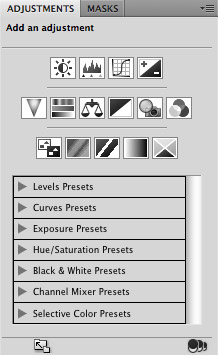
Another obvious change is the new Adjustments and Masks panel. The Layer Adjustments and Masks now have separate panels, providing you quick editing. Now, you don’t need to configure the adjustment setting in a modal dailog box. You can quickly change the setting in the panels.
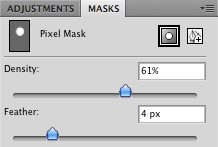
What I like about the new Masks panel are the Density and Feather option.
Rotate View Tool
If you are using the new Macbook Pro with multi-touch trackpad, Photoshop CS4 could be your best pal. With the multi-touch trackpad support, you can zoom and rotate the canvas smoothly with two fingers. Shortcut tip: when your canvas is in angle, double click on the Rotate View Tool (on the toolbar) to return the Rotation Angle to 0.

Rotate View tool is extremely useful when you have to do a lot of brushing (ie. editing large images or digital painting). It allows you to rotate the canvas as if you were rotating paper on a desk.
At the beginning, I always accidentally rotated the canvas while trying to zoom with the trackpad. It took me a while to get used to it. Now, I enjoy using the multi-touch trackpad to zoom especially when working on a large illustration. If you don’t like the Rotate View tool or want to disable it, go to Preferences > Performance, uncheck "Enable OpenGL Drawing". There is also a plugin that helps you to disable the canvas rotation via trackpad, yet the feature remains available through the Rotate View tool.

Smooth & Animated Zooming
I love the new zoom handling. Now you will see smooth looking images at any zoom level. This means you’ll no longer see jagged edges when viewed at odd percentages.

Another enhancement is the animated zooming. With the Zoom tool selected, click and hold the mouse button, watch as the image zoom in continuously.
Navigation Shortcut
If you use the Navigator panel a lot, I have a shortcut tip for you. Open an image and zoom in to the max. Select the Zoom tool, hold the H key, click on the image, it will quickly zoom the image to fit in the window, you will see a rectangle box, drag it around and release it where you want to go.

Pixel Grid
When you zoom in over 500%, you will see the Pixel Grid. It is handy if you need to distinguish between adjacent pixels in the zoom mode. Personally, I don’t find it useful, so I turn it off most of the time (View > Show > Pixel Grid).

Flick Panning
Flick panning is another time-saver feature that lets you move the image in the direction based on your mouse gesture. You may find it useful if you work with high-res images or in zoom mode.
Content Aware Scaling
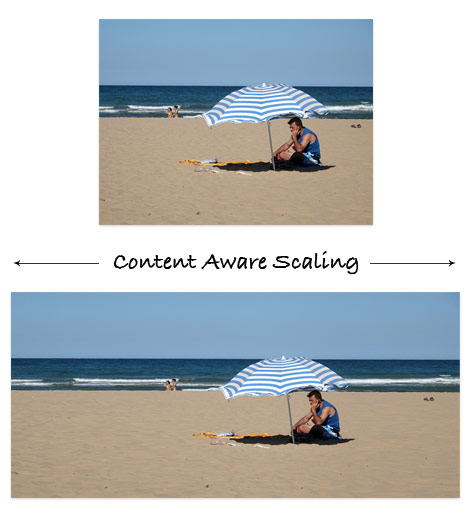
Have you ever received off-size images from your clients and you have to spend hours on cropping and retouching them. For example, you have a landscape image placeholder, but your client send you a portrait format image. With the CS4 new tool called Content Aware Scaling, it automatically preserves the important areas of the images as you resize it.
Clone Tool Live Preview
The improved Clone tool now provides a live preview in the cursor as you are brushing the image. Minor, but a nice enhancement.

Brush Size Adjustment Shortcut
I just discovered another new Photoshop shortcut for adjusting brush size. Select the Brush tool, hold down the Control + Option key (PC: hold down Alt + right mouse button), click on the image and it will show you a preview of your current bursh size. Now, drag left to decrease the brush size, drag right to increase. This shortcut works on all brush tools such as Clone, Smudge, Dodge, Burn, Pencil, etc.

Illustrator CS4
Tabbed Document
Same as Photoshop CS4, Illustrator CS4 organize multiple documents in a tab view.

Multiple Artboards
For those who use Illustrator to design multi-page brochure or print work, here is good news. Now you can create multi-page documents of varying size with the Artboard tool. They can be overlapped, side by side, or stacked on top of each other. You can also export or print the artboards separately or together. For example, you can export them as a multi-page PDF file.

How this tool benefit me is now I can create my icons in multiple artboards and then export them to PNG files with one simple step.

Gradient Transpancy
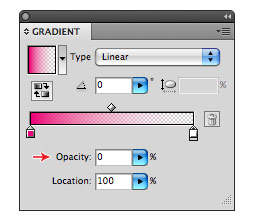
I’ve been waiting for the gradient transpancy for years! Finally, it is released in CS4. Before, I had to use the Opacity Mask to create transpancy in gradients. It was not efficient at all because I had to release and then re-apply the mask to edit the transparency.
New Gradient Tool
Two years ago, I suggested this idea to the Illustrator product manager, Philip Guindi. I’m so happy to see this happened in CS4.

With the new Gradient tool, you can edit the gradient on the object itself. It provides a slider in the object where you can: add or change color stops, apply transparency to color stops, and change the direction or angle of the gradient.

Shortcut tip: double click on the color stop to activate the color palette where you can change its color. It works on both the object slider or the Gradient panel.

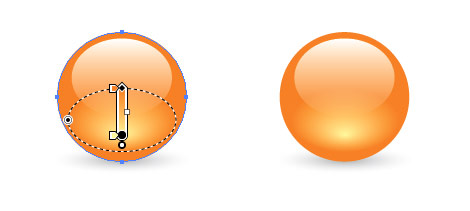
The image below shows how I can easily create a glossy orb with the new Gradient tool (before I had to use the Blend tool or Mesh to create such effect). In case you don’t know, I use Illustrator to design the stock icons and this new enhancement makes my process so much easier.
Key Object Alignment
Illustrator CS4 provides a new alignment option called Align to Key Object. A key object is the one object that you want other objects to align to. To do that: select all the objects that you want to align, click again to select a key object (you will see a thicker stroke outline), now choose an aligment in the panel.

View Outline in Isolation Mode
Another great enhancement is being able to view outline (Cmd + Y) in the isolation mode. It makes editing the group or mask objects in isolation mode easier.
Conclusion
Photoshop CS4
I would recommend Photoshop CS4 to those who are often dealing with high-res images such as the digital artists and photographers. You can improve productivity with the new features such as the Rotate View tool, animated zooming & panning, Ajustments, and Masks panel. The Content Aware Scaling is totally awesome. I think it will be useful for web or banner designers (because clients often send off size images!).
Illustrator CS4
Should you upgrade Illustrator CS4? Absolutely! It is a must upgrade, the best version ever. Just the the new Gradient tool and multiple artboards along is worth the upgrade.
88 Comments
Comments are closed.
Daniel J.
What a great review, it helped alot! Thank you.
Kim
I jumped from CS2 to CS4 after I found out CS2 wouldn’t work on Leopard. Totally worth it though, even though at the time I was gutted because I didn’t really have the spare cash. I love it!
a man
Hey, thx for new shortcut
Radoslav Holan
Whow, it’s time to leave old technologies and go straight into CS4 :) Nice review.
Manuel
“What’s new” a different way;)
Thx for the work
Mark Tyrrell
Content Aware Scaling… WOW. I’m still using Paint Shop Pro for most of my graphic work, but after seeing some of these features I might just have to give Photoshop another chance! I’d probably already be using it if I had a MacBook.
Landish
In PS CS4 increase and decrease brush size you can also with [ and ] keys on keyboard (PC Tip) ;)
anon
Why pay so much for a heavyweight program when there are plenty of open source alternatives that often do the job quicker and more efficiently?
rado
csx mac is terrible and adobe should be ashamed for asking for so much money http://adobegripes.tumblr.com/
Paul
nice review man. Enjoyed reading it and knowing what’s available …
kevin
I’m personaly pretty not happy with the cs4, so not stable, photoshop keeps on crashing way too much. And i have this really annoying problem that today again, i cant open a psd file that i made two days ago with the same photoshop and that tells me today that the file is not compatible with this version of photoshop !
Elizabeth K. Barone
I got CS4 a couple of months ago and I love it! The only beef I have with it, so far, is that in Dreamweaver, hexadecimals are abbreviated to three characters. I’ve tried to change this option but couldn’t find it, and Googling or searching Adobe help has been most unhelpful. (The only documentation I could find on the Adobe site had been answered by several “experts” who ridiculed the developer asking the question.)
If anyone knows how I can change this, please let me know! My email is ebarone[at]ekbdesigns[dot]com, or you can tweet it to me @elizabethbarone. I would so appreciate any help! (:
Roberto
Kevin,
I assume you’ve been saving your psd files over a network. If this is case, Adobe says this operation is not supported by their software (anymore). I began to notice this problem from the CS2 version since I’ve always saved files over the network in the last 8 years or more. I have lost a few psds from CS2 on. Their answer is: save your files locally and manually copy them to your server after finishing. This is what I do now and since then I have lost no more files. Hope this helps you.
kevin
@roberto
yeah we do save our files from our computers to the server on our lan. Damn this really sucks, will be so annoying to save our files manually to the server everydays. Thanks for the tip man. (ps: i dont know if my prev message passed, if yes, sorry for the double answer-post).
Kayla
Awesome review. I just got CS4 and its the first version of Photoshop I’ve ever had, so I can’t do much for a review myself. The Content aware resizing is pretty neat…I’d love to see a more in-depth tutorial on that. I’ve had problems with improperly sized pictures way too many times.
I’m fairly new to Photoshop, so I’ll have to check back and read this review more closely– maybe try to pick up on a few of the benefits of owning CS4. These are some great features.
Olivia Krowicka
I’ve had CS4 for a while now and it’s great. I haven’t experienced any of the issues some people seem to be having. Overall, I like the whole suite. InDesign has also undergone some changes like interactivity allowing for easier publishing to the web. I think it’ll be useful when combined with Flash. I often wish Flash had more type layout options but now I can layout my type in InDesign and go from there.
CosasDeChiicas
Hi! whatz up? Guessy is here and I’m here to tell you something… Your website is GREAT!
I’m here also have say my Blog is great too, but I have only 15 friends but I want to hace more friends and comments!
If you can contact with at [email protected]; thanks so much for publicate my comment and I say again… YOUR BLOG IS GREAT!
Byee!, Guessy Was Here!
Perla
yay! :)
Mads Hensel
Just found a extra shortcut to match with the on you showed on the brushsize. To increase or decrease the the hardness of the brush use (On a Mac) Control + Option + Cmd and drag right or left (I don’t have a PC, so anyboy on a PC have to try for them self).
Thanks for the tip I know I’m going to use it alot.
RaphaelDDL
I got Photoshop CS4 some time after got released. While it’s kinda shameful to use cracked version, i have no money to buy a license YET. But one thing i noticed, the PS load damn faster than CS2/3 versions. And when you make it ‘Portable’ version, loads more faster than that! Unbelievable!
And i got inDesign and Illustrator CS4 last week. And i’m loving all of them, they got so much add ons, i loved the tab’s, the quickness and everything else. I’ll sure get a official copy when i get enough money ^^
Totally recommended
Trevor
Ah yes, it seems to be well worth the money. Too bad I dropped all my extra cash on the CS3 suite before school started last September. Ugh.
And Raphael, perhaps the stupidest thing you could have done is publicly admit to stealing three programs and not only stop there but have a link directly to your website. Do you think your claims of ‘wanting’ to buy the software is gonna mean shit when they come for you? Seriously man, some things are better kept to yourself. If you’re strapped for cash, try and work out a student deal or see if you can purchase from a local college. It’s 70% cheaper!
Jon
Thanks for the review.
I totally agree with you. The new Illustrator multi artboards and gradient tool are amazing!
kevin
yeah trevor is right, i got my cs3 master some much cheaper when i still was a student. Definitely something to look at.
Mary-Anne Watson
Haha awe Raphael, information like using a cracked version is not something you should be telling the world. Keep that in mind for future reference sweetheart.
The Frosty @WPCult
I’ve been meaning to upgrade my CS3 to 4..
Marvin
Nice explanations! thanks for this!
Daniel
Hey =] great review! Just wanna add in that with CS4 Photoshop now has built in 3D support which makes life a hell of alot easier for 3D art. Just export a .obj file from maya or max and pop it into PS, once you’ve set up your UVs of course, then paint right onto the model. I know there is software that already does this, but some people are already genuis with photoshop so why lose skill in a new piece of software?
César
Well, Illustrator cs4 is really nice with this gradient tool and the new alpha options, but photoshop CS4 it is not so great, it is to heavy!! You can´t work so fast like in CS3. Even if you have a great machine.
For all those guys who want to buy de CS4 if you work with Flash, I recommend that see it first, a lot of people get confused, the interfase has changed a lot. The rest of software are just better than older versions.
baratas
Great. Very good.
Jack
Yes, CS4 is cool. But I spotted some other problems espeically when using Axislis Iconworkshop plugin. Therefore I use CS3/CS4 together at the moment.
Danilo
Cool ! Nice explanations! thanks for this!
jorre
The new photoshop zoom functionality looks good in theory, but on my system this crashes my photoshop instance. I have to disable OpenGL support or ps just crashes every time again… many nvidia users seem to have this problem…
Printing Brochures
The CS4 Illustrator certainly makes preparing designs for print much easier. Exacting CMYK colors is much quicker and the multiple artboards layout makes designing layouts for multiple page documents, such as brochures, a breeze – each panel can be balanced at the same time as they are being designed. Incredible!
om ipit
with this post, now i can review a software. thanks for share
Michael Shevlin
More reviews, please: you’re very good at them. You reviewed illustrator in a couple of paragraphs!
Hari K T
Thanks for writing a wonderful post about CS4 to know more about it .
Thanks once again and Keep going ..
Hari K T
diyet
In one word great
ballwell
greatt!!!!!
i will be proccess to learn CS4. ..
sandman6665
Nice review! Direct to the new features/functions..
Urvin
Love it
engr_syful
best of luck
darren
While the features are fantastic, I have great problem with a very slow response. 2GB of ram should handle this app but with complex vectors, i am falling asleep in my chair.
David
Excellent review – no woffle striaght to the point, good stuff! Could you review Flash CS4? I like Flash CS4, but there are some strange problems concerning video that need addressing…
Varud
Hey, thank you for this review. I actually learned a lot from reading this post.
Thank you!
naran_ho
mmm. Intresting review ,, Chau
PTCKu
good job frend!!!
go for it!!
Albert Decruz
The blog is very nice the information is very much standard and it gives more knowledge
Herbert
Nice article. However, you didn’t mention that us mac users won’t have a 64 bit CS4, which is very unfortunate. Also, what about the graphic card acceleration promised to Photoshop?
Lastly, Illustrator already has that Key Object Alignment, at least in CS3. Although it doesn’t highlight the key object as in CS4, it does the same thing.
Best regards!
Unibet
Thanks for sharing.Great topic
acı cehre
You are great. I followed carefully the work. I wish you continued success
cennetevi
Thank =)=)=) you http://www.cennet.gen.tr webdesignerwall Thanks
Derek Hildenbrand
Sounds like it’s time for an upgrade… lots of great features in there
kit pes
nice frend, i like it
kit-pes.blogspot.com
peaw
very nice I would like to know more how can I do
Chris
Thanks for showing how to turn off the pixel grid, it was driving me crazy!
Jhon
Really cool site.
bagsin
The blog is very nice the information is very much standard and it gives more knowledge
胡雅琴
很不错的教程,谢谢楼主分享
kilo aldırıcı
thanks it is. very nice work…
rx1 zayıflama hapı
thanks it is. very good topic.
kilo aldırıcı
very nice design
Mike
Thanks for showing how to turn off the pixel grid
panel radyatör
jesus cries what a wonderful article
acai
very nice design.
red pepper
Thanks for showing how to turn off the pixel grid
biber hapı
very perfect design…
panel radyatör
nice thanks
vincentdresses
喜欢你们的设计与技术,常来看看
nitrofurano
this article would be really wonderful if Photoshop and Illustrator were compared with Gimp and Inkscape…
bursa psikolog
great resourse
nilika
great stuff…………..
WebsiteReckon.com outstanding web analytic tools on the internet today. You can use it for FREE. More than website value calculation, are target specific Traffic, pageviews. Fantastic!
nice site design ………..
websitereckon.com
kosmodisk
kosmodisk nedir
Rrrrrrrrrrrrrrr__________
You would also write anything good about anything that you would be given for free.
Here is my free gift for beeing so critical to this nice company.
Shame on you!
Abu toha iraz
Very nice……………..good
Web Design
gracias for sharing!@!
Cosmo Disk
Very nice……………..good
malkovicht
:) shame on me! i’m still using cs2 lol!
Melvins
Photoshop CS4 is very useful tool for graphic designer. It takes advantage of the graphics card’s GPU for improved performance and supports unlimited RAM and 64-bit processing under windows.
Web Design LA
best handbags
outstanding web analytic tools on the internet today. You can use it for FREE. More than website value calculation, are target specific Traffic, pageviews. Fantastic!
Henry Peise
Apple’s launch of the iPhone 4 white has seen the greatest excitement for a new phone ever, with HD video recording, a super high-res screen and ridiculously slim dimensions, it’s not hard to see why its so popular in the world.
Juno Mindoes
People can have no interst in Nokia, Moto or other mobile phone brand, but he wiil surely love the apple offical white iphone 4.
Ben
Your position on it is diametrically contradicted to what I read earlier.
altın çilek
outstanding web analytic tools on the internet today. You can use it for FREE. More than website value calculation, are target specific Traffic, pageviews. Fantastic!
dexx
Different thinking, contains a problem to produce several possible solutions.
Fahnen und Flaggen
You are great. I followed carefully the work.
Der Fahnen Shop bedankt sich.
complex 41
And then he handed you the thirty-five 55
complex41
And then he handed you the thirty-five 45
DymoLabels
hi
i really like this blog
this is very useful for me and my friend
i like to work on CS4
thanks for sharing